ISM-1100_INM.pdf - 第27页
Quick reference handbook Barcode Reader software Quick reference handbook Barcode Reader software rev_6 Edition 06/2017 - Reproduction forbidden Page 27 CAMERA SETTIN G By default, the ca mera is already set u p inside E…
Quick reference handbook Barcode Reader software
Quick reference handbook Barcode Reader software rev_6 Edition 06/2017 - Reproduction
forbidden
Page 25
BARCODE PROCESS TAB
The new version of the Barcode reader module (2.0.2.4) is a multi-process
version: this version allows the technician to install an only version to work both
DTK and Halcon library.
From the 2.0.1.8 Barcode reader version, a technician can change technology (for
example from DTK x 64 to Halcon 13x64) with a single click.
At the moment, it is no possible to use more than one technology at the same
time.
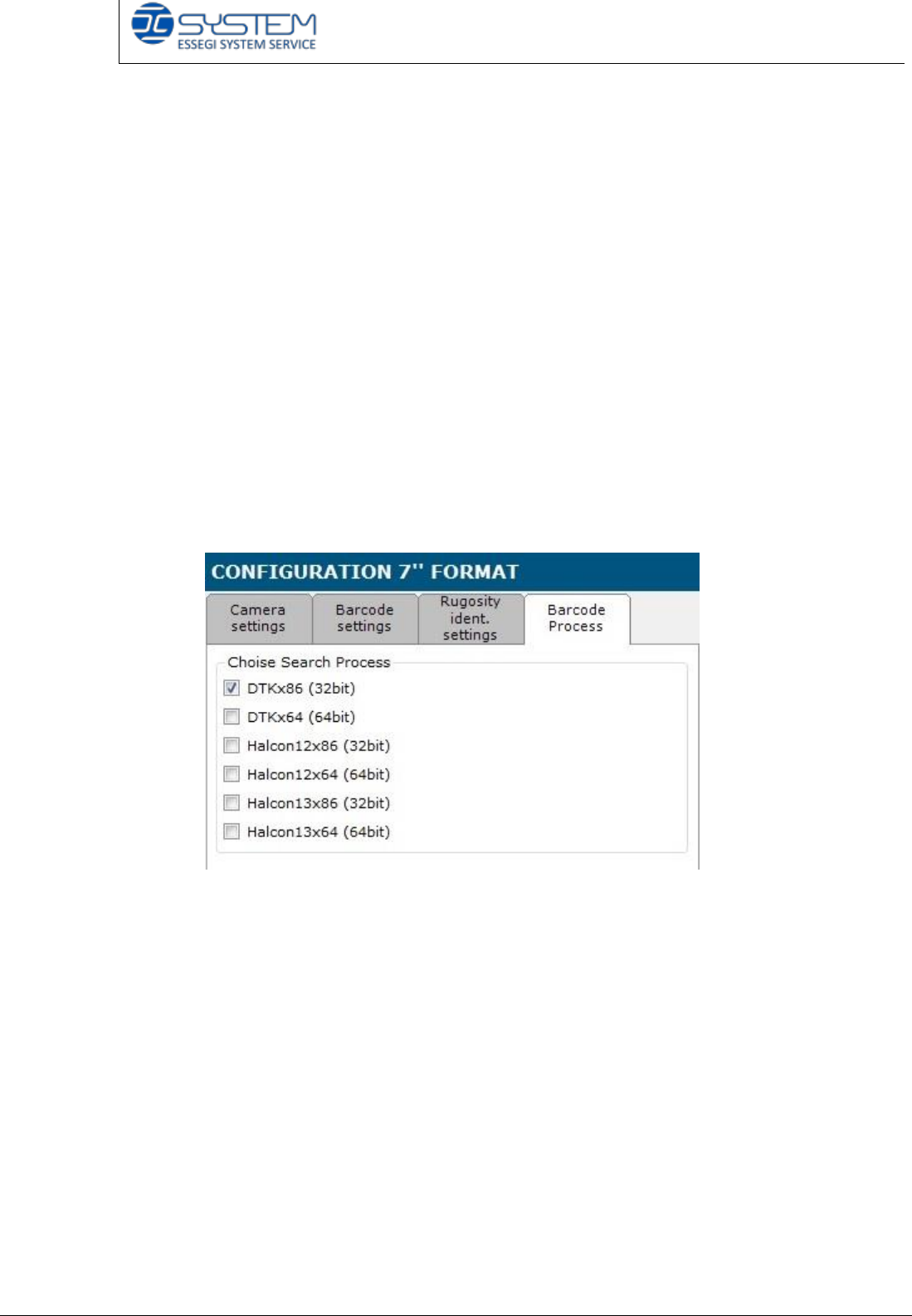
On Barcode Process tab, it is possible to select the correct version depending on
the features of the pc (32 or 64 bit).
At present, the processes could be:
- DTK
- Halcon 12
- Halcon 13
Please refer to the following guide to install the new barcode reader:
How to install the Multi process barcode reader
Quick reference handbook Barcode Reader software
Quick reference handbook Barcode Reader software rev_6 Edition 06/2017 - Reproduction
forbidden
Page 26
STEP 4 – READING CODES
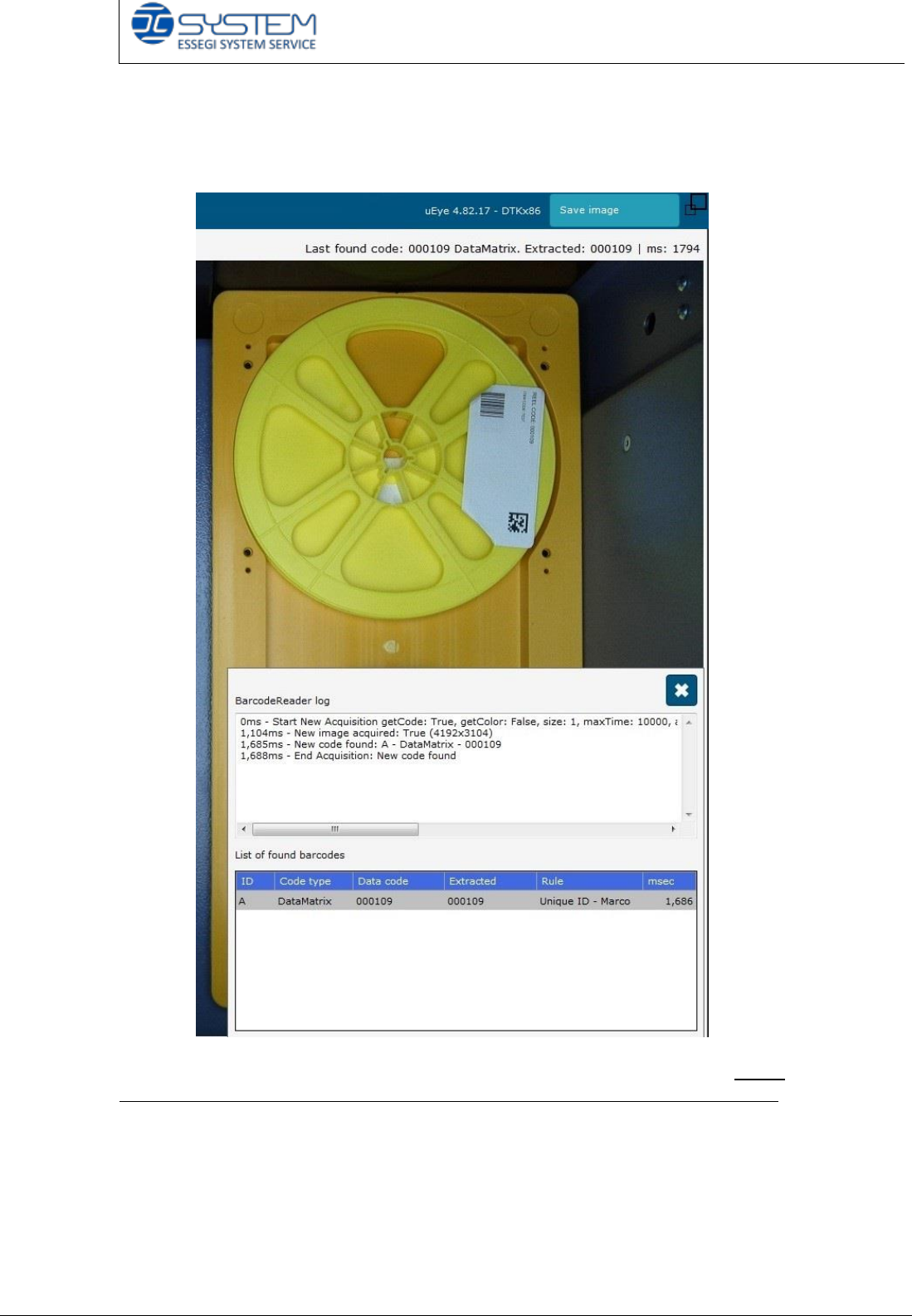
If the modifications are correct, you can view the codes at the top right corner.
Last found code: it indicates the last code that the camera has found. Please
note that here there will be indicated only the codes that respect the rules setting
Extracted: it indicates the code using the rules set in the barcode settings tab.
ms: it indicates how long the camera takes to find the code in millisecond.

Quick reference handbook Barcode Reader software
Quick reference handbook Barcode Reader software rev_6 Edition 06/2017 - Reproduction
forbidden
Page 27
CAMERA SETTING
By default, the camera is already set up inside ESSEGI factory.
The setting files camerasettings.ini and barcodereadersetup.ini of the AutoSMD
BarcodeReader software are in the folder C:\AutoSMD\Barcodereader.
In order to change the advanced parameters of the camera, you have to open
camerasettings.ini with the uEye Cockpit program of the camera (here it is
possible to change the parameters of the camera and to save them in the
camerasettings.ini file).