ISM-1100_INM.pdf - 第5页
Quick reference handbook Barcode Reader software Quick reference handbook Barcode Reader software rev_6 Edition 06/2017 - Reproduction forbidden Page 5 AutoSMD Bar code reader – Ca m viewer “ State: Runnin g ” means the …
Quick reference handbook Barcode Reader software
Quick reference handbook Barcode Reader software rev_6 Edition 06/2017 - Reproduction
forbidden
Page 4
STEP 2
Main window of the Barcode reader software
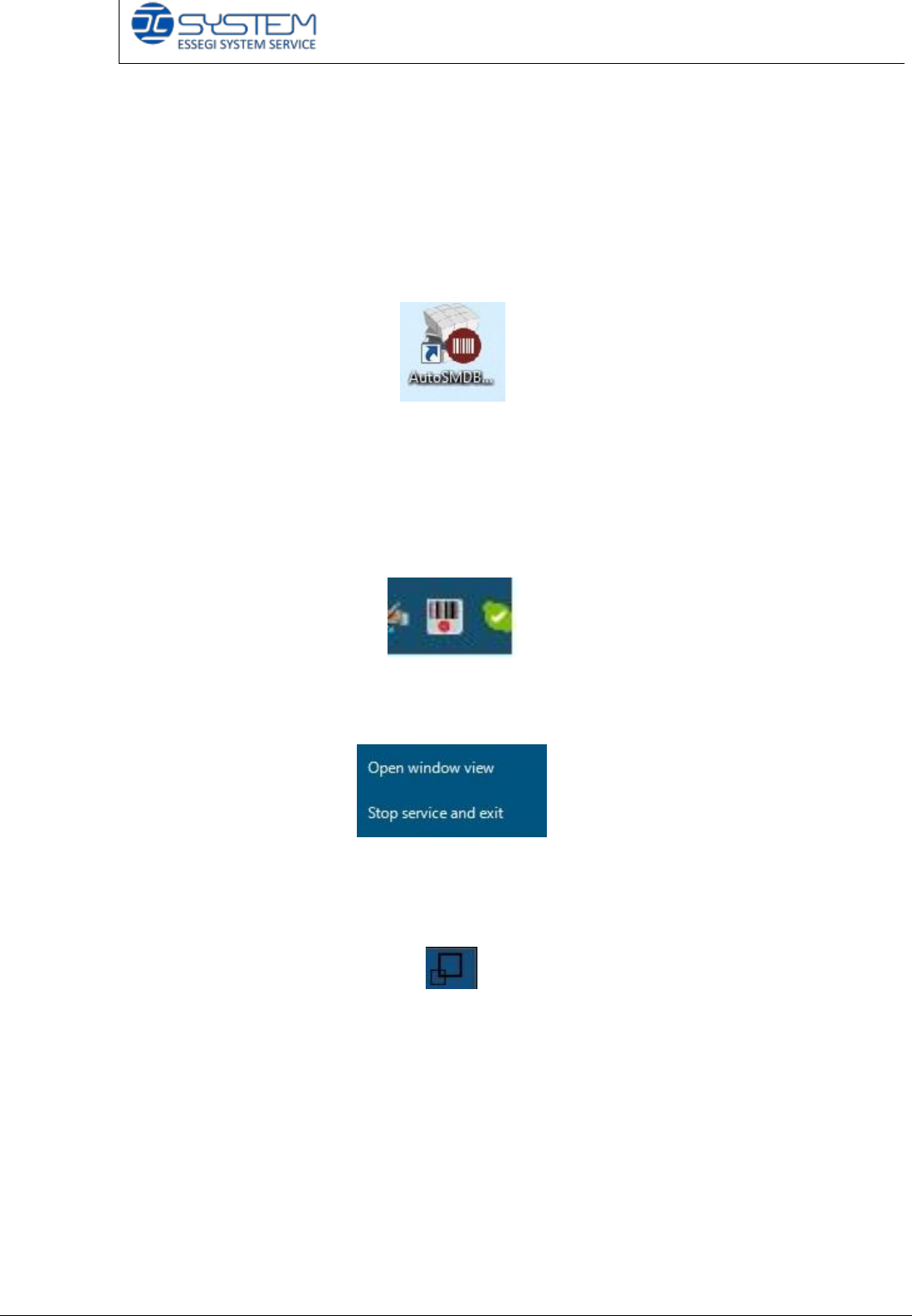
By opening the container module, you automatically open also the AutoSMD
BarcodeReader software. You can also open it manually by clicking on following
program icon:
With a double click, you can start the program. In order to display it, you have to
click on the icon in the quick task bar with the right button of the mouse.
If the software icon has a red small point, it means that it is not communicating
with the container; if the small point is green, it means they are communicating
precisely.
By clicking with the right key of the mouse, you can view this message:
You can close the program or open the window related to the functioning of the
program.
To close the window view, it is necessary to click on the following icon:
Quick reference handbook Barcode Reader software
Quick reference handbook Barcode Reader software rev_6 Edition 06/2017 - Reproduction
forbidden
Page 5
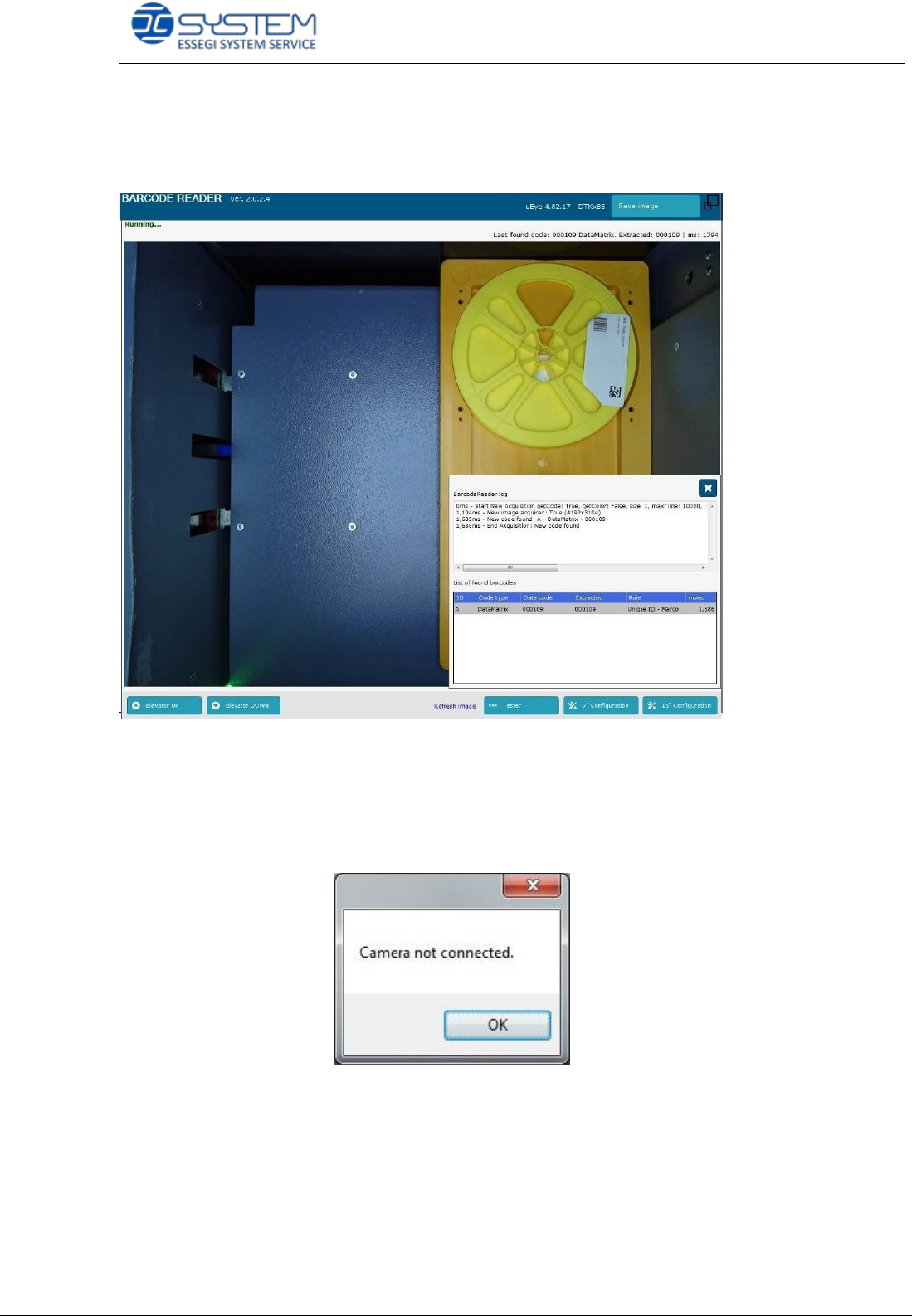
AutoSMD Barcode reader – Cam viewer
“State: Running” means the program is working properly.
If you see the message Camera not connected, it means that the software
cannot recognize the camera. The reason can depend on two possibilities, either
the drivers are not installed, or the camera is not connected.
Before opening the window cam viewer, a pop-up will be displayed.
Quick reference handbook Barcode Reader software
Quick reference handbook Barcode Reader software rev_6 Edition 06/2017 - Reproduction
forbidden
Page 6
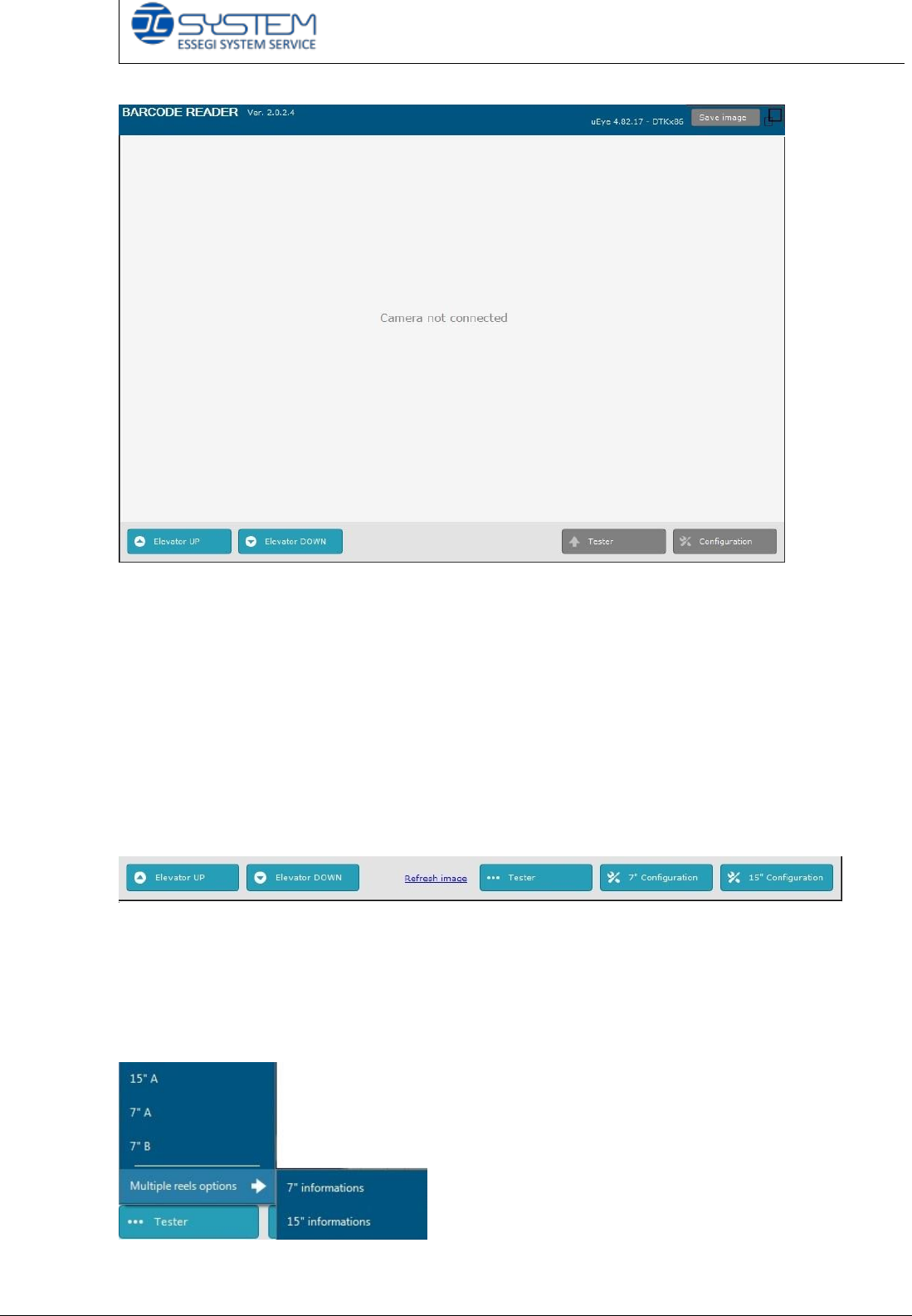
On the window title bar, you can see:
- Ver.: 2.0.2.4: it indicates the version of the Barcode reader program (currently
the 2.0.2.4 is the latest)
- uEye 4.82.17: it is the software version of the camera
- DTKx86: it is the library used by camera. In this case, the pc is a 32 bit pc and
it uses the DTK DLL. If you use Halcon DLL, you will see the Halcon library (last
version 13) instead of the DTK (last version 4.2.130)
- Save image: you can save the images you are seeing
At the bottom, you can see the following buttons and links:
Elevator Up/Down: it is needed to lift or lower the accumulator. To make tests
about the reading of the barcodes, the accumulator needs to be up.
Refresh image: it is needed to refresh the image.
Tester: it checks the colour dentification for 7” reels
7”A: it checks the barcode located in the “A” area
7”B: it checks the barcode located in the “B” area
15” A: it checks the barcode located in the “15 A”
area