TR7500_Hardware_en.pdf - 第5页
4 a t t h e l o w e r r i g h t c o r ne r a t l ea s t 2 s e c o n d s t h e n p r e s s I N L I N E b u tt o n . T h e I N L IN E b u tt o n t u r n s t o b l a c k , t he n s e l e c t I N L I N E b u tt o n t o h i d…
3
1 The Human-Machine Interface & PLC
1.1 Architecture and Function
The Human-Machine Interface (HCI) is mainly used to set the required testing mode
(settings such as Stand-Alone or Inline, whether the Loader or Unloader are present etc.). The
PLC is mainly used to control the PCB I/O Board, Holder as well as exchange sampling or
Pass/Fail signals (through the RS-232 cable); usually when the machine is set to In-Line mode
there will be a greater chance of I/O board issues or loader/unloader error. The possible errors
and solutions are introduced below:
1. If the PCB to be tested is relatively long, when the testing is completed and the PCB is
unloaded and the next PCB loaded, the PCBs may cover Sensor1 (Loader Sensor) and
Sensor2 (Brake Sensor) at the same time. The current program logic of the PLC requires that
Sensor1 and Sensor2 must not both be triggered at the same time, or the Buzzer will activate
and the board will automatically be unloaded. In such a situation the relative positions of
Sensor1 and Sensor2 should be adjusted to avoid being simultaneously triggered and
leading to abnormal operation. The exception is when equipment is set for simultaneous IN
and Out.
2. Loader/Unloader Connection: Please install wiring according to SMEMA specifications.
Additionally on Port 2 pin5/6 there’s a short signal provided during Test Pass.
#The above connections are all single point relays so there are no positive or negative
polarity differences.
1.2 Human Machine Interface Operating Instructions
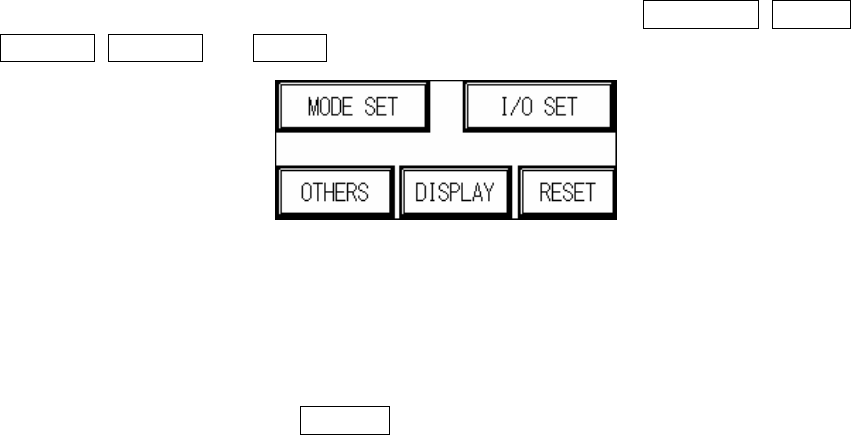
1. Starting display Figure 1.1 : wait approximately 5 seconds after power on, and the display will
jump to the starting page Figure 1.1. Five options will be shown: MODE SET, I/O SET,
OTHERS, DISPLAY and RESET.
Figure 1.1 Starting Display
1.1 MODE SET (Figure 1.2): Can choose between Inline mode, Stand-Alone mode or Test
Mode. (Will be automatically stored during shut down, and automatically loaded at the next
power on.)
1.1.1 INLINE mode: Connect to external equipment for inline testing.
1.1.2 INLINE mode (hiding BYPASS button on standby screen): Press the hidden button
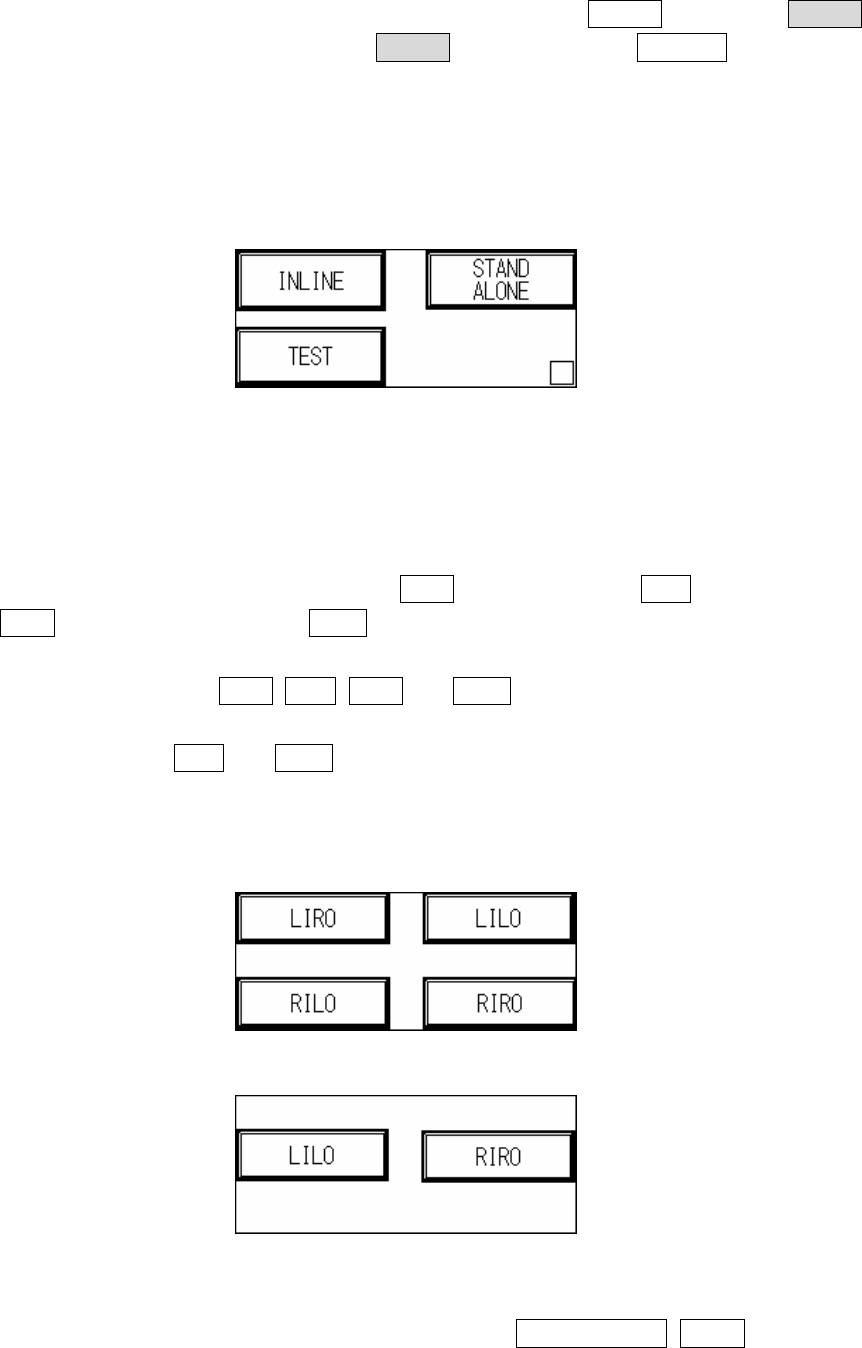
4
at the lower right corner at least 2 seconds then press INLINE button. The INLINE
button turns to black, then select INLINE button to hide the BYPASS button on
standby screen (Figure 1.32).
1.1.3 STAND-ALONE mode: Do not connect to external equipment for testing, requires
manual loading and unloading.
1.1.4 TEST mode: Single board test, does not connect to external equipment for inline
testing, may choose number of test cycles.
Figure 1.2 MODE SET
1.2 I/O SET: Choosing different modes in MODE SET will result in different I/O settings. The
settings are as follows. (Will be automatically stored during shut down, and automatically
loaded at the next power on.)
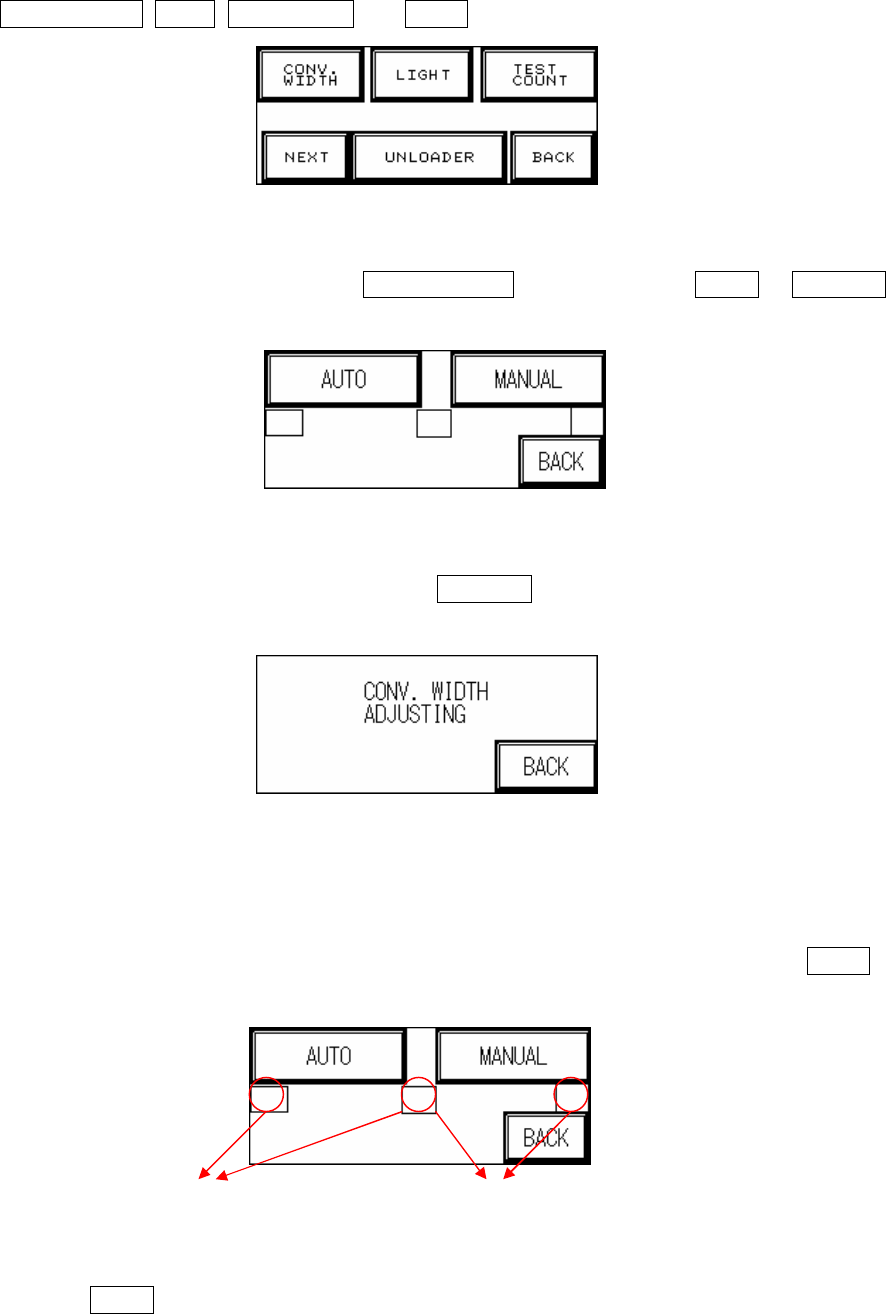
1.2.1 INLINE mode I/O SET: If Inline mode is selected, the display will show Figure 1.3, with
four options available: Left-In-Right-Out (LIRO), Left-In-Left-Out (LILO), Right-In-Left-Out
(RILO) and Right-In-Right-Out (RIRO).
1.2.2 STAND-ALONE mode I/O SET: If Stand-Alone mode is selected, the display will show with
four options available: LIRO, LILO, RILO and RIRO.
1.2.3 TEST mode I/O SET: If Test mode is selected, the display will show Figure 1.4, with two
options available: LILO and RIRO.
1.2.4 Attention: The factory default is Left In mode, if the direction is changed to Right In mode,
then Sensor2 (Brake Sensor) and Sensor 3 (Position Sensor) positions and metal
connectors need to be switched.
Figure 1.3 INLINE and STAND-ALONE mode settings
Figure 1.4 TEST mode I/O settings
1.3 Other Settings (Figure 1.5): Six options are available: CONV. WIDTH, LIGHT,
5
TEST COUNT, NEXT, UNLOADER and BACK.
Figure 1.5 OTHERS
1.3.1 CONV. WIDTH (Figure 1.6): Press CONV. WIDTH in Figure 1.5 and AUTO or MANUAL
adjustment can be selected in Figure 1.6.
Figure 1.6 CONV. WIDTH setting
1.3.1.1. MANUAL Adjustment (Figure 1.7): Press MANUAL in Figure 1.7 to use the wheel to set
the conveyor width.
Figure 1.7 Manual Conveyor Width Adjustment
1.3.1.2. AUTO Adjustment: To prevent PLC error due to no automatic conveyor width device
being installed when the PLC is set to AUTO CONV. WIDTH, two hidden buttons are
provided in Figure 1.7 to Enable/Disable the function. Only when Enabled can AUTO
adjustment be selected.
1.3.1.3. Press AUTO adjustment in Figure 1.7 and the conveyor width will return to the origin
(machine origin) first. If this is the first setting operation from the factory, once the
AUTO CONV. WIDTH
Hidden Button: Press
Both Together to Enable
AUTO CONV. WIDTH
Hidden Button: Press Both
Together to Disable