00197044-03_IM_706_1_SP1_705_05_SP1_DE_EN.pdf - 第45页
Station S oftware 70 6. 1 SP1 /705.05 S P1 / Install ation Manual Ausgabe 02/2013 E dition 45 7.1 X-S eries P lac ement M achines The f ollowing windo w is displa yed for the X - series m achines. Her e you can edit, con…
Station Software 706.1 SP1/705.05 SP1 / Installation Manual Ausgabe 02/2013 Edition
44
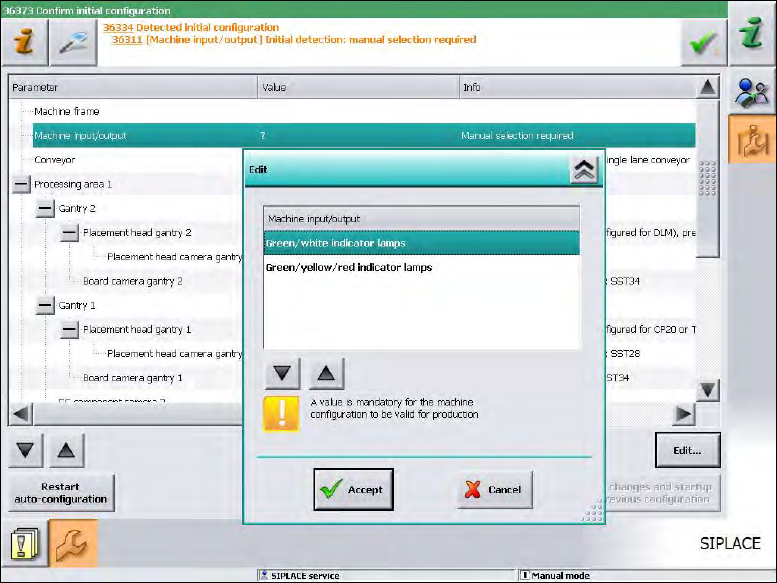
As of station software version 705.03 you will have to set, whether the lamp indicators on the
placement machine towers shall be displayed two-colored (green / white) or three-colored (green /
white / red) for all placement machines of the SX-series and DX-series. More information about the
two lamp indicator systems can be found in the version description of the 705.03 station software,
item number 00196770-01.
Figure 7-4: Setting lamp indicators
► Select the desired lamp indicators and click the Accept button.
Station Software 706.1 SP1/705.05 SP1 / Installation Manual Ausgabe 02/2013 Edition
45
7.1 X-Series Placement Machines
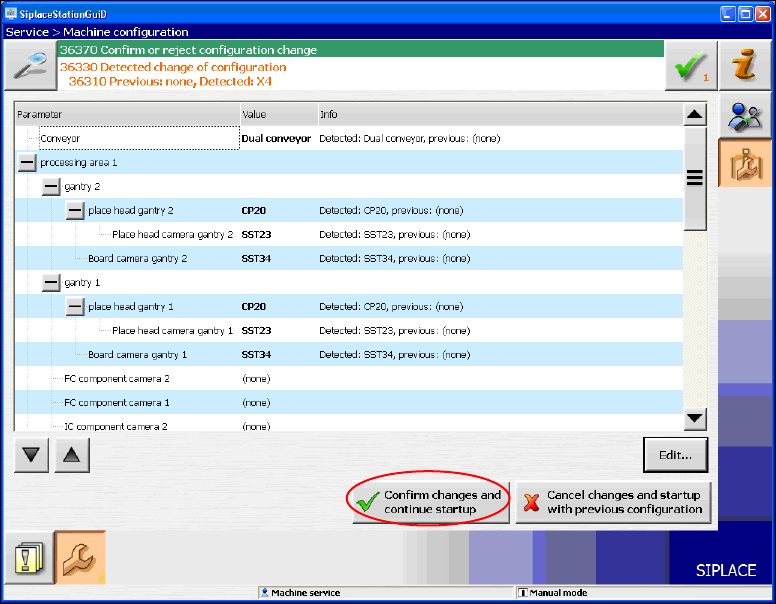
The following window is displayed for the X-series machines. Here you can edit, confirm or reject
the Auto-configuration.
Figure 7-5: Confirming Auto-configuration for X-series
► Click the Confirm changes and continue startup button to confirm the Auto-configuration.
► If the Coplan computer has been installed, you will additionally have to confirm or reject the 3-D
Coplan sensor.
7.2 X4i S Placement Machine
► When the X4i S placement machine is booted for the first time you have to select the following
options manually:
– If a TrayStak Feeder is used, this has to be defined for each location concerned in the
Auto-configuration.
– Table position (inner and outer)
Station Software 706.1 SP1/705.05 SP1 / Installation Manual Ausgabe 02/2013 Edition
46
7.3 SX1/SX2 (V2) Placement Machine
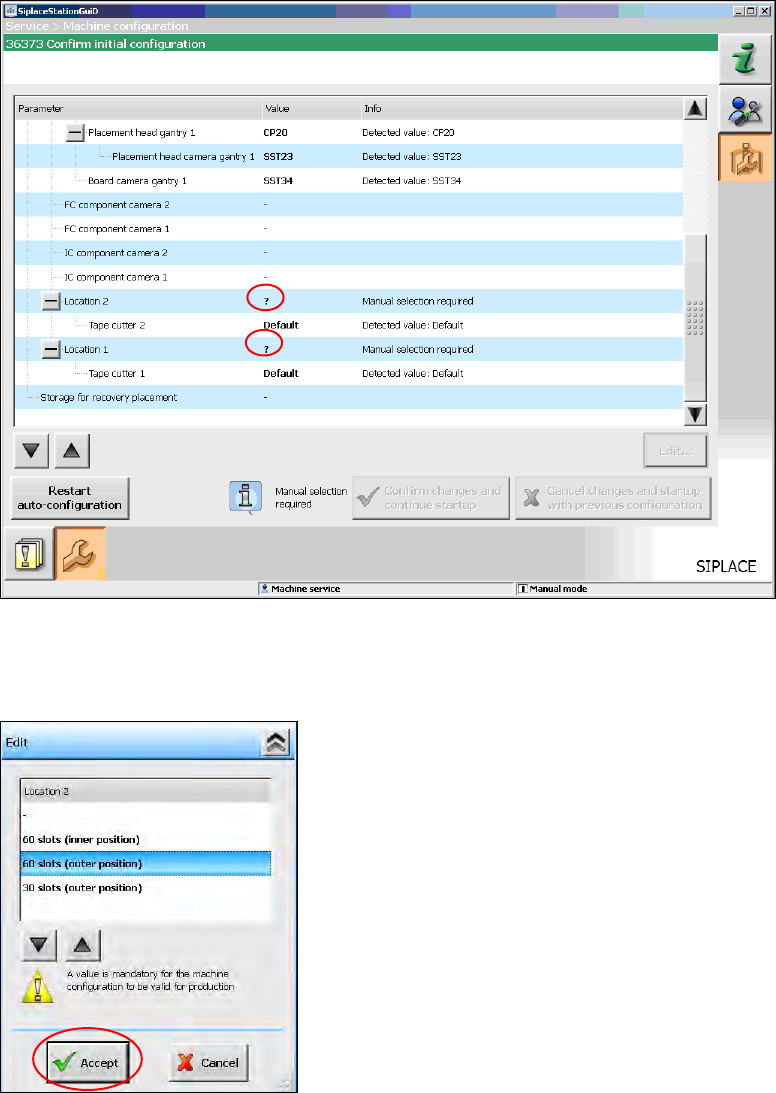
For the SX1/SX2 (V2) placement machine the following window is displayed, in which the Manual
selection required note informs, that the table configuration has to be selected manually, as this is
not detected automatically.
Figure 7-6: Selecting table configuration
► Click the ? question mark next to Location 2.
The selectable table configurations are displayed.
Figure 7-7: Possible table configurations