00195487_Install_SQL2005Server_manual.pdf - 第12页
Installation of SQL Server 2005 Edition 02/2011 US Fig. 3-7: Registration Information → Enter your Name, Company and Licensing information. → Click the button Next > The following dialog is disp layed: Fig. 3-8: Compo…
Installation of SQL Server 2005 Edition 02/2011 US
The following dialog is displayed:
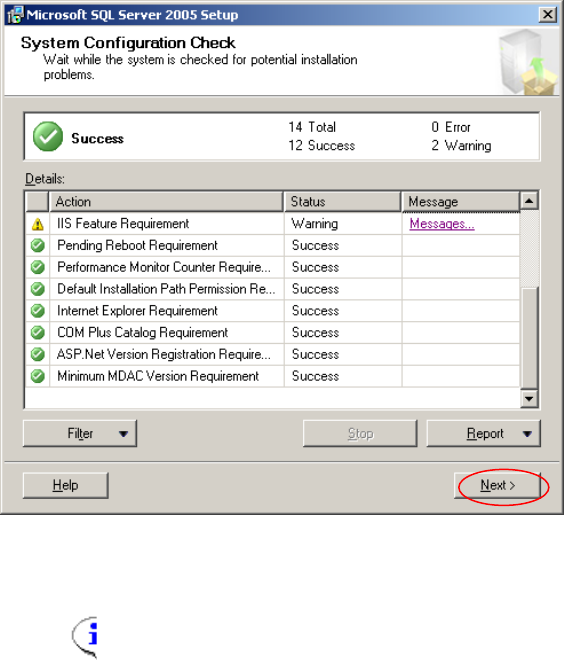
Fig. 3-6: System Configuration Check
Note:
“IIS Feature Requirement” Warning: This message warns you about specific SQL
Server features, which will not be available without IIS. You may ignore this warning. If
the SIPLACE Product you plan to install needs IIS, you will be advised elsewhere.
→ Check for possible Errors.
→ Click the button Next >.
After a few seconds, The following dialog is displayed:
11 / 48
Installation of SQL Server 2005 Edition 02/2011 US
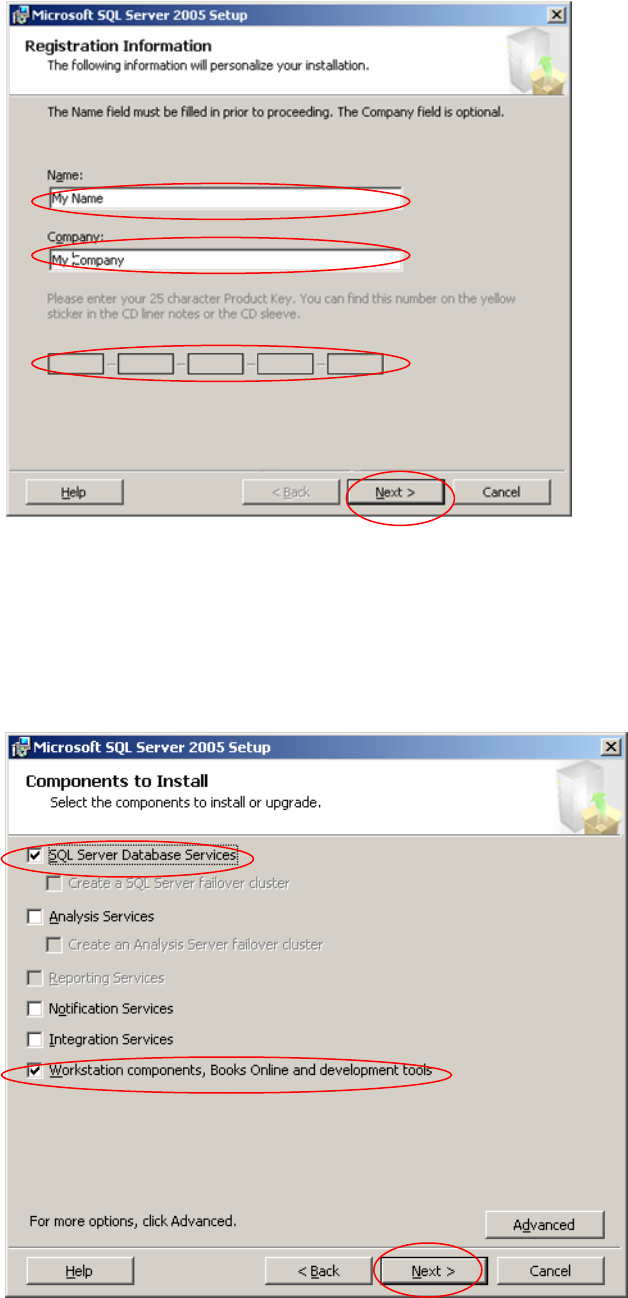
Fig. 3-7: Registration Information
→ Enter your Name, Company and Licensing information.
→ Click the button Next >
The following dialog is displayed:
Fig. 3-8: Components to install
→ Select the both options “SQL Server Database Services” and “Workstation components, Books
Online and development tools”
12 / 48
Installation of SQL Server 2005 Edition 02/2011 US
→ Click the button Next >.
The following dialog is displayed:
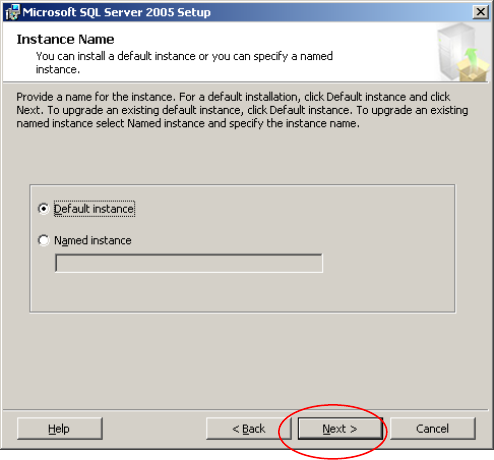
Fig. 3-9: Instance Name
→ Leave the radio button “Default instance” selected.
→ Click the button Next >.
13 / 48