00195487_Install_SQL2005Server_manual.pdf - 第13页
Installation of SQL Server 2005 Edition 02/2011 US → Click the button Next > . The following dialog is disp layed: Fig. 3-9: Instance Name → Leave the radio button “Def ault instance” sele cted. → Click the button Nex…
Installation of SQL Server 2005 Edition 02/2011 US
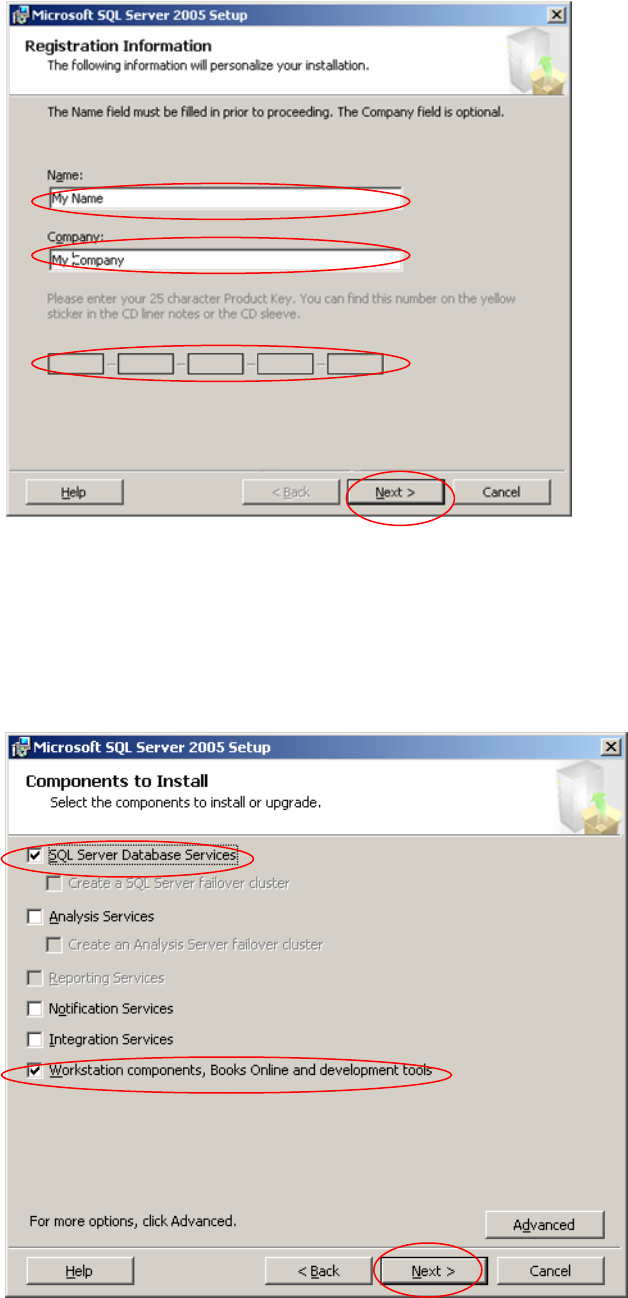
Fig. 3-7: Registration Information
→ Enter your Name, Company and Licensing information.
→ Click the button Next >
The following dialog is displayed:
Fig. 3-8: Components to install
→ Select the both options “SQL Server Database Services” and “Workstation components, Books
Online and development tools”
12 / 48
Installation of SQL Server 2005 Edition 02/2011 US
→ Click the button Next >.
The following dialog is displayed:
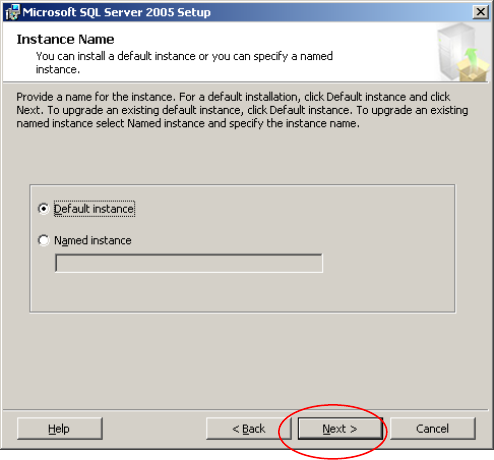
Fig. 3-9: Instance Name
→ Leave the radio button “Default instance” selected.
→ Click the button Next >.
13 / 48
Installation of SQL Server 2005 Edition 02/2011 US
The following dialog is displayed:
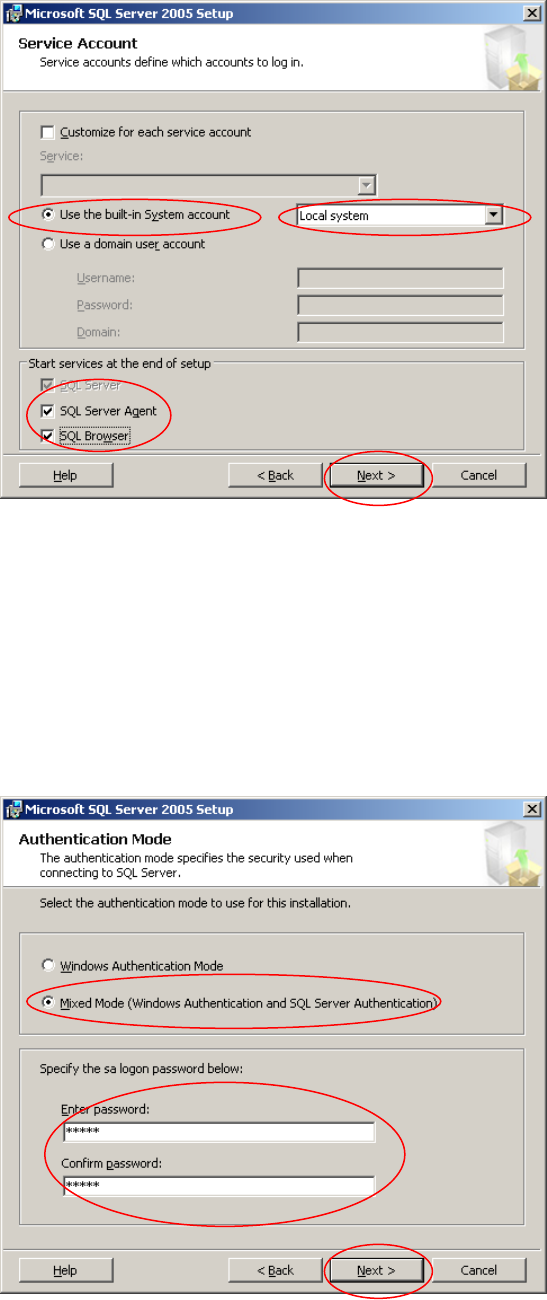
Fig. 3-10: Service Account
→ Select the option “Use the build-in System account” radio button.
→ Select “Local system” from the dropdown menu.
→ Select the both options “SQL Server Agent” and “SQL Browser”.
→ Click the button Next >.
The following dialog is displayed:
Fig. 3-11: Authentication Mode
14 / 48