00195487_Install_SQL2005Server_manual.pdf - 第22页
Installation of SQL Server 2005 Edition 02/2011 US Fig. 3-21: Authentication Mode → Leave the default settings (The selecte d Authent ication will not modify your database logon possibilities – it is only used to c onnec…
Installation of SQL Server 2005 Edition 02/2011 US
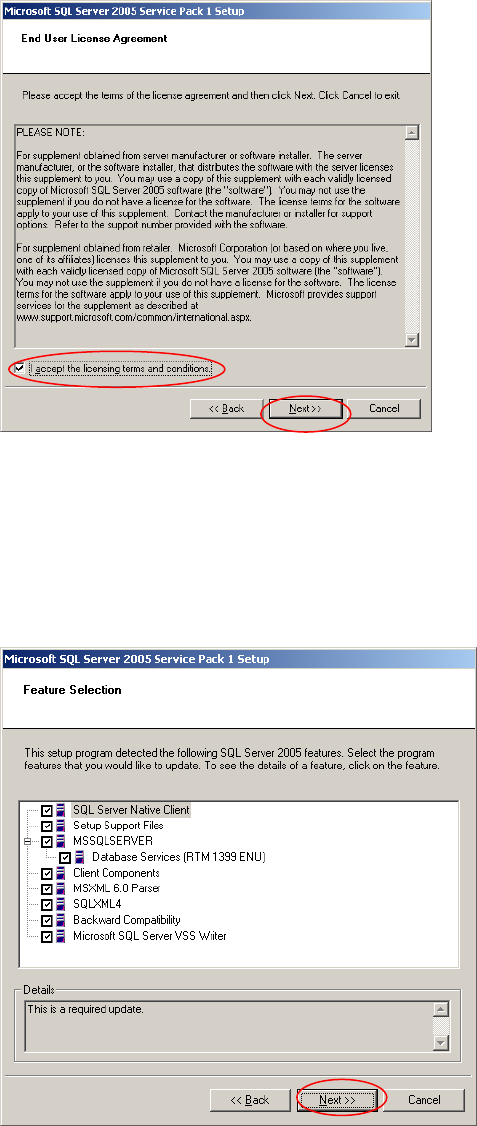
Fig. 3-19: EULA
→ Select the radio button “I accept the licensing terms and conditions”.
→ Click the Next >> button.
The following dialog is displayed:
Fig. 3-20: Feature Selection
→ Leave all features checked.
→ Click the Next >> button.
The following dialog is displayed:
21 / 48
Installation of SQL Server 2005 Edition 02/2011 US
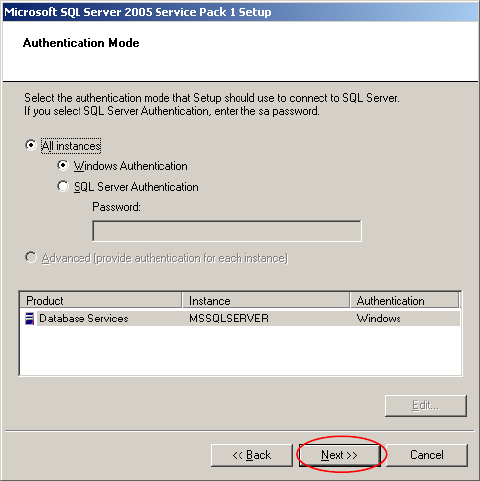
Fig. 3-21: Authentication Mode
→ Leave the default settings (The selected Authentication will not modify your database logon
possibilities – it is only used to connect to the database in this case)
→ Click the Next >> button.
22 / 48
Installation of SQL Server 2005 Edition 02/2011 US
The following dialog is displayed:
23 / 48
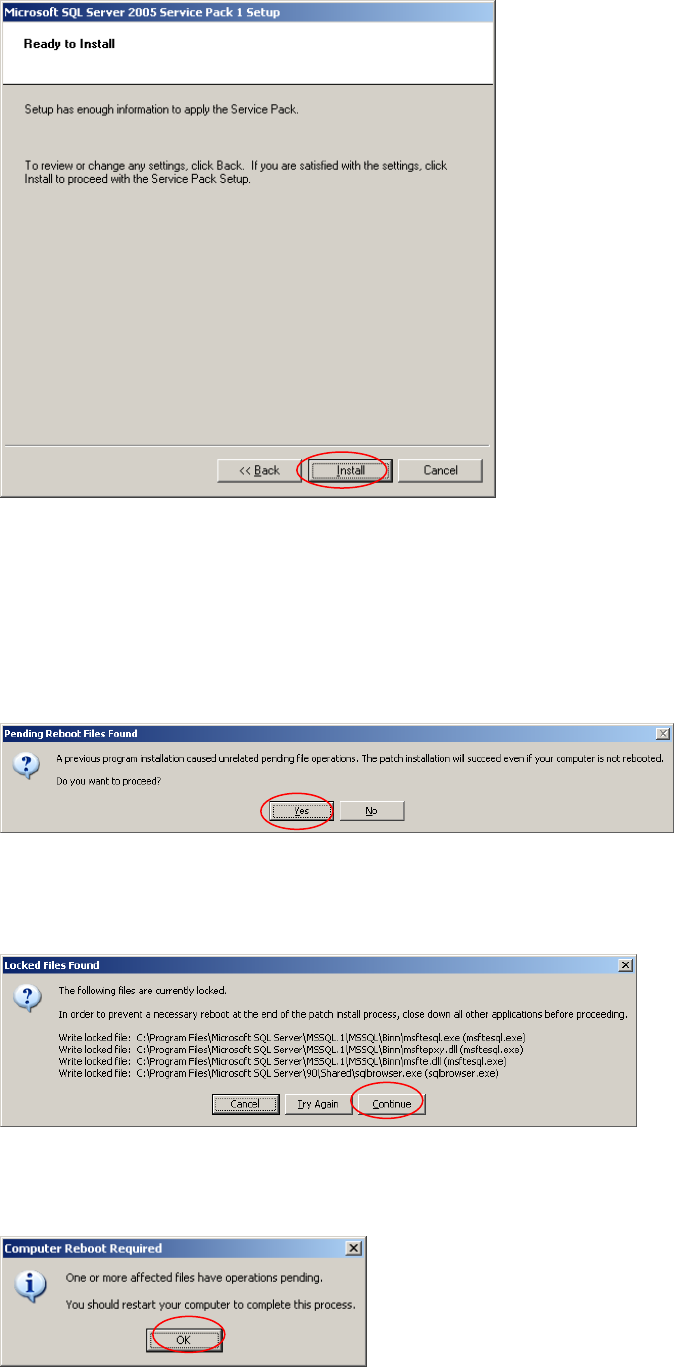
Fig. 3-22: Ready to install
→ Click the Install button.
The following three dialogs may appear during installation when files are locked by other installation
processes:
Fig. 3-23: Pending Reboot files found
→ Click the Yes button.
Fig. 3-24:: Locked files found
→ Click the Continue button.