00195487_Install_SQL2005Server_manual.pdf - 第36页
Installation of SQL Server 2005 Edition 02/2011 US → Click on “Next”. The following dialog is disp layed. Fig. 3-39: Reboot the computer → Click on “OK” to confirm the note. You have to manually reboot the computer after…
Installation of SQL Server 2005 Edition 02/2011 US
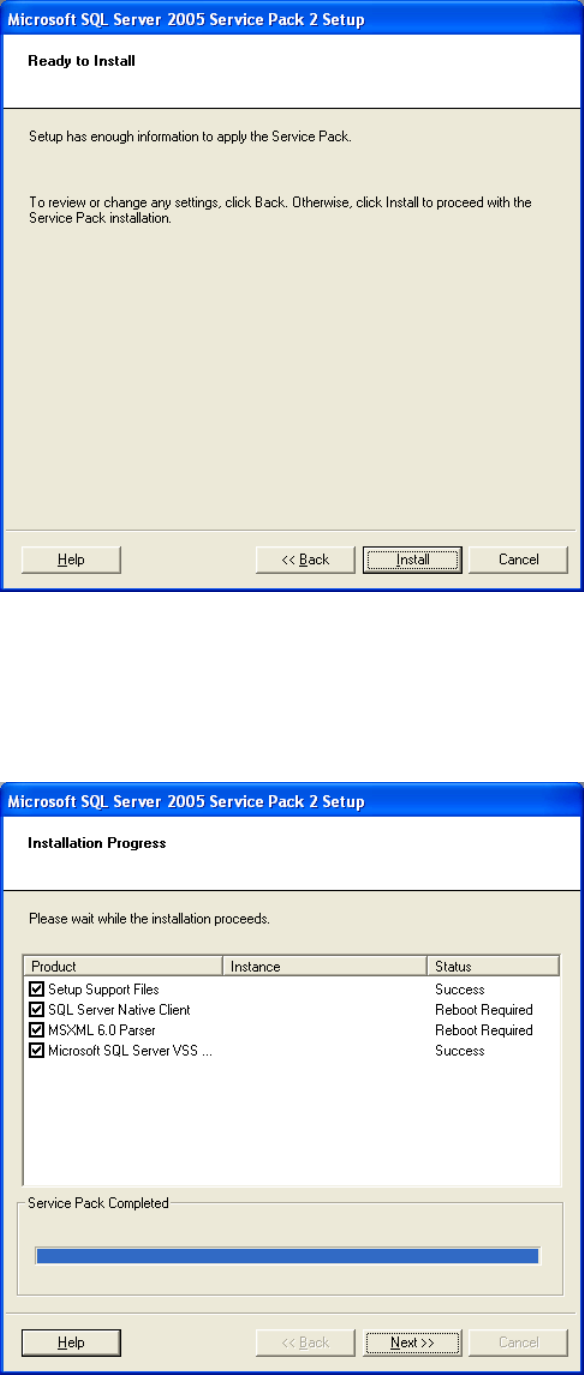
Fig. 3-37: Ready to install
→ Click on “Install” to start the installation process.
The installation progress is displayed.
Fig. 3-38: Installation progress
35 / 48
Installation of SQL Server 2005 Edition 02/2011 US
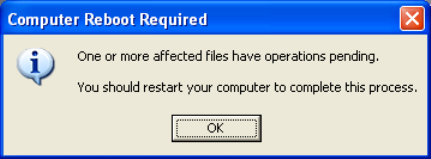
→ Click on “Next”.
The following dialog is displayed.
Fig. 3-39: Reboot the computer
→ Click on “OK” to confirm the note. You have to manually reboot the computer after finishing the
installation.
36 / 48
Installation of SQL Server 2005 Edition 02/2011 US
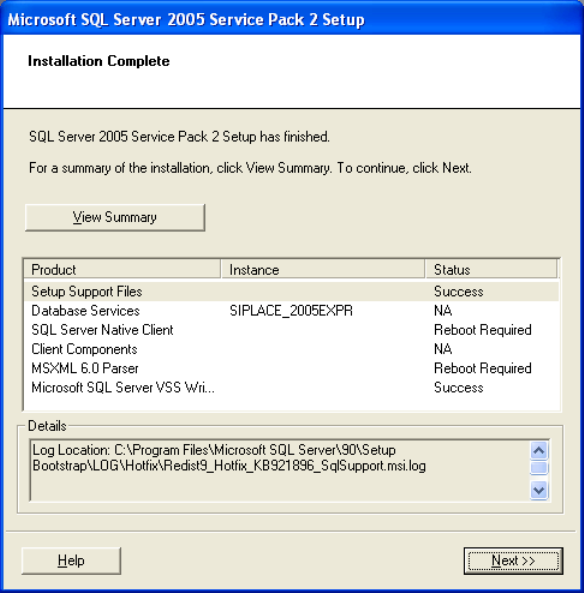
The following dialog is displayed.
Fig. 3-40: Installation complete
→ Click on “View Summary” to display the log file with the installation information. The log file is
required to analyze errors. The log file is located on the following directory:
C:\Program Files\Microsoft SQL Server\90\Setup
Bootstrap\LOG\Hotfix\Redist9_Hotfix_KB921896_SqlSupport.msi.log
37 / 48