00197214_IM_SupportMediaV1.14_EN.pdf - 第21页
Support M edia V1. 14 11/2012 Edit ion 21 Figure 3-7 : Prerequisit e Analyz er copy ing files downloaded for offline use to local Search Folder After the f iles ha ve been c opied, Pr erequ isite Ana lyzer w ill restart …
Support Media V1.14 11/2012 Edition
20
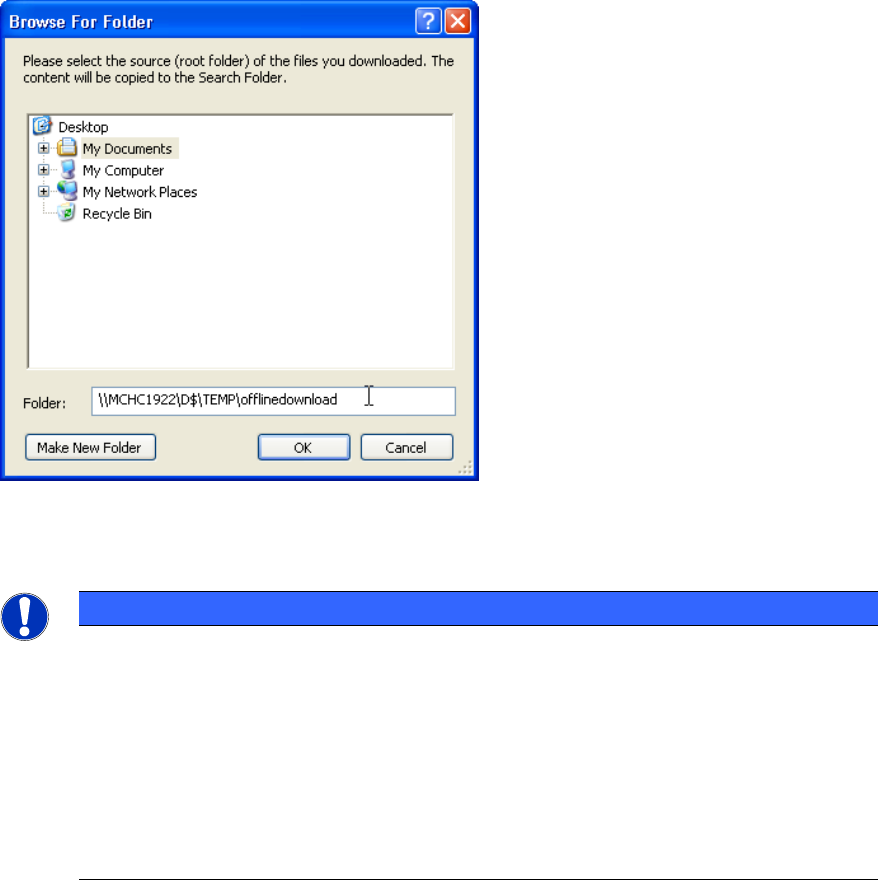
Figure 3-6: Source folder selection dialog for copying download files back to local Search Folder
► Inside the Browse for Folder window, ensure you have a valid connection to the location of your
download files (e.g. USB drive, network path).
NOTICE
Windows Vista or newer: User Account Control complicates accessing
network drives in Prerequisite Analyzer
Although the dialog supports accessing network drives, you may have problems
accessing network drives you’ve mapped in Windows Explorer within
Prerequisite Analyzer because of Windows distinguishing between mapped
drives during normal user sessions and admin sessions.
► To access the network drive you’ve mapped during a user session, right-
click on “My Network Places”
inside the window, choose “map network drive”
and re- map the network drive inside the session of Prerequisite Analyzer.
► Select the appropriate location or enter the path to the location of your download files as shown
in the picture above.
► Click OK to continue.
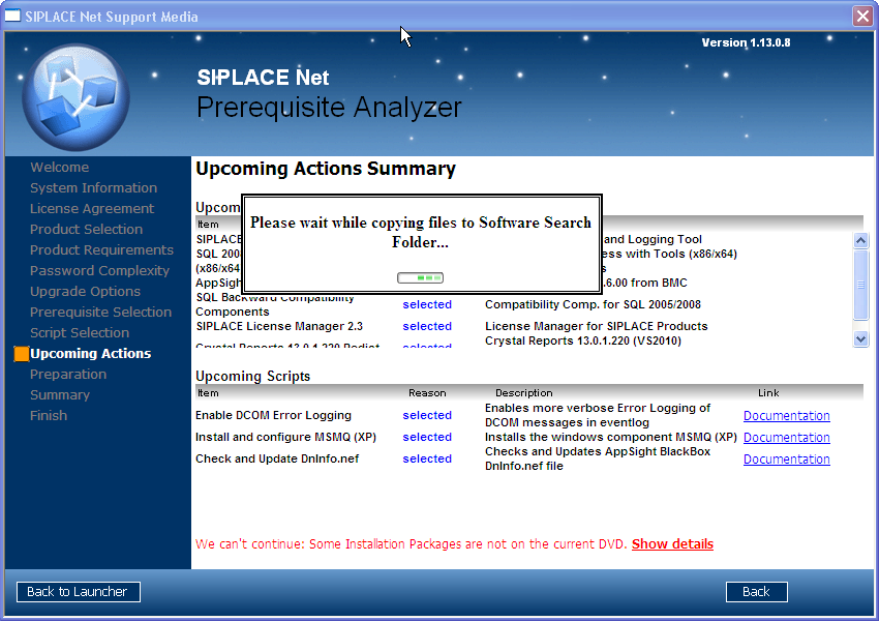
Prerequisite Analyzer will now copy the downloaded files from the offline folder to the local
Software Search folder you’ve specified before.
The window will look like this:
Support Media V1.14 11/2012 Edition
21
Figure 3-7: Prerequisite Analyzer copying files downloaded for offline use to local Search Folder
After the files have been copied, Prerequisite Analyzer will restart checking the Additional Software
Search Folder for needed files. If all required files have been found, you will be allowed to continue.
3.4.4 Download and install manually option
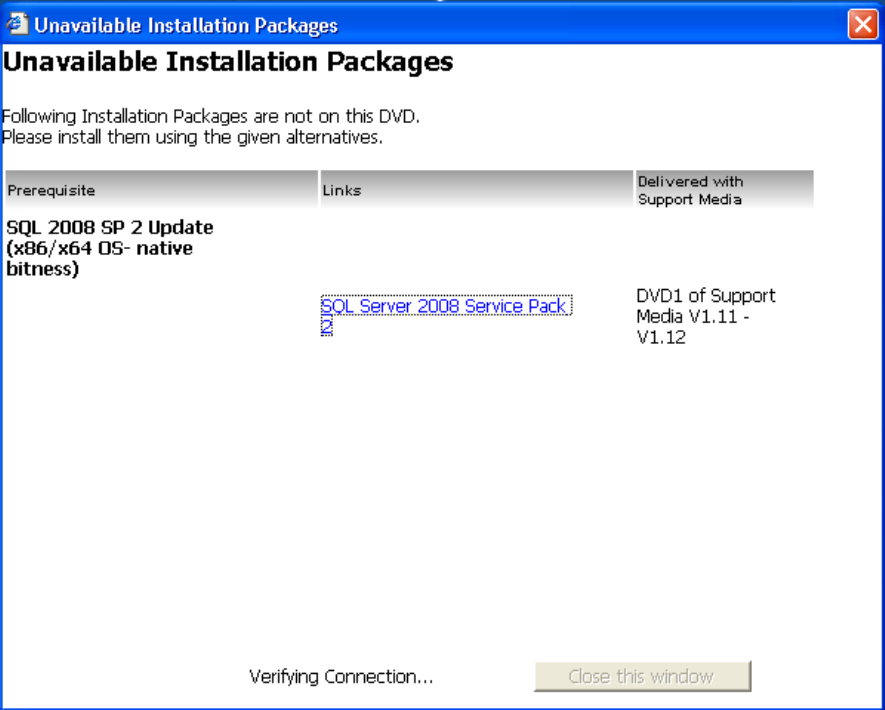
After you’ve selected the Download and install manually option, Prerequisite Analyzer will show
you a list of missing Software Packages as shown in the following picture.
Support Media V1.14 11/2012 Edition
22
Figure 3-8: Dialog for manual download and installation of missing components
The dialog will display the following information
• The description of the required installation package
• A link to the manual download of the installation package (if available)
• A note, describing where the installation package can be found on a former Support Media
version if it is available.
• For some packages, a link to the appropriate installation documentation might be shown
► Use this list to retrieve and install the missing Software packages manually
► After you’ve installed the missing packages manually, close and restart Prerequisite Analyzer
to detect the additionally installed Software and continue preparing your computer.
3.4.5 Downloading for multiple configurations
If you plan to prepare multiple (different) computer configurations, you may want to download all
missing required Software Packages in advance.
To do this, you have to perform the following steps.
► Insert the Support Media DVD / mount the ISO file of Support Media and execute the file
Autorun.cmd, if no auto run dialog appears.
The Launcher application opens.