00197214_IM_SupportMediaV1.14_EN.pdf - 第24页
Support M edia V1. 14 11/2012 Edit ion 24 Figure 3- 10 : Selecting Miss ing Prerequisites Downloader in SIPLA CE Installer application ► Select th e option “ Missing Prerequ isites Do wnload er” Figure 3- 11 : Hint messa…
Support Media V1.14 11/2012 Edition
23
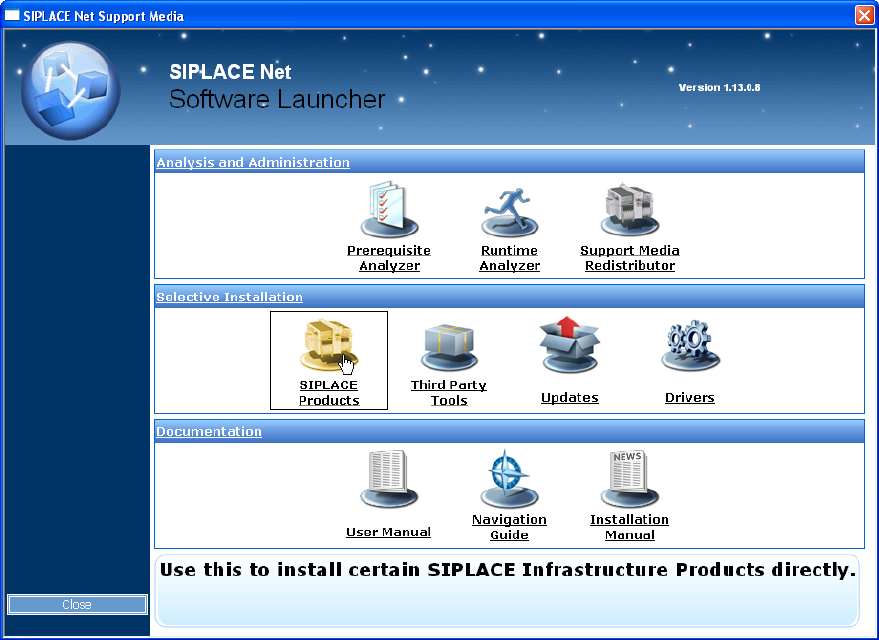
Figure 3-9: Selecting SIPLACE Products in Software Launcher
► In the Launcher application, select SIPLACE Products.
The SIPLACE Installer application opens.
Support Media V1.14 11/2012 Edition
24
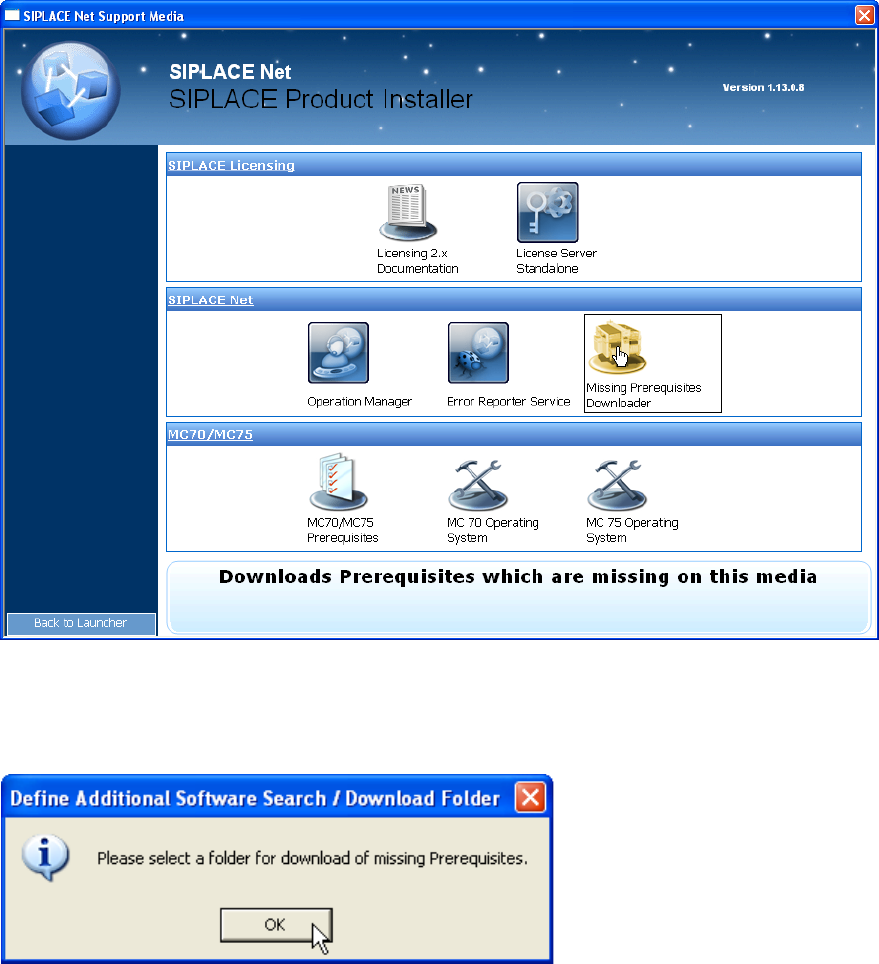
Figure 3-10: Selecting Missing Prerequisites Downloader in SIPLACE Installer application
► Select the option “Missing Prerequisites Downloader”
Figure 3-11: Hint message
► Click OK.
Support Media V1.14 11/2012 Edition
25
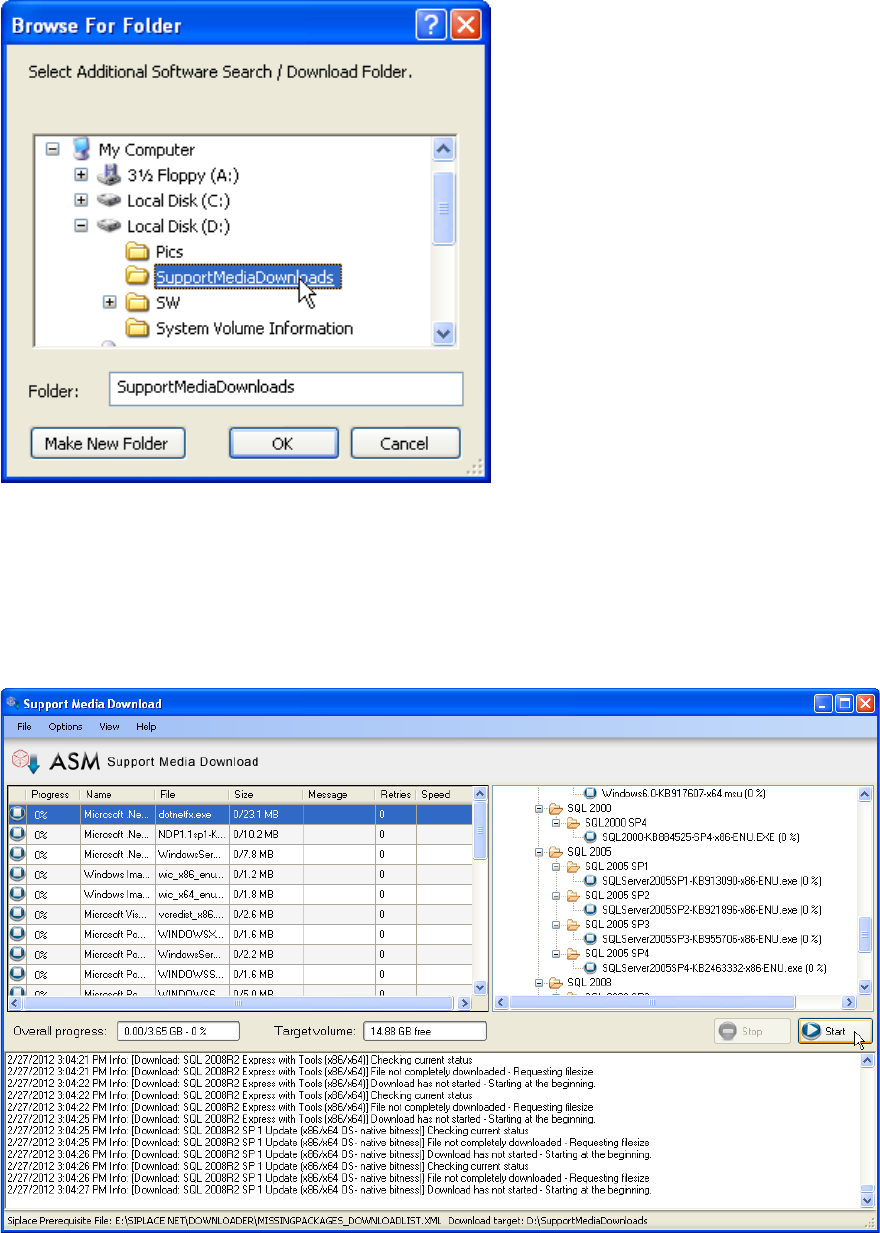
Figure 3-12: Folder Selection dialog window
► In the new folder selection dialog window, select or create the Download folder.
► Click OK to accept the choice
The Support Media Download Tool will be started.
Figure 3-13: Support Media Download Tool
► Click the Start button to start the download.
► After the download completed, click the “Done” button to close the Download Tool.
► In Prerequisite Analyzer, select this new directory structure as Additional Software Search
Folder, as described in the chapters above.