00197214_IM_SupportMediaV1.14_EN.pdf - 第22页
Support M edia V1. 14 11/2012 Edit ion 22 Figure 3-8 : Dialog for manual download and installation of missi ng components The dialog will dis pla y the follo wing inf orm ation • The descr iption of the requi red instal …
Support Media V1.14 11/2012 Edition
21
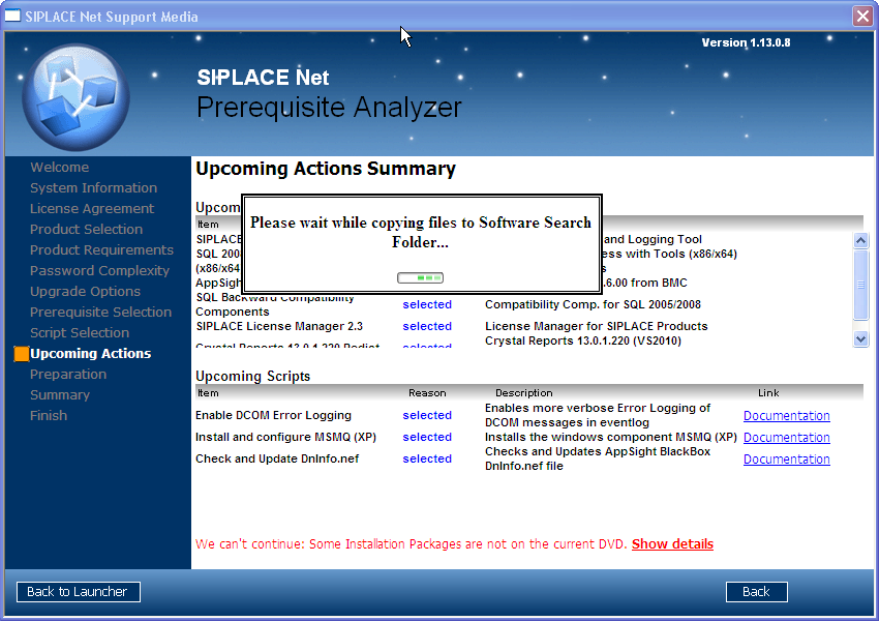
Figure 3-7: Prerequisite Analyzer copying files downloaded for offline use to local Search Folder
After the files have been copied, Prerequisite Analyzer will restart checking the Additional Software
Search Folder for needed files. If all required files have been found, you will be allowed to continue.
3.4.4 Download and install manually option
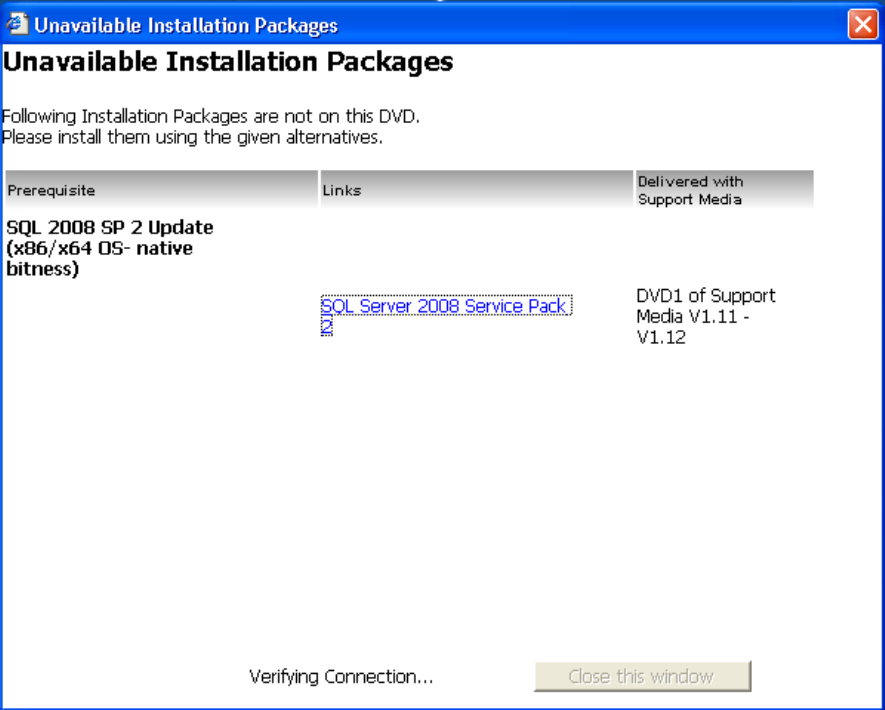
After you’ve selected the Download and install manually option, Prerequisite Analyzer will show
you a list of missing Software Packages as shown in the following picture.
Support Media V1.14 11/2012 Edition
22
Figure 3-8: Dialog for manual download and installation of missing components
The dialog will display the following information
• The description of the required installation package
• A link to the manual download of the installation package (if available)
• A note, describing where the installation package can be found on a former Support Media
version if it is available.
• For some packages, a link to the appropriate installation documentation might be shown
► Use this list to retrieve and install the missing Software packages manually
► After you’ve installed the missing packages manually, close and restart Prerequisite Analyzer
to detect the additionally installed Software and continue preparing your computer.
3.4.5 Downloading for multiple configurations
If you plan to prepare multiple (different) computer configurations, you may want to download all
missing required Software Packages in advance.
To do this, you have to perform the following steps.
► Insert the Support Media DVD / mount the ISO file of Support Media and execute the file
Autorun.cmd, if no auto run dialog appears.
The Launcher application opens.
Support Media V1.14 11/2012 Edition
23
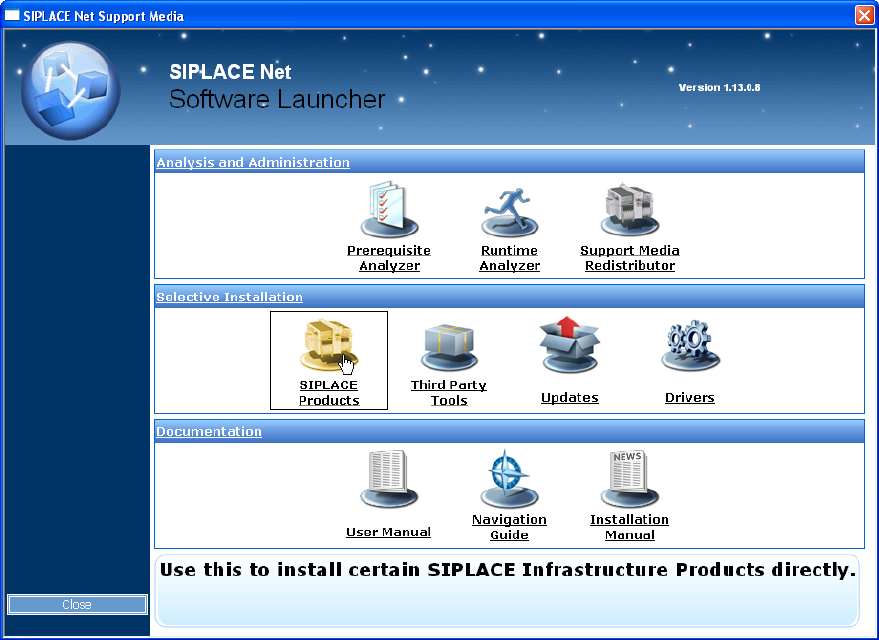
Figure 3-9: Selecting SIPLACE Products in Software Launcher
► In the Launcher application, select SIPLACE Products.
The SIPLACE Installer application opens.