TS555R-UserGuide.pdf - 第10页
10 5.2 DISPENSING 5.2.1 Pressure Adjustment Note: Pressure in Port A is not regulated. It has the same pressure as the supplied pressure. Port A is used for valve activation pressure. Mak e sure the supplied pressure is …
9
Note: The digital values shown at “0” and “100” icons are for reference only.
The actual calibrated values will be different
7. Touch the Reboot icon to save the settings and reboot the system
8. Wait until the system completes the rebooting sequence and the home
screen is displayed
The unit is now calibrated and ready to operate
5.1.3 Controlling Mode
The TS555R can be used as stand-alone controller or integrated to any
robot/automation system.
A. To use as Stand-Alone Controller:
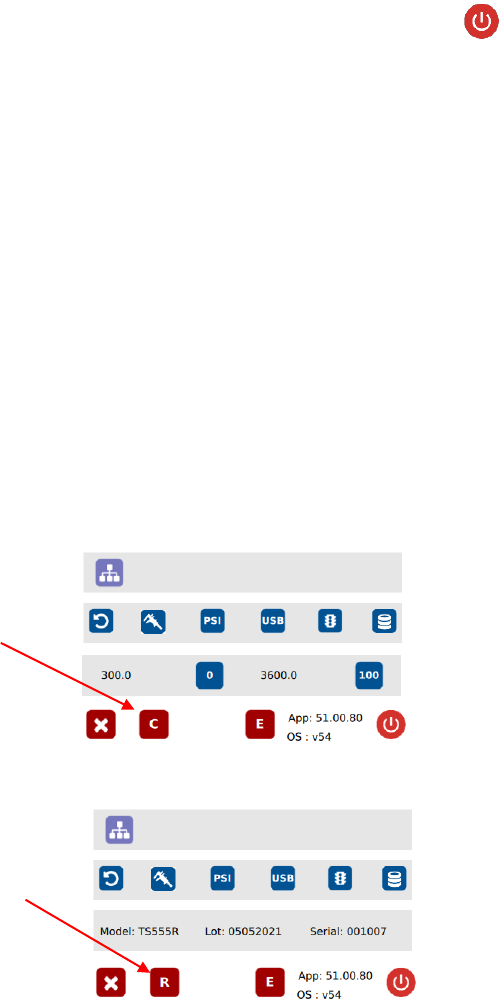
Go to setup screen to check for controlling mode. If the icon “C” is
showing, then it is already set as stand-alone controlling mode. If the
icon “R” is showing, press this icon to change to “C”
B. To use as integrated controller to robot/automation
Press icon “C” to change to “R”
Note: Users will experience inconsistent dispensing and intermittent
behaviors with their dispensing valves if attempting to run the TS550R
in controller mode when interfacing with the robot.
Stand-alone controlling
mode
Robot mode (integrate
to robotic system)
10
5.2 DISPENSING
5.2.1 Pressure Adjustment
Note: Pressure in Port A is not regulated. It has the same pressure as the
supplied pressure. Port A is used for valve activation pressure. Make sure
the supplied pressure is set at least 70 psi (4.8 bar). Pressure in Port B is
regulated. It provides constant pressure to feed fluid to the valve.
To adjust pressure in port B:
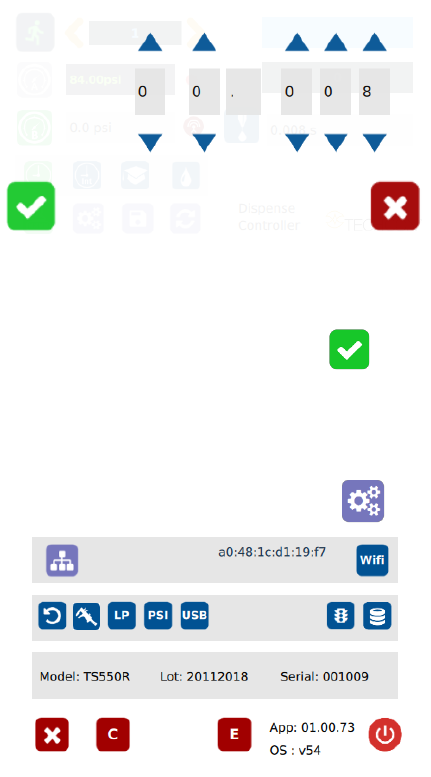
1. Touch the “Pressure B” icon to enter the pressure setup screen
2. Touch the Up and Down arrows to set desired fluid feed pressure
3. Touch the Check Mark icon to save and exit
5.2.2 To Change Pressure Unit Display
Note: The default pressure unit is PSI. To change pressure unit to BAR,
follow the instructions below.
1. Touch the Setup icon to enter the setup screen
11
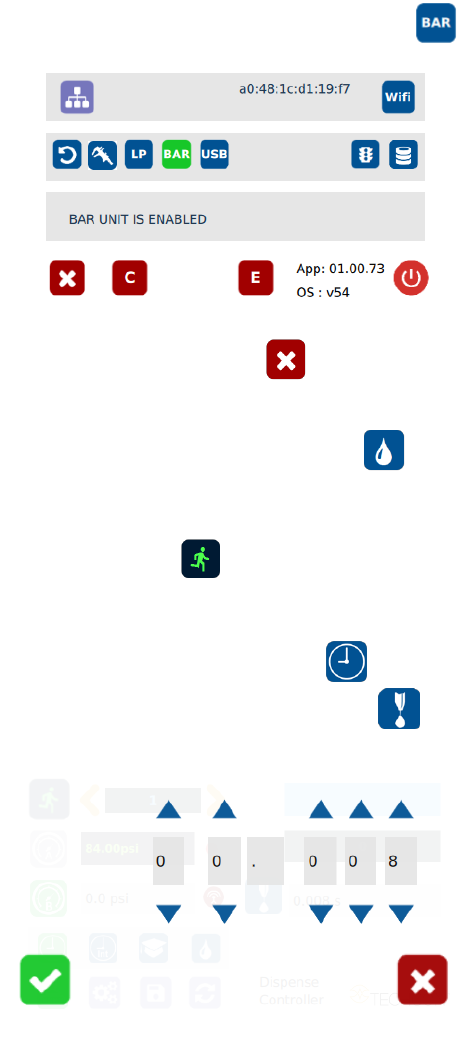
2. Press the “BAR” icon to change pressure unit to BAR
3. Touch the X icon to save and exit
5.2.3 Manual/Purge Dispense Cycle Setting:
1. Touch the Purge icon to select the purge cycle.
The Purge icon will turn to green color.
2. Press and hold down the foot switch to activate the purge dispense cycle.
Alternately, touch and hold the Run icon on the display to activate the
purge dispense cycle.
5.2.4 Automatic Dispense Cycle Setting
1. Touch the “Timed” mode icon to set the dispense cycle in pre-set dispense
time. The icon should turn to green color.
2. Touch the Dispense icon to enter the setup screen
3. Touch the Up and Down arrows to set the desired dispense time.
Note: The minimum activation time is 0.008 second