00193908-02.pdf - 第10页
Installation Manual for Windows 2000 Prof essional (manual setup) Edition 10/2005 US → Click the button Next> . Fig. 2-6: Windows 2000 Professional: Regional and Language Opti ons → If you wish to change the regional …
Installation Manual for Windows 2000 Professional (manual setup) Edition 10/2005 US
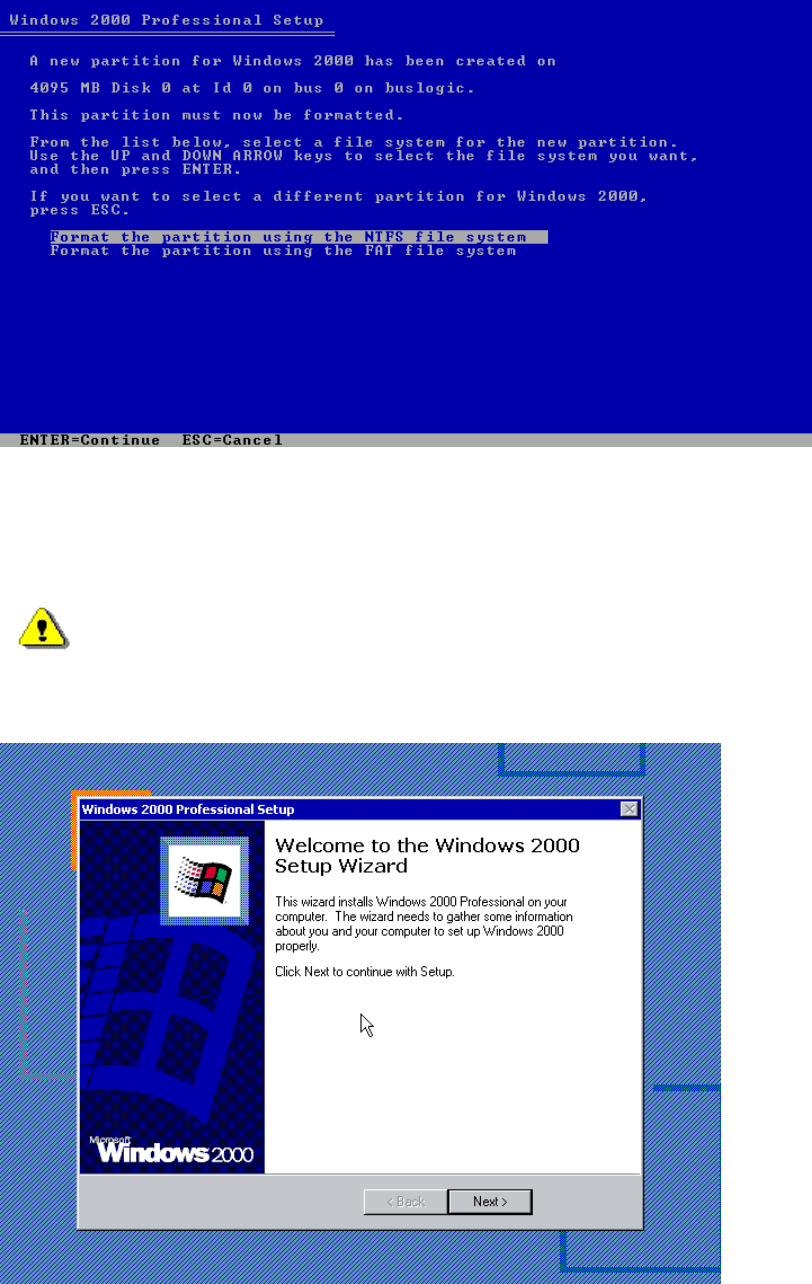
The following dialog appears:
Fig. 2-4: Windows 2000 Professional partitions
→ Select "Format the partition using the NTFS file system".
→ Press Enter to continue.
→ Please wait while the computer reboots.
Warning:
Do not press a key when the message "Press any key to reboot from CD" appears during
the startup phase of the computer.
The installation of Windows 2000 Professional will continue with the graphical part:
Fig. 2-5: Starting graphical part of installation
9
Installation Manual for Windows 2000 Professional (manual setup) Edition 10/2005 US
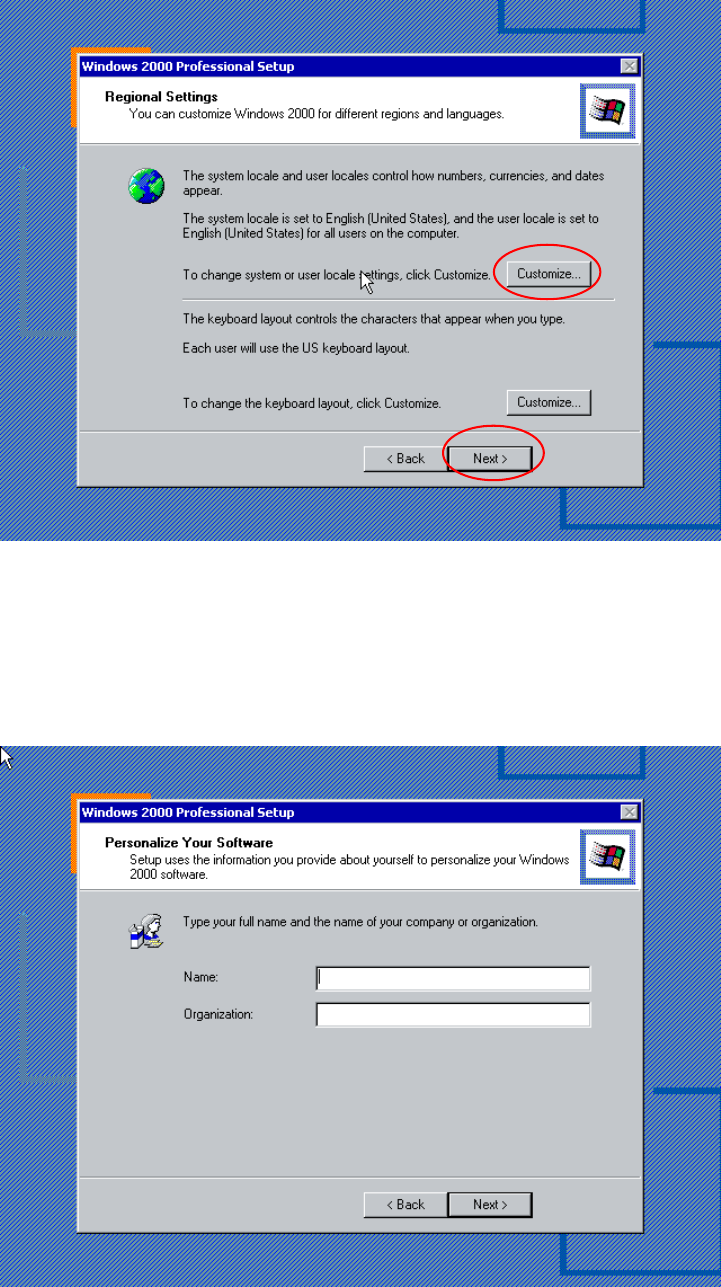
→ Click the button Next>.
Fig. 2-6: Windows 2000 Professional: Regional and Language Options
→ If you wish to change the regional settings, please click the button Customize...
→ Make the changes.
→ Click the button Next>.
The following dialog appears:
Fig. 2-7: Windows 2000 Professional: Personalize Your Software
10
Installation Manual for Windows 2000 Professional (manual setup) Edition 10/2005 US
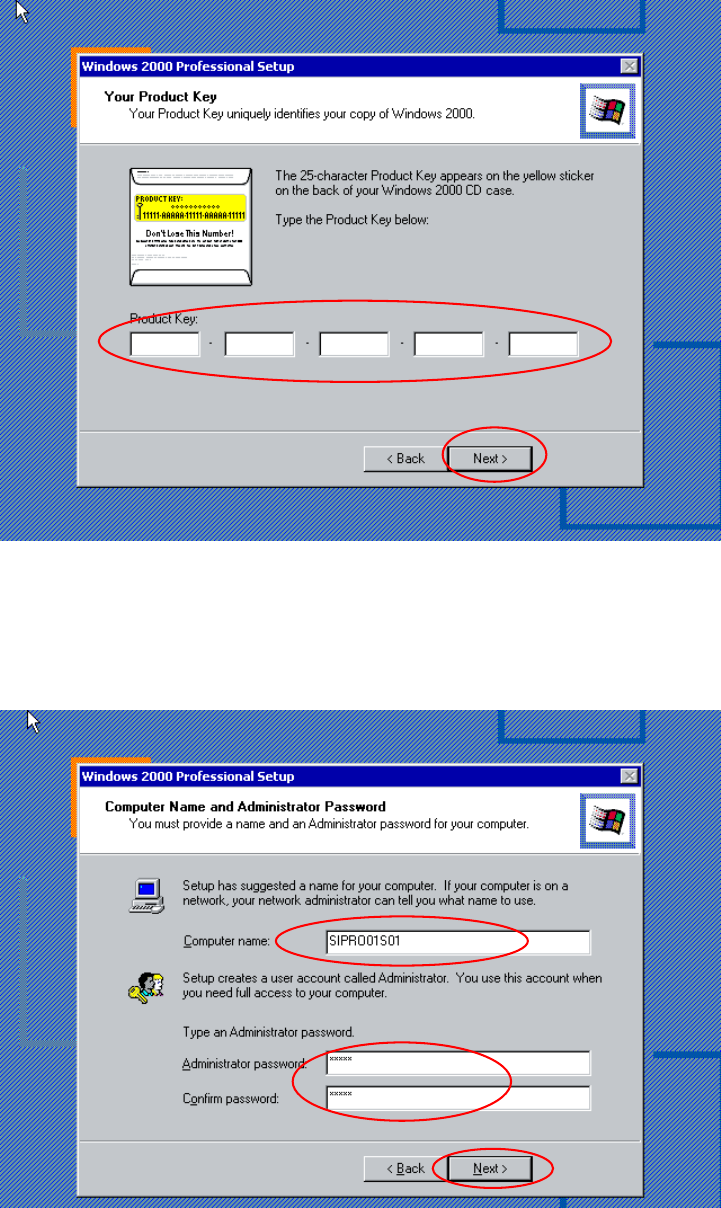
→ Please enter the Name and the Organization.
→ Click the button Next>.
The dialog "Your Product Key" appears.
Fig. 2-8: Windows 2000 Professional: Product Key
→ Enter the software key.
→ Click the button Next>.
The following dialog appears:
Fig. 2-9: Windows 2000 Professional: Computer Name and Password
11