00193908-02.pdf - 第13页
Installation Manual for Windows 2000 Prof essional (manual setup) Edition 10/2005 US → Choose "Typical Settings" → Click the button Next> . The following dialog appears: Fig. 2-12: Windows 2000 Professional:…
Installation Manual for Windows 2000 Professional (manual setup) Edition 10/2005 US
→ Enter the Computer name and the Administrator password.
→ Click the button Next>.
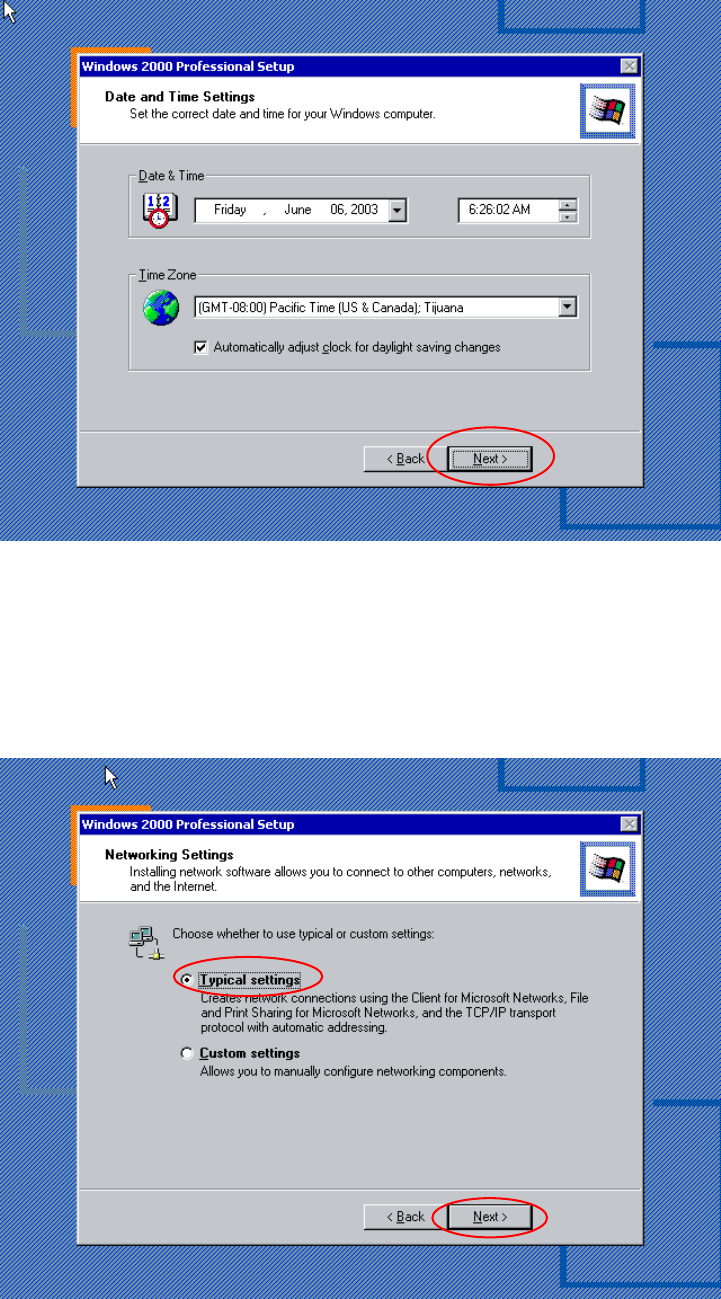
Fig. 2-10: Windows 2000 Professional: Date, Time and Time Zone
→ Check the Date & Time and the Time Zone.
→ If necessary change the settings.
→ Click the button Next>.
→ Wait until installation has copied necessary files and the following dialog appears.
Fig. 2-11: Windows 2000 Professional: Networking Settings
12
Installation Manual for Windows 2000 Professional (manual setup) Edition 10/2005 US
→ Choose "Typical Settings"
→ Click the button Next>.
The following dialog appears:
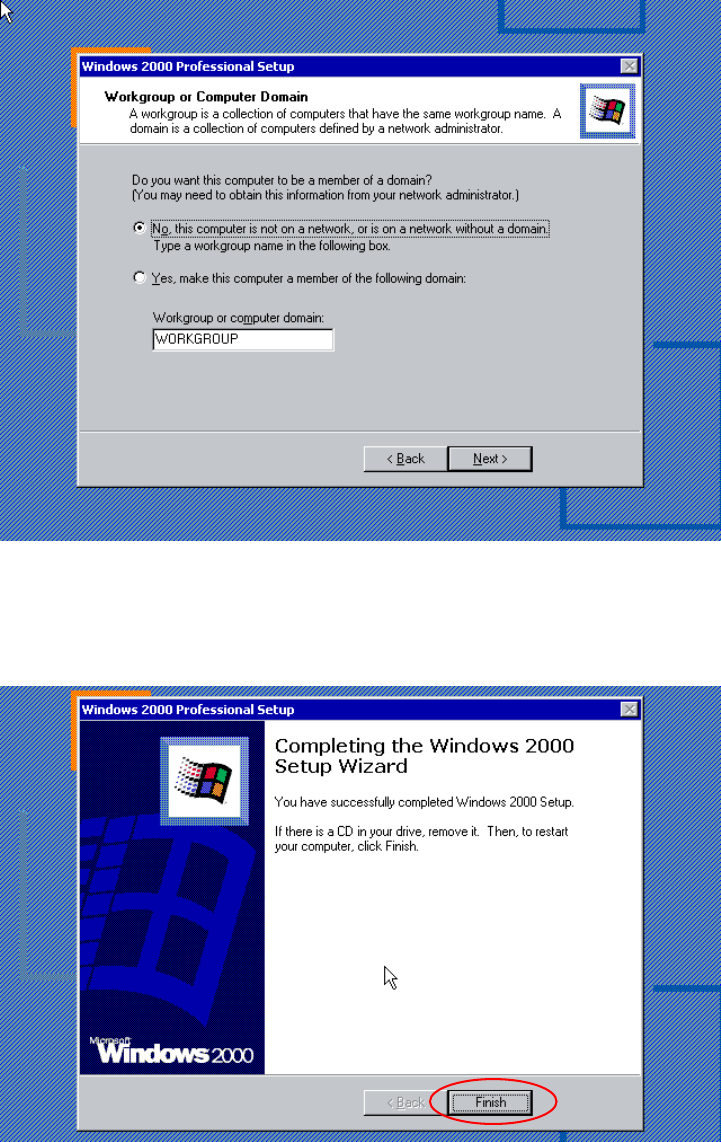
Fig. 2-12: Windows 2000 Professional: Workgroup or Computer Domain
→ Accept the settings.
→ Click the button Next>.
A dialog to complete the first part of the installation will appear.
Fig. 2-13: Ready for Reboot
13
Installation Manual for Windows 2000 Professional (manual setup) Edition 10/2005 US
Windows 2000 is searching for a feasible driver software during the first reboot. You have to wait.
Windows 2000 will switch screen resolution several times to find best support for your hardware.
Note:
Windows can only find the driver software which is bundled on the Windows installation.
You can adjust the driver configuration after Windows installation completes.
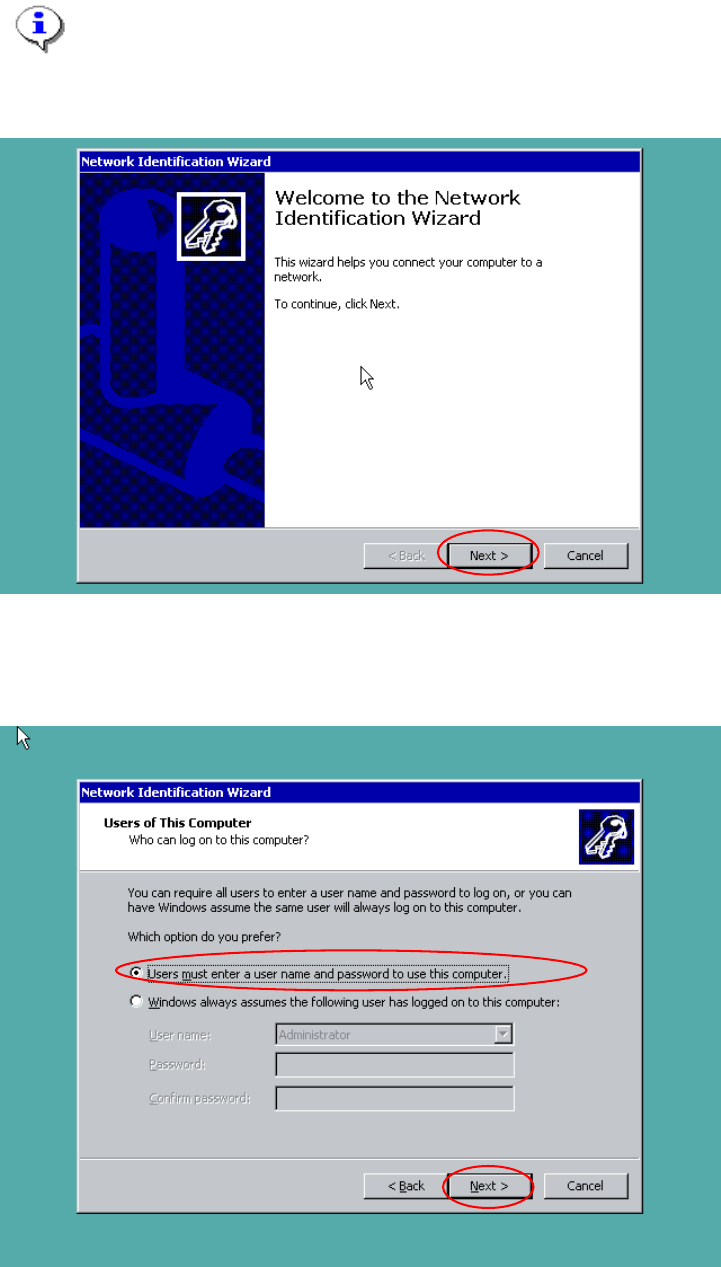
The next wizard can configure the identification method for this installation.
Fig. 2-14: Windows 2000 Professional: Welcome to Network Identification Wizard
→ Click the button Next.
In the next dialog you can configure your identification method.
Fig. 2-15: Set logon method
14