00193908-02.pdf - 第21页
Installation Manual for Windows 2000 Prof essional (manual setup) Edition 10/2005 US 2.4 Customize Hardware configuration Depending on the hardwar e you are using, it might be necessary to manually inst all the drivers o…
Installation Manual for Windows 2000 Professional (manual setup) Edition 10/2005 US
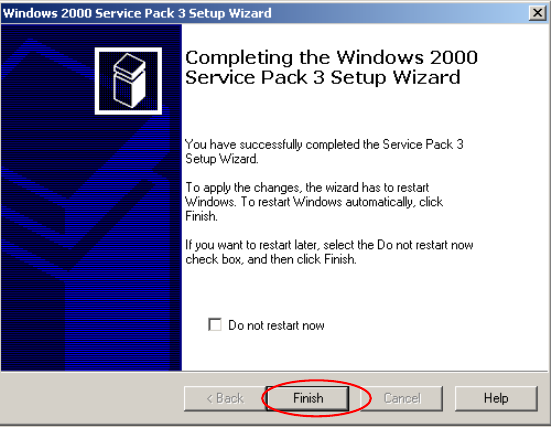
→ Wait until next dialog appears.
Fig. 2-25: Windows 2000 SP4: Finished
→ Click the button Finish.
The computer will be rebooted.
After reboot the installation is completed.
20
Installation Manual for Windows 2000 Professional (manual setup) Edition 10/2005 US
2.4 Customize Hardware configuration
Depending on the hardware you are using, it might be necessary to manually install the drivers of your
manufacturer. This happens when the hardware is newer than the Windows version you are using.
Note:
You can use this as a guideline to install commonly missing drivers. This guideline might not
cover all procedures. Please consult the documentation for the hardware manufacture.
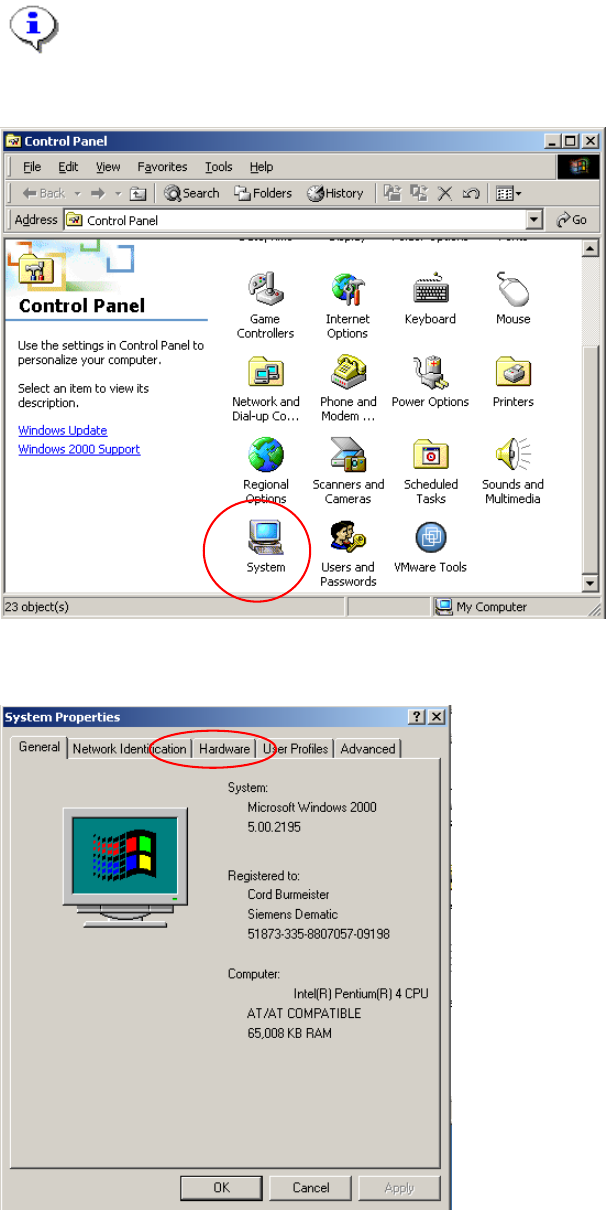
→ Open the Control Panel by activating Start Æ Control Panel.
Fig. 2-26: Control Panel-System
→ Start the system configuration:
Fig. 2-27: System configuration
21
Installation Manual for Windows 2000 Professional (manual setup) Edition 10/2005 US
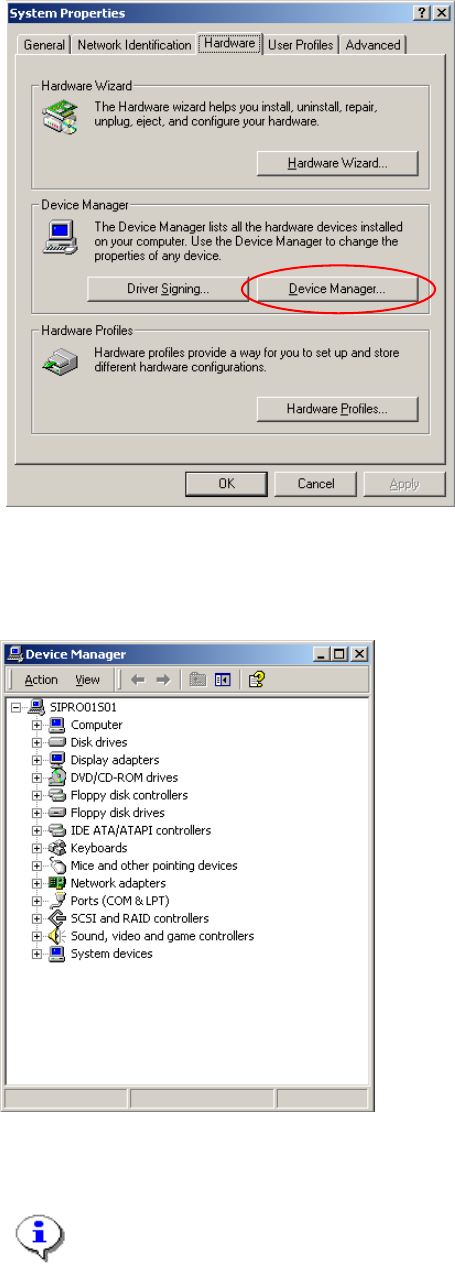
→ Switch to Hardware configuration by selecting the “Hardware” tab
Fig. 2-28: Starting Device Manager
→ Start the Device Manager.
You see the device manager dialog:
Fig. 2-29: Device Manager
Here you can see and find hardware devices, which have no appropriate driver software.
Note:
Windows will mark unknown hardware devices with a question mark icon. This means
Windows has detected a configuration error.
22