00193908-02.pdf - 第17页
Installation Manual for Windows 2000 Prof essional (manual setup) Edition 10/2005 US Fig. 2-20: Configure Network connection → Select the network component “Internet Protocol (TCP/IP)” → Select the button Properties Fig.…
Installation Manual for Windows 2000 Professional (manual setup) Edition 10/2005 US
2.2 Configure Network parameters
Windows will always configure the network configuration parameters automatically, if it can do that.
When no network infrastructure, like a DHCP Server, is available it will use some default values.
Normally it is necessary to adjust these parameters.
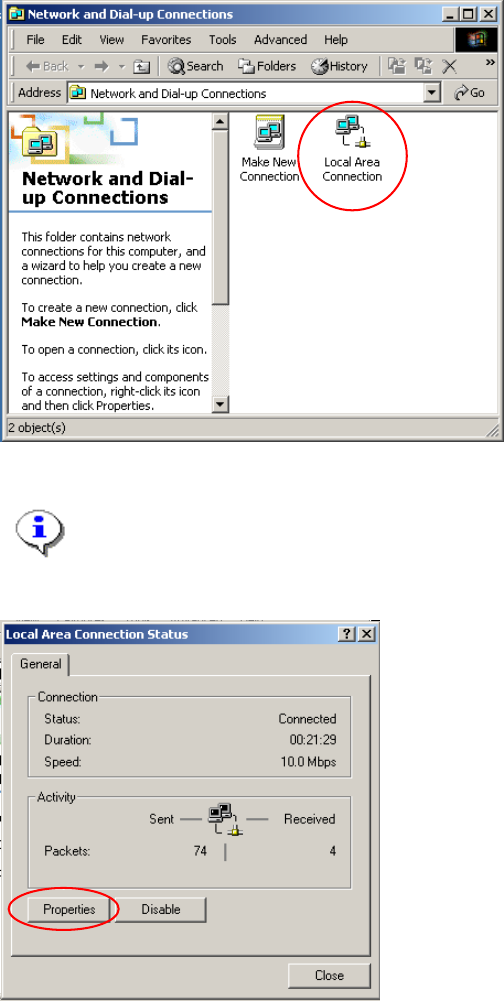
→ Start Configuration by selecting Start Æ Settings Æ Network and Dial-up Connections
You will see a Connection for every network card in your computer
Fig. 2-18: Network configuration
Note:
Normally you will see one network connection “Local Area Connection”.
→ Click on “Local Area Connection”
Fig. 2-19: Local Area Connection
16
Installation Manual for Windows 2000 Professional (manual setup) Edition 10/2005 US
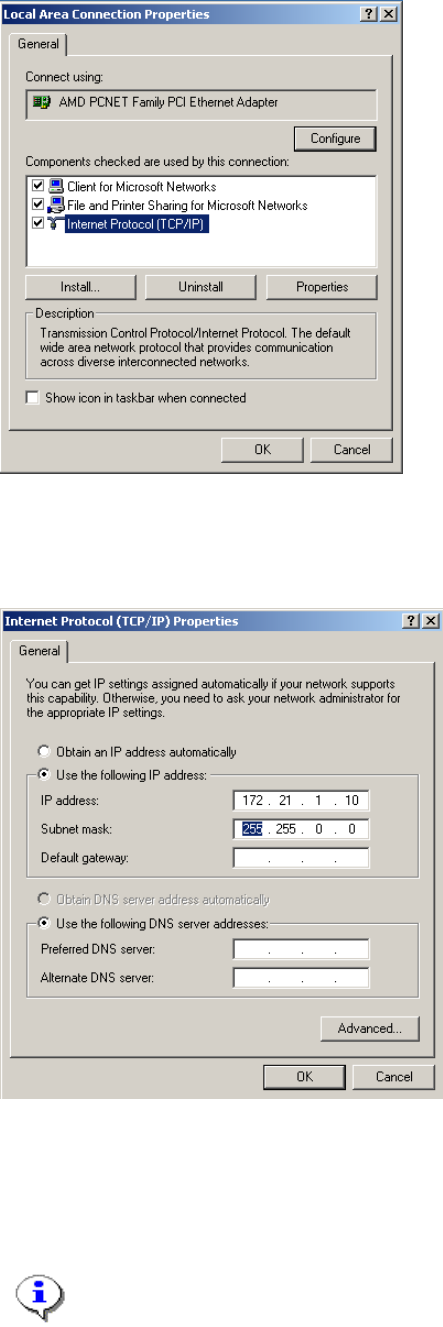
Fig. 2-20: Configure Network connection
→ Select the network component “Internet Protocol (TCP/IP)”
→ Select the button Properties
Fig. 2-21: TCP IP Configuration
→ Select the option “Use the following IP address”
→ Select the button Properties
→ Enter the IP address as well as the network mask.
Note:
This configuration is for an island configuration. The customer might have other
configuration parameter here for you to enter.
→ Click the button Ok and close all opened dialogs.
17
Installation Manual for Windows 2000 Professional (manual setup) Edition 10/2005 US
2.3 Installation of the appropriate Service Pack
Windows is provided with updates.
Note:
Operating SIPLACE Pro on Windows 2000 requires technically Service Pack 3. SIPLACE
Pro can operate on Service Pack 4. Microsoft recommends to use the latest Service Pack.
Note:
This document describes the service pack 3. Service pack 4 can be installed in a similar
procedure.
Note:
You should find the Service Pack 3 for Windows 2000 on one of the Support CDs of your
SIPLACE Pro or SIPLACE C Pro Software distribution.
It should be placed under a directory like \Windows2000\SP4
→ Call w2ksp4.exe to extract the files.
You must specify a directory to extract the files.
Note:
This setup program will extract the installation files first, before the real installation will take
place. The first step will only extract these files.
→ Enter a directory name. Best accept the default.
→ Click the button OK.
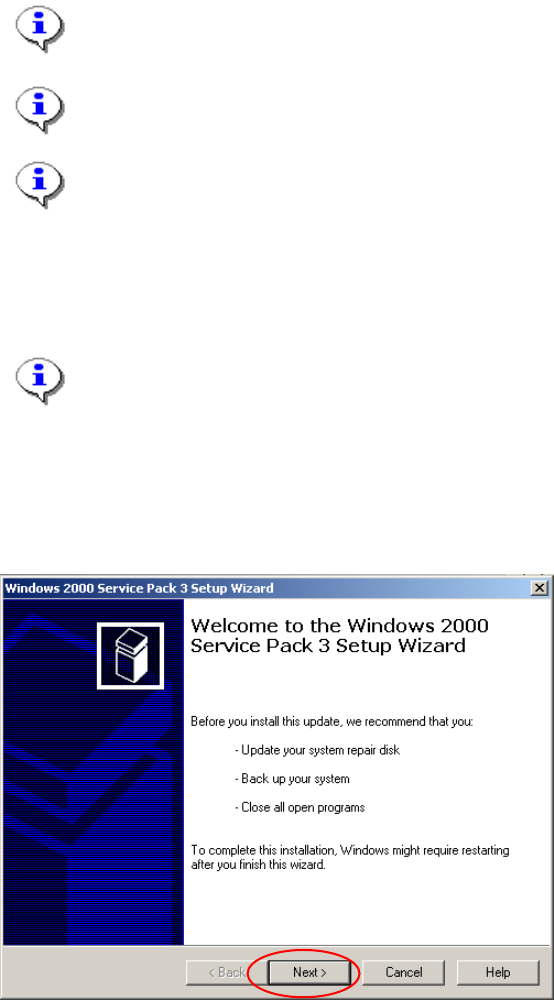
The next dialog will recommend that you close all programs.
Fig. 2-22: Windows 2000 SP4: Welcome
→ Click the button Next>.
In the next dialog you must agree to the license agreement.
18