00195813-09_IM_SSW_605_03_SP5_DE EN.pdf - 第26页
Station S oftware 60 5.03 SP5 / Ins tallation M anual Ausgabe 11/2013 E dition 26 Figure 5-6 : TouchWare Properties – Multiple Monitors tab (example for Monitor 2) ► C lick the num ber of the m onitor you wish to ca libr…
Station Software 605.03 SP5 / Installation Manual Ausgabe 11/2013 Edition
25
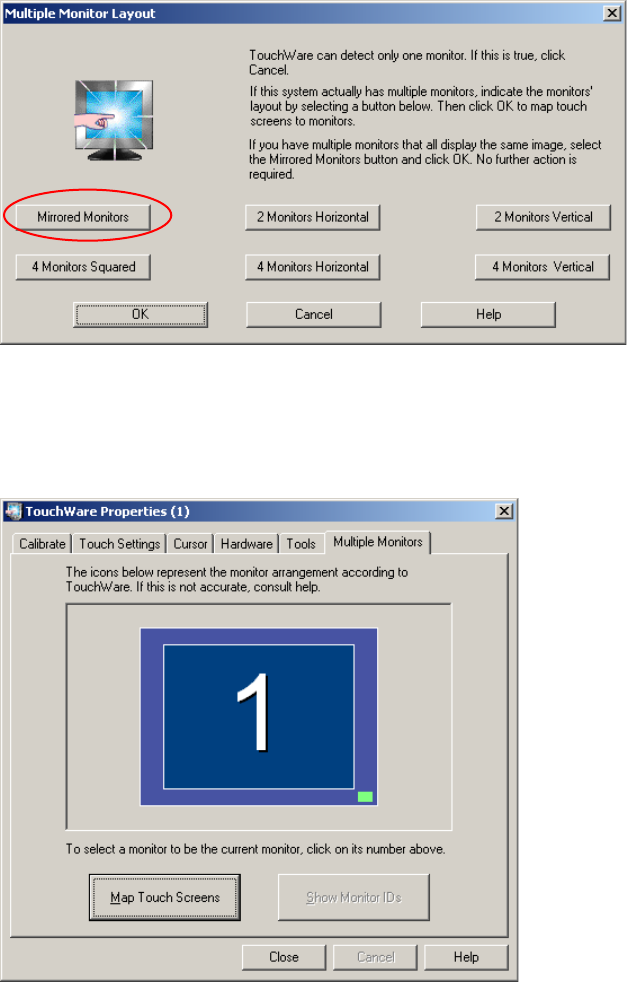
Figure 5-4: "Multiple Monitor Layout" dialog box
► Click the Mirrored Monitors button.
► Confirm your entry with OK.
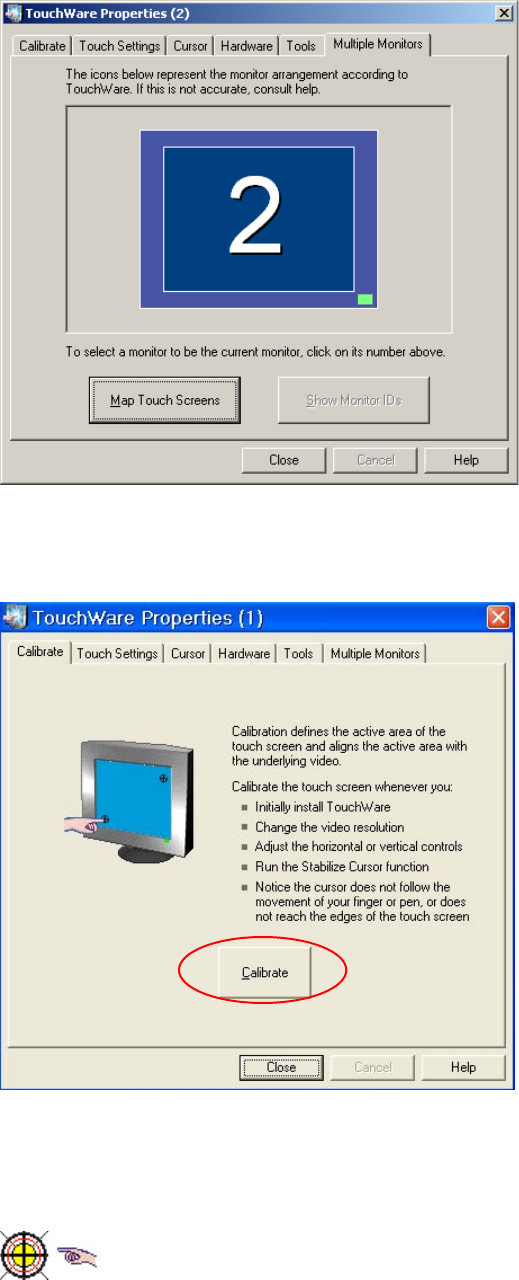
The touch screens are now mapped and the "Multiple Monitors" tab is displayed again.
Figure 5-5: TouchWare Properties – Multiple Monitors tab (example for Monitor 1)
Station Software 605.03 SP5 / Installation Manual Ausgabe 11/2013 Edition
26
Figure 5-6: TouchWare Properties – Multiple Monitors tab (example for Monitor 2)
► Click the number of the monitor you wish to calibrate.
► Open the Calibrate tab.
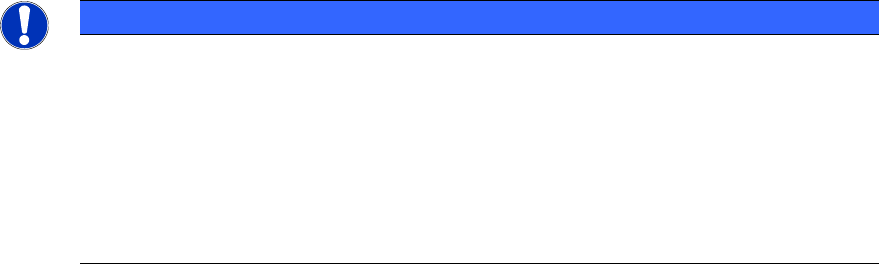
Figure 5-7: TouchWare Properties – Calibrate tab (example for Monitor 1)
► Click the Calibrate button.
An icon representing the calibration is shown on screen. An icon representing a hand guides
you through the calibration steps by pointing to the calibration icon you must touch.
Figure 5-8: Calibration marks
Station Software 605.03 SP5 / Installation Manual Ausgabe 11/2013 Edition
27
NOTICE
► Touch the calibration icon within 20 seconds, otherwise calibration is automatically
canceled.
► Make sure that you are standing directly in front of the monitor.
► Carry out calibration in the position (standing or seated) you normally adopt when
working at this screen.
► Touch the calibration icon firmly and accurately with your fingertip.
► Make sure that you do not inadvertently touch the screen with any other finger.
► Touch the calibration icon with your finger and make sure that the yellow area is completely
covered by your finger. The message "Hold" appears around the hand icon.
► Keep your finger on the calibration icon until the "Touch Enabled" message appears. A second
calibration icon now appears.
► Repeat the steps described above for the second calibration icon.
A dialog box then appears asking you to test the calibration. You can carry out the calibration
again if you are not sure that you have carried it out correctly the first time.
► Carry out the procedure described above for the second screen as well.
► Click the Close button to close the program.