00195044-15_UM_VisionTeachStation_DE EN.pdf - 第160页
8 Starting the vision teach station Vision Teach Station User Manual 8.3 Error messages when starting the application 10/2015 Edition 160 8.3.5 No CAN card installed The fault correction depends on the installed CAN card…

Vision Teach Station User Manual 8 Starting the vision teach station
10/2015 Edition 8.3 Error messages when starting the application
159
8.3 Error messages when starting the application
The following error messages may appear when you start the application:
8.3.1 No camera was detected
Check that the base module is switched on and that all 3 LEDs light up.
If the three LEDs light up, then the + 24 V- (red), + 15 V- (yellow) and + 42 V- (green) supply
voltages are present (see section 4.2, page 116). 8
If one of the LEDs does not light up, contact SIPLACE Service. 8
If all 3 LEDs do not light up, check the 2.5 A fuse (item 1 in Fig. 8
4.2 - 1, page 116). 8
Check whether the CAN bus cable between the PC and the base module or between the base
module and the stationary camera is connected correctly.
Exit and restart the vision teach station application.
8.3.2 Camera not responding
If a stationary camera is concerned (type 33/type 25):
Check that the orange camera bus cable is connected between camera and PC.
If a head camera is concerned:
Check that the orange camera bus cable is connected on the back of the basic module
(connection (5) in Fig. 4.2 - 1, page 116) and to the PC.
Check whether there are bent connection pins on the plugs of the "adapter for head camera"
(Fig. 5.2 - 9, Seite 130) .
If the camera still is not detected, contact SIPLACE Service.
8.3.3 There is a vision teach station application running already
Exit the application and then start it again.
8.3.4 Error: LED self-test failed. Not all LEDs are working properly
One or more LEDs for the camera illumination has failed.
Replace the defective camera.
8 Starting the vision teach station Vision Teach Station User Manual
8.3 Error messages when starting the application 10/2015 Edition
160
8.3.5 No CAN card installed
The fault correction depends on the installed CAN card:
For the PowerCAN-PCI CAN card
This card can be identified by the green CAN3 plug from the outside. It was installed up to
04/2012 and only supports 32-bit operating systems.
Check whether a 64-bit operating system has been installed on this computer.
If yes:
Exchange the CAN card to a PowerCAN-PCI-II (COM168-PCI II) card with the item no.
03079973-xx.
OR
Perform a complete reinstallation with a 32-bit operating system.
If no:
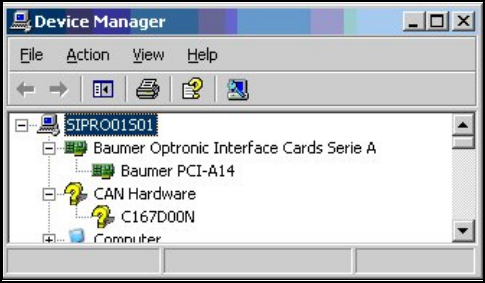
In the Device Manager (Control Panel System Hardware Device Manager), check
whether the driver for the CAN card has been installed correctly. There must be a "C167D00N"
entry under "CAN Hardware". The yellow question mark does not indicate an error. Errors are
indicated by an exclamation mark.
8
Fig. 8.3 - 1Device manager
If you cannot find this entry, look for the "Intelligent I/O (I2O) Controller" entry. In this case, you
will have to reinstall the driver:
Under Properties Drivers tab, select the "Update drivers" button.

Vision Teach Station User Manual 8 Starting the vision teach station
10/2015 Edition 8.3 Error messages when starting the application
161
Select "Install from a list or specific location" and enter the following directory:
C:\Program Files\Sontheim\MT_Api\7.4.14.0\Driver\PowerPCI 8
If this directory does not exist, insert the "Software Vision Teach Station" installation CD and
start the Setup.exe under the \CAN directory.
If the C167D00.SYS file is needed, you will find it in the same directory. 8
Perform a reboot in either case.
For the PowerCAN-PCI-II CAN card
This card gets installed as of 04/2012. It has no CAN3 plug.
In the Device Manager (Control Panel System Hardware Device Manager), check
whether the driver for the CAN card has been installed correctly. There must be a "PowerCAN-
PCI II Sontheim GmbH" entry under "Multifunction adapters".
8
8
8
Fig. 8.3 - 2 Device Manager with PowerCANPCI II
If you cannot find this entry, look for the "Other PCI Bridge Device" entry under "Other devices".
In this case, you will have to reinstall the driver:
Under Properties Driver tab, select the "Update Driver" button.
Select "Install from a list or specific location" and enter the following directory:
C:\Program Files (x86)\Sontheim\MT_Api\7.4.14.0\Driver\PowerPCIv2 8
If this directory does not exist, insert the "Software Vision Teach Station" installation CD and
start the Setup.exe under the \CAN directory.
Perform a reboot in either case.