00196956-02_IM_OIS_SIS 10.1_DE EN.pdf - 第13页
OIS 10.1 / Installation Manual Ausgabe 11/2012 Edition This warning is displayed by Monitoring Server if SIPLACE Pro has not been in stalled. However, SIPLACE Pro can be installed later. Figure 3-10: SIPLACE Pro not inst…
OIS 10.1 / Installation Manual Ausgabe 11/2012 Edition
Error messages and warnings
If some prerequisites are failing for the installation, corresponding error messages and warnings
will be displayed..
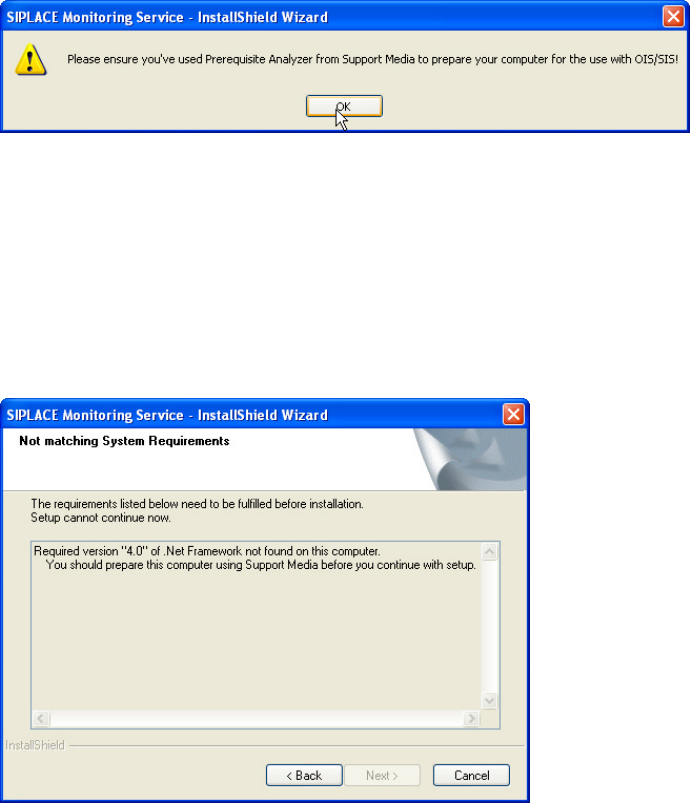
The following error messages are displayed by Monitoring Server if the Support Media for OIS
has not been performed.
Figure 3-8: Support Meda not performed
► Click OK to confirm the error message.
► Click Cancel to cancel the installation.
► Prepare the system with the Prerequisite Analyzer of Support Media for OIS/SIS.
► Restart the installation.
The following error message displays that the required version of .Net Framework has not been
installed.
Figure 3-9: System requirements not matching
► Click Cancel to cancel the installation.
► Prepare the system with Support Media.
► Restart the installation.
12
OIS 10.1 / Installation Manual Ausgabe 11/2012 Edition
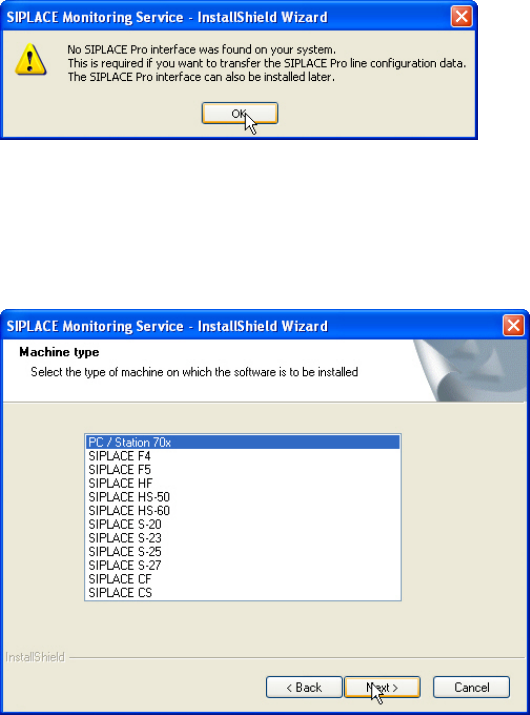
This warning is displayed by Monitoring Server if SIPLACE Pro has not been installed. However,
SIPLACE Pro can be installed later.
Figure 3-10: SIPLACE Pro not installed
► Click OK to confirm the warning.
► Click Next >, to continue the installation.
The following dialog box is opened.
Figure 3-11: Selecting machine type
► Select the machine type on which OIS Client is to be installed.
► Select the Personal Computer type for machines with station software version 70x.
► Click Next >.
13
OIS 10.1 / Installation Manual Ausgabe 11/2012 Edition
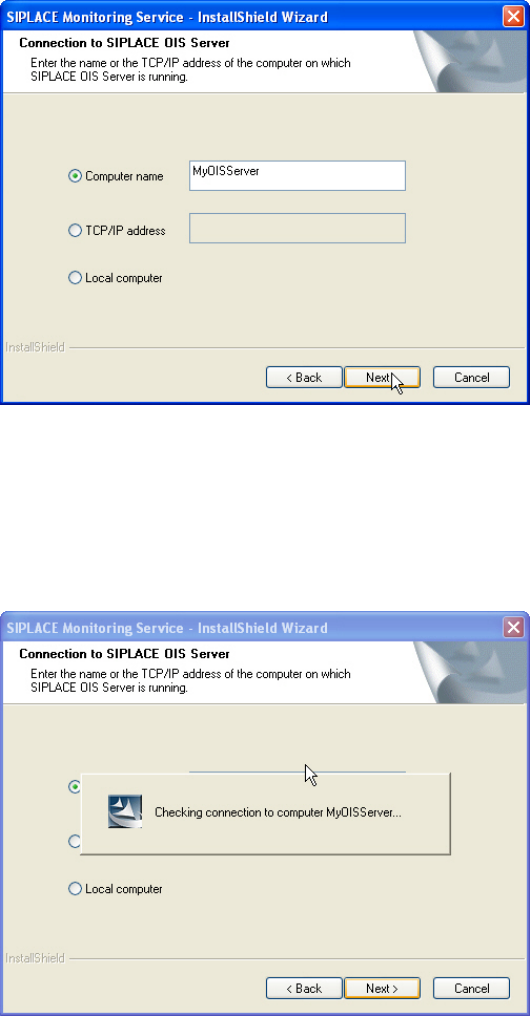
The following dialog box is opened.
Figure 3-12: Connection to OIS Server
► Enter the computer name or the TCP/IP address of the OIS Server.
► If you are installing OIS Client on the OIS Server computer, select Local Computer.
► Click Next >.
The following dialog box is opened.
Figure 3-13: Checking connection to OIS Server
14