00195421_OIS_SIS_Install_de_en.pdf - 第12页
Installationsanleitung OIS Client, OIS Server, SIS Server Version 5.0 Installation Manual 3.2.2 Installing OIS Server ¾ Select the components you want to install. ¾ Continue by clicking the Next> button. Note: It is p…
OIS Client, OIS Server, SIS Server Version 5.0 Installationsanleitung
Installation manual
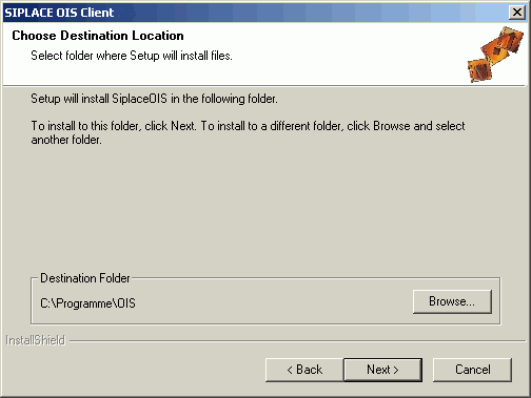
The following dialog is opened.
¾ Click Browse... if you want to choose a different installation directory.
¾ Continue by clicking the Next> button.
The following installation steps depend on the program that you have select to install.
Continue with the approriate section:
• OIS server (section
3.2.2 on page 12)
• OIS client (section
3.2.3 on page 17)
• SIS server (section
3.2.4 on page 19)
11 von 50
Installationsanleitung OIS Client, OIS Server, SIS Server Version 5.0
Installation Manual
3.2.2 Installing OIS Server
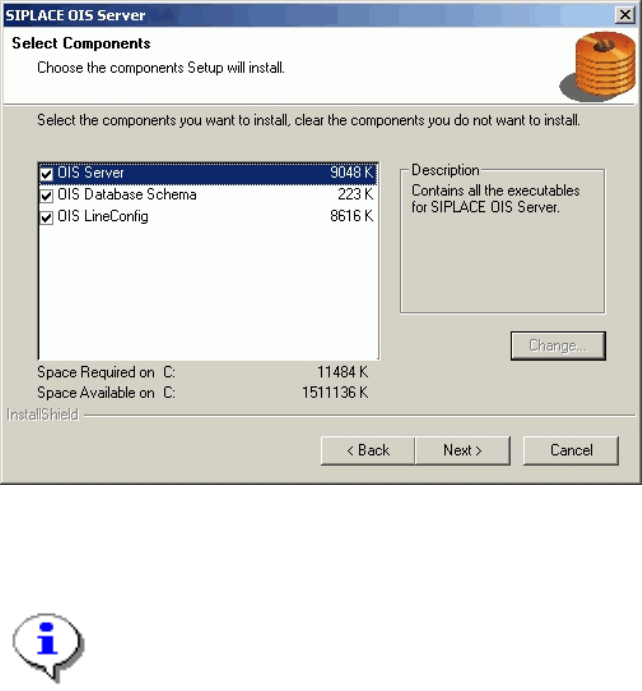
¾ Select the components you want to install.
¾ Continue by clicking the Next> button.
Note:
It is possible to install the component OIS LineConfig on any other computer in the network.
If installed elsewhere, that computer needs the SIPLACE Pro Interface.
The operating levels of the OIS system are mapped to operating system user accounts. The following two
user groups are created in the User Manager on the OIS Server computer for this purpose.
• OISEngineers for the operating level Line engineer
• OISAdministrators for the operating level Administrator
Only those users who are members of the relevant user group are permitted to switch to a given operating
level.
The following users are created and assigned to the user groups by default during installation:
• OISEngineer for the operating level Line engineer, is a member of the user group OISEngineers
• OISAdministrator for the operating level Administrator, is a member of the user group
OISAdministrators
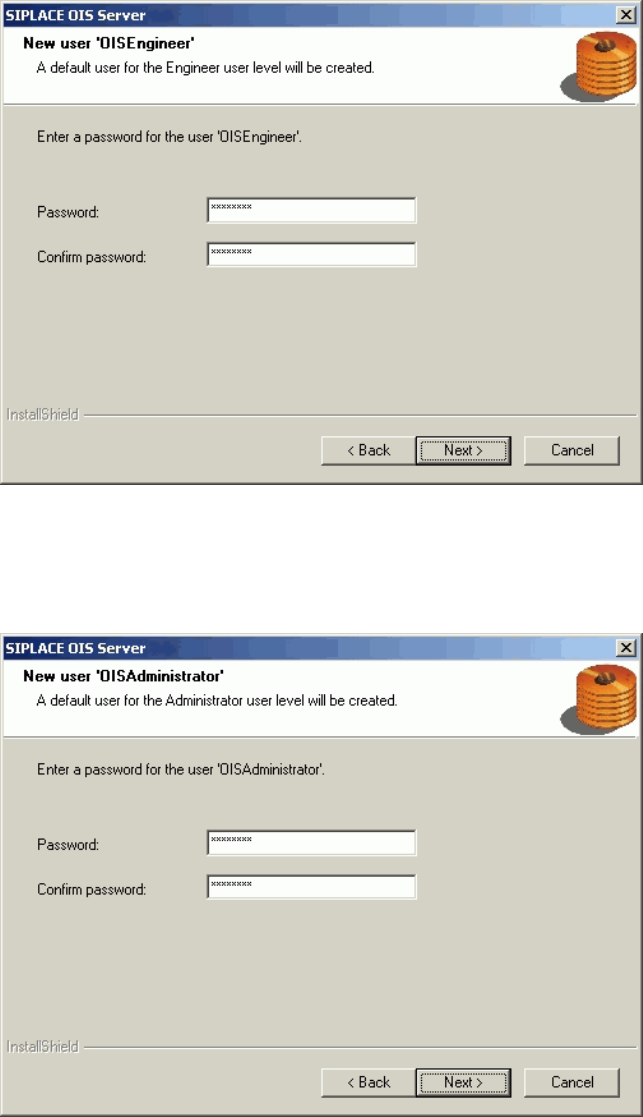
The next two dialog boxes allow you to assign a password to each user.
12 von 50
OIS Client, OIS Server, SIS Server Version 5.0 Installationsanleitung
Installation manual
¾ Enter the password for the OISEngineer. The default password is "OISEngineer".
¾ Enter the password again to confirm.
¾ Continue by clicking the Next> button.
¾ Enter the password for the OISAdministrator. The default password is "OISAdministrator".
¾ Enter the password again to confirm.
¾ Continue by clicking the Next> button.
13 von 50