00195421_OIS_SIS_Install_de_en.pdf - 第18页
Installationsanleitung OIS Client, OIS Server, SIS Server Version 5.0 Installation Manual ¾ Select the desired languages. The lan guages are only relevant for the OIS Line Config di alog. German and English are always in…
OIS Client, OIS Server, SIS Server Version 5.0 Installationsanleitung
Installation manual
3.2.3 Installing OIS Client
Note:
An OIS server must be installed and running before installing a client.
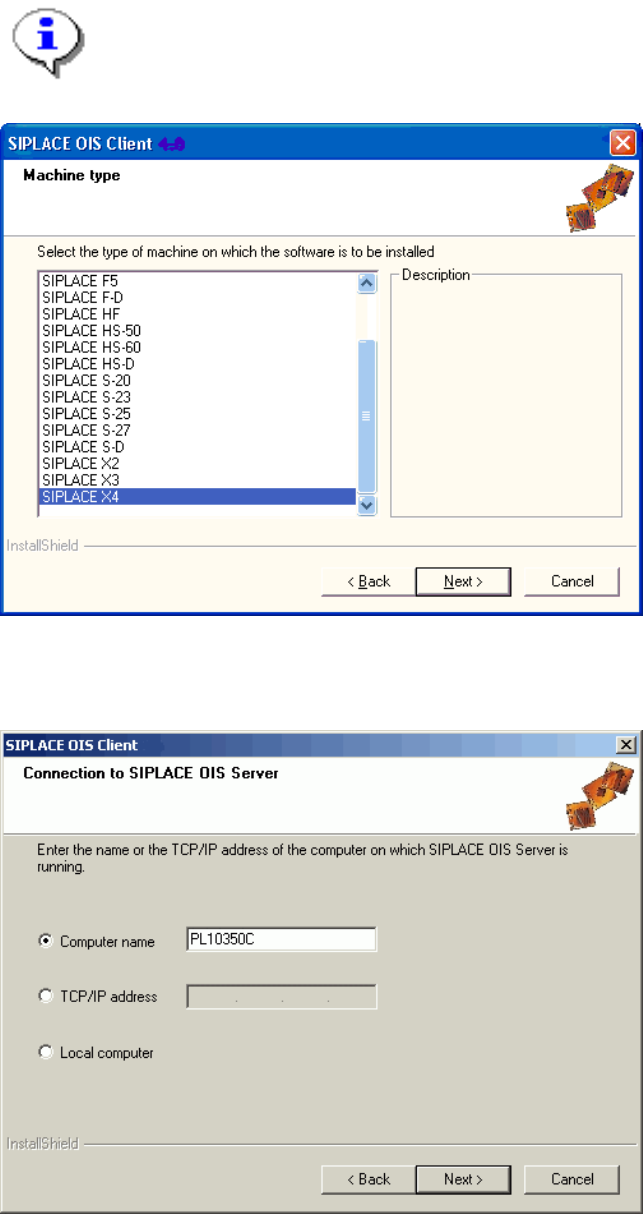
¾ Select the machine type on which the OIS client is to be installed.
¾ Continue by clicking the Next> button.
¾ Enter the TCP/IP address or the computer name of the OIS Server.
¾ If you are installing the software on the OIS Server computer, choose Local Computer.
¾ Continue by clicking the Next> button.
17 von 50
Installationsanleitung OIS Client, OIS Server, SIS Server Version 5.0
Installation Manual
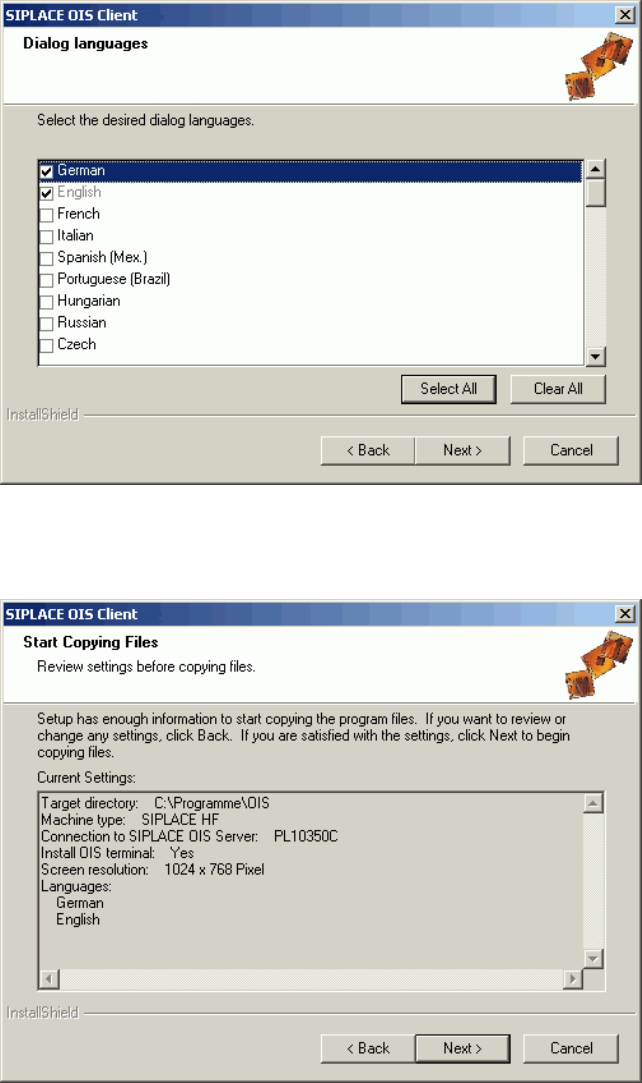
¾ Select the desired languages. The languages are only relevant for the OIS Line Config dialog.
German and English are always installed.
¾ Continue by clicking the Next> button.
This shows a summary of the settings and entries you have made so far.
¾ Check the settings.
¾ Click Next > to start the actual installation process.
¾ If you wish to change your entries, click < Back to return to the appropriate dialog.
The software is then installed.
¾ Continue with section
3.2.5 on page 22.
18 von 50
OIS Client, OIS Server, SIS Server Version 5.0 Installationsanleitung
Installation manual
3.2.4 Installing SIS Server
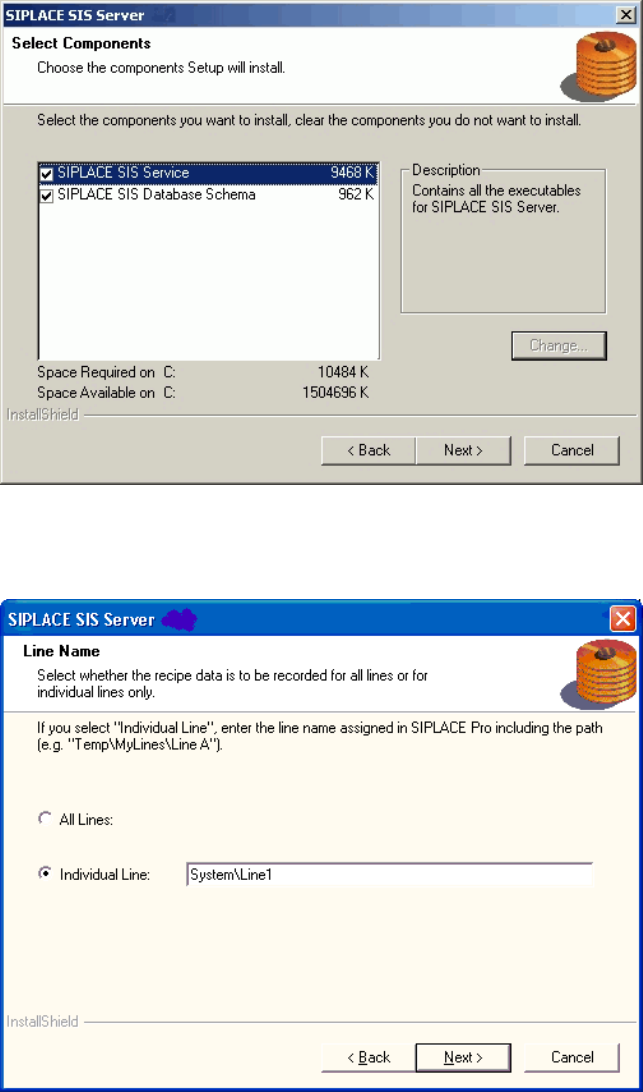
¾ Select the components you want to install.
¾ Continue by clicking the Next> button.
¾ Specify whether SIPLACE SIS is to record the specified recipe and setup data for all the lines
connected to SIPLACE Pro or for a specific line.
¾ If SIPLACE SIS is only to record the data for a particular line, enter the name of the required line and
the path exactly as it is written in SIPLACE Pro, e.g. My Lines\System\NewLine.
¾ Continue by clicking the Next> button.
19 von 50