M3plus_OperationManual_e.pdf - 第39页
2 - 6 2 Basic oper ation Data input method Pressing the [Software Setting] button on the Setup screen opens the Setting window as shown below. With the upper left four buttons in the [View] tab of the Setting window, you…
2 -5
2
Basic operation
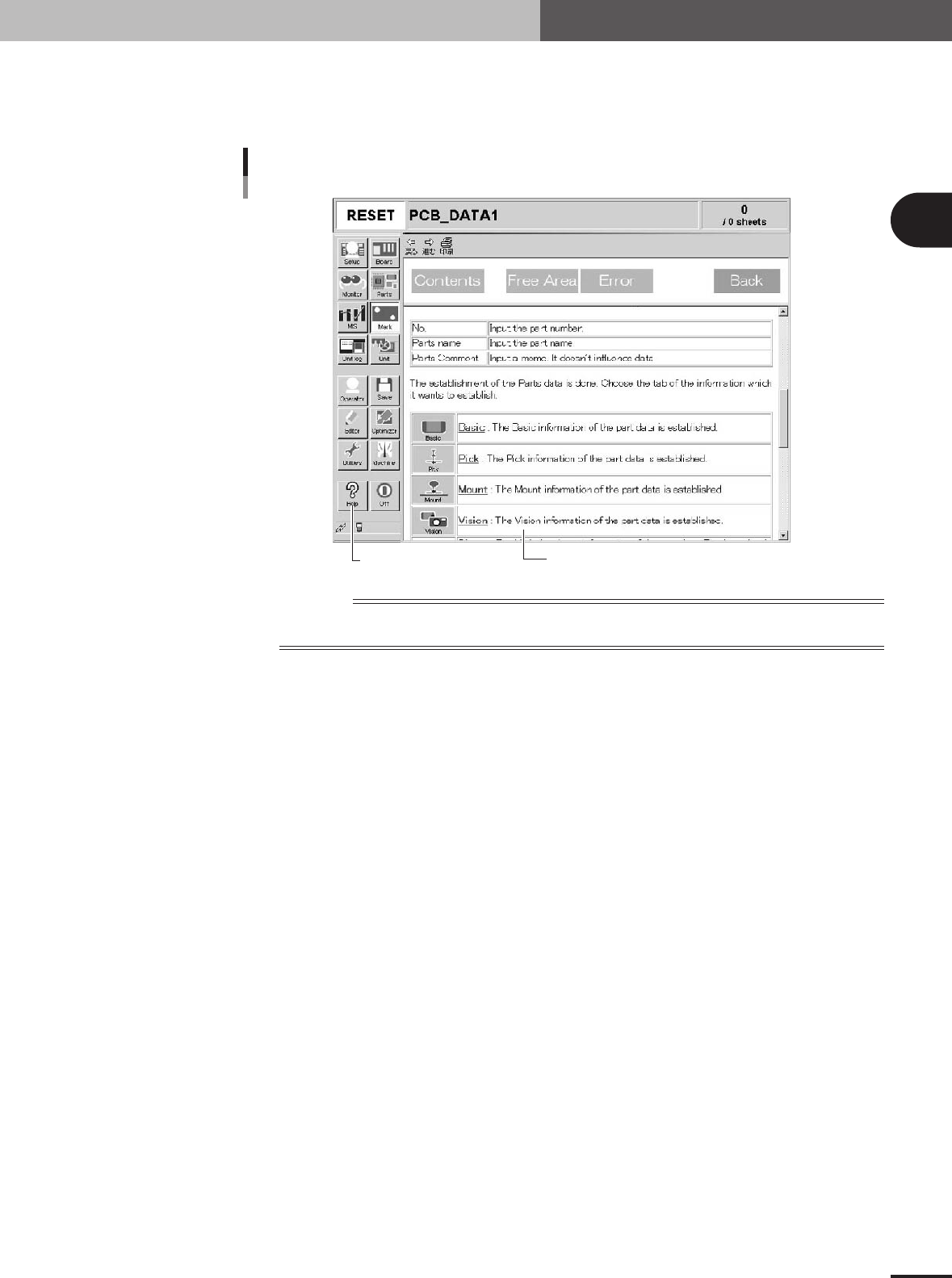
Help screen
Help screens show you the function and description of each menu button, selection tab or parameter.
Press the [Help] button to open the Help screen. To return to the operation screen from the Help
screen, press any button in the main menu button area.
[Help] button
Help screen
[Help] screen
27203-5E-20
Reference
To display the Help screen, the CD-ROM that comes with the machine for software installation must be left
inserted into the CD-ROM drive in the machine.
2. Operation monitor and buttons
2 -6
2
Basic operation
Data input method
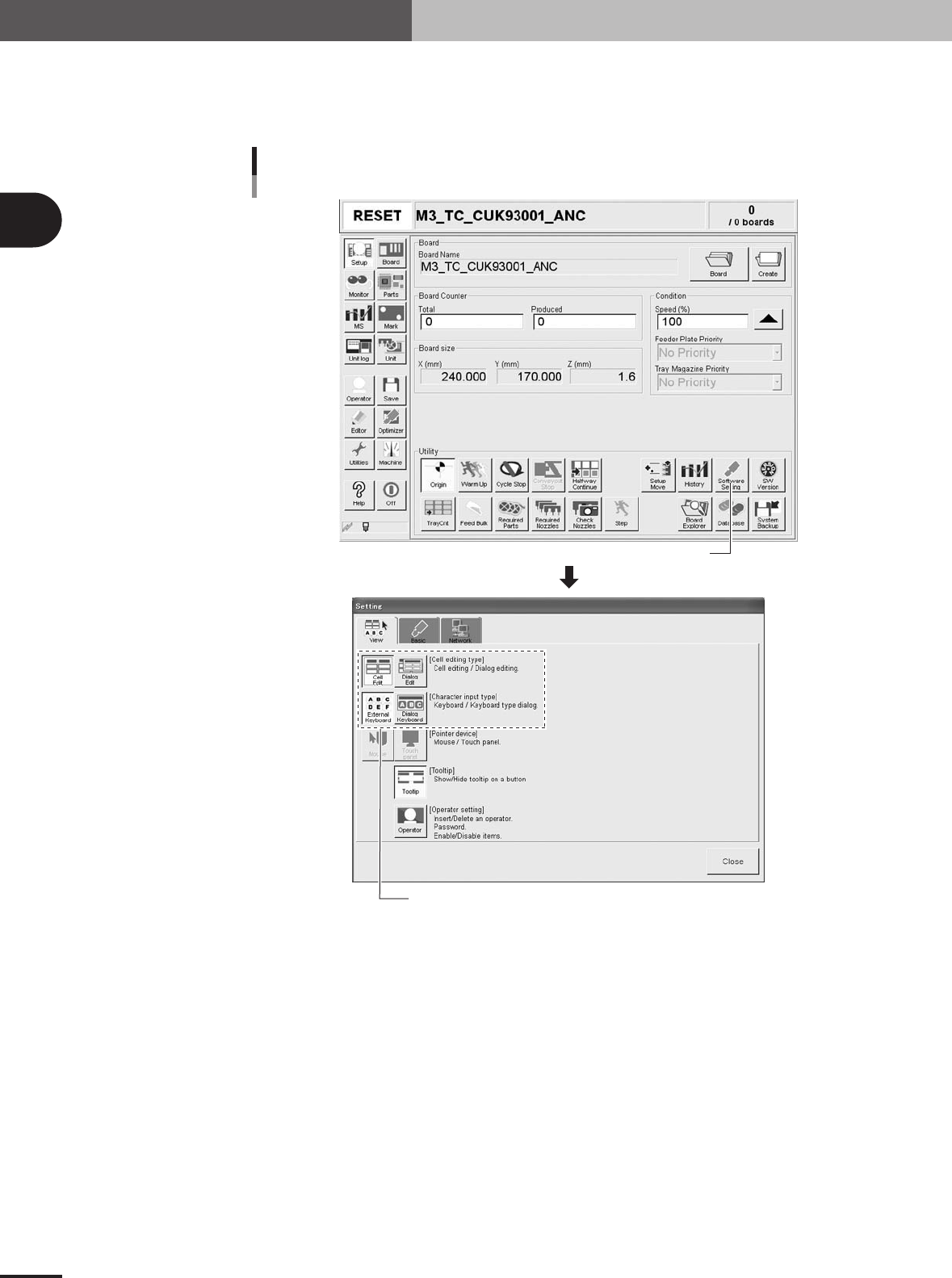
Pressing the [Software Setting] button on the Setup screen opens the Setting window as shown
below. With the upper left four buttons in the [View] tab of the Setting window, you can select the
data input method using dialog boxes or the keyboard and mouse.
[Software Setting] button
Selecting the data input method
Select the input method.
27204-5E-20
2. Operation monitor and buttons
2
Basic operation
2 -7
3. Starting and stopping the machine
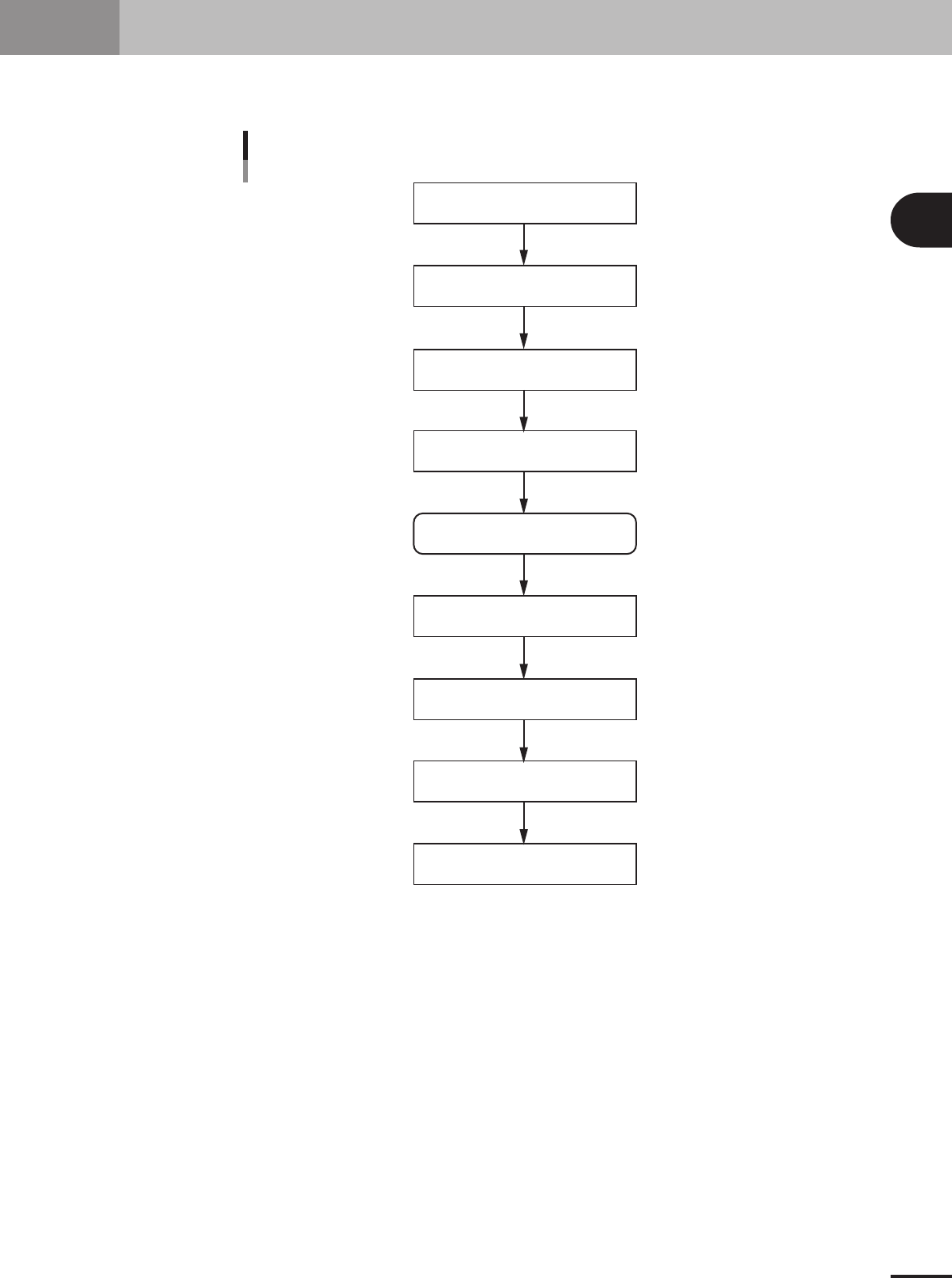
This section explains routine procedures for starting and turning off the machine according to the flow
charts below.
Starting and turning of the machine
Production (Running)
Press emergency stop button
Return machine to origin position
Tu rn off power switch
Check before operation
Preform return-to-origin
Specify operator
Press [Off] button on screen
Program is loaded.
Return-to-origin dialog box appears.
Move-to-origin dialog box appears.
Shut down dialog box appears.
Finish PCB Production.
Setup screen appears.
Tu rn on power switch
23201-5E-20