TR7600 SIII_Operation_en_v_2_0_2.pdf - 第13页
Test Research, Inc . TR7600 SIII Series User Gu ide – Operat ion 5 2.2 Turning On t he Machine 1) Open the front and rear door to check there is no foreign m aterial in the machine. 2) The emergen c y stops s hould be re…
Test Research, Inc.
4 TR7600 SIII Series User Guide – Operation
2 M
ACHINE
O
PERATION
2.1 Safety Control
Start-up Protection: For safety purposes, after you turn on a machine, the X-Y Table will
not start immediately. You have to ensure the machine and environment are safe first
and then press the [Reset] button on the human-computer interface to initialize the X-Y
Table system.
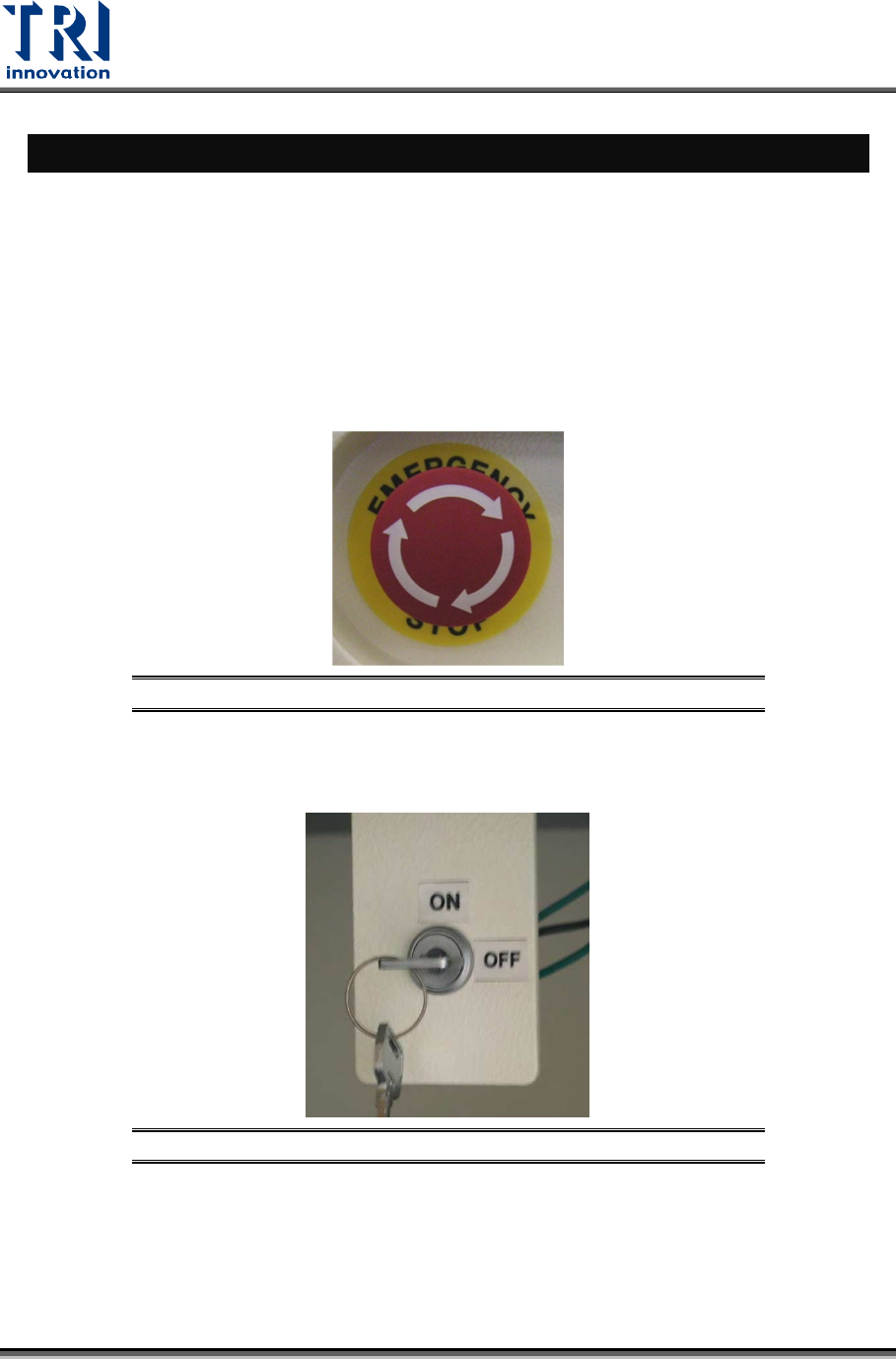
Emergency stop: If there is an emergency, press this stop button to stop the machine.
When safe, turn the emergency stop clockwise to release the button and select [Reset]
on the human-computer interface to reset the machine to normal status.
Figure 4: Emergency Stop
Safety Interlock: The safety interlock is located at the right hand side inside the front door.
When it is switched to [ON], the movement of machine will be stopped as the front or
rear door is open; if it is switched to [OFF], the safety device is disabled.
Figure 5: Safety Inter Lock
Operator Location: The optimal location for the operator is in front of the
monitor. Approximately 40-74cm away from the screen for a proper position to
view the machine monitor. And more than 5cm from equipment surface.
Please follow the safety instructions and warnings for a safer use of the
machine.
Test Research, Inc.
TR7600 SIII Series User Guide – Operation 5
2.2 Turning On the Machine
1) Open the front and rear door to check there is no foreign material in the machine.
2) The emergency stops should be released, and the safety interlock is turned to [ON].
3) Close the front and rear doors exactly.
4) Ensure the power cable is connected correctly.
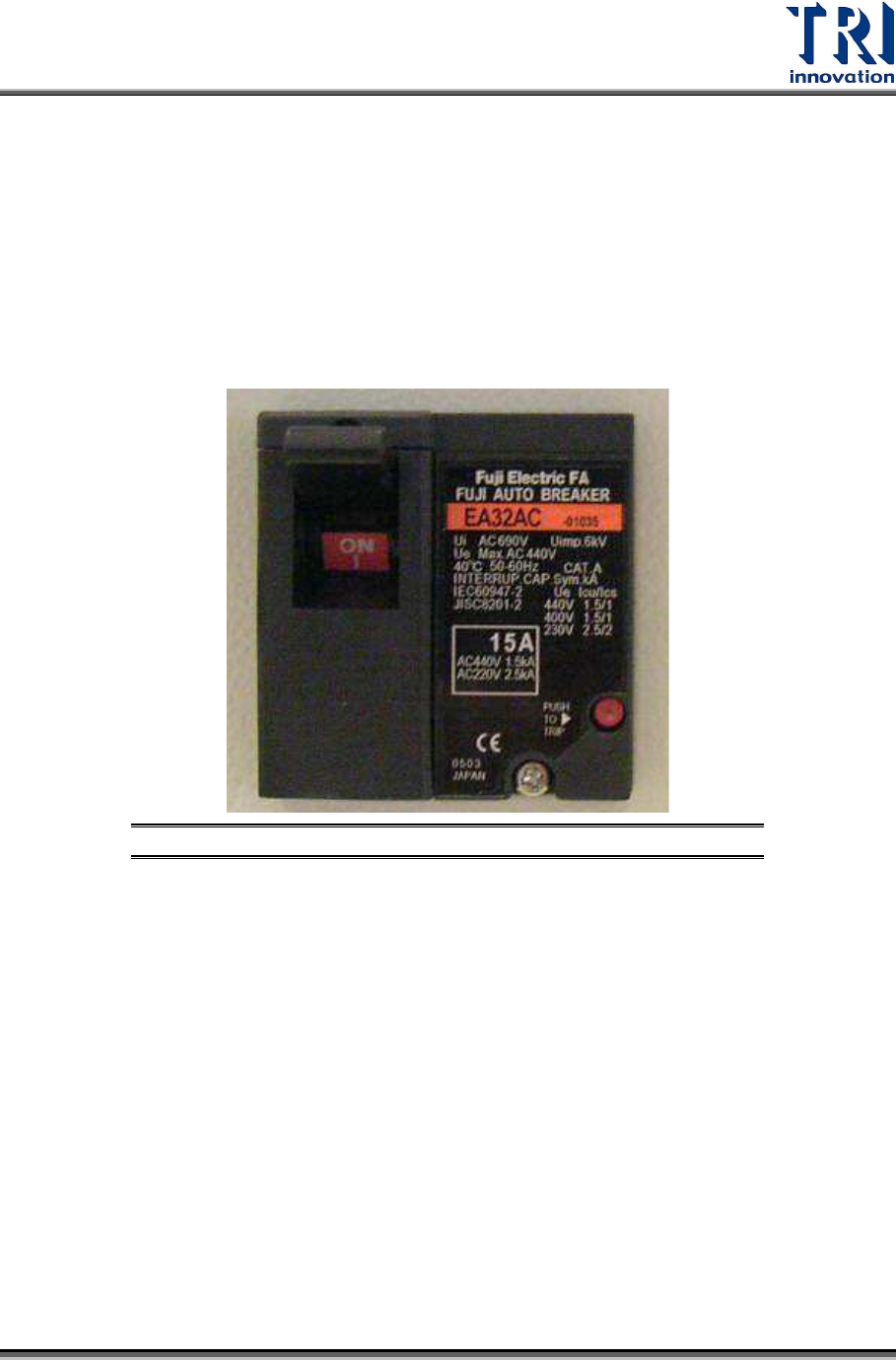
5) Pull up the breaker. Different types of machines may have different breakers. The figure
below is just an example.
Figure 6: Breaker
6) Turn the Power Switch clockwise to turn on the machine.
Test Research, Inc.
6 TR7600 SIII Series User Guide – Operation
2.3 Start the Inspection Software
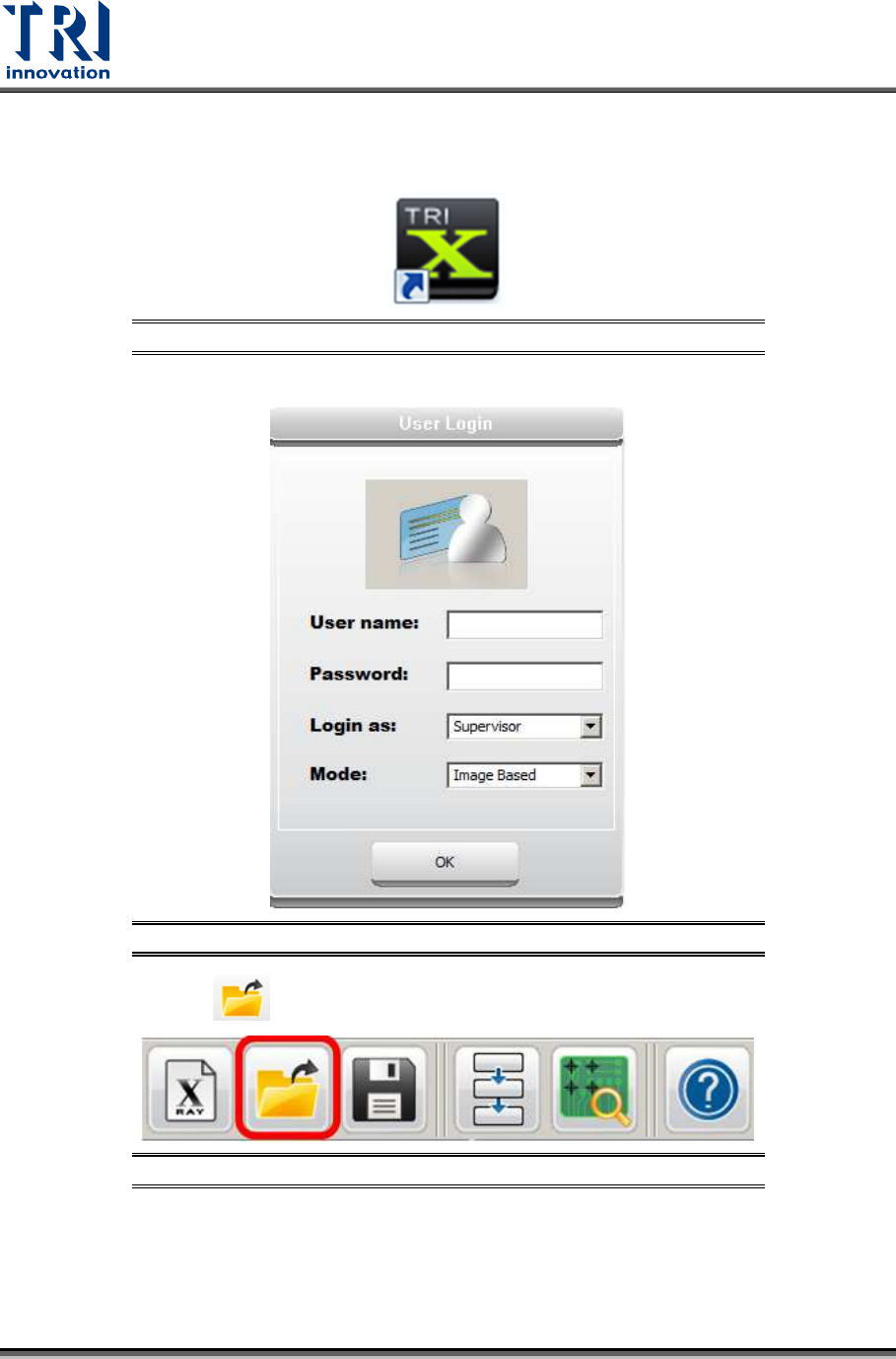
1) Double-click on the shortcut icon to open the main program.
Figure 7: Shortcut of Software
2) Enter the user name and password to access the main software.
Figure 8: Login Dialog Box
3) Click the [Open] button to load the inspection project (*.rcp).
Figure 9: Open an Inspection Project
4) Before conducting the inspection, check if the conveyor setup is correct.
5) Go to VPLC and click on “Mode” tab to change the board-in-and-out direction. Set the
conveyor moving direction, and click on “Send to PLC” to make this setting effective.