TR7600 SIII_Operation_en_v_2_0_2.pdf - 第22页
Test Research, Inc. 14 TR7600 SI II Series User G uide – Op eration 2) Set [Utility/System Configuration/ Repair/Path] to [\\RepairPC\tester_data] and ensur e the network has been linked properly. Figure 20: Set Repair S…
Test Research, Inc.
TR7600 SIII Series User Guide – Operation 13
2.7.2 Link to Repair Station and MES
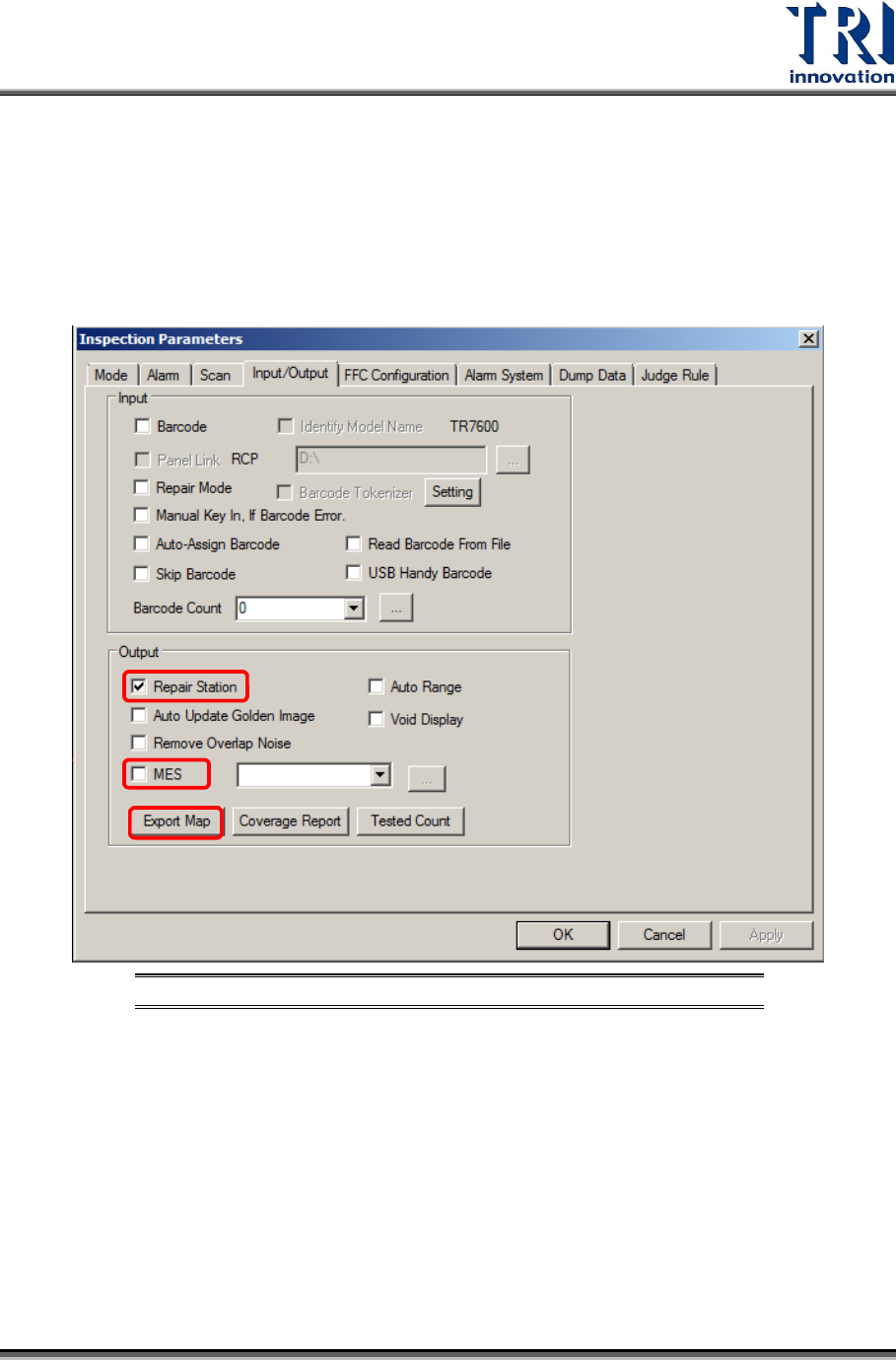
1) Check [Inspect/Parameters/Input/Output/Enable Repair Station], and then click [Export
map] to transfer the golden images to the Repair Station.
i. Repair Station Setting: Machine will export inspection result to RS through the “file
path” you set and buy-off by repair station.
ii. MES Setting: Machine is able to export MES file to the position you want.
Figure 19: Enable Repair Station and MES
Test Research, Inc.
14 TR7600 SIII Series User Guide – Operation
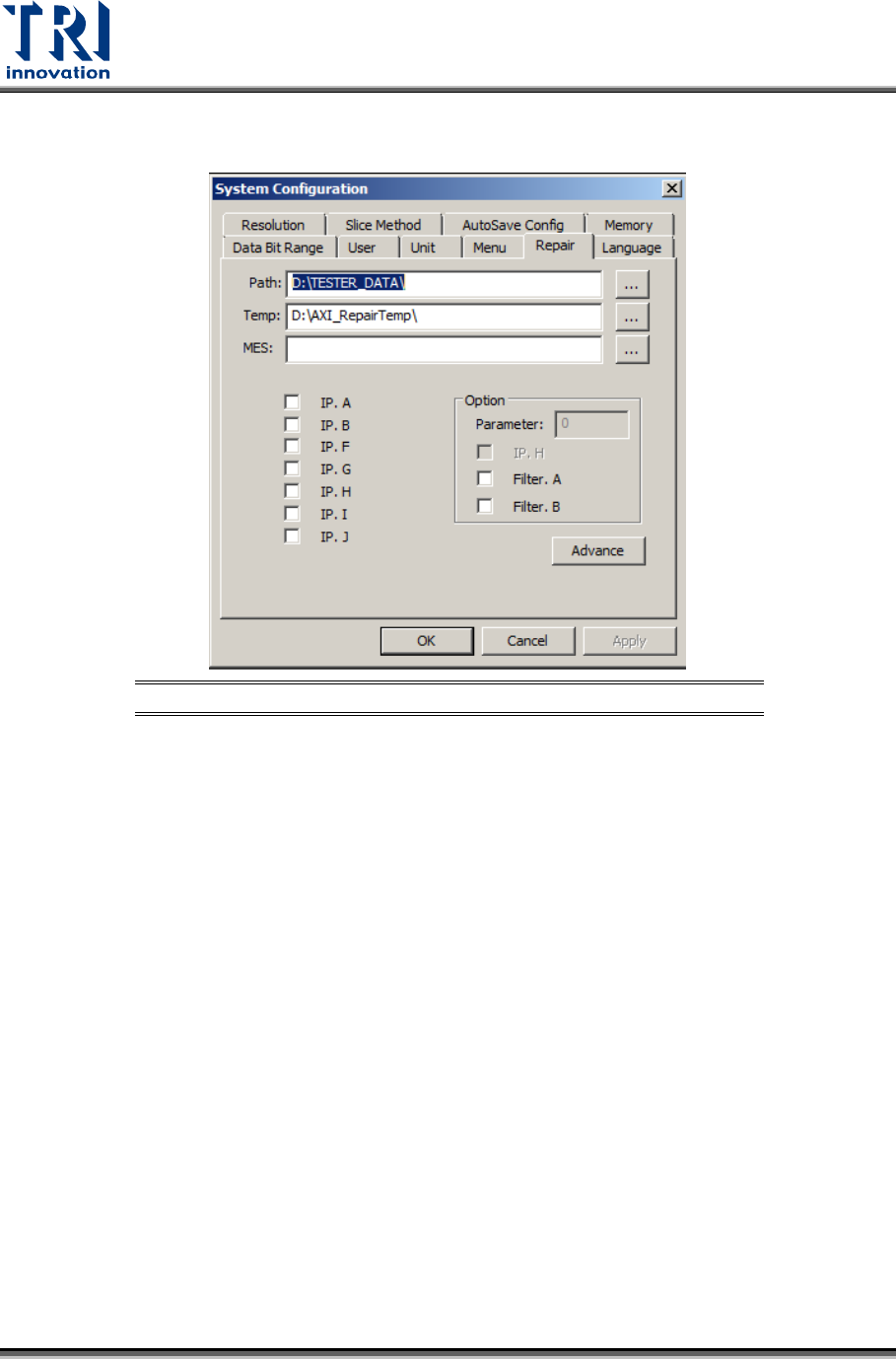
2) Set [Utility/System Configuration/Repair/Path] to [\\RepairPC\tester_data] and ensure the
network has been linked properly.
Figure 20: Set Repair Station Path
Test Research, Inc.
TR7600 SIII Series User Guide – Operation 15
3 R
EPAIR
S
TATION
C
ONFIRMATION
3.1 Confirm Inspection Data
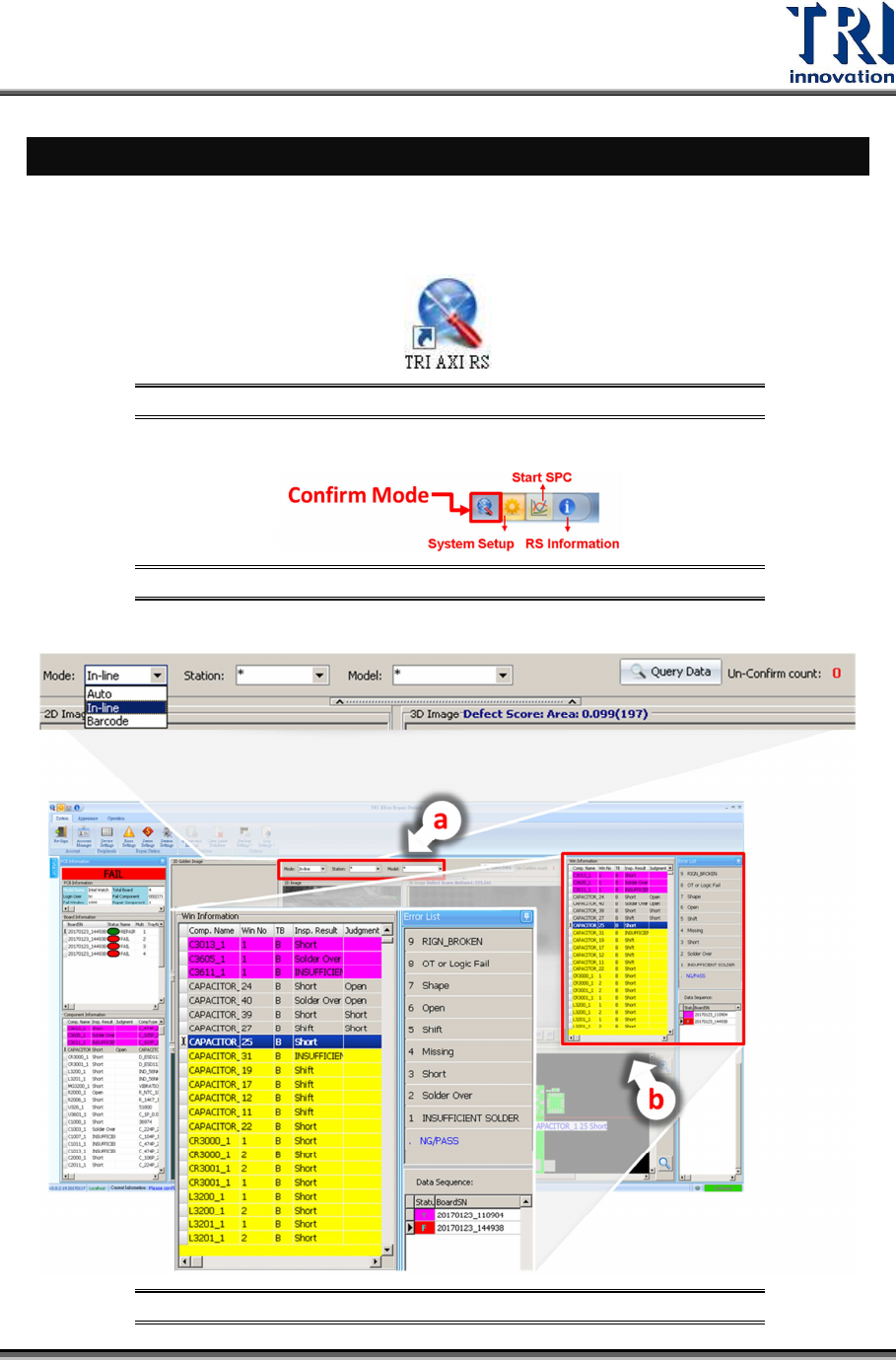
1) Open TRI AXI Repair Station program.
Figure 21: TRI AXI Repair Station
2) Enter Confirm Mode.
Figure 22: Confirm Mode
3) Start to confirm by query the inspection data based on Auto, In-line or Barcode mode.
Figure 23: Query Data by Auto, In-line or Barcode