TR7600 SIII_Operation_en_v_2_0_2.pdf - 第18页
Test Research, Inc. 10 TR7600 SI II Series User G uide – Op eration 2.5 Inspec t the Sam e Module on othe r Same Type M achine 1) Copy the following f iles to o ther s y stems . The folder that the project f ile (*. rc…
Test Research, Inc.
TR7600 SIII Series User Guide – Operation 9
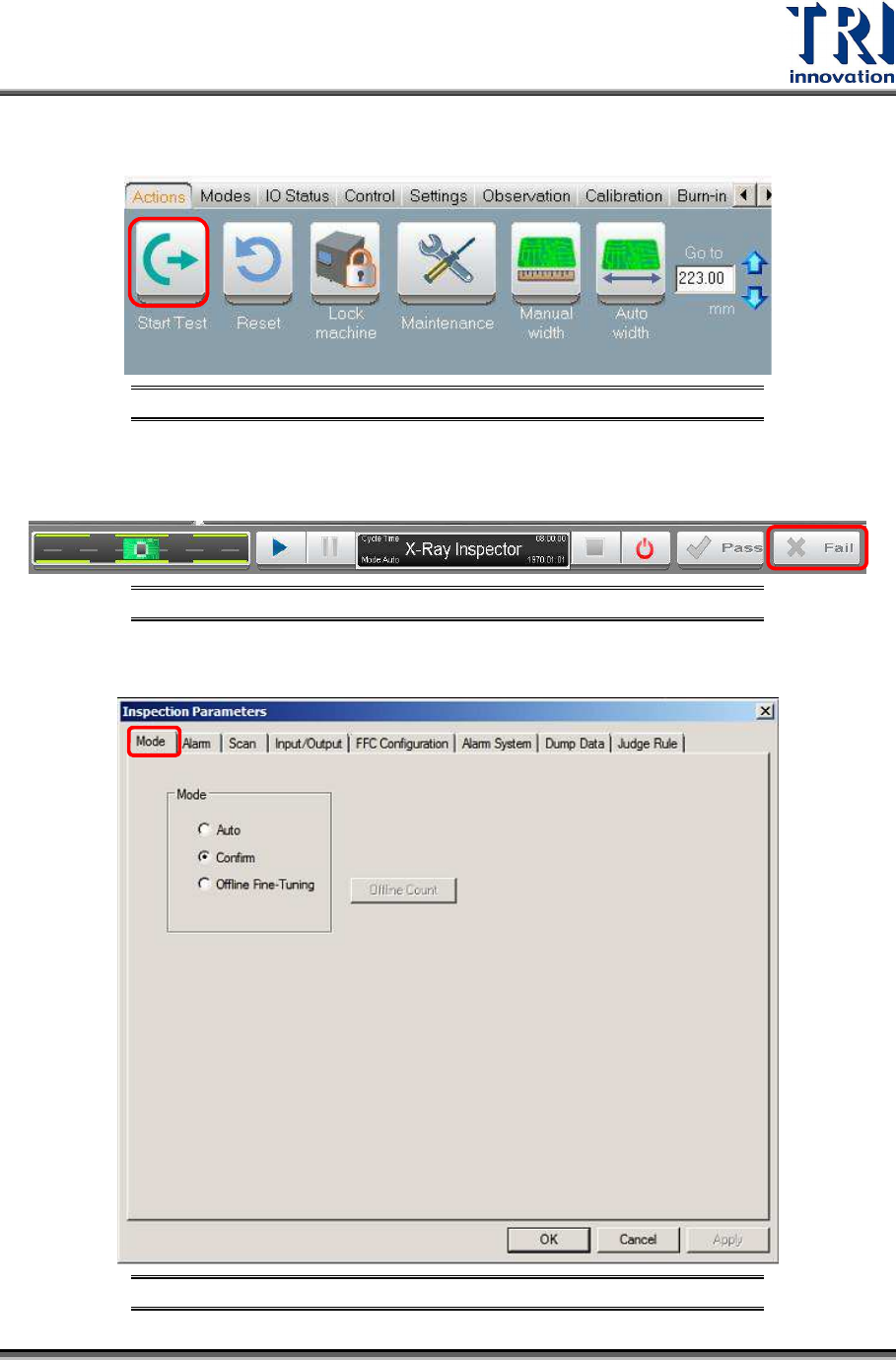
3) Press the “Start Test” button on the VPLC panel so the conveyor will load the board into
the machine with subsequent scanning process.
Figure 14: “Start Test” Button
4) When the scan is complete, the inspection result will be sent to the repair station
automatically in “Auto Mode”. Otherwise, user will need to press the “Fail” button
manually in order to proceed.
Figure 15: “Fail” Button
5) You could enable Auto or Manual mode confirmation by through Inspect -> Parameters.
Under “Mode” tab, you could select Auto, Confirm or Offline Fine Tuning.
Figure 16: Auto, Confirm or Offline Fine Tuning Modes

Test Research, Inc.
10 TR7600 SIII Series User Guide – Operation
2.5 Inspect the Same Module on other Same Type Machine
1) Copy the following files to other systems.
The folder that the project file (*.rcp) locates.
[C:\AOI\Packagelibrary] folder
[C:\AOI\Imagelibrary] folder.
[C:\TR7600\Model Name] folder.
2) Open the software and load the project.
3) Click [Test] on HCI (Human Computer Interface) to let board in.
4) Click [Inspect] to inspect.
2.6 End Inspection
1) Click [Esc] on the keyboard to stop the current project.
2) Press or select [File/Exit] to close the main program. The system will ask if you want
to save the project.
3) Click [Start/Shut Down] to shut off the computer.
4) Turn the power switch counterclockwise to turn off the power.
5) Close the breaker of the machine.
Test Research, Inc.
TR7600 SIII Series User Guide – Operation 11
2.7 Other Settings
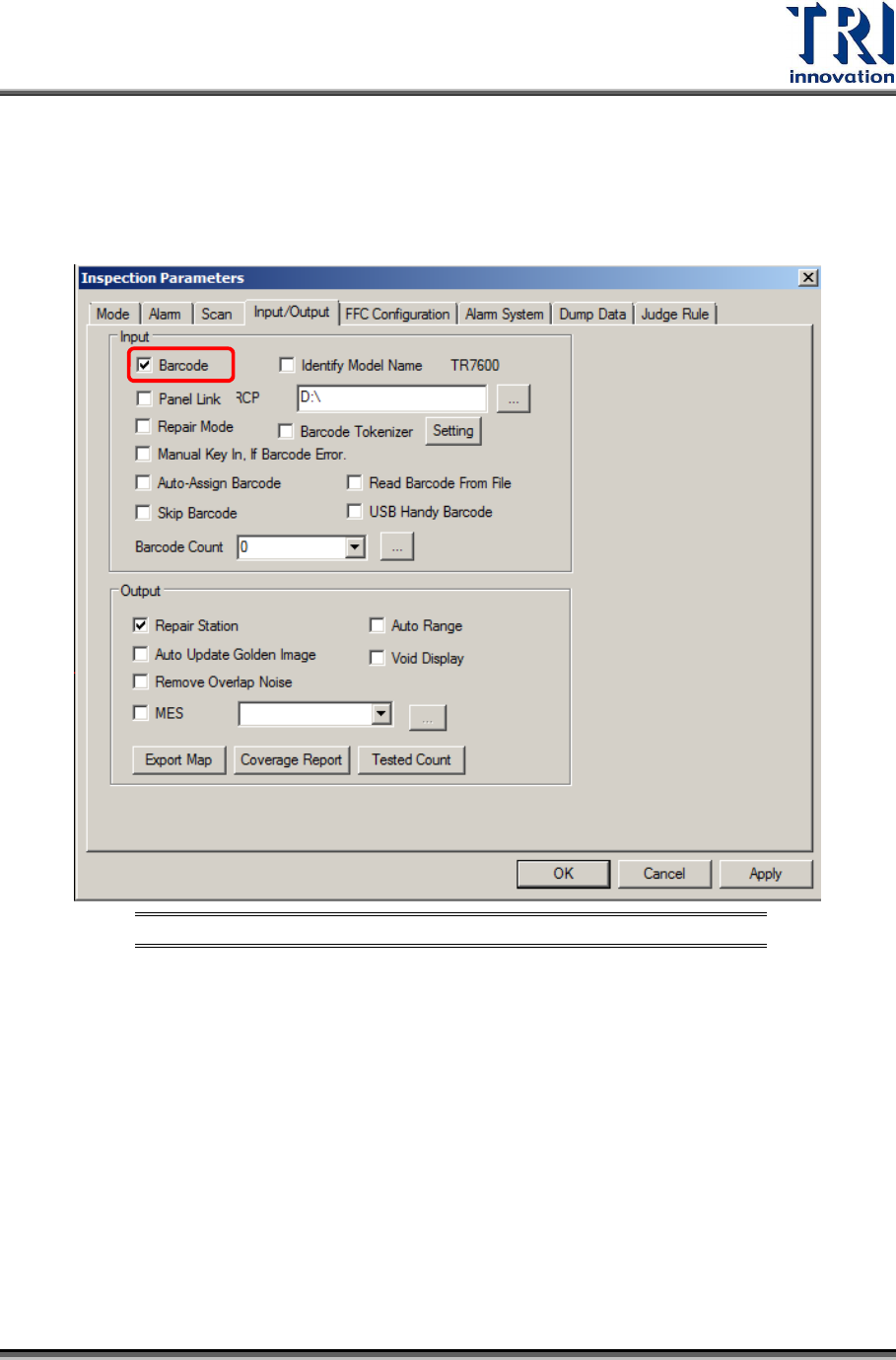
2.7.1 Enable Barcode Reader
1) Checking [Inspect/Parameters/Input/Output/Enable Barcode] enables the fixed barcode
to scan barcodes.
Figure 17: Enable Barcode