00198486-01_Programming_Training_E_by_DEK_EN.pdf - 第38页
10 Fiducial Setup 10.3 Auto 38 Programming Training E by DEK 12/2017 1. Fiducial location. 2. Click Continue . 1. Click on Fiducials – Screen 1 . 2. Ensure Auto Setup is still selected. 1. Complete the same process for t…
10 Fiducial Setup
10.3 Auto
Programming Training E by DEK 12/2017 37
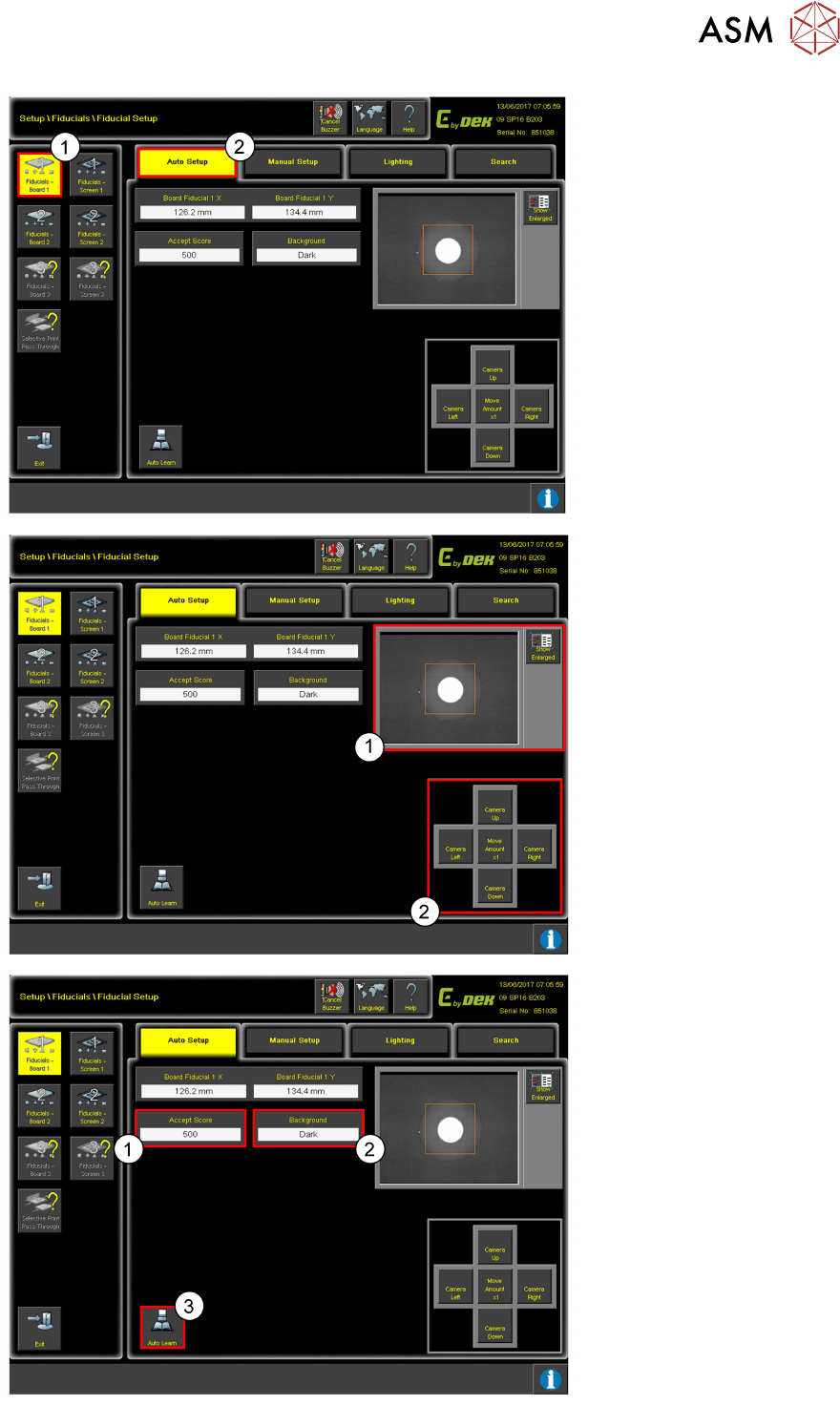
1. Click on Fiducial–
Board.
2. Click Auto Setup.
Use the controls (2) to move
the camera so the fiducial is
in the centre of the orange
box (1).
1. Add the value for the
Accept Score.
If the accept score is set
to high, the fiducial may
not be found.
2. Set the Background
colour to either Light or
Dark.
3. Click Auto Learn to
locate the fiducial.
10 Fiducial Setup
10.3 Auto
38 Programming Training E by DEK 12/2017
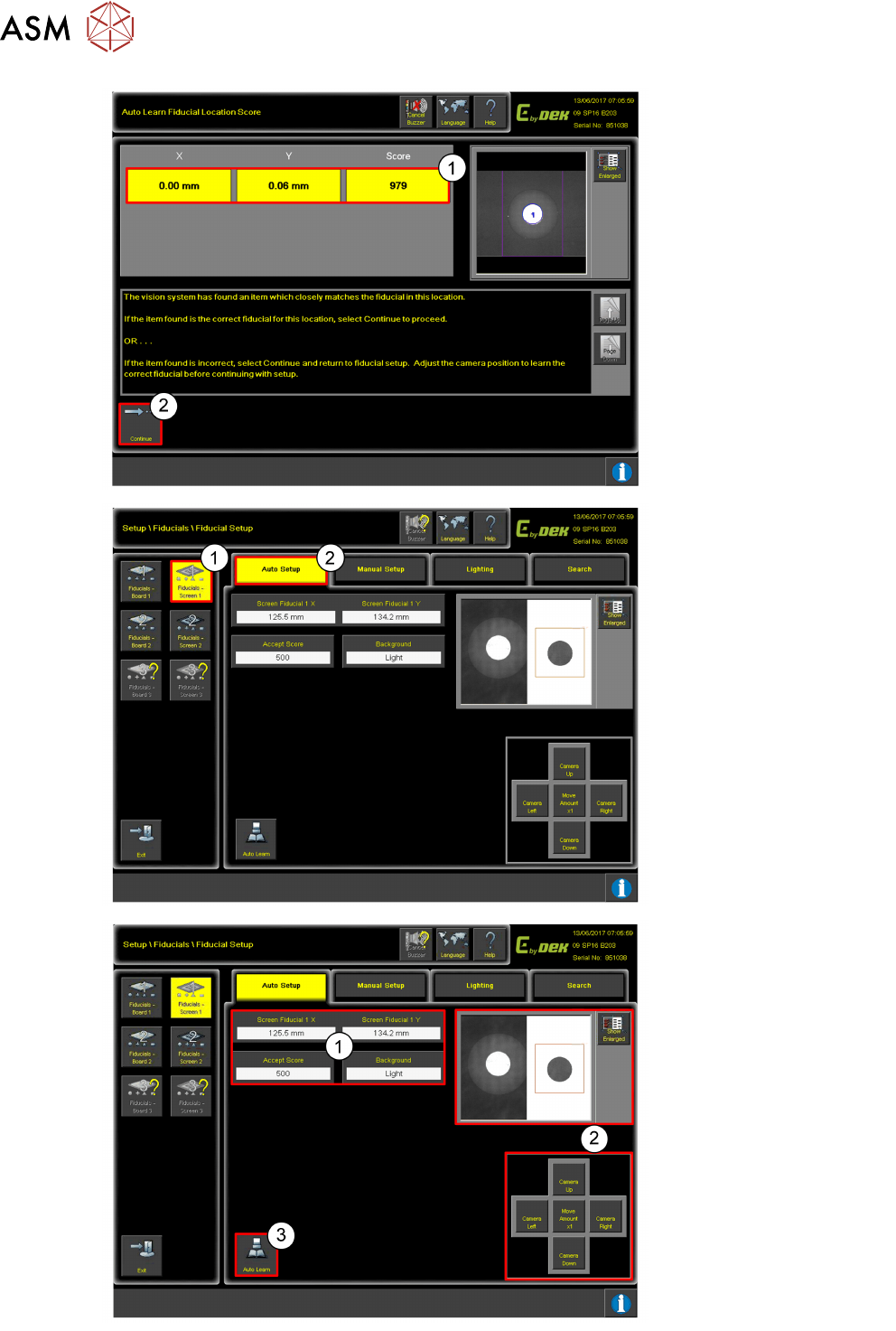
1. Fiducial location.
2. Click Continue.
1. Click on Fiducials –
Screen 1.
2. Ensure Auto Setup is
still selected.
1. Complete the same
process for the Screen –
setting the Accept
Score and Background.
2. Ensure the Fiducial is in
the orange box using the
controls.
3. Once this is complete
click Auto Learn.
10 Fiducial Setup
10.4 Manual
Programming Training E by DEK 12/2017 39
10.4 Manual
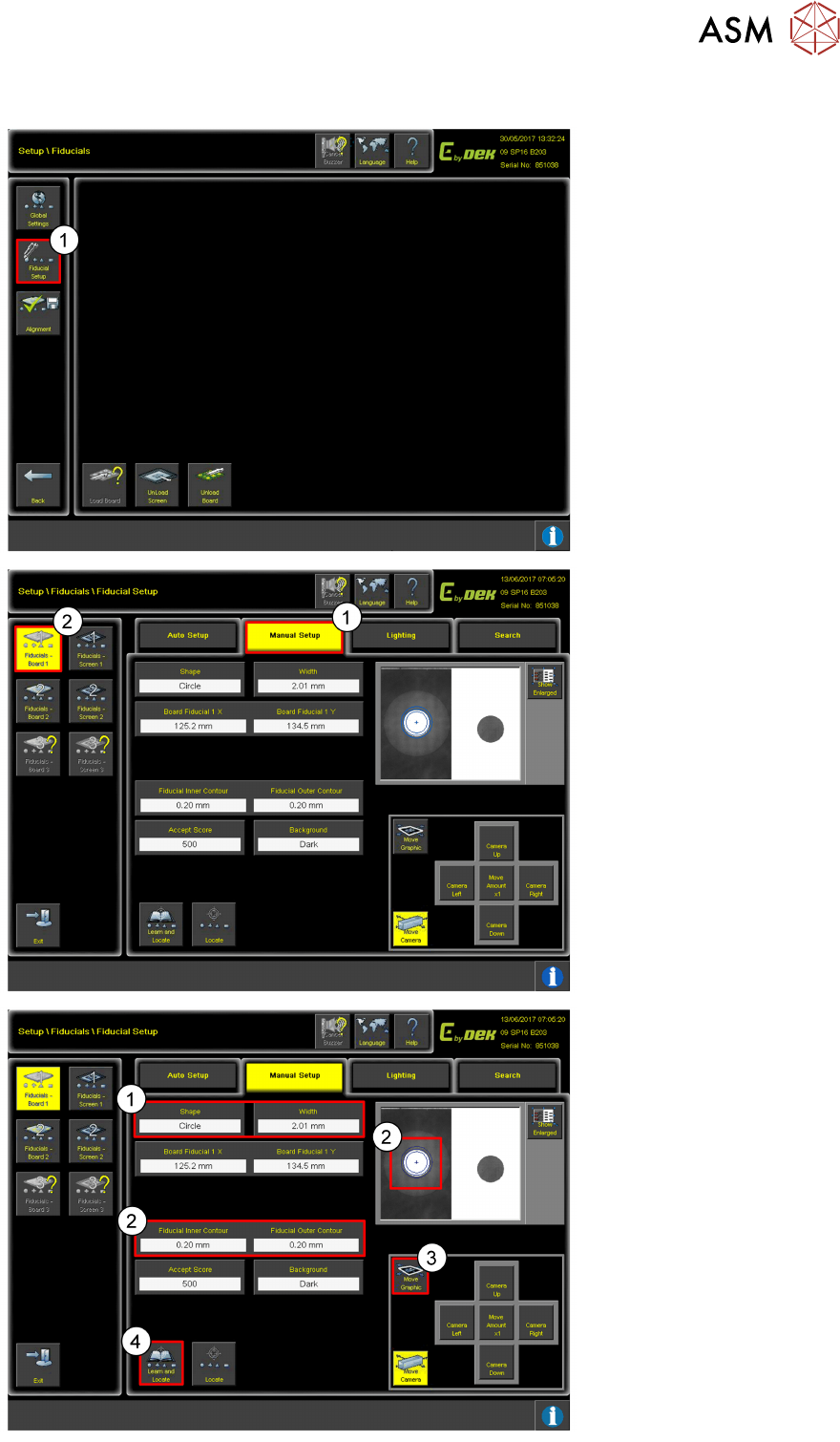
1. Click on Fiducial Setup.
1. Click on Manual Setup.
2. Click Fiducials–
Board1.
1. Setup the Fiducials
Shape and Width.
2. Set the contour for the
minimum and maximum
size of the Fiducials.
3. Click Move Graphic to
move the graphic.
4. Click Learn and Locate.