00198486-01_Programming_Training_E_by_DEK_EN.pdf - 第44页
10 Fiducial Setup 10.7 Fiducial Sweep Optimize 44 Programming Training E by DEK 12/2017 1. When using Video Model, it is recommended to use component/ device corners. Try and get the selected pads/ areas as far apart as …
10 Fiducial Setup
10.6 Video Model
Programming Training E by DEK 12/2017 43
10.6 Video Model
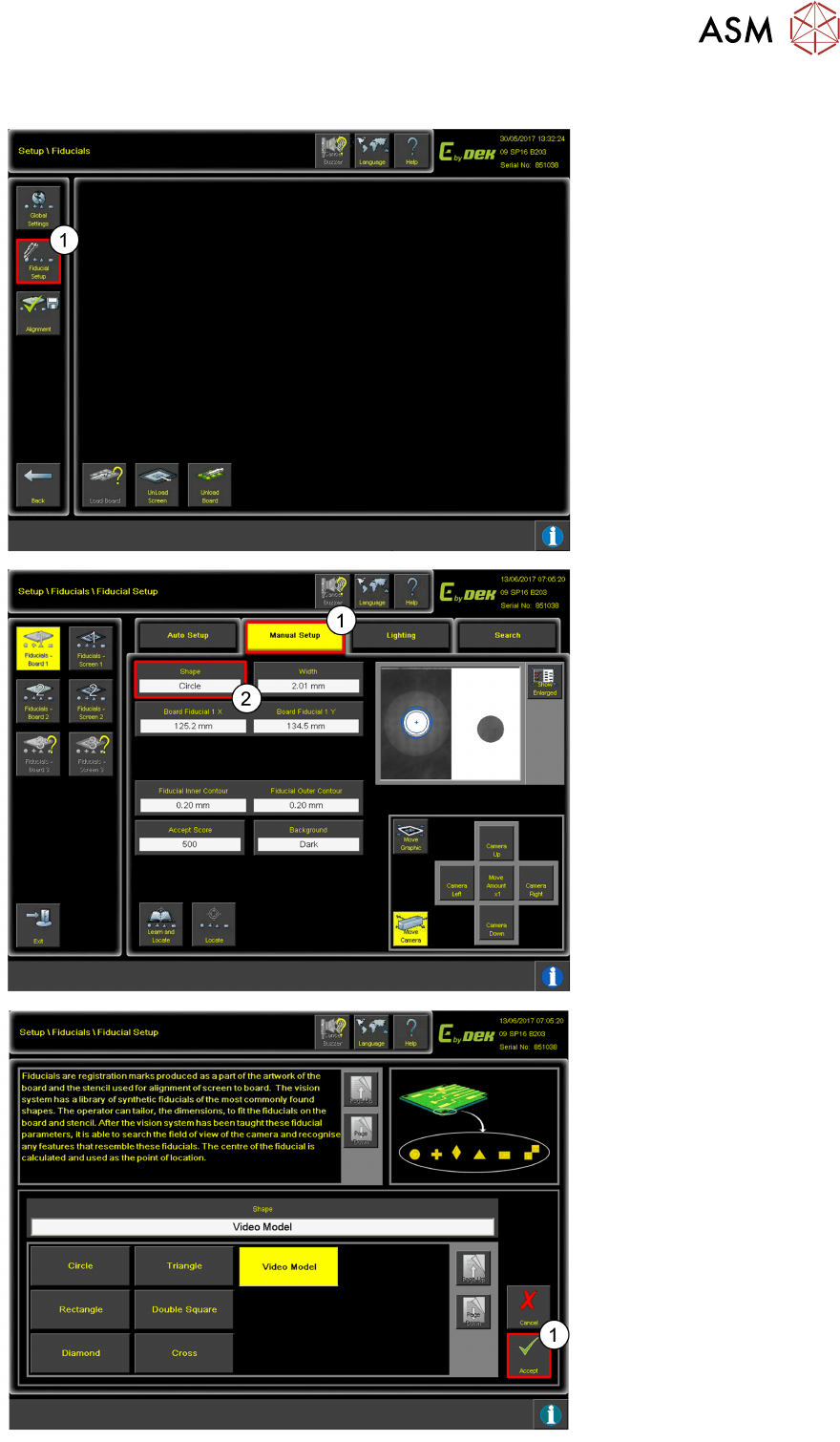
1. Click on Fiducial Setup.
1. Click Manual Setup.
2. Click Shape.
1. Change the shape to
Video Model.
2. Click Accept.
10 Fiducial Setup
10.7 Fiducial Sweep Optimize
44 Programming Training E by DEK 12/2017
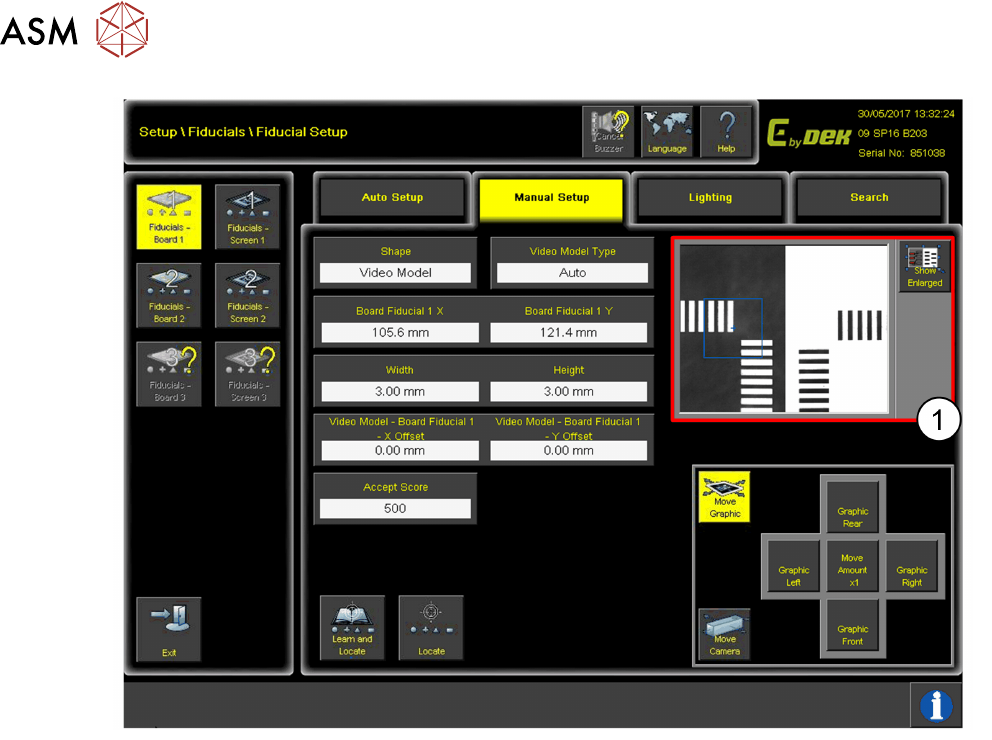
1. When using Video Model, it is recommended to use component/ device corners.
Try and get the selected pads/ areas as far apart as possible and on a diagonal line for the
best alignment results.
10.7 Fiducial Sweep Optimize
Consider fid positions when assigning fid 1 or fid 2 numbers to optimise the camera sweep.
Typically when using the camera board stop, fiducial 1 is set up in the rear-right corner, and fiducial
2 in the front left corner. This may vary depending on board stop type, board stop position, and
required fiducial position.
10 Fiducial Setup
10.8 0 Offsets
Programming Training E by DEK 12/2017 45
10.8 0 Offsets
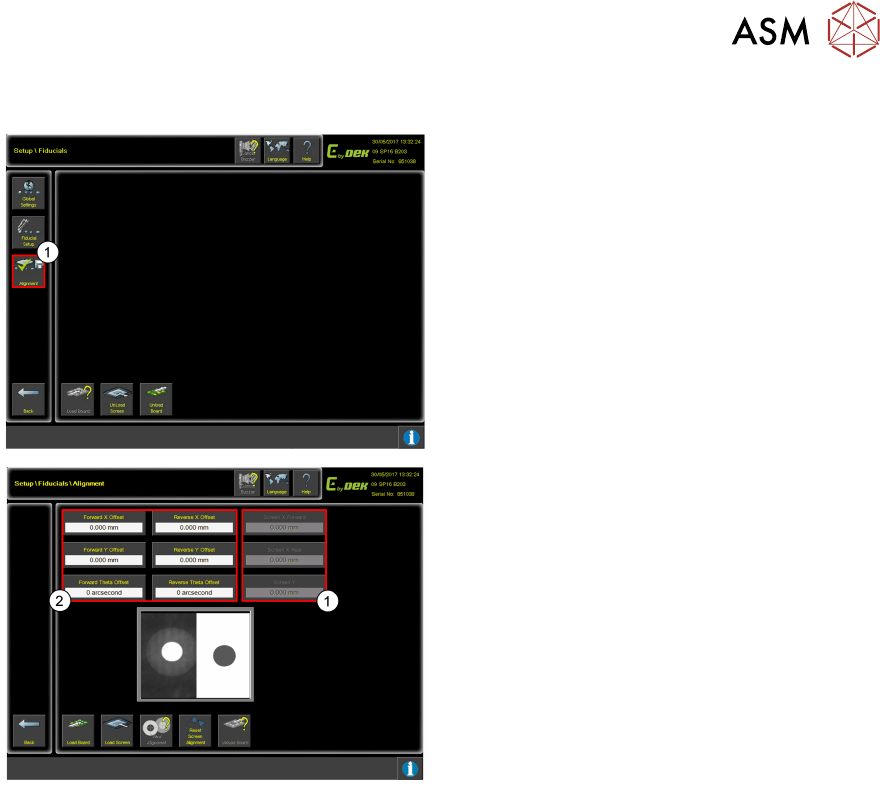
1. Click on Alignment.
1. Check Screen offsets are set to 0 when creating or copying a product file.
This is the rough alignment position for stencil load each time the product is loaded. If not 0
when setting up the product file, it can mean that the Fiducial positions need to be searched
for as it may have already applied a large offset.
2. These offsets can be adjusted to add extra movement to the actuators to remove any
measured offsets with the print. These offsets are configurable in separate print directions.