00193875-01.pdf - 第18页
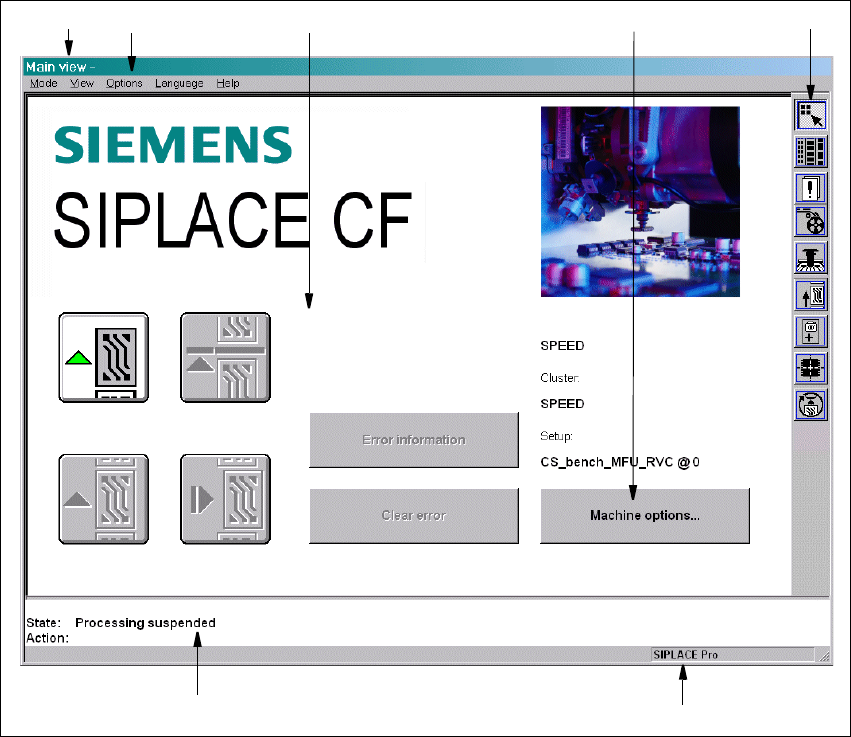
3 Graphical user interface SIPLA CE Software Guide Version 101.xx 3.2 Components of the user interface Issue 05/03 EN 18 3 Fig. 3.2 - 2 Components of the user interface (for example, the Main view of the CF) 3 Key to Fig…
SIPLACE Software Guide Version 101.xx 3 Graphical user interface
Issue 05/03 EN 3.2 Components of the user interface
17
3.2 Components of the user interface
3
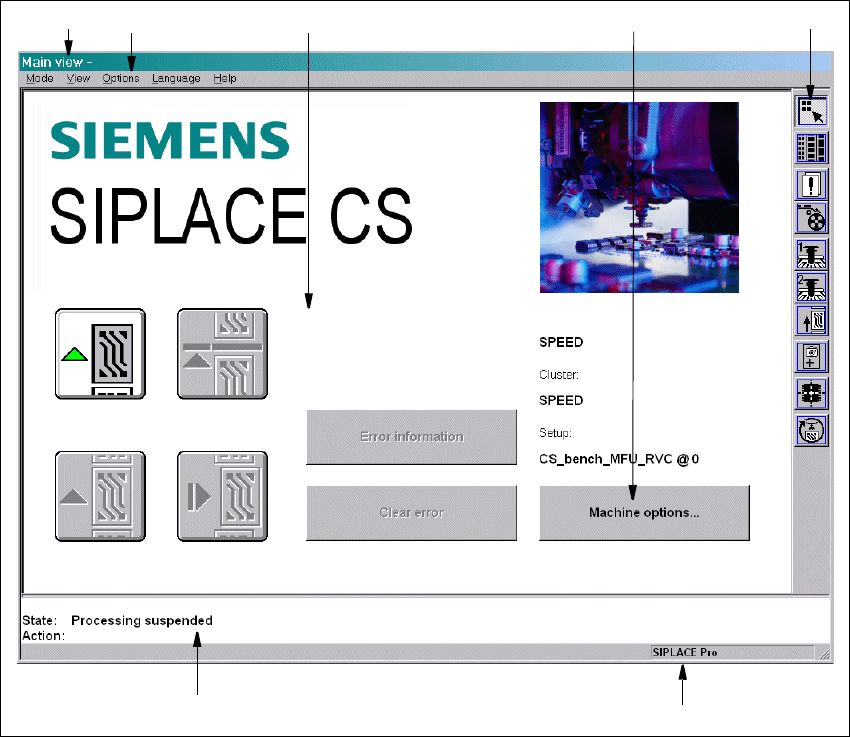
Fig. 3.2 - 1 Components of the user interface (for example, the Main view of the CS)
3
Key to Fig. 3.2 - 1
(1) Title bar
(2) Menu bar
(3) Working area/display area
(4) Controls
(5) Toolbar
(6) Status area
(7) Info bar
1
6
7
5
2
3
4
3 Graphical user interface SIPLACE Software Guide Version 101.xx
3.2 Components of the user interface Issue 05/03 EN
18
3
Fig. 3.2 - 2 Components of the user interface (for example, the Main view of the CF)
3
Key to Fig. 3.2 - 1
(1) Title bar
(2) Menu bar
(3) Working area/display area
(4) Controls
(5) Toolbar
(6) Status area
(7) Info bar
3
1
6
7
5
2
3
4
SIPLACE Software Guide Version 101.xx 3 Graphical user interface
Issue 05/03 EN 3.2 Components of the user interface
19
Title bar 3
The title bar displays the name of the current view (e.g. Main view). 3
Menu bar 3
The menu bar contains menus, the contents of which (functions and options available in the menu)
may change depending on the current view. 3
Working area/display area 3
This area displays the controls (buttons, icons) used to set/trigger functions, along with the con-
tents of active menus and submenus, general messages, error messages and other comments.
In addition, in the Main view, animated and/or different color objects may be used to indicate cer-
tain processes or statuses (e.g. processing, feeder location empty etc.). 3
Controls 3
You trigger actions, select options or make settings by clicking the corresponding controls with the
left mouse button.
If a control is displayed in inverse video (light gray), this means that the conditions for the execu-
tion of the corresponding functions are not satisfied. 3
Status area 3
The status area displays the current machine status, the last error to have occurred and the action
which is to be performed by the operator 3
Toolbar 3
This bar contains buttons which are used to switch the user interface to a different view where you
can then perform the necessary operations. 3
Clicking a icon on the toolbar takes you to the view which corresponds to it. The icon matching the
active view then itself becomes inactive. 3
Info bar 3
This bar displays concise information about the menu item or icon/button over which the mouse
pointer is currently positioned. The current control mode is displayed next to this in a separate
area. 3