00193875-01.pdf - 第32页
3 Graphical user interface SIPLA CE Software Guide Version 101.xx 3.3 User interface - views and menus Issue 05/03 EN 32 Æ Click the St op processing PCB function in the Mode menu. The current placement operation is halt…
SIPLACE Software Guide Version 101.xx 3 Graphical user interface
Issue 05/03 EN 3.3 User interface - views and menus
31
Quit refill position 3
Æ Click the Quit refill position button.
The wafflepack trays specified in the setup are moved to, checked and aligned.
WPC refilled 3
As soon as the wafflepack trays which have been identified as being "empty" have been refilled
with components, this must be confirmed, so that the placement head can again access these
trays. This is done using the "WPC refilled" function. 3
Æ Click the WPC refilled button.
This confirms that the wafflepack trays have been refilled.
All the wafflepack trays which have been identified as being "empty" are now regarded as "full".
Placement continues with components from these wafflepack trays.
WPC reference run 3
This function causes the lift of the wafflepack changer to carry out a reference run. 3
NOTE
The wafflepack changer must not be in the refill position when this function is carried out. 3
Æ Click the Stop processing PCB function in the Mode menu.
The current placement operation is halted.
Æ Click the WPC reference run button.
First, any wafflepack tray which has been moved out will be returned to its level. The reference
run is then performed.
Transport position 3
To allow the wafflepack changer to be transported safely, the lift of the waffle pack changer must
be moved to a defined transport position. 3
NOTE
The wafflepack changer must not be in the refill position when this function is carried out. 3
3 Graphical user interface SIPLACE Software Guide Version 101.xx
3.3 User interface - views and menus Issue 05/03 EN
32
Æ Click the Stop processing PCB function in the Mode menu.
The current placement operation is halted.
Æ Click the Transport position button.
The lift moves to the defined safety/transport position..
Feed tray 3
This allows you to define the level containing the wafflepack tray to be made available for place-
ment. 3
NOTE
The waffle pack changer must not be in the refill position when this function is carried out. 3
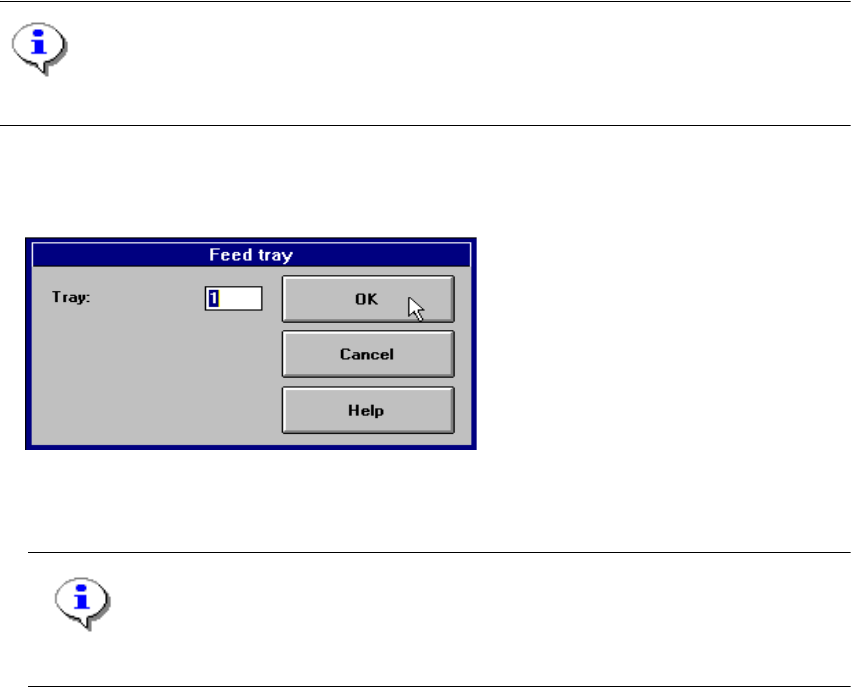
Æ Click the Feed tray button.
The following dialog box is displayed.
3
Æ In the text box, enter the number of the required level and confirm your entry with OK. The waf-
flepack changer moves the wafflepack tray from the selected level to the pick-up position.
NOTE
If a waffle pack tray is already in the pick-up position, it is first moved to its defined level. 3
3
SIPLACE Software Guide Version 101.xx 3 Graphical user interface
Issue 05/03 EN 3.3 User interface - views and menus
33
NOTE
The following 3 menu options belong to the group of single functions.
The single functions are used to execute specific actions following fatal errors as well as to set up
and test the machine since they allow you to address the various functional modules in a defined
manner. 3
SF gantry 1 F5 3
This is used to call the single functions for gantry 1. These can be used to, for example, test the
functions of the revolver head. 3
NOTE
Each of the two gantries can be addressed separately.
The functions are identical for both gantries. 3
SF gantry 2 F6 (only for SIPLACE CS) 3
Single functions for gantry 2 3
Conveyor 1 F7 3
This is used to call the single functions for PCB conveyor. These are used to test and set the func-
tional modules for PCB conveyor as well as to set the conveyor width. 3