IT Feeder Manual-SM320(English V2.0)Ver1.pdf - 第48页
Samsung Intelligent Feeder System <Find> button Finds the content entered in PartName fro m the registered reels and displays the result in the list box. Extended search is possible. <All> but…
Part Station
2-7
register Part Reel.
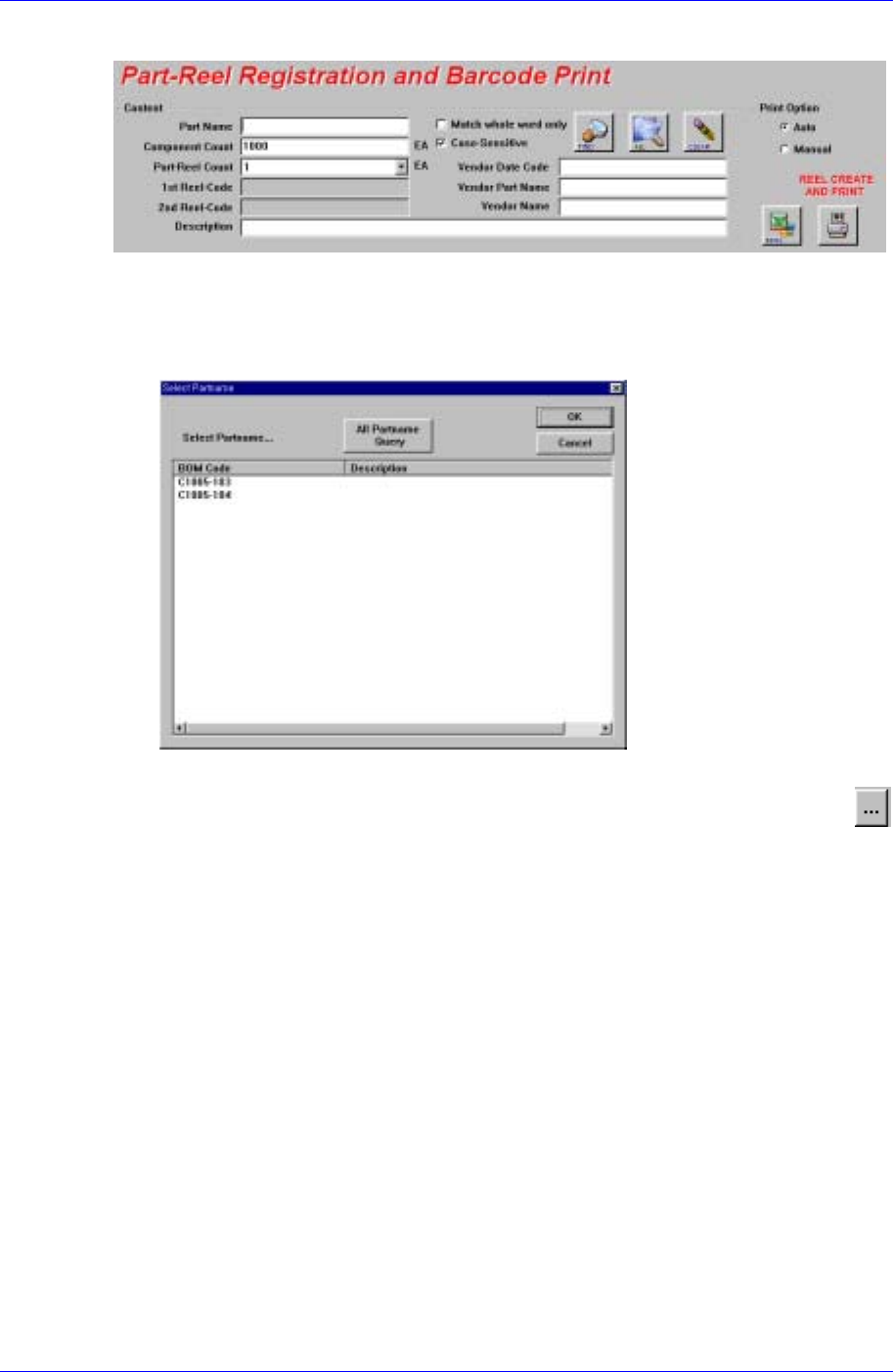
Figure 2-5.Part Reel Registration window
<PartName> edit box
Enter the PartName of the Reel to register. If the user does not know the exact name,
use the extended search function.
Figure 2-6.Partname Selection screen
Ex: If the PartName is ABCD12345, entering “1” and pressing the find button
displays the PartNames containing 1 as shown in Figure. 2-6. Select the correct part
name in the Select PartName Dialog box and press the <OK> button. Then the part
name is registered in the part reel registration screen.
Match whole word only : Perform search by comparing the full name when
checking.
Case-Sensitive : Perform search by dividing the big and small letter when
checking.
<Component Count> edit box
Enter the number of parts in the Reel.
<Part Reel Count> combo box
When there are more than one identical reels, specify the number of reels. Up to 20
ReelCodes are created and Barcodes are printed at a time.
<Vendor> edit box
Input the information on the part manufacturer.
<Description> edit box
Enter a description of the part. This description printed under the barcode provides
additional information about the reel to the worker.
Samsung Intelligent Feeder System
<Find> button
Finds the content entered in PartName from the registered reels and displays the
result in the list box. Extended search is possible.
<All> button
Displays all registered reels in the list box.
<Clear> button
Deletes all current input information (PartName, Component Count, and Description).
<Pint Option> option button
Selects whether to register a Reel Code newly and print it automatically. If Manual is
selected, it is not printed but it can be selected and printed later.
<Reel Create and Print> button
Registers a new Part Reel with the input content and creates a new Reel Code.
The Reel Code creation method is set so that a unique code is created with a
combination of date and time.
<Excel> button
Save the inquired list as an Excel(csv) file.
<Reel Code> edit box
Displays the newly registered code. If there are more than one Part Reels, only the
first code is displayed.
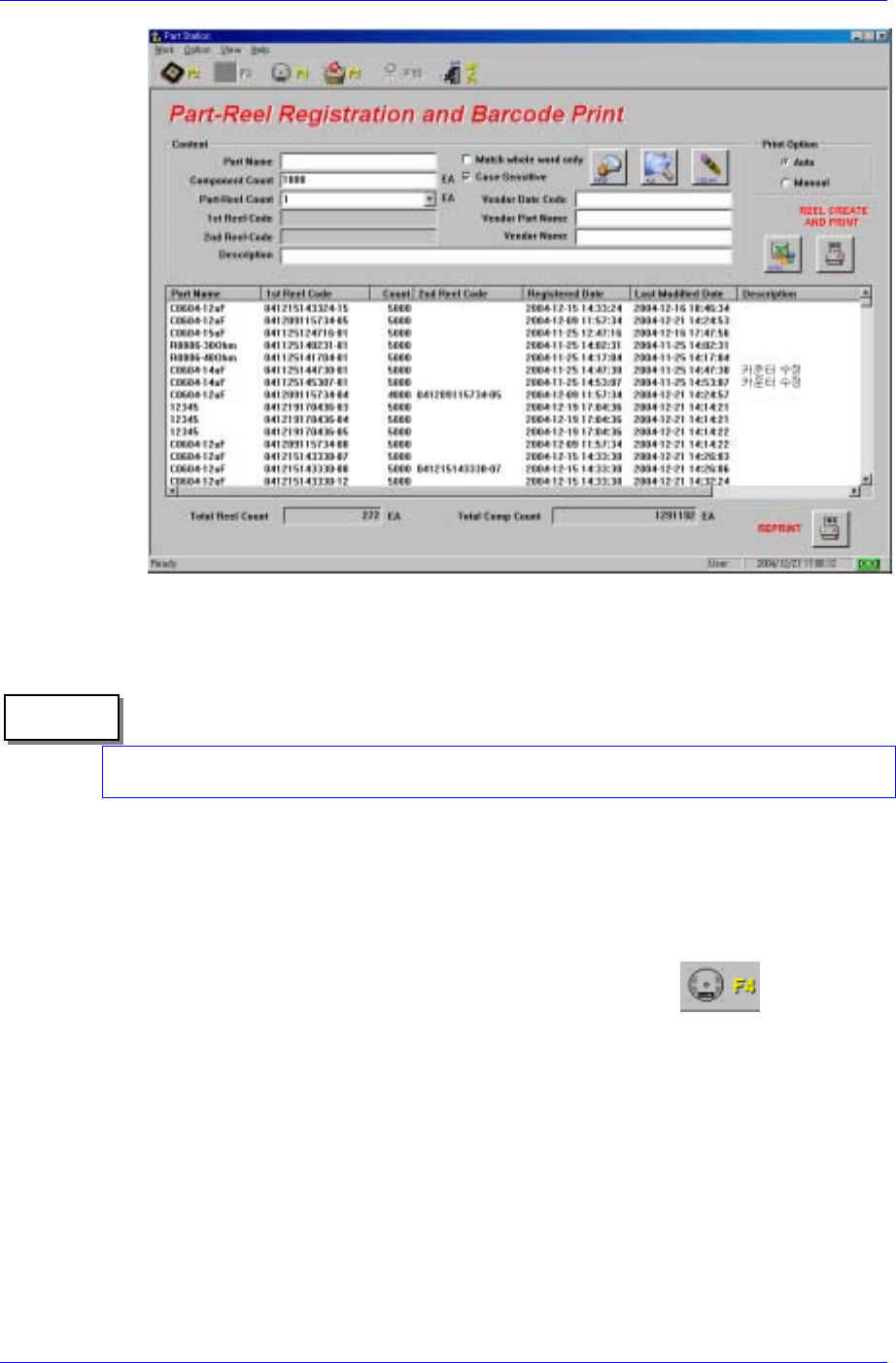
Result displaying list box
PartName, ReelCode, Count, Registered Date, Last Updated Date, and Description
are displayed in the list box. When a Reel is newly created or searched, the respective
reel is displayed in the window.
Memo
To view data sorted by item, click the desired item on the top of the list box(ex. PartName
or Registered Date). The data is automatically sorted by respective item and displayed.
When certain content in the list box is selected, it is displayed in the input window at
the top. This can be used to create a new Reel Code with the selected Part Name and
other information or to reprint a Reel Code when it can not be read by a bar code
reader. The total numbers of reels and components are displayed at the bottom.
<Total Reel Count> edit box
Displays the number of reels searched in the list box.
<Total Comp Count> edit box
Displays the total number of parts searched in the list box. If this is utilized well, the
number of parts currently in stock can be checked.
<RePrint> button
When a bar code(Reel Code) can not be read by a bar code reader, use this to reprint
it without creating a new one. To reprint a bar code, be sure to remove the previous
bar code entirely and reprint one.
2-8
Part Station
2-9
Figure 2-7.Part Reel Registration screen
Memo
When reprinting the barcode, ensure that more than two identical barcodes do not exist. If
an identical barcode is attached to a different part reel, a system error may occur.
2.3.3. Part Reel Management [F4]
Part Reel Management allows the user to search registered Reel data with various
conditions or to modify it.
Select Part Reel Management from the Main menu or select the
button on the
tool bar. Or press Alt+W on the keyboard, then select the M key or press the [F4] key.
As can be seen in Figure. 2-8, the screen consists of the top window, list box, and the
bottom window that shows search result. In the top window, there are edit boxes to
register a Part Reel.