IT Feeder Manual-SM320(English V2.0)Ver1.pdf - 第73页
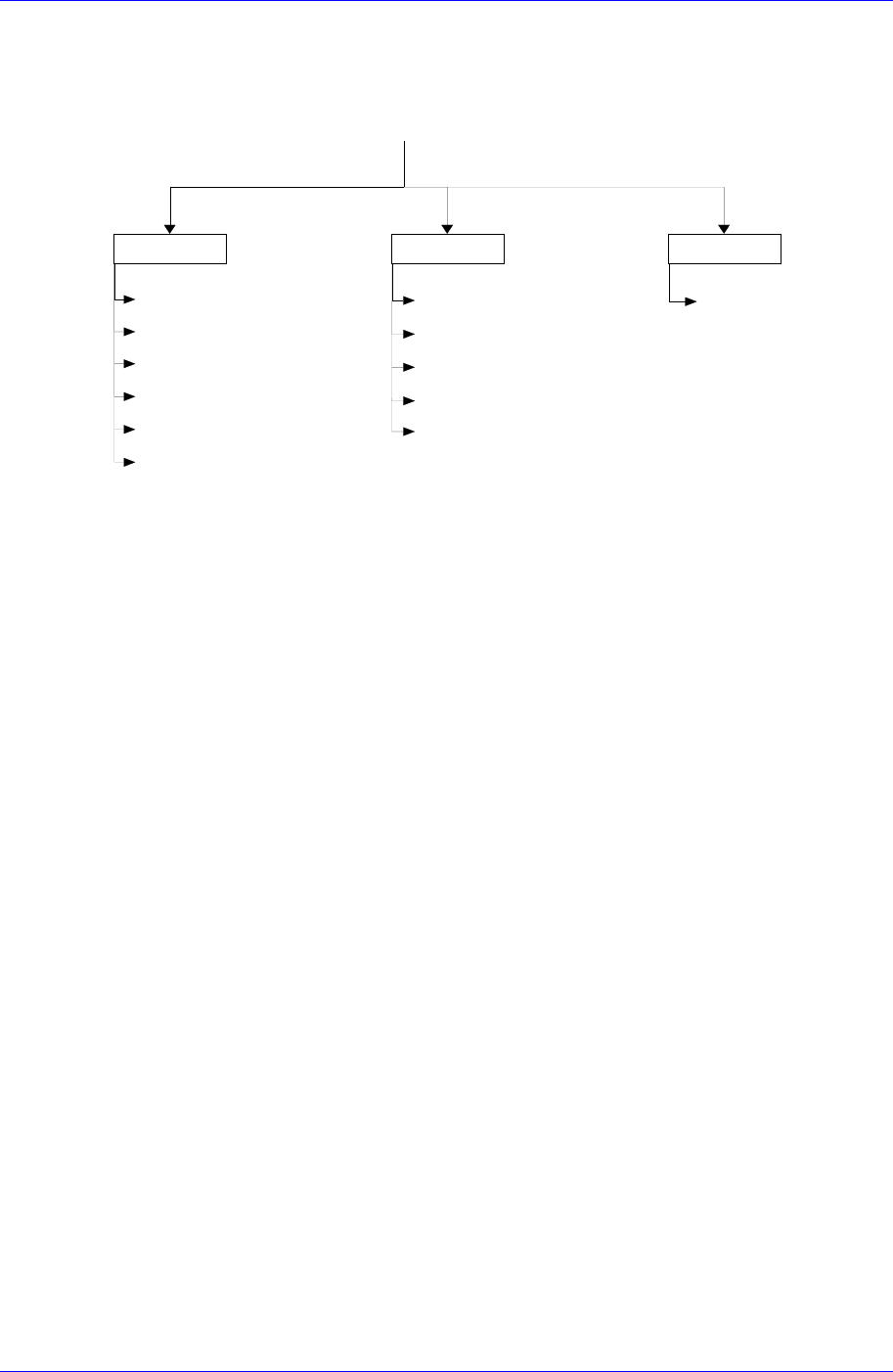
Feeder S t ation 3.2. Structure of the Main menu The structure of the Main Menu of Feeder Station is as follows. Sy st em Conf i g Hel p Feeder I nf o. ( F2) P a rtR e e l L is t ( F 3 ) Feeder Li st ( F4) P a rt L is t …
Samsung Intelligent Feeder System
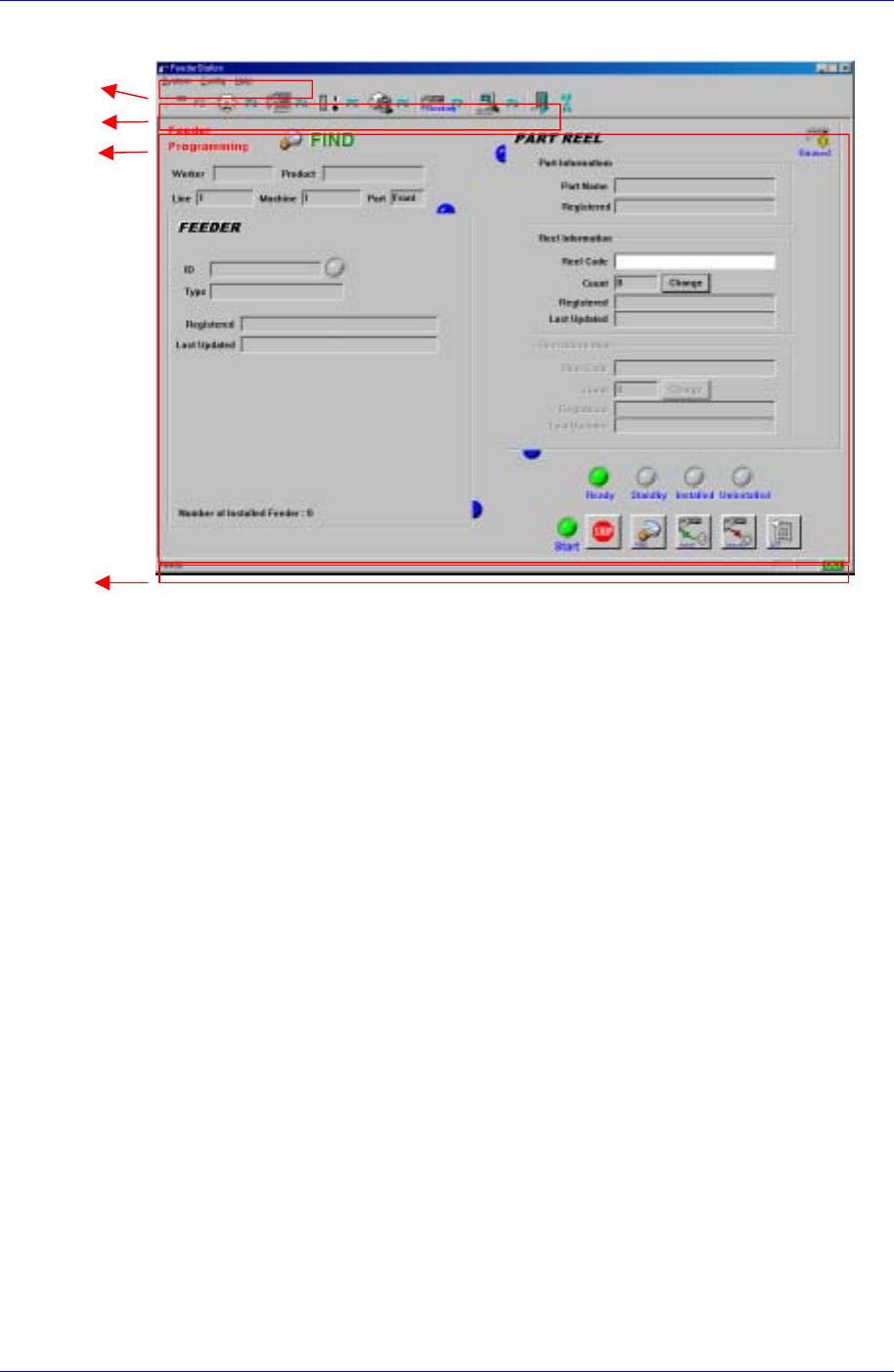
Displays messages.
Main menu
Toolbar
Execution window
Status Bar
Figure 3-1. Main screen structure
Effects of using Feeder Station
For PCB assembly operations, Component Placer needs to register the components to
be mounted on the PCB, decide placement points, and install the respective
components on the feeder base. After the positions of each placement point and
component have been decided and the PCB has been supplied, the data on the
component to mount is obtained from the mounting program. Then the respective
component is picked up from the feeder base and it is placed on the placement point
on the PCB. At this time, the component is inspected by the attached camera while it
is on the move. When the operation is finished, the PCB is transferred to the next
process. As a series of operations requiring substantial amount of time are carried out
by the equipment, the equipment operation rate is lowered.
This program provides various programs that minimize equipment preparation time to
improve equipment operation rate. OLP( Off-Line program) and IT Feeder Station are
examples of this.
Equipment preparation time is minimized by using a device called Docking Cart. It
allows preparation of component placement operation in advance Off-Line.
Feeder Station is a program to mount the PartReel registered in the Part Station in the
Feeder. It creates Feeder data so that it is possible to find out which components are
registered in the feeder mounted on the equipment by synchronizing the Feeder and
Reel.
Each Feeder should contain a unique RF-ID inside and the Reel should be registered
in the Part Station first.
3-2
Feeder Station
3.2. Structure of the Main menu
The structure of the Main Menu of Feeder Station is as follows.
System Config Help
Feeder Info. (F2)
PartReel List (F3)
Feeder List (F4)
Part List (F5)
W aste Reel (F6)
Exit (Alt+F4)
Tool Bar
Status Bar
Modify Feeder (Ctrl+M)
System Config (F9)
About Feeder Station
Feeder Station
Ver 2.0
Database Connect (Ctrl+F5)
Figure 3-2. IT Feeder Feeder Station Main Menu Tree
3.2.1. System
Feeder Info.
Searches, installs or uninstalls the reels registered in the Part Station in the Feeder.
Part Reel List
Searches the Part Reels registered in the Part Station.
Feeder List
Searches the registered Feeders with various conditions and searches whether Reels
are installed in the Feeder or not.
Part List
Searches the Parts registered in the Part Station.
Waste Reel
Deletes used up PartReels.
Exit
Ends Feeder Station.
3.2.2. Config
Tool Bar
Removes or restores the tool bar at the top of the screen.
Status Bar
Removes or restores the status bar at the bottom of the screen.
Modify Feeder
Modifies the registered Feeder data.
System Config
Specifies the Local DB, Master DB, barcode scanner type, and RF-ID Reader
3-3
Samsung Intelligent Feeder System
communication port. Also the interval for Database Sync can be set.
Connect Database
When connection with the database is disconnected, attempt connection once again.
3.2.3. Help
About Feeder Station: Shows the information on the program.
3.3. System menu
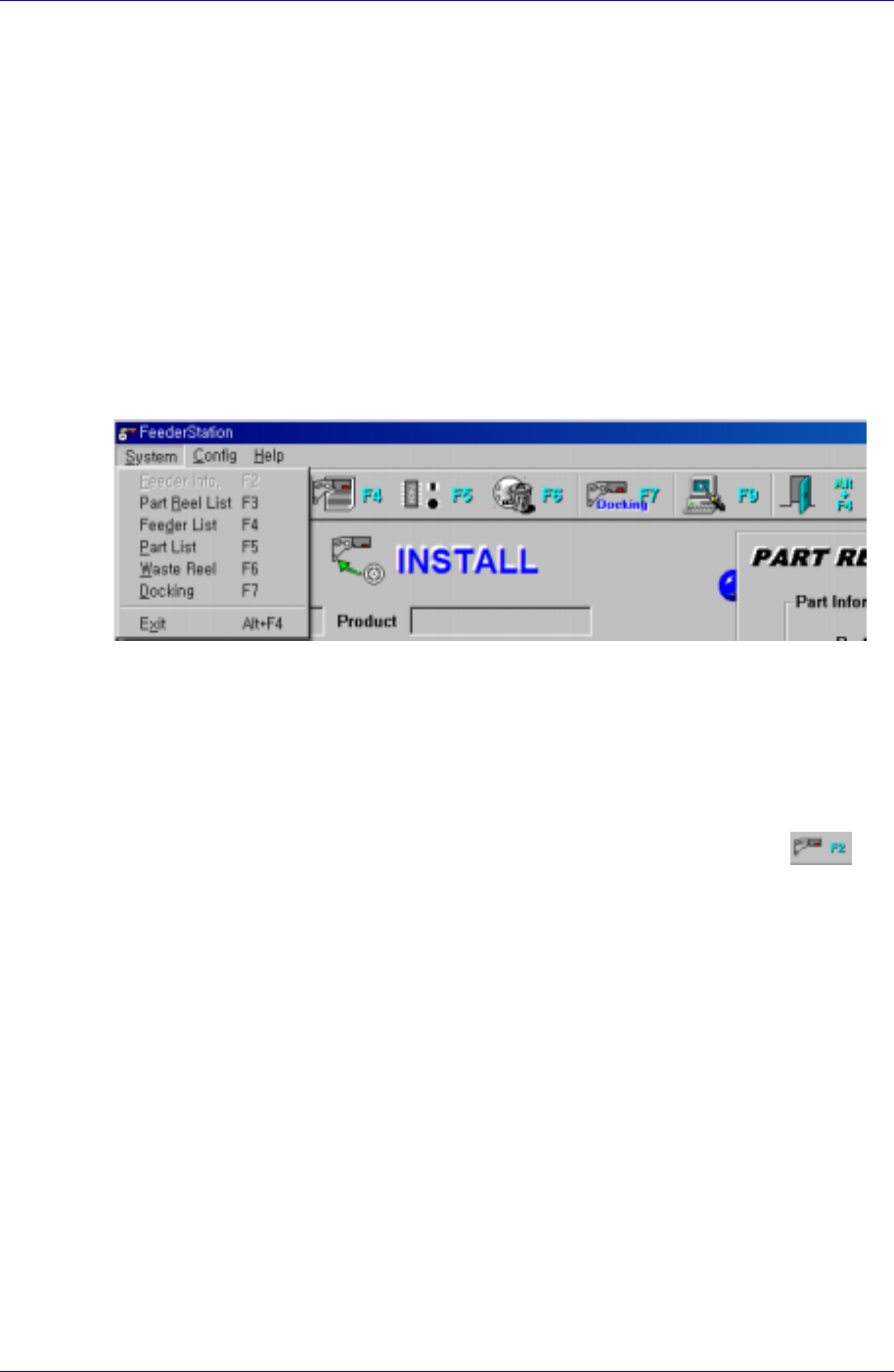
When the System menu is selected on the Main menu bar, the following submenus appear.
The System menu consists 6 submenus; Feeder Info, Part Reel List, Feeder List, Part List,
Waste Reel, and Exit.
Figure 3-3. System submenus
3.3.1. Feeder Info.[F2]
Feeder Info. enters whether the PartReel registered in the Part Station is installed in the
Feeder or not. The PartReel registered in the Feeder or the Feeder in which the PartReel is
installed can be searched.
To execute it, select Feeder Info. from the Main menu or the tool bar, select
, or
press the [F2] key.
3-4