User-Manual-NeoDen-IN6-Reflow-oven.pdf - 第5页
3 3.3 Pedestal 4. Installation Instruction 4.1 Power Supply Connection IN6 is used i n 110V/220V single-phase connection mode and is connected according to the user environm ent. Wires c onnection method is shown as pi c…
2
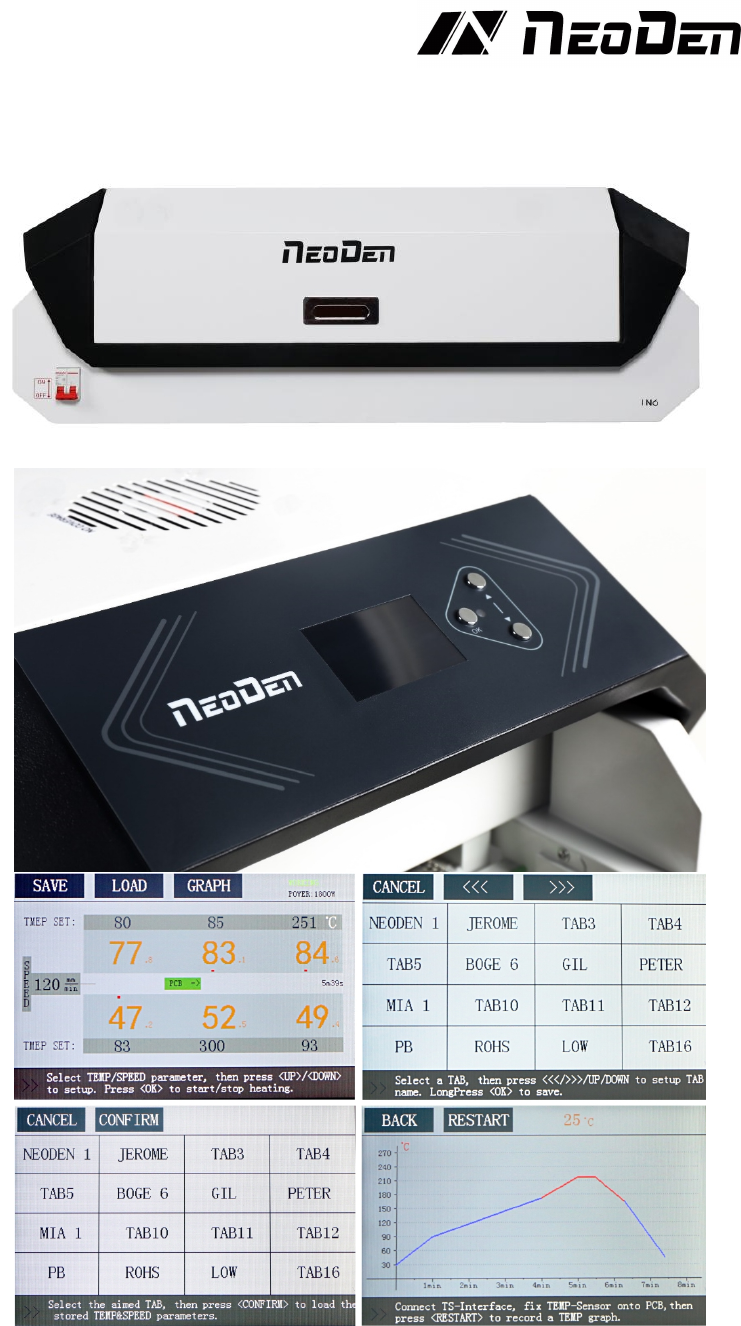
3. Main Parts
3.1 Reflow Oven Main Body
3.2 Operating Panel
3
3.3 Pedestal
4. Installation Instruction
4.1 Power Supply Connection
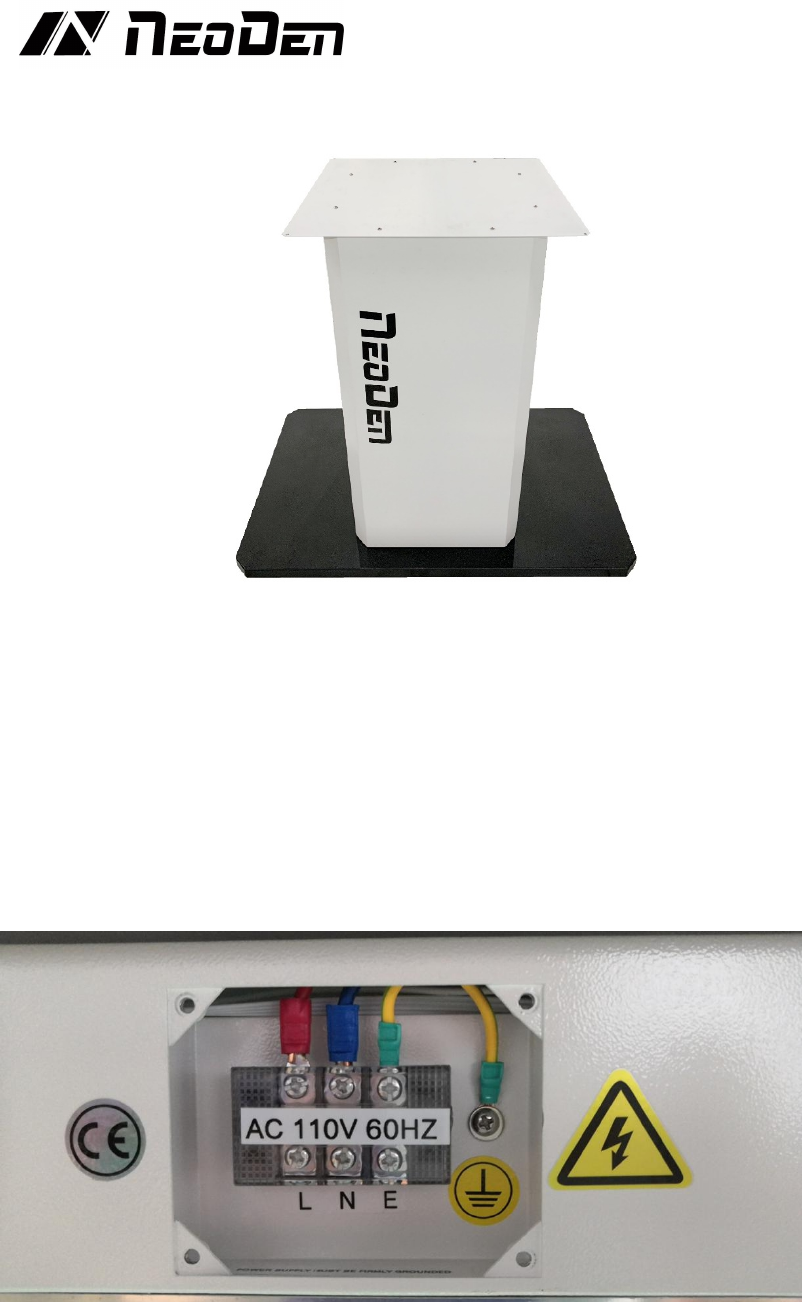
IN6 is used in 110V/220V single-phase connection mode and is connected according to the
user environment. Wires connection method is shown as picture. L stands for the live wire, N
stands for the zero wire, and E stands for the ground wire, connect to the 220V (110V) power
supply. According to the wiring requirements, the L should be connected to one live wire, and
the N should be connected to one zero wire; the E should be connected to one ground wire
properly
4.2 Installation Attentions
♦Power supply requirement:110V/220V
♦For desktop reflow oven, should be working on workbench, don’t suggest to use wooden
material
♦The machine should be set in standard SMT workshop, stay away from flammable and
explosive if couldn’t meet previous requirements.
♦Exposed wire harness should be well protected, prohibit to expose at the passage or flue in
4
case of causing any accident.
4.3 Status of Indicators
There is a green bar indicator at the PCB entrance that indicates whether the temperature in all
zones has reached the set temperature. This indicator lights up when the actual temperature of
all zones reaches the set temperature.
4.4 Operation instructions
♦ Power-on
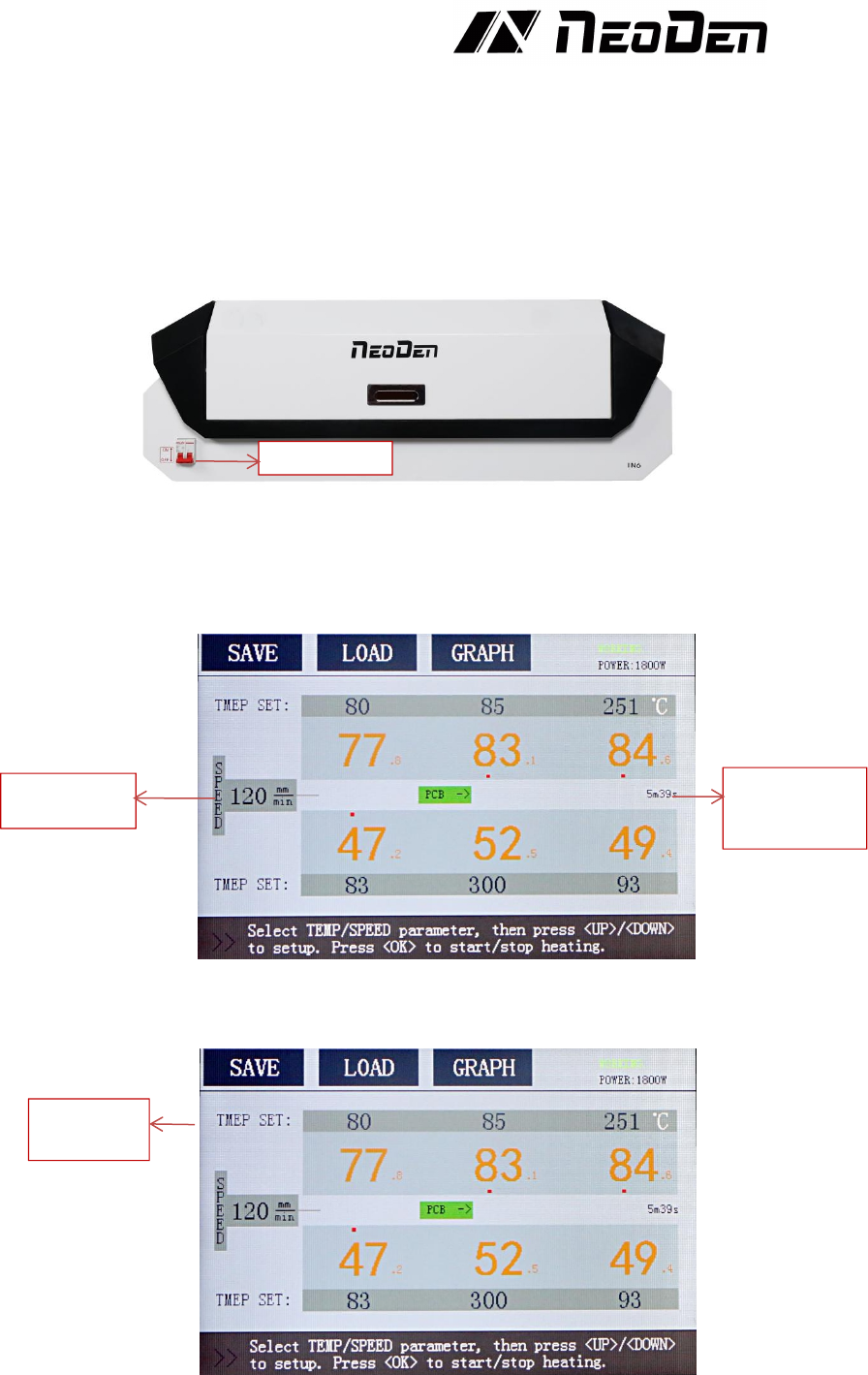
Turn the red power switch to the ON position and the machine starts.
♦Transfer chain speed setting
Tap the speed parameter on the screen and press the Up/Down button to set the appropriate
transfer chain rotation speed. When the speed is set, the time required to transport a PCB at this
setting speed is displayed on the right side of the screen.
♦Temperature zone setting
Tap the temperature parameter on the screen and press the up/down buttons to set the
temperature. Black is “the set temperature”, and orange is “the real-time temperature”.
♦Save and Usage of speed and temperature settings
After setting the transfer chain speed and the temperature of each zone, you could press the
SAVE button to save the setting parameters of the transfer chain and the zone temperature.
When the SAVE button is pressed, it will enter the TAB interface. Click on a TAB, then you
Speed setting
Time required
to transport a
PCB
Temperatur
e setting
Power switch