MUMA-Hardware-manual-20120717.pdf - 第10页
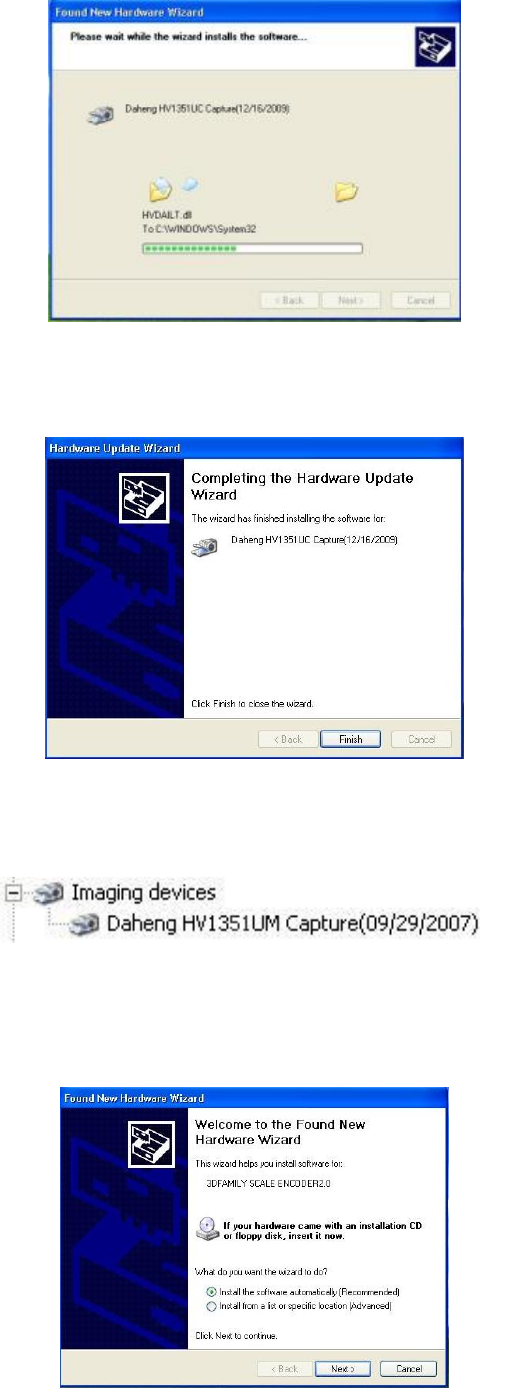
- 10 - If the following message appears, click “Browse” to fi nd USB 2.0 counter card driver fi le in CD, choose “ Z UC2.0 ” and the n click “ Next ’’ to pro cess. USB counter card driv er is on proces s. Click “fi…
- 9 -
Click” Finish” to complete the installation.
In the “Device Manager” you will find following install results.
3.3.2 USB Counter card driver installation
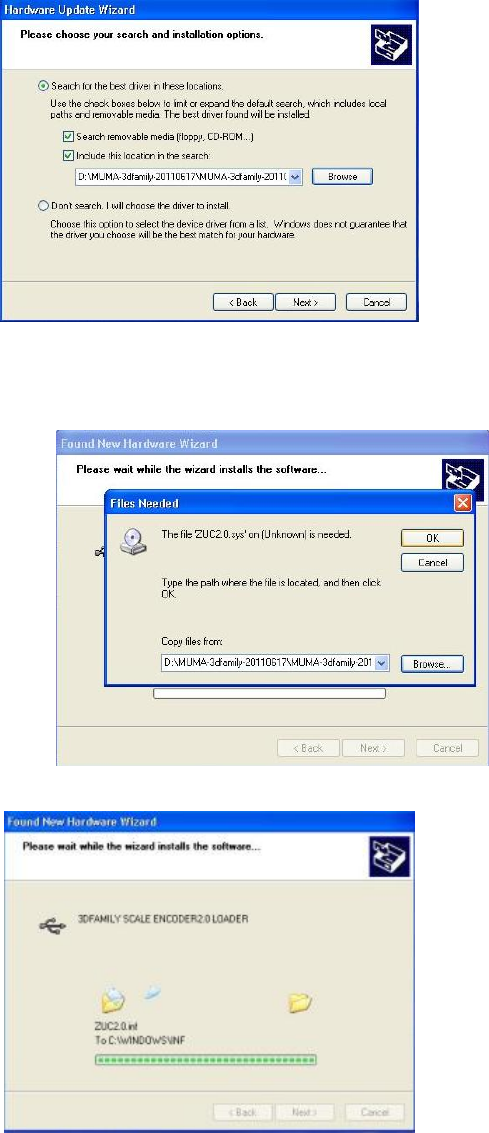
A prompt, “Welcome to the Found New Hardware Wizard” will appear, choose “installing the
software automatically (Recommended)” and click “next” to continue.
Choose”Include this location in the search”, click “Browse” to find “USB 2.0 Counter Card” and
click “next” to continue.
- 10 -
If the following message appears, click “Browse” to find USB 2.0 counter card driver file in CD,
choose “ZUC2.0” and then click “Next’’ to process.
USB counter card driver is on process.
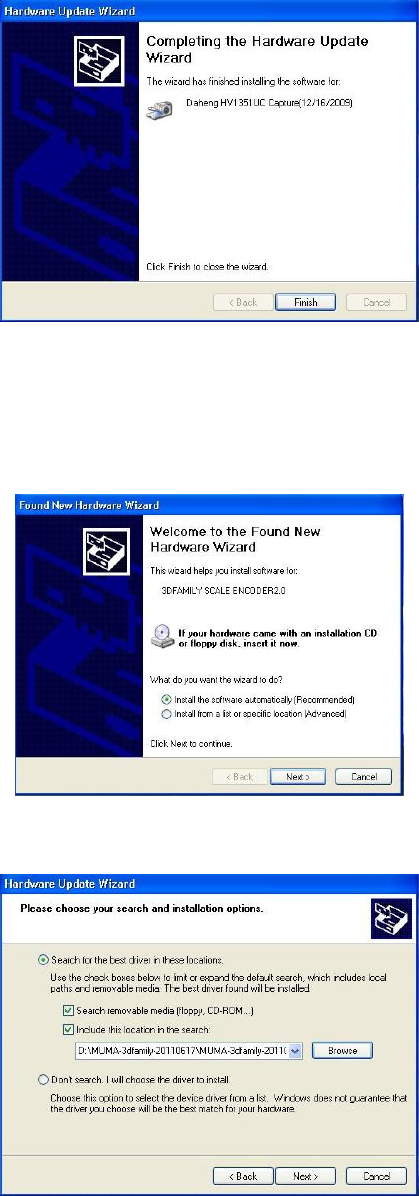
Click “finish” to complete the installation.
- 11 -
3.3.3 USB lamp driver installation
A prompt, “Welcome to the Found New Hardware Wizard” will appear, choose “installing the
software automatically (Recommended)” and click “next” to continue.
Choose”Include this location in the search”, click “Browse” to find “USB Lamp” and click “next” to
continue.
If the following message appears, click “Browse” to find USB Lamp file in CD, choose
“MumaLampUsb” and then click “Next’’ to process.