MUMA-Hardware-manual-20120717.pdf - 第13页
- 13 - Choose ”Inclu de this locati on in the search”, click “Br owse” to find “ simple key ” and click “next” t o continue. Simple key driver is on process. Click “finis h” to co mplete the inst allation.
- 12 -
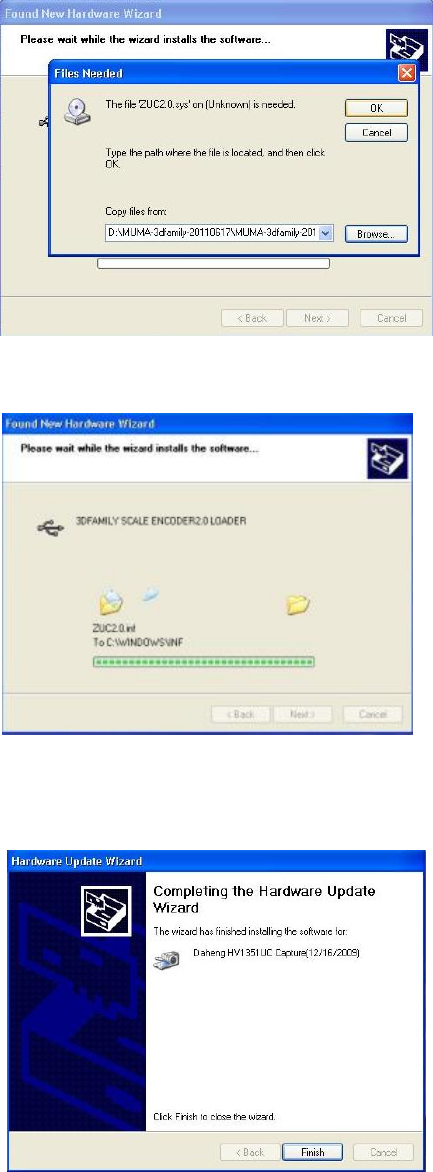
USB lamp driver is on process.
Click “finish” to complete the installation.
3.3.4 Simple key driver installation
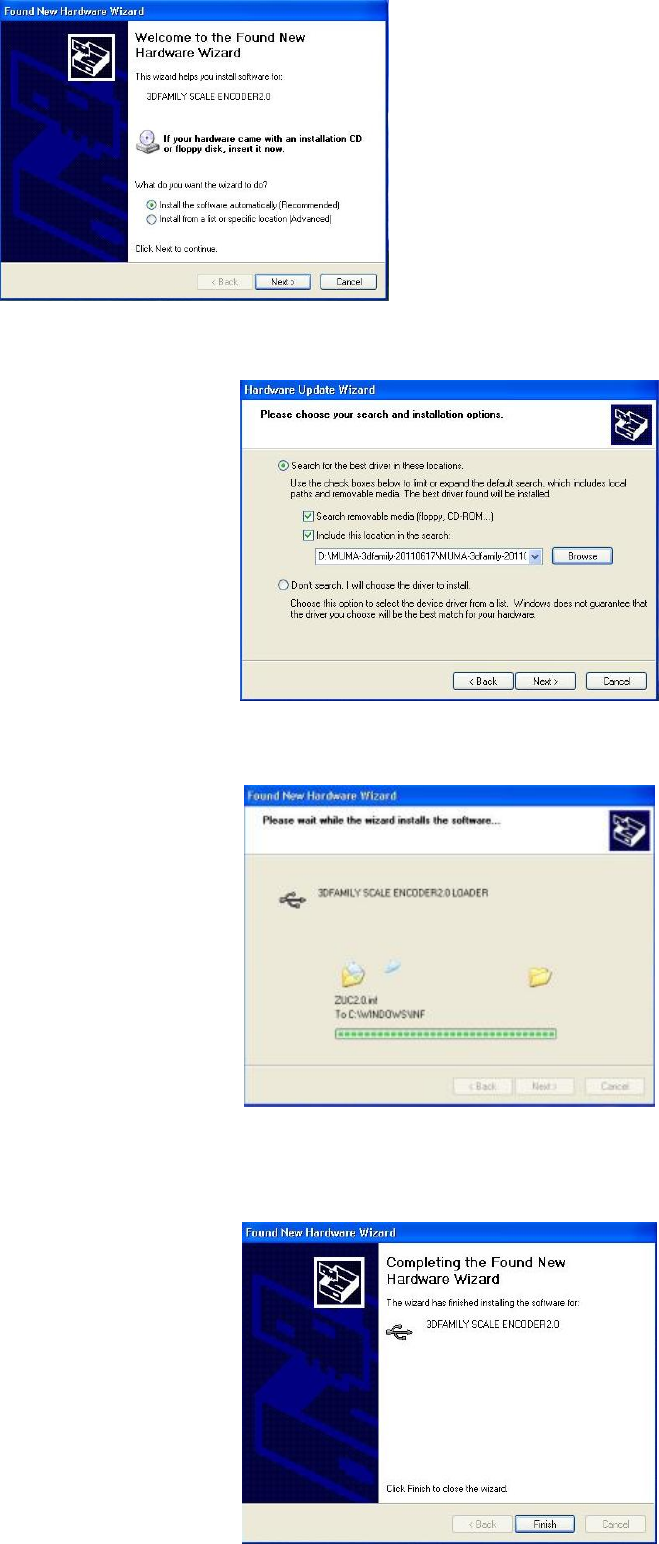
A prompt, “Welcome to the Found New Hardware Wizard” will appear, choose “installing the
software automatically (Recommended)” and click “next” to continue.
- 13 -
Choose”Include this location in the search”, click “Browse” to find “simple key” and click “next” to
continue.
Simple key driver is on process.
Click “finish” to complete the installation.
- 14 -
3.4 Software Installing
3.4.1 Installing MUMA Pro software
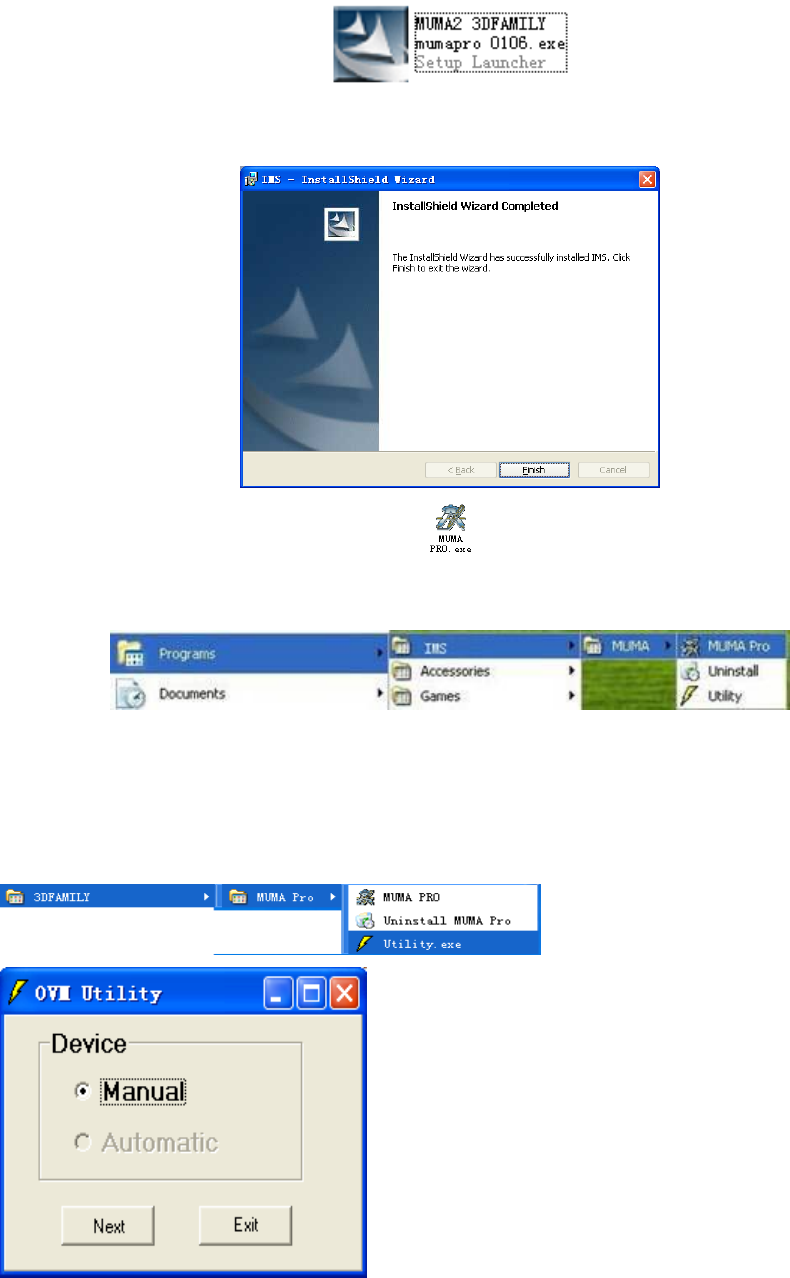
Put the installing disk into the ROM, find and double click “MUMA-Pro.exe” to install.
The system will install the software automatically.
Click “finish” to complete the installation.
When you finish the installation, a shortcut will be displayed on your screen. Double click
the shortcut to run the program; you can also run by following directory:
『start | Programs|IMS|MUMA|Pro』
3.4.2 Utility Setting
After installation, to configure hardware in Utility. Utility is a small program of hardware
configuration which can set image card, counter card, scale ruler resolution and lamp types and so
on.
Before open the software, test the utility setting. Open the “Utility” in “Start” menu.
Choose “Manual” , then click “Next” to continue.