MUMA-Hardware-manual-20120717.pdf - 第15页
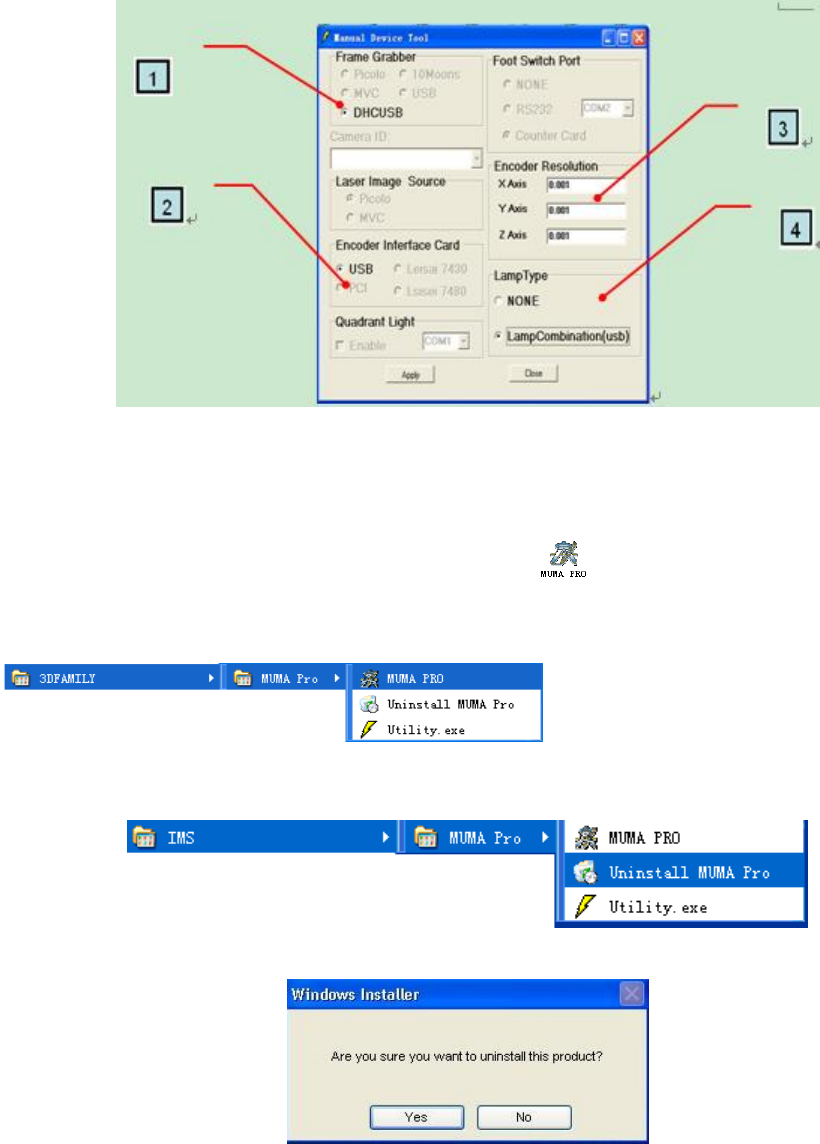
- 15 - 1: C hoose i mage card “D HCUSB”. 2: Choose co unter card. 3: Scale rul er resolution setting. 4: Choose l amp type. Af ter setting, click “App ly” . Double c lick the short cut to run the progr am; you can also…
- 14 -
3.4 Software Installing
3.4.1 Installing MUMA Pro software
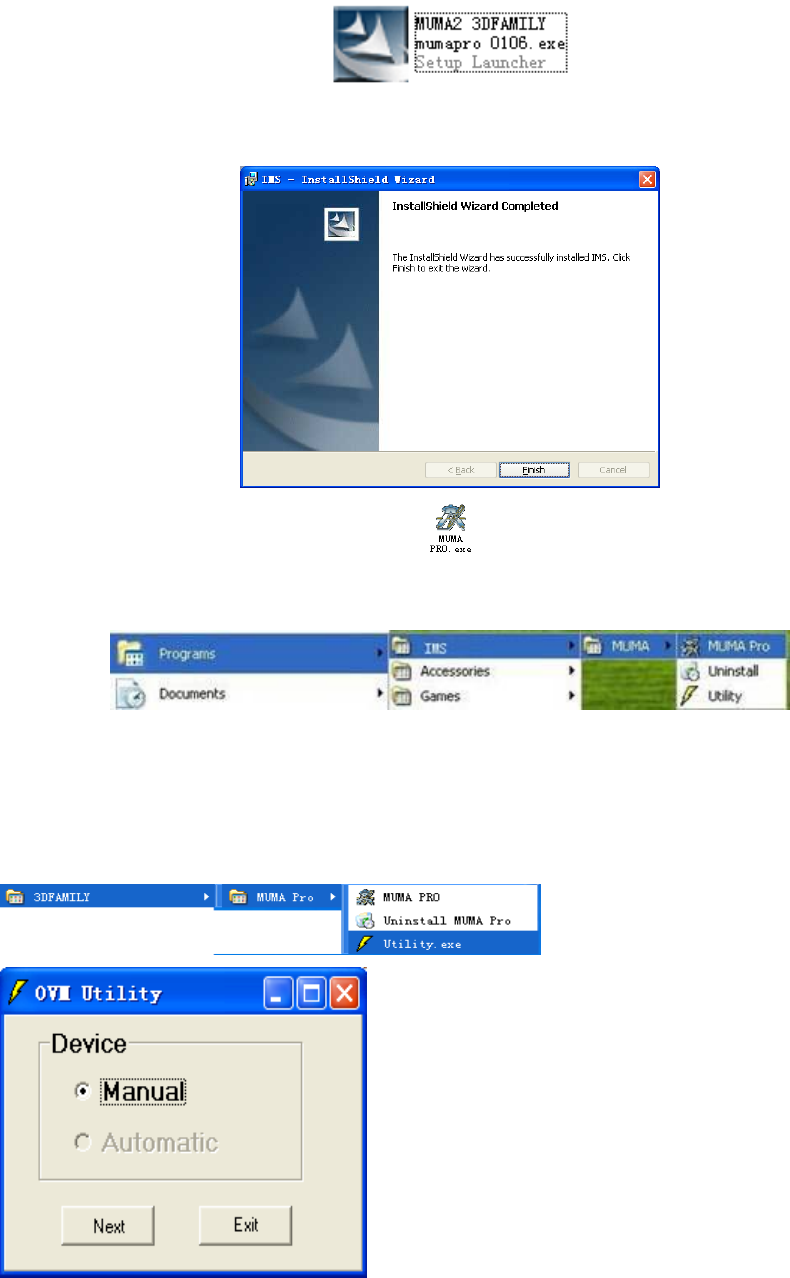
Put the installing disk into the ROM, find and double click “MUMA-Pro.exe” to install.
The system will install the software automatically.
Click “finish” to complete the installation.
When you finish the installation, a shortcut will be displayed on your screen. Double click
the shortcut to run the program; you can also run by following directory:
『start | Programs|IMS|MUMA|Pro』
3.4.2 Utility Setting
After installation, to configure hardware in Utility. Utility is a small program of hardware
configuration which can set image card, counter card, scale ruler resolution and lamp types and so
on.
Before open the software, test the utility setting. Open the “Utility” in “Start” menu.
Choose “Manual” , then click “Next” to continue.
- 15 -
1: Choose image card “DHCUSB”.
2: Choose counter card.
3: Scale ruler resolution setting.
4: Choose lamp type.
After setting, click “Apply” . Double click the shortcut to run the program; you can also run
by following directory:
『start | Programs|IMS|MUMA|Pro』
3.4.3 Uninstall the System
Select in turn 『start | Programs | IMS|MUMA|Uninstall』
Choose “Yes” to uninstall the system.
*When you finish all above installation, you can use MUMA200 machine directly.
4. MUMA200 safety, usage and maintain
For the safety use of MUMA200, please read this chapter carefully.
4.1 Safety notice
Do not locate MUMA200 near the place which temperature is too hot,
which is not higher than 60 ℃, in order not to spoil internal electric circuit.
Do not put sharp object in MUMA200 work stage which may will damage the glass.
Do not strike or drop MUMA200.
Take off power supply if not use MUMA200 for a long time.
Do not pour any liquid to MUMA200.
Do not disassemble MUMA200 by yourself. For your safety, ask help from professional engineer.
If we move MUMA200 during the environment with big difference of temperature and humidity,
- 16 -
there may be having dew on the surface or inside MUMA200. For safety, make sure you have enough
time for wet evaporation. Make MUMA200 can be better for room environment before turn on power
supply.
Make sure there is nothing on power adapter, and power cable do not put anywhere which is
possible stumbling or trampled by people.
Try to avoid using MUMA200 in follows environment: temperature is lower than 10 ℃ or higher
than 35 ℃, humidity is higher than 80%. Because too high temperature will fasten electronics aging
and shortens MUMA200 life. And too high humidity will make MUMA200 electric leakage.
4.2 Maintain notice
4.2.1 Machine shell
Something is Polluted on machine, and that will not influence measure accuracy; however
pollution may be diffused to guide rail or work stage, which will influence measure accuracy. In case
of machine shell is polluted, please clean it gently with softy cloth.
4.2.2 Guide rail
Guide rail is most important for movement, coated maintain oil regularly each three month.
4.2.3 Work stage
When you put on and off workpiece on glass, be careful not damage glass. If there is
hydrosphere or oil dew, clean them by cleanser.
4.2.4 Optical scale ruler
All optical scales ruler are covered with dustproof and assembled at place that dust can not
easy to arrive. Try to avoid liquid inside. If there is error of encoder, contact to our company.
5. Simple problem solution
This chapter list handling method to some simple problems, we hope this will help you to do
some simple solution.
If the following answer can not still help you, please feedback your machine series NO., software
version and the details error message or procedure.
5.1 Why cannot open software?
Please check connecting of machine and computer.
Please check machine power supply is on.
Please check connecting of encounter card.
Please reinstall encounter card driver.
Please refer camera and encounter card driver installation.
5.2 Appear “can not find camera” error
Please make sure machine connect to computer correctly. Check CCD driver, if there is no CCD
driver in image device; please reinstall the driver referring above driver installation manual.
Please make sure camera USB connecter is not loose.
5.3 Why there is no image in software?
Please check connecting of power supply cable
Please check connecting of USB connector.
Please check the lamp is on and adjust to proper brightness.
5.4 Why scale ruler cannot readout?
Please make sure USB signal wire connect correctly.
Please check USB encounter card driver is installing correctly.
Please check USB connecter is normal.
Please check eclectic board is fine.
5.5 Why measure result is different to actual workpiece?
Please make sure light is suitable when you are doing calibration. (If light is too strong, measure
value will be more. Otherwise, measure value will be less.)
Please make sure to do calibration refer to the manual instruction.