A000062-datasheet.pdf - 第21页
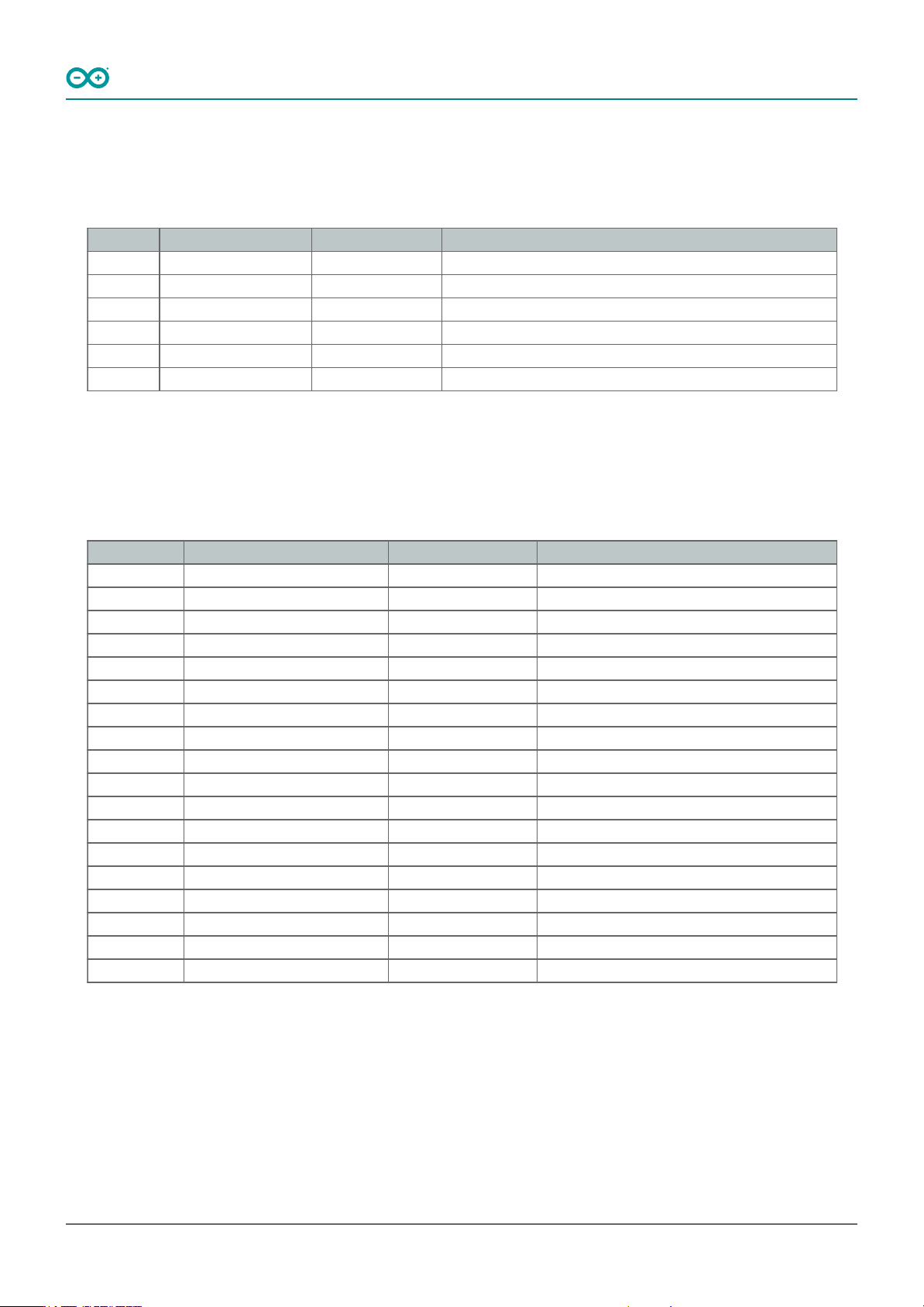
Pin Function Type Description 1 +5V Power +5V Power Rail 2 D23 Digital GPIO 23 3 D25 Digital GPIO 25 4 D27 Digital GPIO 27 5 D29 Digital GPIO 29 6 D31 Digital GPIO 31 7 D33 Digital GPIO 33 8 D35 Digital GPIO 35 9 D37 Dig…
6.5.6 SPI
These pins facilitate communication between the Arduino Due and external SPI devices
Pin Function Type Description
1 CIPO Internal Controller In Peripheral Out
2 +5V Internal Power Supply of 5 V
3 SCK Internal Serial Clock
4 COPI Internal Controller Out Peripheral In
5 RESET Internal Reset
6 GND Internal Ground
SPI pinout
6.5.7 D22 to D53 on Left and Right Side
These digital pins provide a wide range of GPIO (General Purpose Input/Output) capabilities for interfacing with
external sensors, actuators, and other digital devices in Arduino Due projects.
Pin Function Type Description
1 +5V Power +5V Power Rail
2 D22 Digital GPIO 22
3 D24 Digital GPIO 24
4 D26 Digital GPIO 26
5 D28 Digital GPIO 28
6 D30 Digital GPIO 30
7 D32 Digital GPIO 32
8 D34 Digital GPIO 34
9 D36 Digital GPIO 36
10 D38 Digital GPIO 38
11 D40 Digital GPIO 40
12 D42 Digital GPIO 42
13 D44 Digital GPIO 44
14 D46 Digital GPIO 46
15 D48 Digital GPIO 48
16 D50 Digital GPIO 50
17 D52 Digital GPIO 52
18 GND Power Ground
D22 - D53 LHS pinout
Arduino® Due
20 / 50 Arduino® Due Modified: 15/09/2026
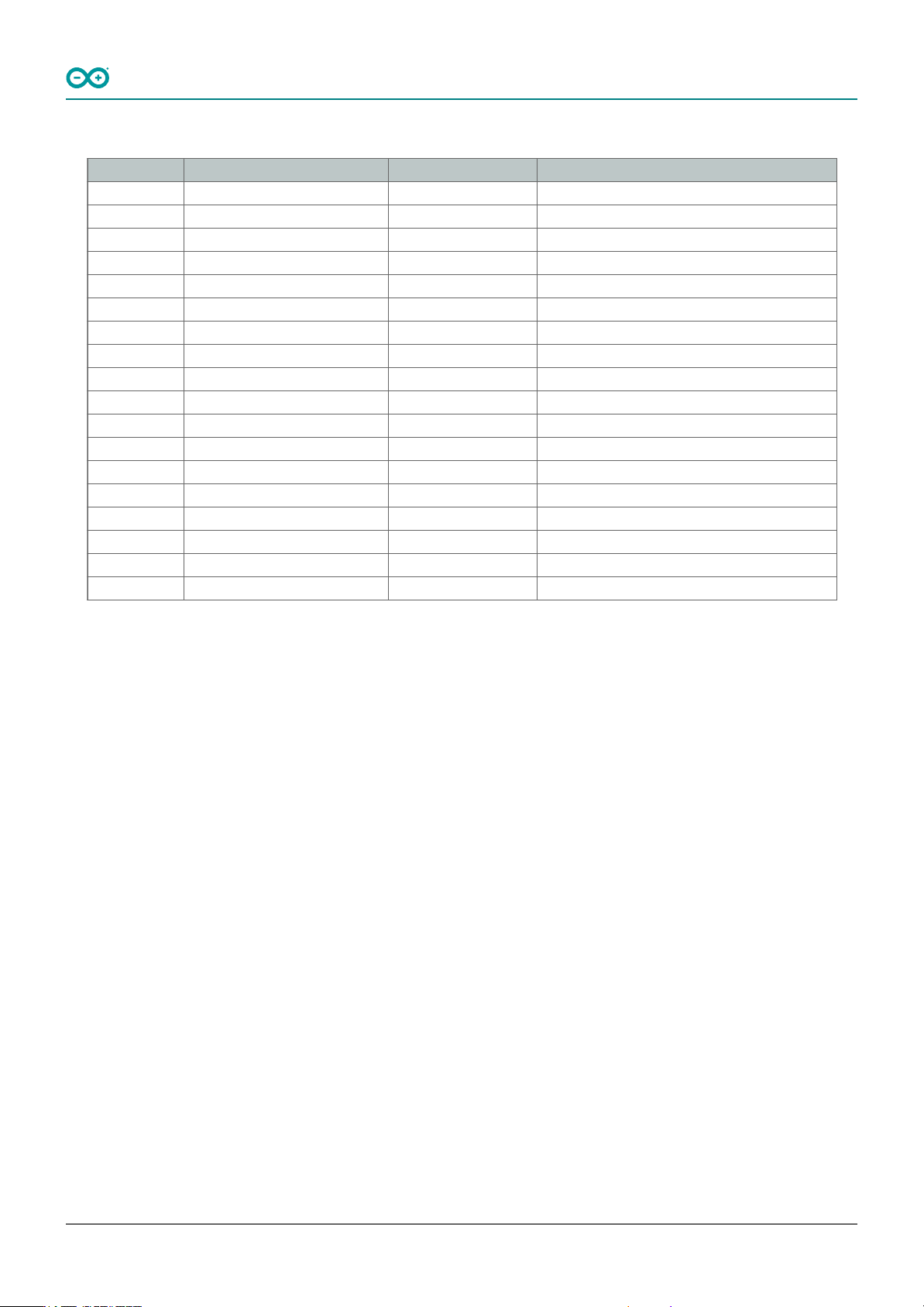
Pin Function Type Description
1 +5V Power +5V Power Rail
2 D23 Digital GPIO 23
3 D25 Digital GPIO 25
4 D27 Digital GPIO 27
5 D29 Digital GPIO 29
6 D31 Digital GPIO 31
7 D33 Digital GPIO 33
8 D35 Digital GPIO 35
9 D37 Digital GPIO 37
10 D39 Digital GPIO 39
11 D41 Digital GPIO 41
12 D43 Digital GPIO 43
13 D45 Digital GPIO 45
14 D47 Digital GPIO 47
15 D49 Digital GPIO 49
16 D51 Digital GPIO 51
17 D53 Digital GPIO 53
18 GND Power Ground
D22 - D53 RHS pinout
Arduino® Due
21 / 50 Arduino® Due Modified: 15/09/2026

7 Device Operation
7.1 Getting Started - IDE
If you want to program your Arduino Due while offline you need to install the Arduino® Desktop IDE [1]. To connect
the Arduino Due to your computer, you will need a USB Type-B cable, which can also provide power to the board, as
indicated by the LED (DL1).
7.2 Getting Started - Arduino Cloud Editor
All Arduino boards, including this one, work out-of-the-box on the Arduino® Cloud Editor [2], by just installing a
simple plugin.
The Arduino Cloud Editor is hosted online, therefore it will always be up-to-date with the latest features and support
for all boards. Follow [3] to start coding on the browser and upload your sketches onto your board.
7.3 Getting Started - Arduino Cloud
All Arduino IoT enabled products are supported on Arduino Cloud which allows you to log, graph and analyze
sensor data, trigger events, and automate your home or business.
7.4 Online Resources
Now that you have gone through the basics of what you can do with the board you can explore the endless
possibilities it provides by checking exciting projects on ProjectHub [4], the Arduino Library Reference [5], and the
online store [6]; where you will be able to complement your board with sensors, actuators and more.
7.5 Board Recovery
All Arduino boards have a built-in bootloader which allows flashing the board via USB. In case a sketch locks up the
processor and the board is not reachable anymore via USB, it is possible to enter bootloader mode by double-
tapping the reset button right after the power-up.
Arduino® Due
22 / 50 Arduino® Due Modified: 15/09/2026