TS580R-USER-GUIDE.pdf - 第14页
14 5. Touch the Check Mark icon to save and exit The screen will look simila rly to the screen below: Note: If the controller is set to activat e memory cell 1 and th e delay time is set at 5000 ms, the controller will a…
24
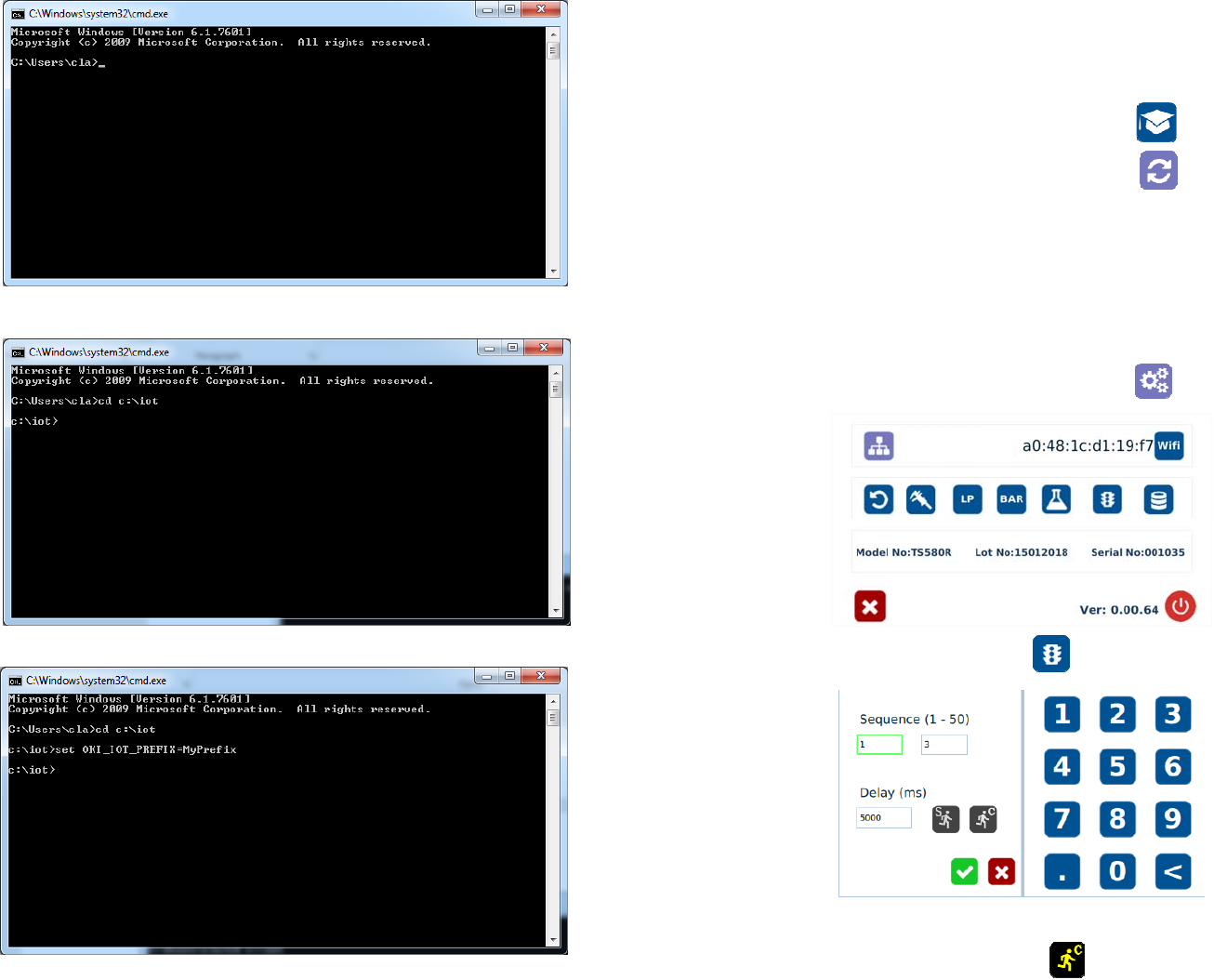
7. Type: “cd :\iot” then touch the “Enter” button
8. Type: “set OKI_IOT_PREFIX=MyPrefix” then touch the “Enter” button
13
5.2.6 Teach Mode Setting
In the teach mode, the dispense time will be accumulated as long as the
foot switch is depressed. This is helpful in determining the required
dispense time when dispense output is known.
1. Touch the “Teach” icon to enter the teach mode
2. Touch the “Time Reset” icon to set timer to zero
3. Press and hold down the foot switch, the dispense time will be accumulated.
4. Release the foot switch when the desired amount of fluid has dispensed.
5. Touch the “Timed” icon to transfer the dispense time to “Timed” mode
6. The unit is now set to repeat this “Timed” cycle.
5.2.7 To run in Continous Mode
The controller can be setup to repeat the run continuously.
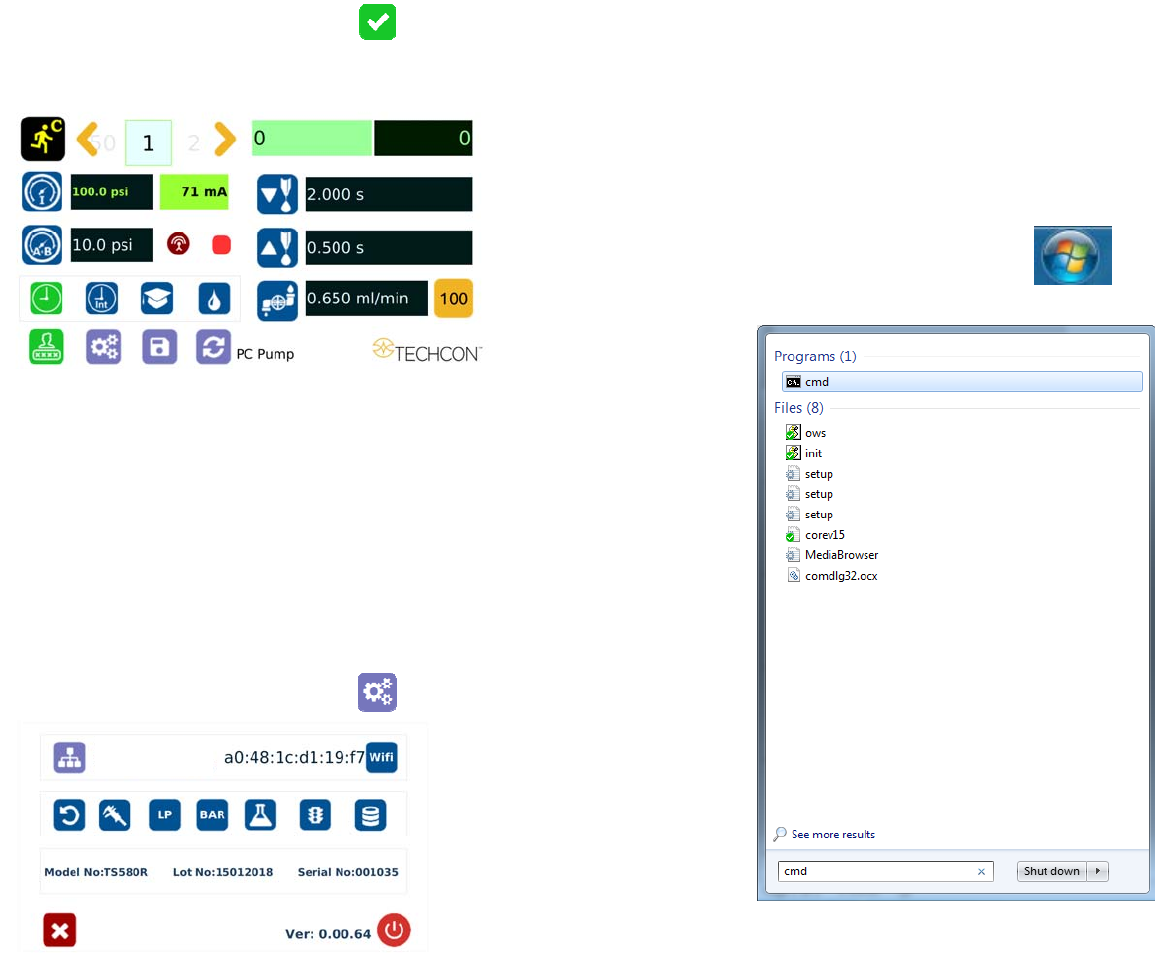
1. Touch the Setup icon to enter the setup screen
2. Touch the “Run Method” icon
3. Enter the delay time (ex. 5000ms)
4. Touch the “Countinous Run” icon
14
5. Touch the Check Mark icon to save and exit
The screen will look similarly to the screen below:
Note: If the controller is set to activate memory cell 1 and the delay time is
set at 5000 ms, the controller will activate memory 1 contiuously with 5000
ms delay between each activation.
5.3 Low Pressure Alarm Setting
Note: This controller is equipped with an adjustable “Low Pressure” alarm
function. If the set pressure dropped below the “Low Pressure” setting, the
controller will not activate. The “Low Pressure” setting is pre-set at the factory
to 10 Psi (0.7 bars). When the supplied pressure drops below 10 Psi (0.7 bars)
the unit will not function. The “Low Pressure” setting can be adjusted. Follow
the instructions below.
1. Touch the Setup icon to enter the setup screen
23
6. INTERNET of Thing (IoT)
6.1 Setup webserver on the computer
1. Go to Techcon Website (www.techconsystems.com) and download the
following files to your computer:
a. The “portal.exe” file
b. The “timezone.zip” file
2. Create a new folder and name “IoT” or any desired name
3. Copy the “portal.exe” file and the “timezone.zip” file in the “IoT” folder
4. Click on the “Windows” start icon
5. Type: “cmd” in the box (as show below)
6. Touch the “Enter” button
The screen should appear as shown below
22
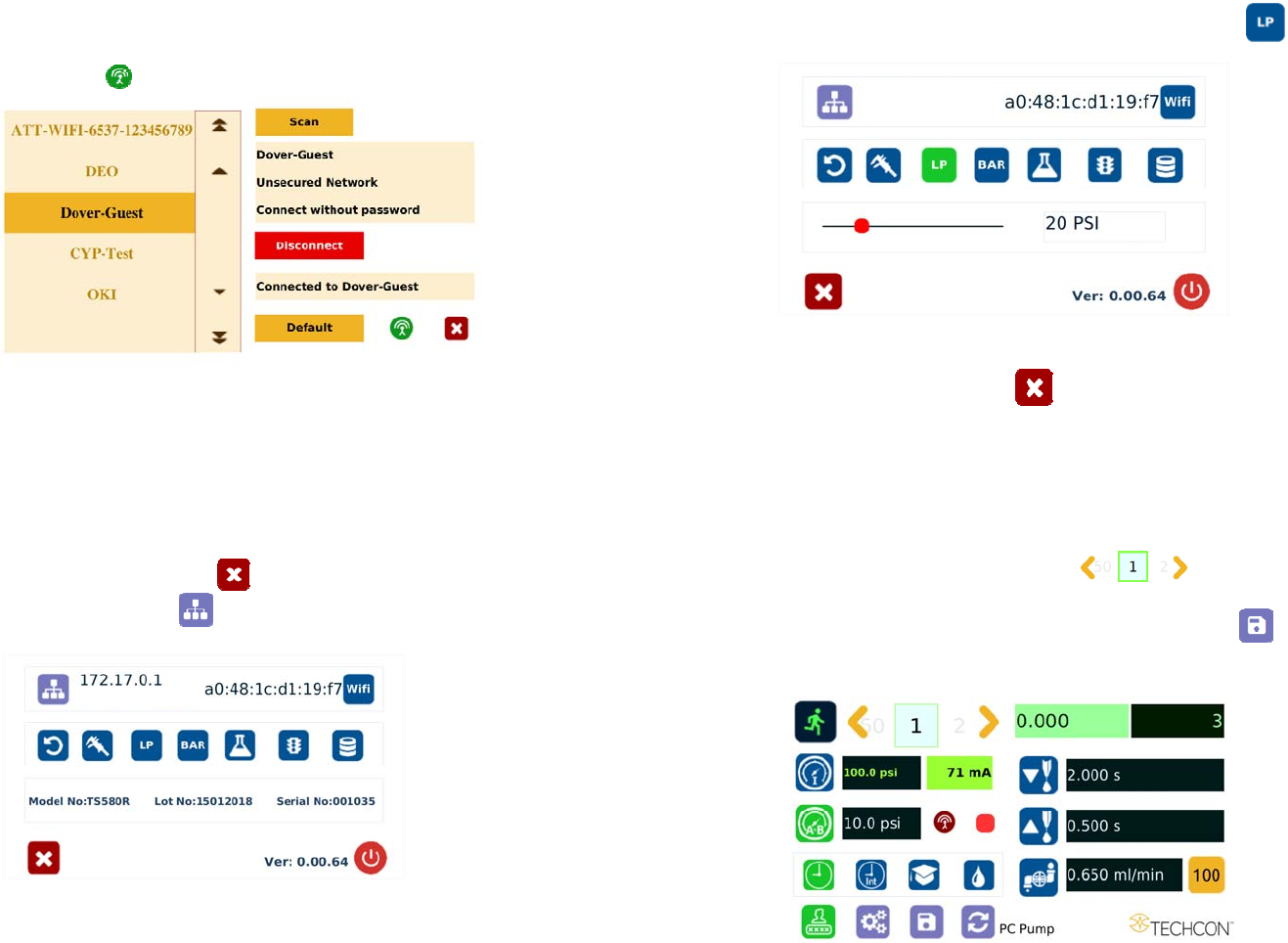
6. If the selected network is an unsecured network (not password protected),
touch “Connect” tab to connect.
7. Once the unit is successfully connected to the Wi-Fi network, the
“Connect” tab will change to “Disconnect” and the online symbol will
change to green
8. If the selected network is a secured network (password protected), first
create a text file and type the network’s password, then save the file as
“password.txt”
9. Copy the “password.txt” file to a blank USB thumb drive. Note: Do not
put the “password.txt” file inside a folder
10. Insert the USB drive to the USB port located in the back of the unit
11. Touch “Connect” tab to connect. Once the unit is successufully connected
to the Wi-Fi network, remove the USB drive from the USB port
12. Touch X icon to save and exit
13. Touch the IP Address icon
and the unit will show an IP address
Note: Once the unit is turned off, the Wi-Fi connection is lost. To re-connect
the unit back to the same network after the unit is turned on, repeat steps 1-4
and touch the “Default” tab.
15
2. Touch the Low Pressure (LP) icon to set the desired low pressure
3. Slide the pressure scale to set the desired low pressure threashold
4. Press the X icon to save and exit
5.4 Stored Program in Memory cell
The unit has 50 memory cells to store all dispense parameters. The controller can
activate all memory cells in sequence mode.
5.4.1 To Store dispense parameters
1. Touch the forward or backward arrow to
select desired memory cell.
2. Enter all desired dispense parameters then touch the “Save” icon
to save the data.