TS580R-USER-GUIDE.pdf - 第7页
30 6. Wait until the system com pletes the software upd ate from the USB drive and the first touc h-screen calibration is displa yed 7. Remove the USB drive from the USB por t befor e proceeding to the next step 8. Follo…
6
TS570R
TO AIR SOURCE
1
5
2
6
4
3
5.
TO CONTROL PC PUMP
CAUTION: A 5-micron filter (TSD800-6) must be installed with the unit to ensure proper
air filtration.
Figure 2.0
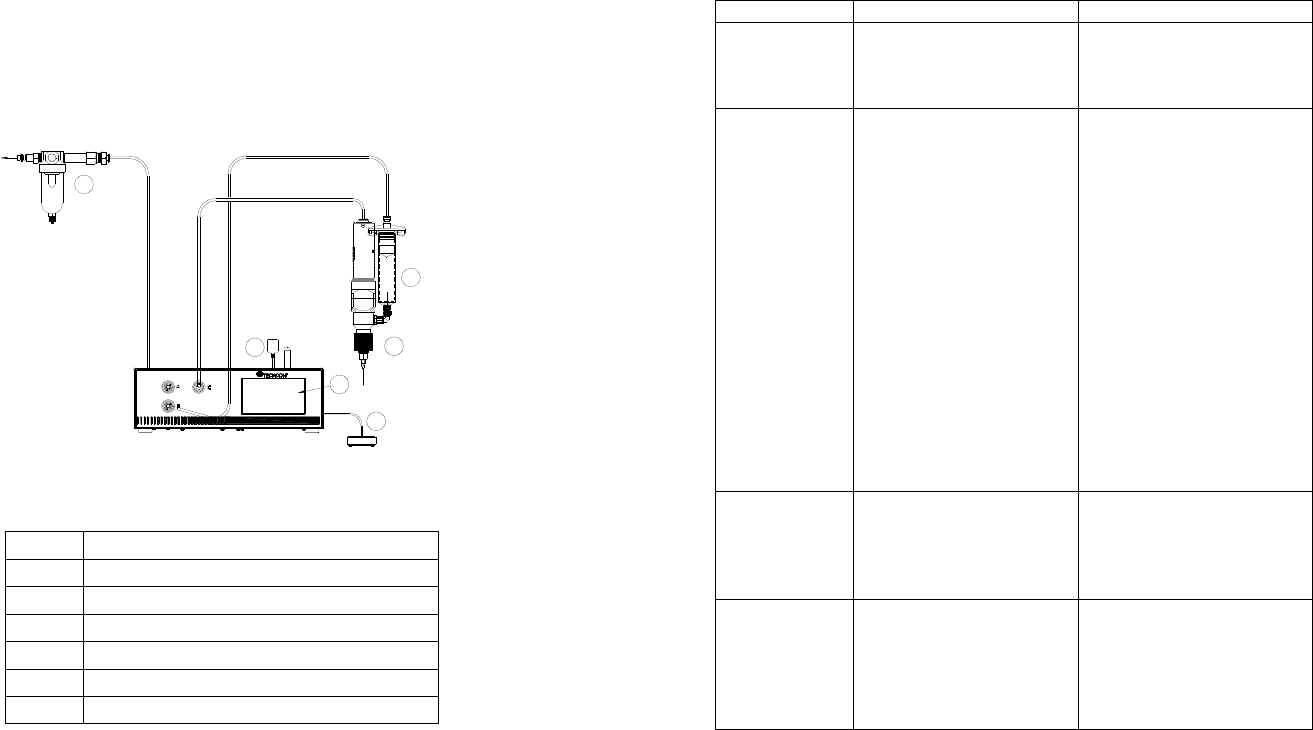
5.1 Connecting the Unit: (Refer to Figure 1.0 and 2.0)
1. Connect the power cord, foot switch to the back of the unit.
2. Connect Valve air hose to either Port A or Port B.
3. Press the Power switch to turn on the unit.
Items Description
1 Air Filter
2 Valve (not included)
3 Syringe of material (not included)
4 Display
5 Power Adapter
6 Foot Switch
31
8. TROUBLESHOOTING
PROBLEM POSSIBLE CAUSE CORRECTION
Display does
not light up
No power inputs
Check power cord
connections
Turn on power
System will not
actuate
Supplied pressure
dropped below “Low
Pressure” setting
Foot switch not plugged
in or improperly
plugged in
Defective foot switch
Broken wire or loose
connection inside unit
Defective solenoid
Defective PC board
The valve motor draws
over 400 mA
Increase supplied
pressure
Check foot switch
connection
Foot switch needs to be
repaired or replaced
Unplug power cord and
disconnect air supply.
Remove cover and check
for broken wires or loose
connections
Replace solenoid
Replace PC board
Check valve (see section
5.6)
System will not
pressurize
Insufficient air pressure
Air hoses not plugged
in
Re
g
ulator defective
Increase air supply
pressure
Check connection
Re
p
lace re
g
ulato
r
Inconsistent
dispense
Air bubbles in material
Dispense time is too
low
Needle clogged
Motor started to burn
out
De-air material
Increase dispense time
Replace needle
Re
p
lace moto
r
30
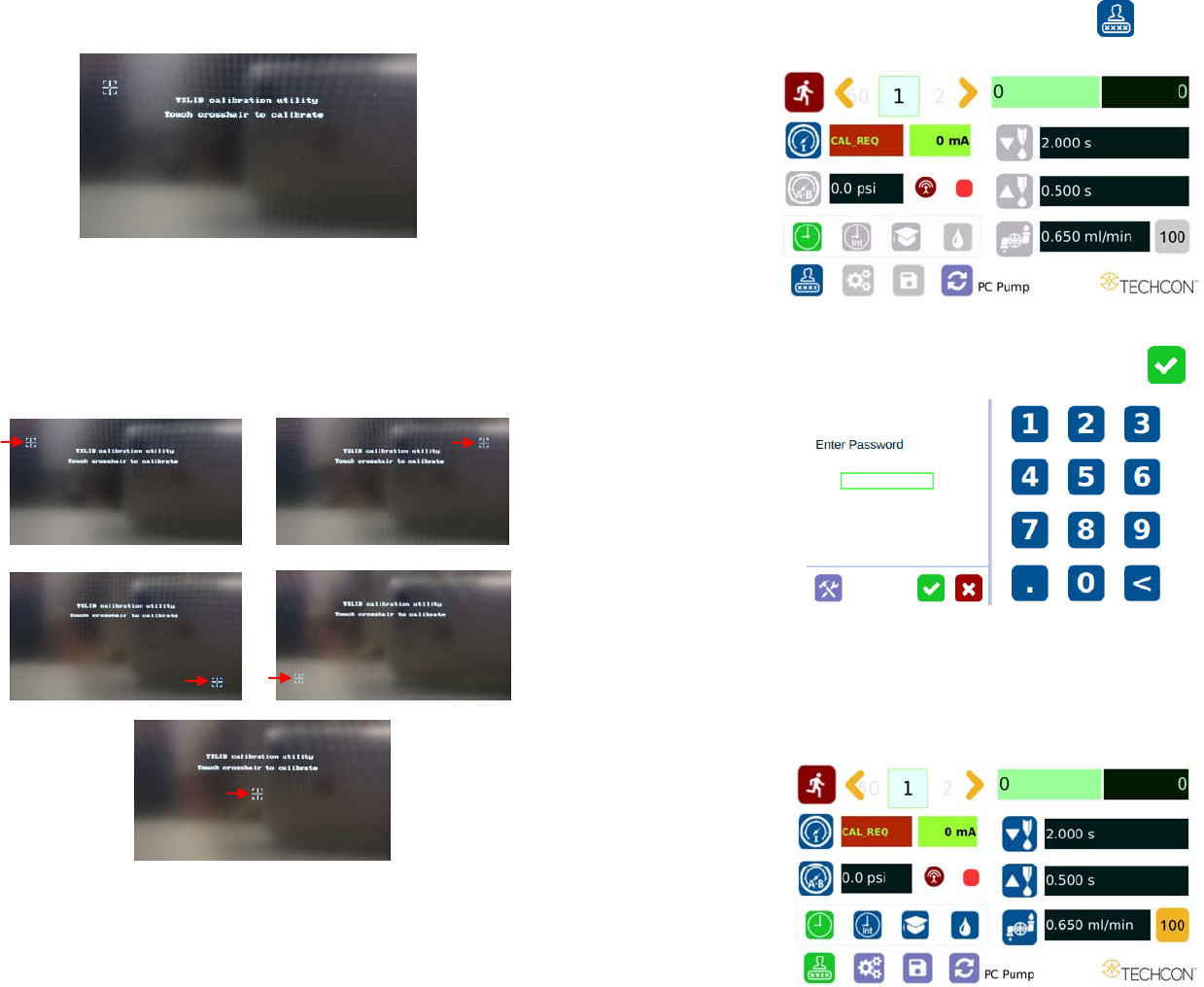
6. Wait until the system completes the software update from the USB drive
and the first touch-screen calibration is displayed
7. Remove the USB drive from the USB port before proceeding to the next
step
8. Follow the instructions on the display to calibrate the touch screen by
touching the crosshair at five different points. Note: In order to
accurately calibrate the touch screen, it’s recommended that the stylus
pen is used
9. Wait until the system completes the rebooting sequence and the home
screen is displayed
10. Repeat sections 5.1.1 and 5.1.2 to re-calibrate the air pressure
7
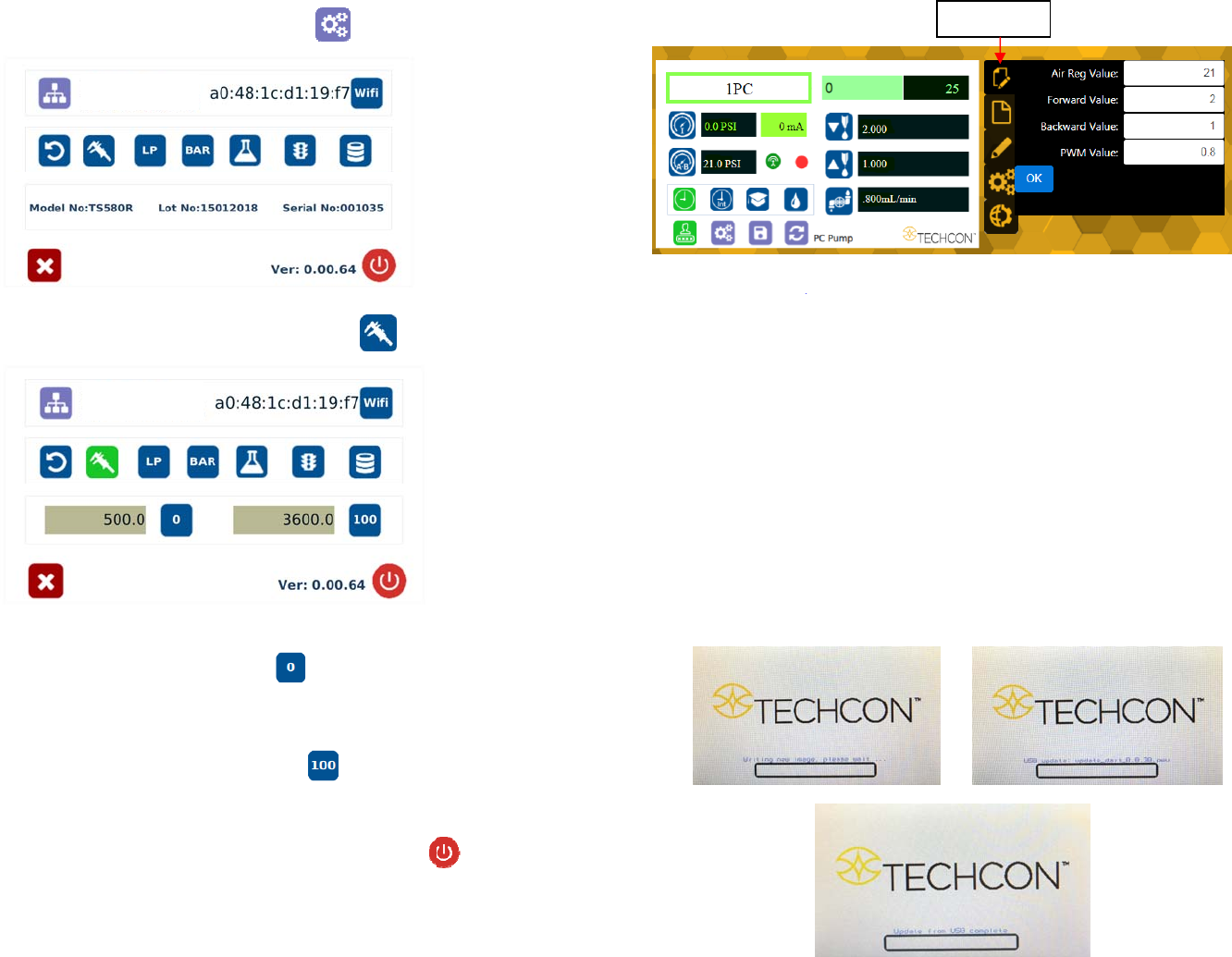
5.1.1 Login
1. Touch the Login icon to enter login screen
2. Enter “0000” in Password window
3. Touch the green check mark Icon to save and exit
5.1.2 Pressure Calibration
Note: Pressure calibration must be performed when the unit is activated for
the first time.
8
4. Touch the Setup icon to enter the setup screen
5. Touch the Calibration icon to enter calibration screen
Note: Make sure the air pressure line is not connected to the unit at this time.
6. Touch the 0 Icon to set the pressure to 0
7. Now connect the supplied air pressure line to the back of the unit and turn
up input air pressure to 100 psi
8. Touch the 100 Icon to set the pressure to 100
Note: The digital values shown at “0” and “100” icons are for reference only.
The actual calibrated values will be different.
9. Touch the Reboot icon to save the settings and reboot the system
10. Wait until the system completes the rebooting sequence and the home
screen is displayed
The unit is now calibrated and ready to operate
29
Proceed to make changes
Click “OK” button to save
The new parameter will be displayed on the controller.
7. SOFTWARE UPGRADE
Note: For future software upgrade, follow the instructions below.
1. Download the latest software version from Techcon website and copy it to a
blank USB thumb drive. Note: Do not put the software file inside a
folder
2. Make sure that the unit is turned off
3. Insert the USB drive to the USB port located in the back of the unit
4. Turn on the unit
5. Wait while the system is loading the new software. This process can take a
few minutes
“Edit” Icon