TS580R-USER-GUIDE.pdf - 第9页
28 6.2 Making Parameters Adjustment from the websever Go back to the webserver site and click on the “Controllers ” menu Click on the act ive controller lin k The controller sc reen will be displa ye d in the web server …
8
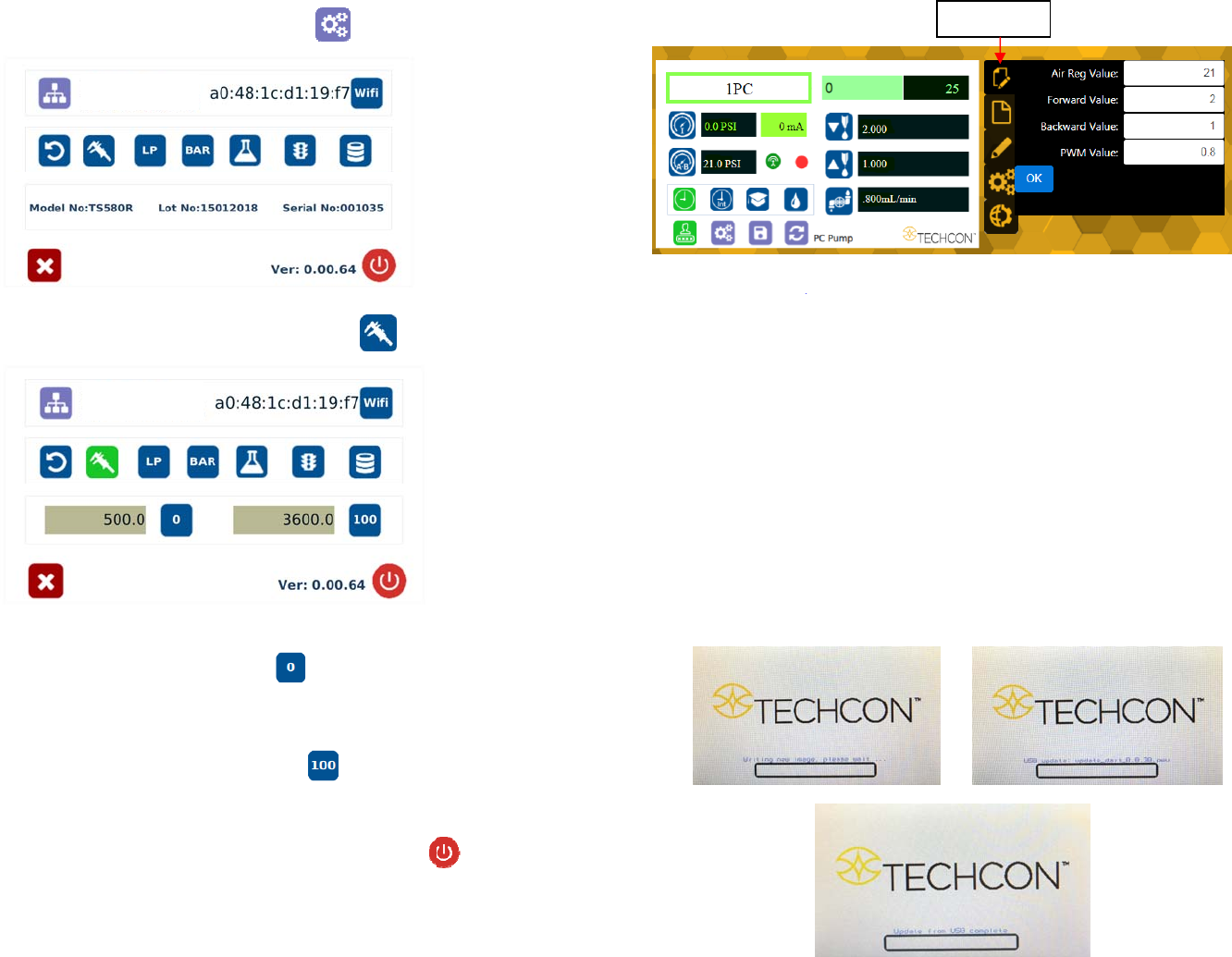
4. Touch the Setup icon to enter the setup screen
5. Touch the Calibration icon to enter calibration screen
Note: Make sure the air pressure line is not connected to the unit at this time.
6. Touch the 0 Icon to set the pressure to 0
7. Now connect the supplied air pressure line to the back of the unit and turn
up input air pressure to 100 psi
8. Touch the 100 Icon to set the pressure to 100
Note: The digital values shown at “0” and “100” icons are for reference only.
The actual calibrated values will be different.
9. Touch the Reboot icon to save the settings and reboot the system
10. Wait until the system completes the rebooting sequence and the home
screen is displayed
The unit is now calibrated and ready to operate
29
Proceed to make changes
Click “OK” button to save
The new parameter will be displayed on the controller.
7. SOFTWARE UPGRADE
Note: For future software upgrade, follow the instructions below.
1. Download the latest software version from Techcon website and copy it to a
blank USB thumb drive. Note: Do not put the software file inside a
folder
2. Make sure that the unit is turned off
3. Insert the USB drive to the USB port located in the back of the unit
4. Turn on the unit
5. Wait while the system is loading the new software. This process can take a
few minutes
“Edit” Icon
28
6.2 Making Parameters Adjustment from the websever
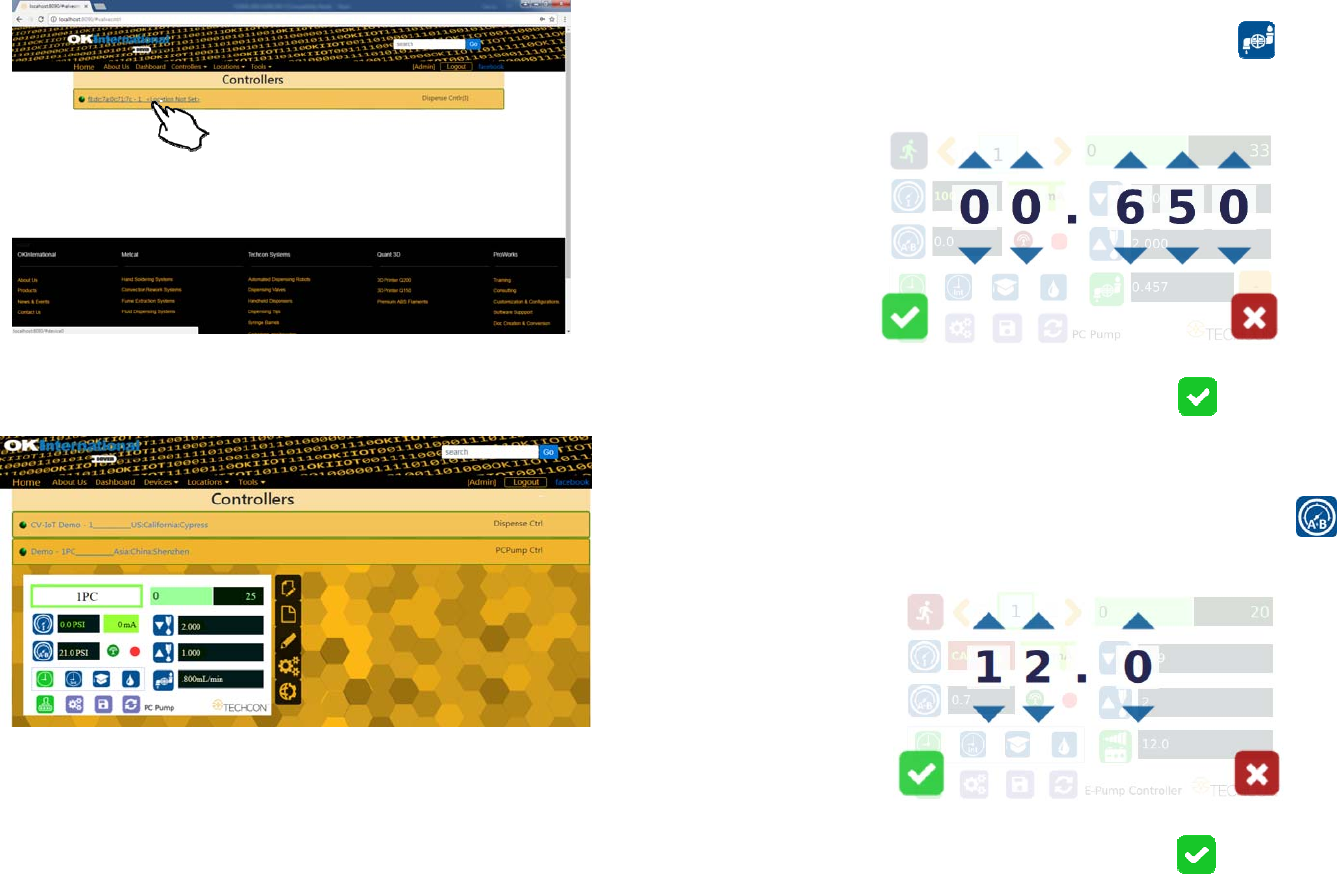
Go back to the webserver site and click on the “Controllers” menu
Click on the active controller link
The controller screen will be displayed in the webserver as shown below.
The controller parameters such as pressure and dispense time can be adjusted
from the webserver.
Click on the “Edit” icon
The parameter screen will appear as shown below:
9
5.2 Dispensing
5.2.1 Flow Rate Setting
Note: Each PC Pump version has a fix maximum flow rate. Make sure to
check the PC Pump flow rate specs before operating.
1. Touch the “Flow Rate” icon to enter the setup screen
2. Touch Up and Down arrows to set the desired flow rate in ml/minute
3. Touch the Check Mark icon to save and exit
5.2.2 Pressure Adjustment
Note: Pressure on port A and B provides constant regulated pressure.
1. Touch the “Pressure A.B” icon to enter pressure setup screen
2. Touch the Up and Down arrows to set the desired fluid pressure
3. Touch the Check Mark icon to save and exit
10
5.2.3 To Change Pressure Unit Display
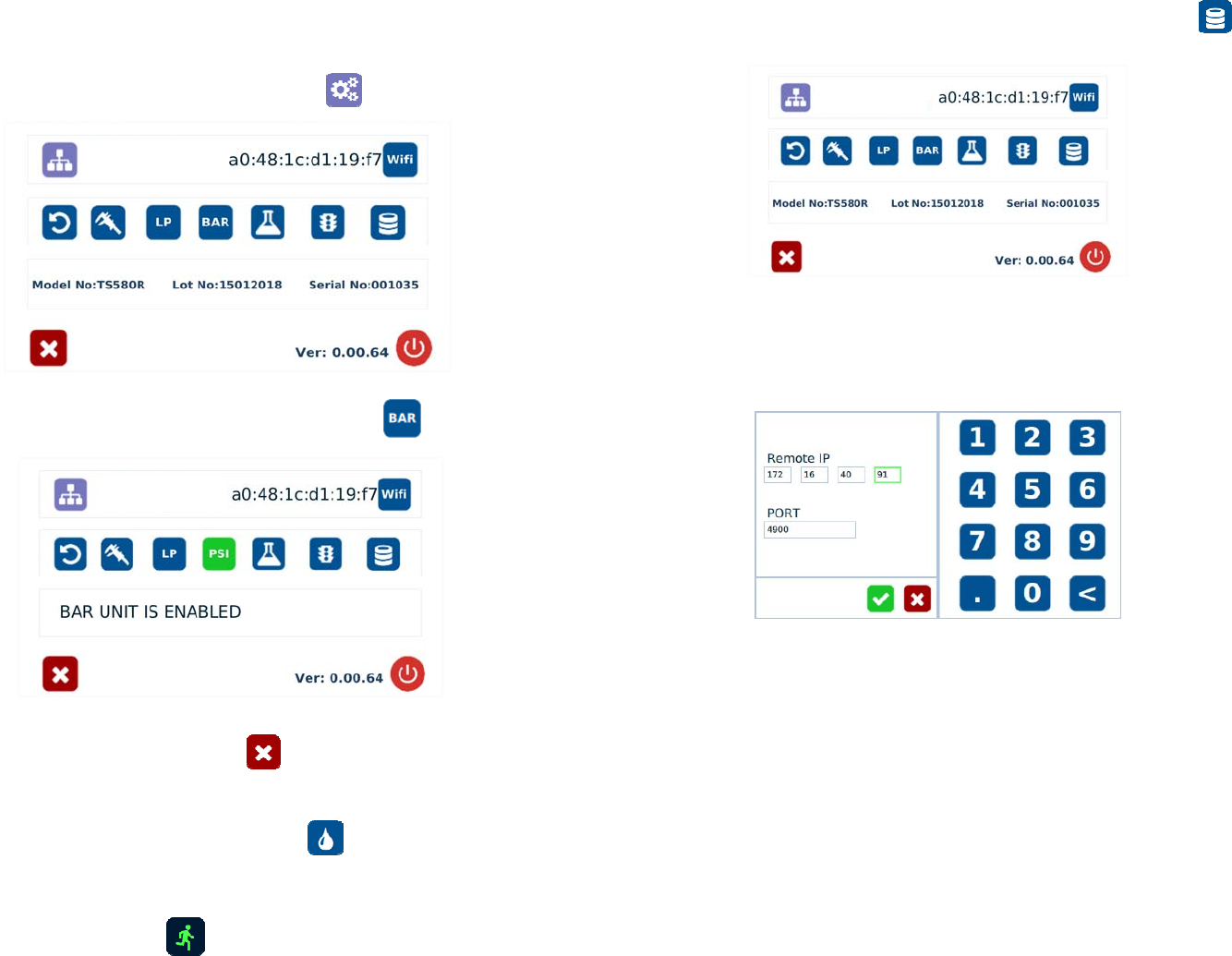
Note: The default pressure unit is PSI. To change pressure unit to BAR,
follow the instructions below.
1. Touch the Setup icon to enter the setup screen
2. Press the “BAR” icon to change pressure unit to BAR
3. Touch the X icon to save and exit
5.2.4 Manual/Purge Dispense Cycle Setting:
1. Touch the Purge icon to select purge cycle.
The Purge icon will turn to green color.
2. Press and hold the foot switch to activate the purge dispense cycle.
Alternately, touch and hold the Run icon on the display to activate the
purge dispense cycle.
27
18. Go to the setup screen of the controller and touch the “Remote Server”
icon
19. Enter the Server IPv4 address recorded in step #11 into Remote IP address box
20. Touch the green check mark icon to save
21. The controller is now connected to the webserver site.