00197793-03_VD_Support_Media_2.3_EN.pdf - 第19页
Support Media 2. 3 / Software Version Description 05/2016 Edition 19 O n a default Wind ows installation , the problem can b e solved as follows : ► Browse on the Suppo rt Media through th e HTAFIX directory and select t…
Support Media 2.3 / Software Version Description 05/2016 Edition
18
Select Password policy
You have to select, if you want to apply previous (simple) passwords or more complex passwords
to created accounts to meet possibly existing password policy restrictions.
In specific configurations, the Prerequisite Analyzer may detect Windows Firewall being
active although it is currently not
This may happen when Microsoft Windows Firewall is configured by Group Policies to be disabled
in some situations instead of using the Control Panel settings.
Since Group Policies are most likely to be applied in Domain environments only and the
Prerequisite Analyzer automatically deselects the Windows Firewall Disable script in domain
environments and hints the user to check for proper configuration, this should not be a problem.
Furthermore, if the user explicitly selects the Windows Firewall Disable script to be executed, the
Microsoft Firewall will be disabled for all conditions (=network locations) ensuring proper function of
the SIPLACE products (although this is not recommended in domain environments for security
reasons).
Missing association with file extension .HTA
There might be constellations in which the association with .HTA files is missing in the operating
system. This can happen by accident or be caused by an installation.
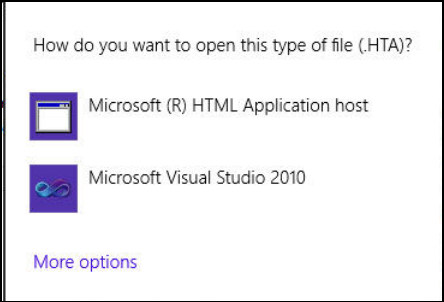
In the following example, you see the message on Windows 8.1 that is displayed when you try to
start using the Support Media Software Launcher but the .HTA extension is not associated.
Figure 6-1: .HTA extenstion not associated
► In this case, close this window by clicking anywhere outside of the window.
The .HTA extension has to be associated.
Support Media provides .reg files for Windows installations installed on their default location
(C:\Windows) to solve this problem.
Support Media 2.3 / Software Version Description 05/2016 Edition
19
On a default Windows installation, the problem can be solved as follows:
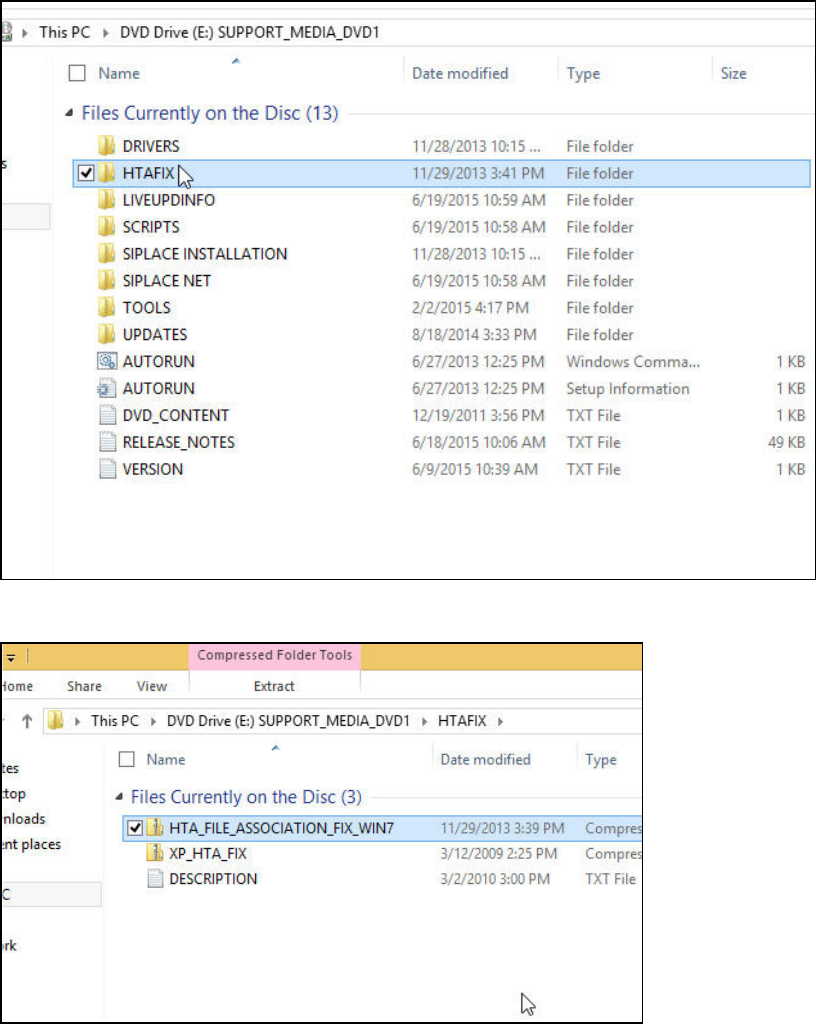
► Browse on the Support Media through the HTAFIX directory and select the
HTA_FILE_ASSOCIATION_FIX_WIN7 ZIP file.
Figure 6-2: HTAFIX directory
Figure 6-3 . HTA zip file
► Double-click the ZIP file to open it.
Support Media 2.3 / Software Version Description 05/2016 Edition
20
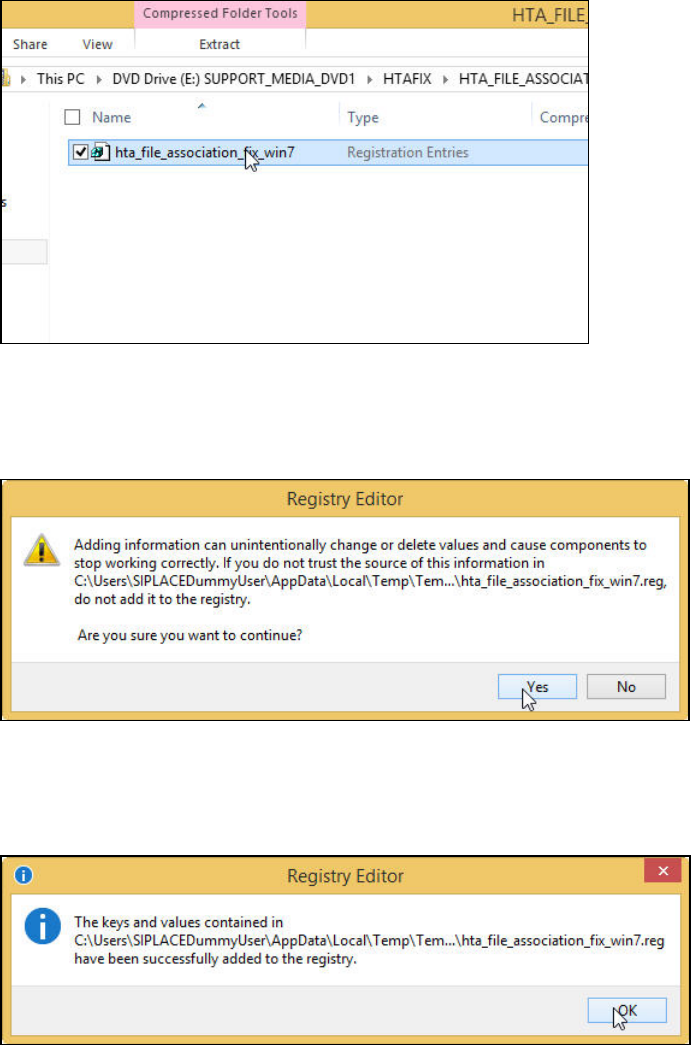
Figure 6-4: HTA .reg file
► Double-click the .reg file inside the ZIP file.
A warning message is displayed.
Figure 6-5: Registry warning
► Accept the warning message by clicking Yes.
After successful import, the following message is displayed.
Figure 6-6: Registry message
► Accept the message by clicking OK.
The HTA file extension has now been associated.