ePM 中文操作說明.pdf - 第26页
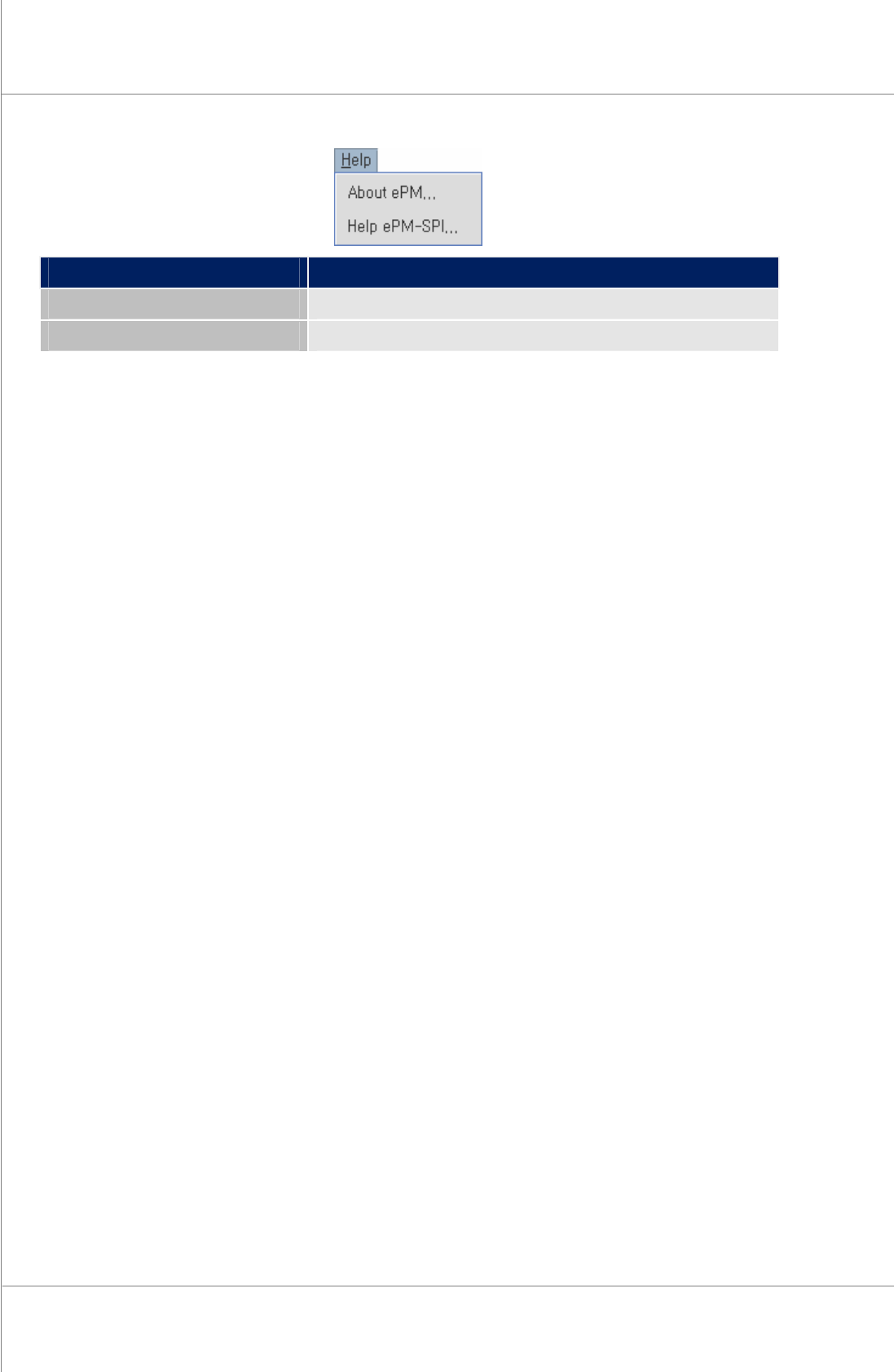
26 | Chapter 2. ePM-SPI TM 3D Solder Paste Inspec tion System V ersion 1.0 K OH Y OUNG T ECHNOLOGY . I NC . Menu Information About ePM 版本與版權 Help ePM-SPI 使用手冊
Programmer’s Manual | 25
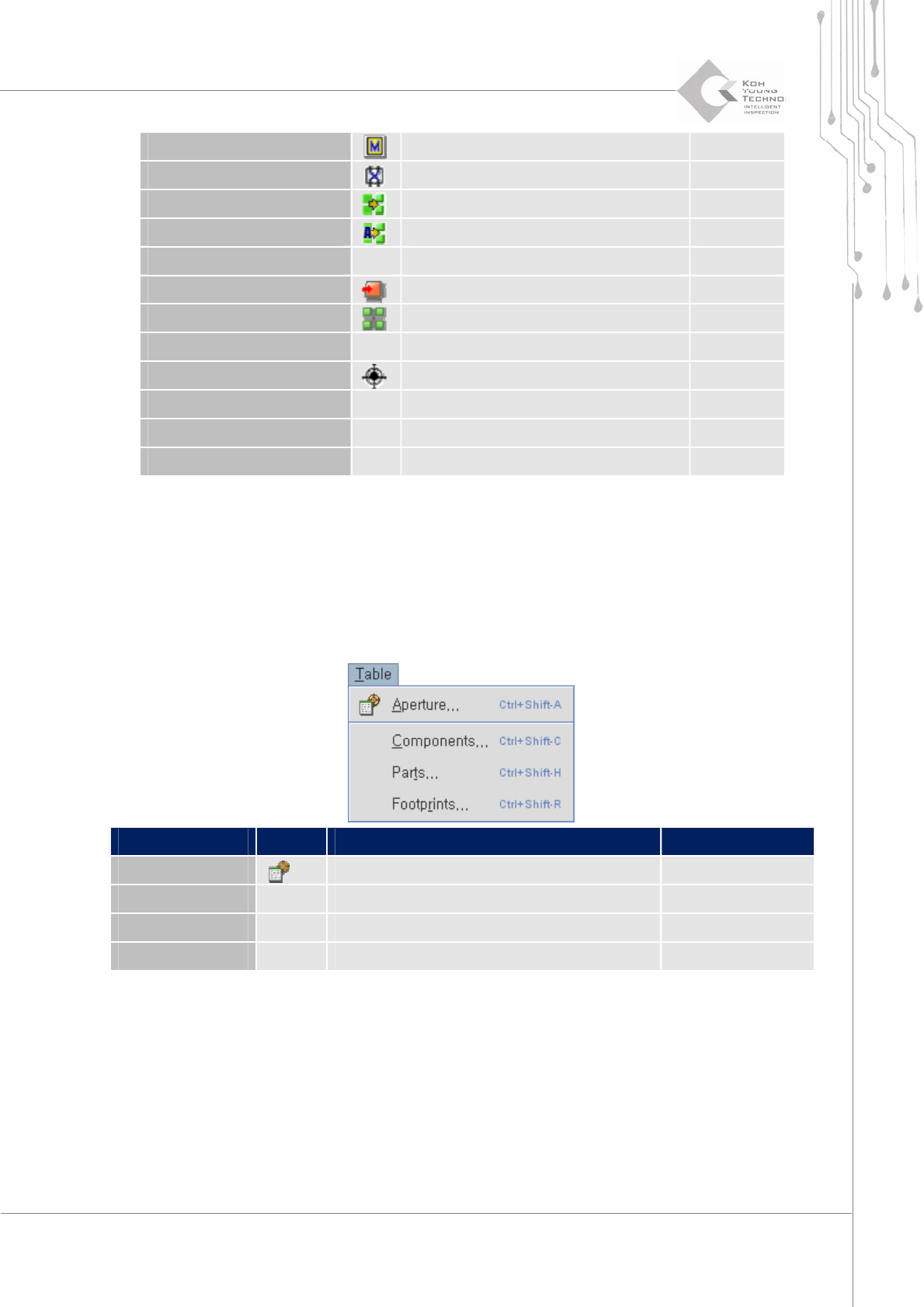
Generate Mask Pin 產生 Mask Pin Shift+G
Fit CAD Centroid & Gerber 辨識Gerber 與CAD X-Y 整合後原點位置 Shift+P
Teach Part 教導元件 Shift+A
Automatic Teach Part 自動元件教導功能 Shift+O
Replace Pin By Mask Pin 修改ECAD Design pin 資料至Mask Pin
Add Footprint Library 將元件外觀登錄至資料庫 Shift+Q
Board Array 編輯連版 Shift+Y
Change Patterns 更改元件圖形外觀 Shift+N
Special Mark 產生與編輯定位點 Ctrl+Shift+F
Add Cutout 新增元件圖案 Ctrl+Shift+U
Pin Merge 合併pin 成為同一元件資料
Pin & Mask Pin Check 確認Mask Pin 與 Component Pin
3.1.6. TABLE MENU 桌面選單
主要功能:
¾ 開孔/零件/元件/外觀清單
Menu Icon Information Short Key
Aperture 鋼板開孔的Gerber Film資料 Ctrl+Shift+A
Components 定義零件中心位置 Ctrl+Shift+C
Parts 定義局部中心位置 Ctrl+Shift+H
Footprint 依照零件外觀定義中心位置. Ctrl+Shift+R
3.1.7. HELP MENU 輔助選單
主要功能:
¾ 顯示
ePM-SPI
版本與版權訊息
¾ 顯示使用手冊
26 | Chapter 2. ePM-SPI
TM
3DSolderPasteInspectionSystem
Version 1.0
KOH YOUNG TECHNOLOGY. INC.
Menu Information
About ePM 版本與版權
Help ePM-SPI 使用手冊
Programmer’s Manual | 27
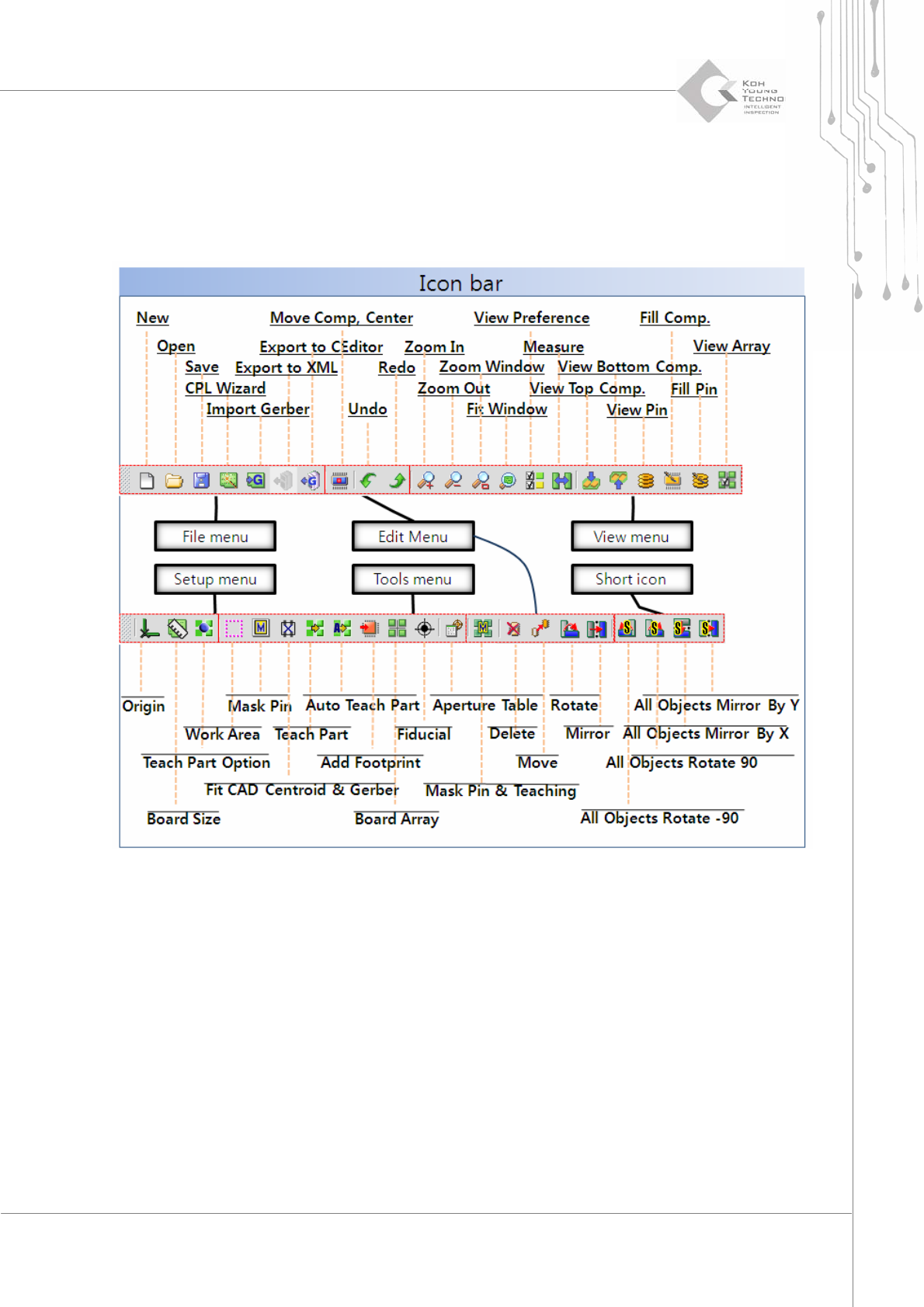
3.2. Icon Bar 圖示
“Icon bar"圖示有助於讓使用者更清楚了解如何操作本軟體, 請參考以下圖解關於各種
ePM-SPI
軟體
中顯示的圖示解說.
Figure 3-2. Brief Explanation of Icon Bar
以上解說為各圖示功能, 若需詳細內容可參考圖 3.1. Menu Bar" .