80S-2080F480F4-680F5 User’s Manual.pdf - 第96页
2 Introduction and Basic Concepts SIPLACE 80S-20/F4/F4-6/F5 User’s Manual 2.2 Principles and Structure of t he User Interface Edition 03/98 fr om Software Version SR.404.xx 2 - 18 2.2.3.3 Control Boxe s Control b oxes di…
SIPLACE 80S-20/F4/F4-6/F5 User’s Manual 2 Introduction and Basic Concepts
Edition 03/98 from Software Version SR.404.xx 2.2 Principles and Structure of the User Interface
2 - 17
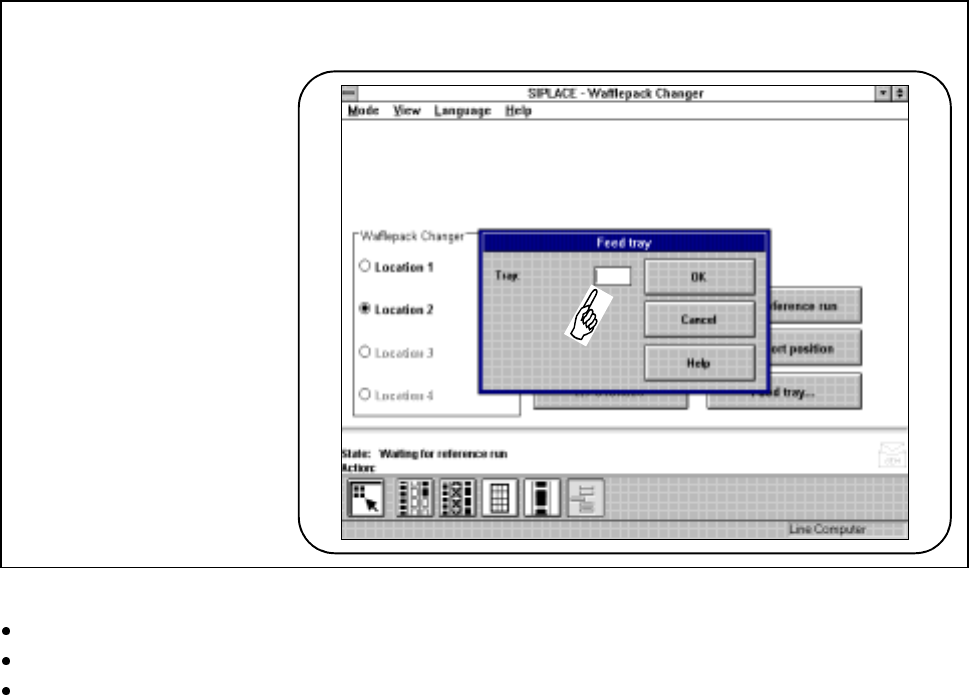
2.2.3.2 Input Boxes
Input boxes require of the operator that he make an entry in the input field.
Fig. 2.2.7 Example of input box
Position the cursor within the input field.
Type into the input field the input which is required.
Confirm your input by clicking on OK. You can break off your input by clicking on the Cancel button or you
can call up on-line help on the corresponding topic by clicking on the Help button (see also Chapter 8).
2 Introduction and Basic Concepts SIPLACE 80S-20/F4/F4-6/F5 User’s Manual
2.2 Principles and Structure of the User Interface Edition 03/98 from Software Version SR.404.xx
2 - 18
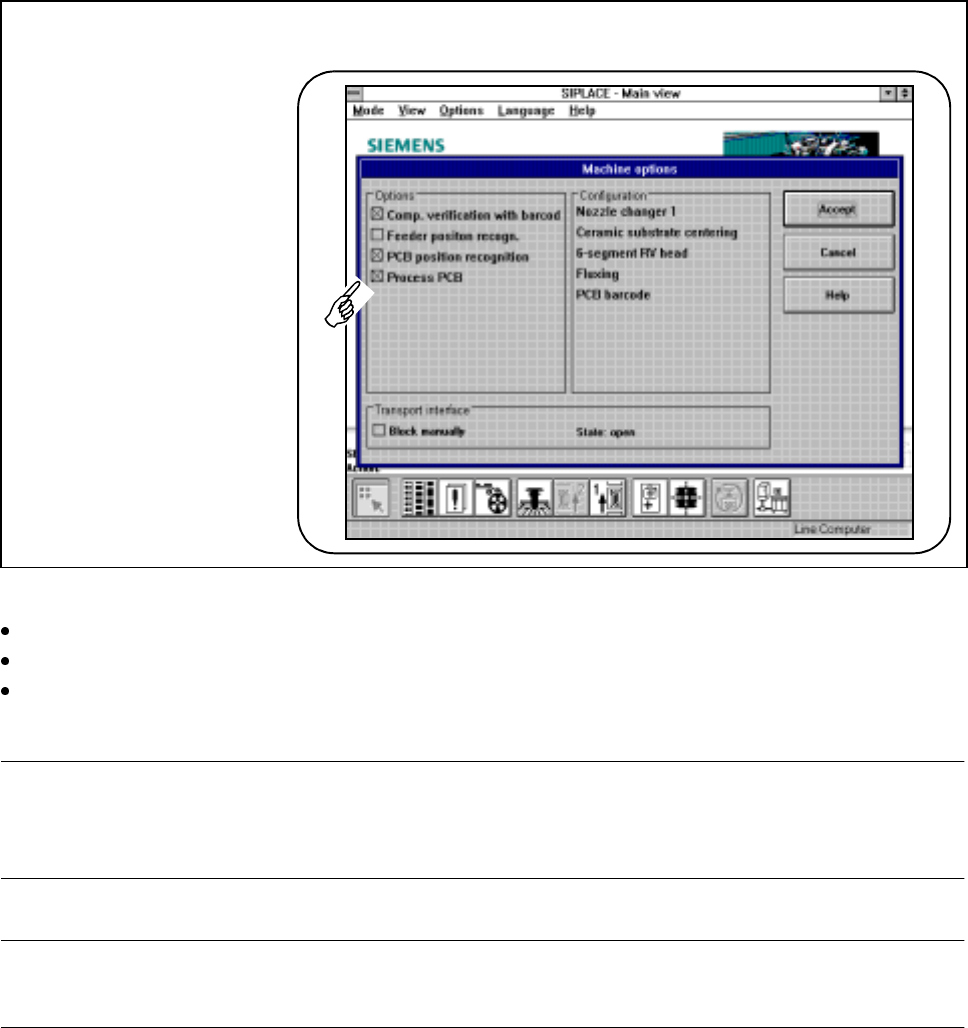
2.2.3.3 Control Boxes
Control boxes display states and settings which can be activated or deactivated.
Fig. 2.2.8 Example of a control box
Click on a control button in the control box in order to activate or deactivate a displayed state or setting.
Click on the Accept button in order to activate the processed states or settings.
You can break off your input by clicking on the Cancel button (the old settings will be used) or you can call
up on-line help on the corresponding topic by clicking on the Help button (see also Section Chapter 8).
NOTE
A cross on a control button indicates an activated state.
An empty control button indicates a deactivated state.
PLEASE NOTE
Some operations (e.g. machine options for line engineers) can only be accessed from a higher operator level.
SIPLACE 80S-20/F4/F4-6/F5 User’s Manual 2 Introduction and Basic Concepts
Edition 03/98 from Software Version SR.404.xx 2.2 Principles and Structure of the User Interface
2 - 19
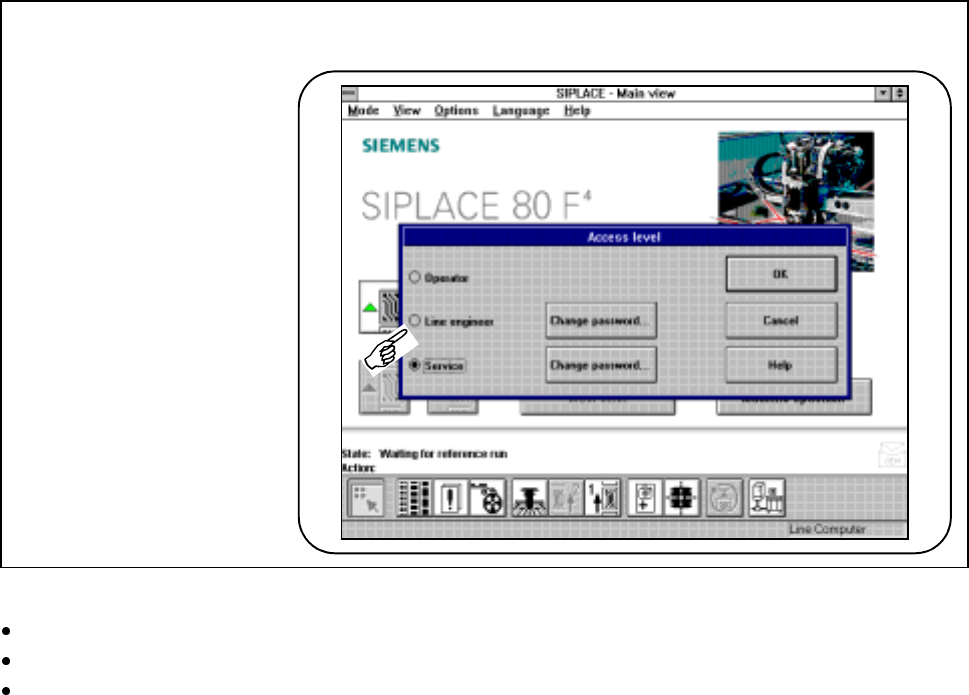
2.2.3.4 Option Boxes
In an option box a choice is presented between different settings. In each case one option can be selected.
Fig. 2.2.9 Example of an option box
Click on a button in the option box in order to select a displayed setting.
Click in the OK button to activate the new settings.
You can break off your input by clicking on the Cancel button (the old settings will be used) or you can call
up on-line help on the corresponding topic by clicking on the Help button (see also Section Chapter 8).