00197700-01_IM_SetupCenter7.0_EN.pdf - 第110页
Uninstalling Optional: Uninstalling the SIE MultiThread API SIECA 132 Softwa re Package 10.3.1 Uninstalling SQL Server Expr ess Installations 110 Installation Manual SIPLACE Setup Center 7.0
Uninstalling
10.3.1 Uninstalling SQL Server Express Installations Uninstalling Forced Setup Verification
Installation Manual SIPLACE Setup Center 7.0 109
10.4
10.4 Uninstalling Forced Setup Verification
Uninstalling Forced Setup Verification
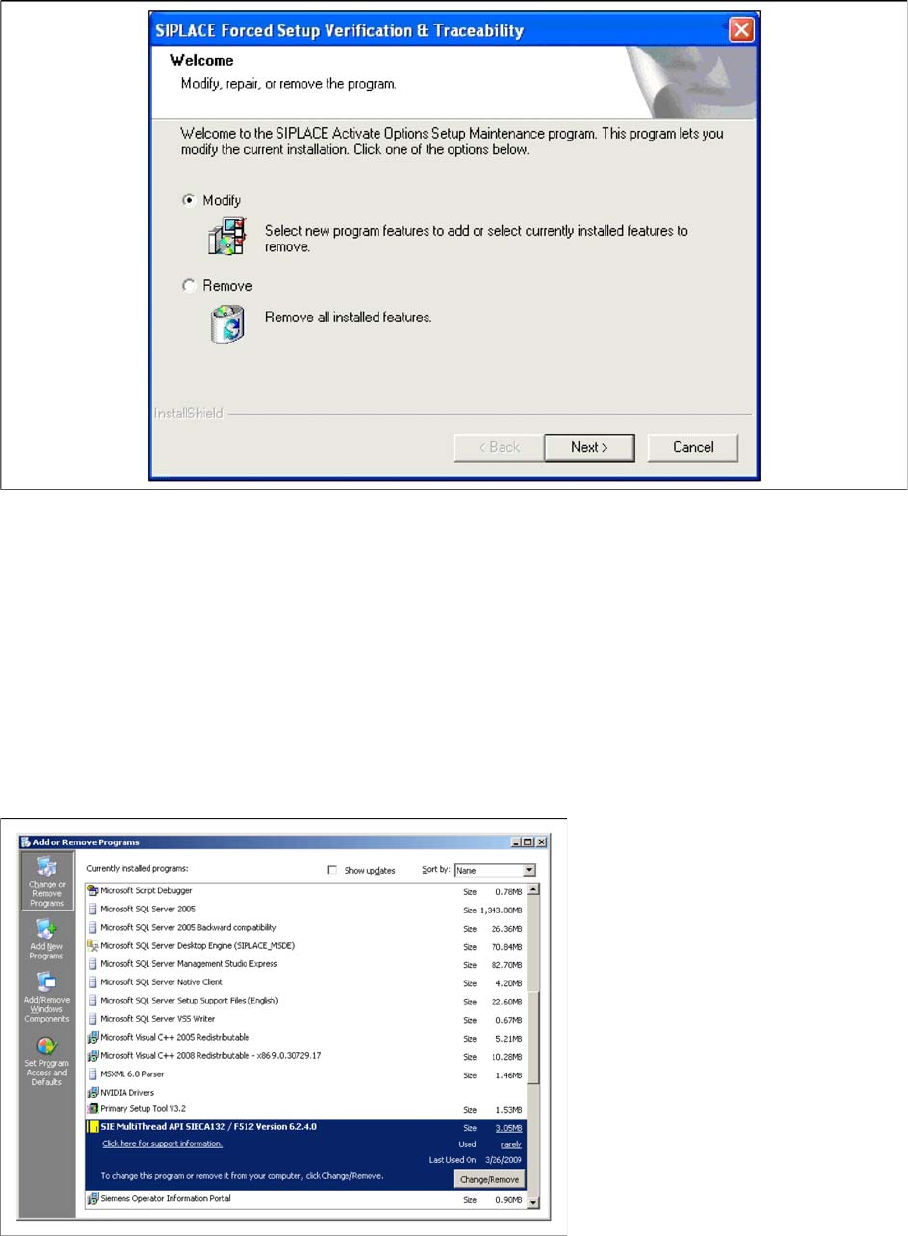
If the Setup at the software CD "SIPLACE Setup Center 3.0" is called up at the SIPLACE station again,
the following dialog appears.
► If Remove is selected, the option Forced Setup Verification and Traceability will be deactivated.
10.5
10.5 Optional: Uninstalling the SIE MultiThread API SIECA 132 Software Package
Optional: Uninstalling the SIE MultiThread API SIECA 132 Soft-
ware Package
► Click Start in the Windows start menu.
► Click Settings.
► Click Control Panel.
► Double-click Add / Remove Programs.
A list appears with the names of the software packages installed on the computer.
► Select SIE MultiThread API SIECA 132.
► Click the Remove button.
► Confirm the deletion of the application.
Uninstalling
Optional: Uninstalling the SIE MultiThread API SIECA 132 Software Package 10.3.1 Uninstalling SQL Server Express Installations
110 Installation Manual SIPLACE Setup Center 7.0

Troubleshooting
SIPLACE Setup Center Database and Windows XP SP2 or higher
Installation Manual SIPLACE Setup Center 7.0 111
11
11 Troubleshooting
Troubleshooting
If it is not possible to solve a problem during installation of SIPLACE Setup Center, please send the file
SIPLACESetupCenterSetupLog.html and all similar "log" named files to the SIPLACE Service.
11.1
11.1 SIPLACE Setup Center Database and Windows XP SP2 or higher
SIPLACE Setup Center Database and Windows XP SP2 or high-
er
When installing Windows XP Service Pack 2 (SP2), the Windows Firewall, formerly ICF (Internet Con-
nection Firewall), is enabled by default. The default configuration in SP2 blocks incoming traffic for the
most TCP ports.
▪ If you are running the SIPLACE Setup Center GUI on a Windows XP SP2 host and the SIPLACE
Setup Center database on another host, you have to open the port 1433 and 1434 for the database
connection.
▪ Furthermore, you have to open the port 445, because blocking will cause errors when using mans
MMC snap-ins like Event Viewer, Local Users & Groups, Services, Computer Management, Disk
Management, Device Manager, Group Policy, and others.
▪ Please refer to Windows help to get further information how to open TCP ports.
11.2
11.2 Relevant Files to Analyze Installation Problems
Relevant Files to Analyze Installation Problems
Error description
Whenever problems arise during setup, please inspect the file SIPLACESetupCenterSetupLog.html,
which is written during each installation.
Cause
Setup problems.
Solution
The log file is found either in C:\ (prior to the "move data phase") or in the selected program folder.
Old versions of the log file are located in the program folder. A timestamp is added to the filename. Dialog
boxes appear during the file copying phase of installation which only contain
► Yes and No options.
Hint
► If you need SIPLACE support regarding installation problems, please provide all installation log files.
NOTICE
Problems with the firewall during Windows XP service pack 2 installations
If Setup Center does not work properly, check your firewall settings.