00197700-01_IM_SetupCenter7.0_EN.pdf - 第71页
Barcode-Scanner Installation 6.3.3 Mobile Scanner Prerequisites Setup Motorola Scanner Installation Manual SIPLACE Setup Center 7.0 71 ► Accept the licensing ag r eements and sel ect "Next". ► Enter your user i…
Barcode-Scanner Installation
Motorola Scanner 6.3.3 Mobile Scanner Prerequisites Setup
70 Installation Manual SIPLACE Setup Center 7.0
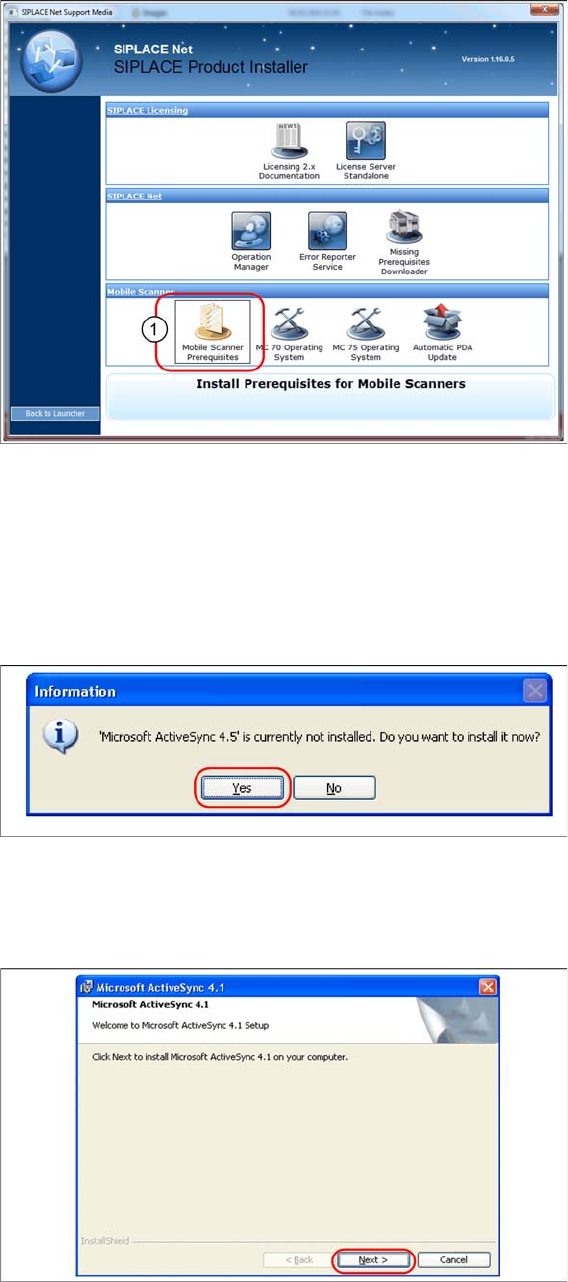
► Execute the Mobile Scanner Prerequisites (1) setup.
6.3.3.1
6.3.3.1 Step 1: ActiveSync / Mobile Device Center
Step 1: ActiveSync / Mobile Device Center
The Mobile Scanner Prerequisites Setup checks if the necessary communication program (ActiveSync
or Mobile Device Center) is present. If this is not the case, the program can be installed.
Windows XP: ActiveSync
If ActiveSync is not installed on the system, the following message box appears.
► Select Yes to start the installation of Microsoft ActiveSync. Make sure that the scanner is not yet con-
nected to the basic station.
Install ActiveSync
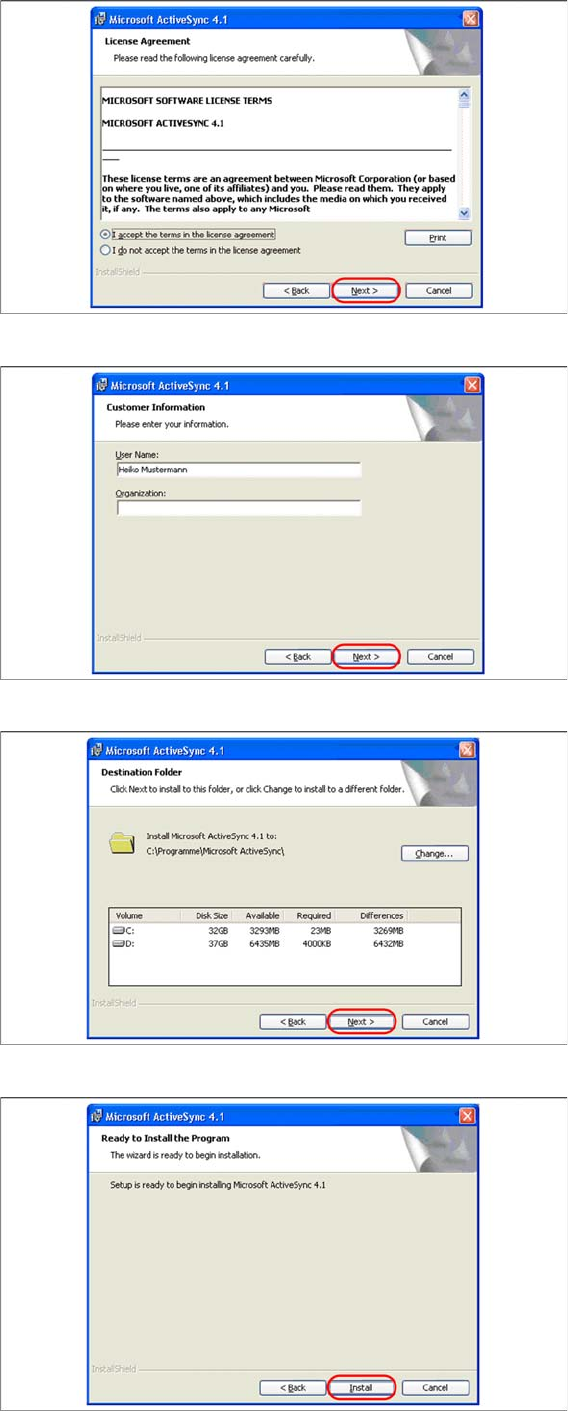
► Click on "Next" to proceed.
Barcode-Scanner Installation
6.3.3 Mobile Scanner Prerequisites Setup Motorola Scanner
Installation Manual SIPLACE Setup Center 7.0 71
► Accept the licensing agreements and select "Next".
► Enter your user information and select "Next".
► Select the path for copying the installation files and select "Next".
► Select "Install" to start with the installation of Microsoft ActiveSync.
Barcode-Scanner Installation
Motorola Scanner 6.3.3 Mobile Scanner Prerequisites Setup
72 Installation Manual SIPLACE Setup Center 7.0
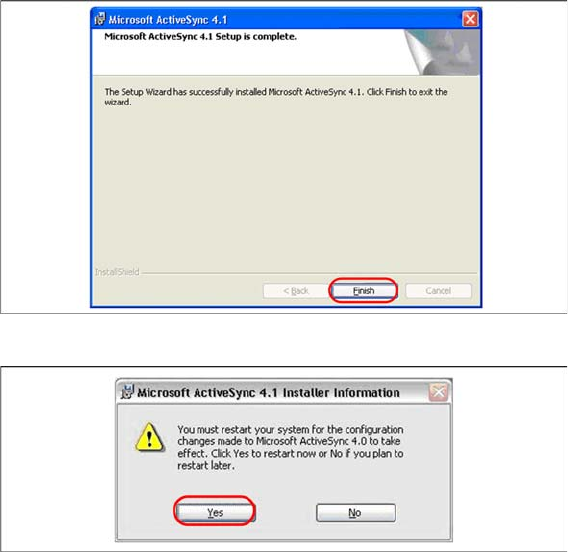
► Click on "Finish" to terminate the Microsoft ActiveSync Installation.
► In case that a restart is necessary please select "Yes".
► Please start Mobile Scanner Prerequisites Setup installation after the restart.
See also
6.3.3.2 Step 2: AppCenter [ ➙ 74]