00197700-01_IM_SetupCenter7.0_EN.pdf - 第82页
Barcode-Scanner Installation Motorola Scanner 6.3.5 Motorola / Symbol Scanner Configuration 82 Installation Manual SIPLACE Setup Center 7.0 6.3.5.3 6 . 3 . 5 . 3 E s t a b lis h in g C o n n e c t io n Establishing Conne…
Barcode-Scanner Installation
6.3.5 Motorola / Symbol Scanner Configuration Motorola Scanner
Installation Manual SIPLACE Setup Center 7.0 81
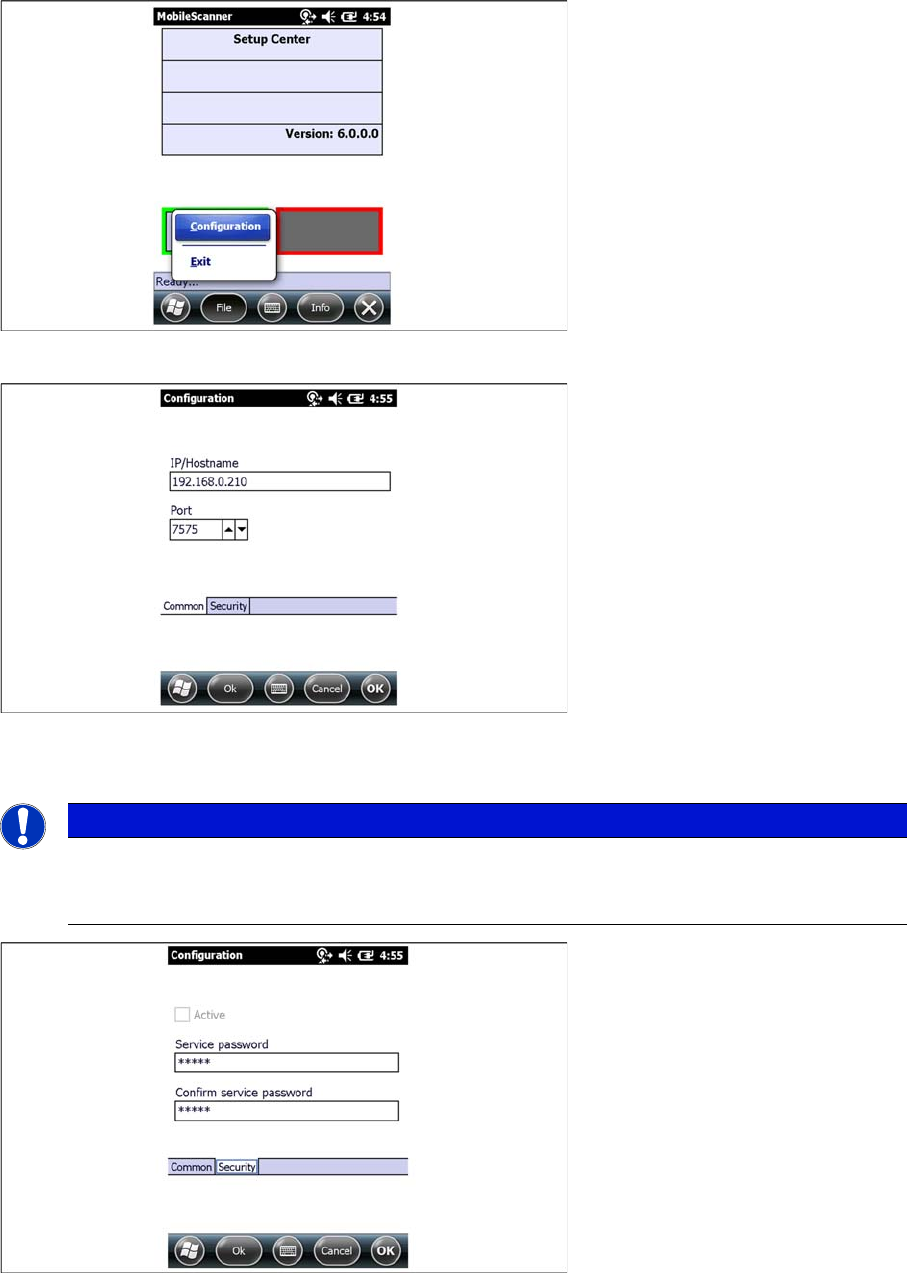
► Open the configuration dialog via File->Configuration
► Type the IP-address/name of the PC where Setup Center is installed.
► Enter the port for which the scanner interface is configurated (default:7575).
► Here you can set a password to prevent modification on the scanner configuration.
For the first editing of the configuration the password is empty. In this case safety is deactivated. You
can set a password now. By confirmation with "OK" all settings were saved.
NOTICE
Volume of the buzzer
The volume of the buzzer is adjusted via the side (left) located controls on the device. The buzz-
er gives accustical feedback in operation mode of Setup Center.
Barcode-Scanner Installation
Motorola Scanner 6.3.5 Motorola / Symbol Scanner Configuration
82 Installation Manual SIPLACE Setup Center 7.0
6.3.5.3
6.3.5.3 Establishing Connection
Establishing Connection
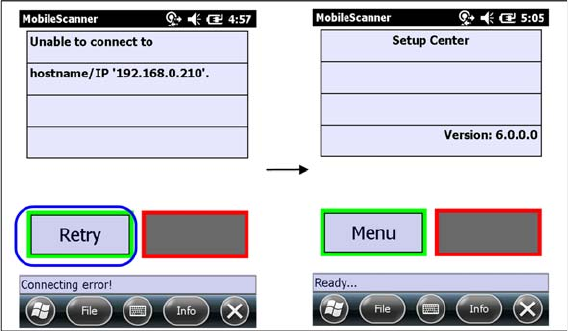
► Start Setup Center.
► Click on "Connect" to establish a connection to Setup Center.
In case the connection fails check the network settings again.
The software is now successfully configured.
Barcode-Scanner Installation
6.3.5 Motorola / Symbol Scanner Configuration Motorola Scanner
Installation Manual SIPLACE Setup Center 7.0 83
6.3.5.4
6.3.5.4 SIPLACE Scanner Config Tool
SIPLACE Scanner Config Tool
Scanning problems with 1D barcodes
If the mobile scanner is unable to scan most of your 1D barcodes, use the following configuration utility,
to resolve the problems.
► Please exit all running applications on scanner and Symbol AppCenter to continue.
Starting MC 70/MC 75
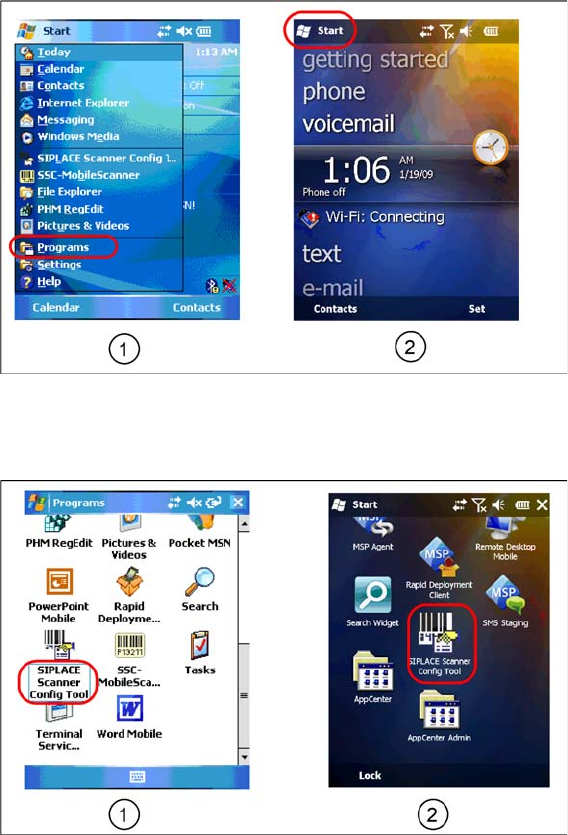
► Select Start->Programs to show present applications on scanner (select icon (1) for MC 70 or Icon
(2) for MC 75).
⇨ The Start view appears.
► Select SIPLACE Scanner Config Tool to continue (select icon (1) for MC 70 or icon (2) for MC 75).
⇨ The SIPLACE Scanner Config Tool dialog appears.