00197700-01_IM_SetupCenter7.0_EN.pdf - 第97页
Docking Station Installation 7.3.3 Installing the CAN Bus driver and API Data Connection with PC-CAN Card Installation Manual SIPLACE Setup Center 7.0 97 Step 10 If a restart of the PC is requ ired, the followin g window…
Docking Station Installation
Data Connection with PC-CAN Card 7.3.3 Installing the CAN Bus driver and API
96 Installation Manual SIPLACE Setup Center 7.0
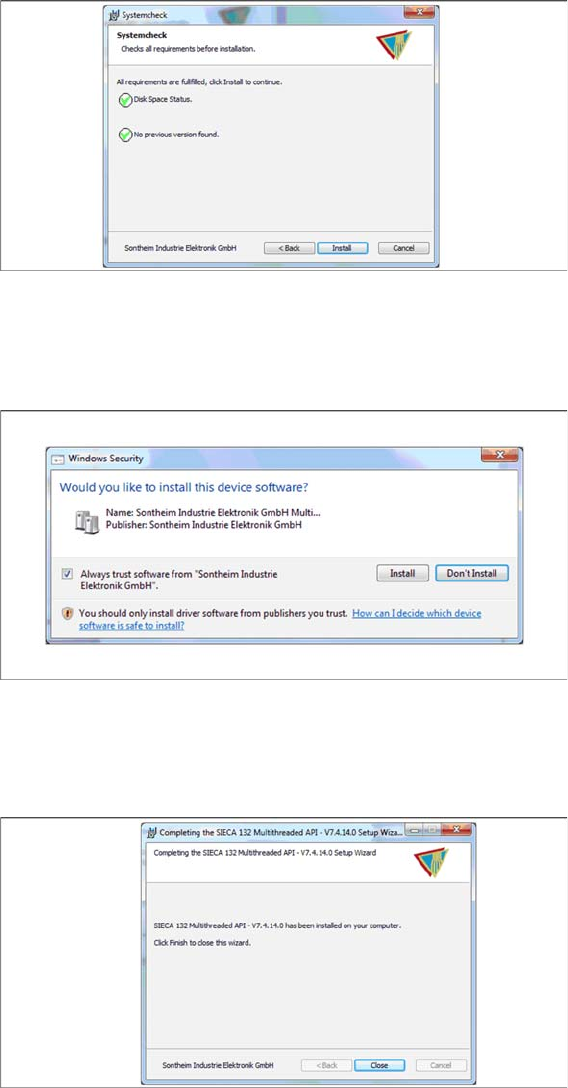
Step 7
► The “Systemcheck” window displays the status of all checks they have carried out.
► Click Install.
Step 8
► Select Always trust software from “Sontheim Industrie Elektronik GmbH”.
► Click Install.
Step 9
The "Installation Complete" window appears if the installation has been completed successfully.
► Click Close.
Docking Station Installation
7.3.3 Installing the CAN Bus driver and API Data Connection with PC-CAN Card
Installation Manual SIPLACE Setup Center 7.0 97
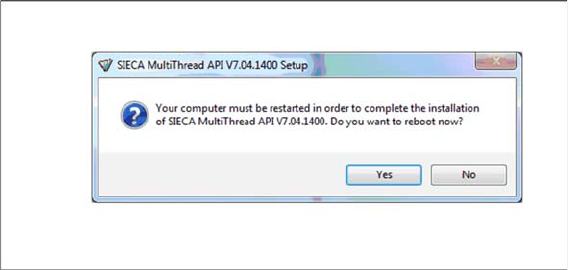
Step 10
If a restart of the PC is required, the following window appears.
► Click Yes.
Docking Station Installation
Data Connection with CIN-Box 7.4.1 Overview CIN-Box
98 Installation Manual SIPLACE Setup Center 7.0
7.4
7.4 Data Connection with CIN-Box
Data Connection with CIN-Box
To obtain more details about using the docking station for X-Series and SX-Series tables, please refer
to the current version of the operating manual.
7.4.1
7.4.1 Overview CIN-Box
Overview CIN-Box
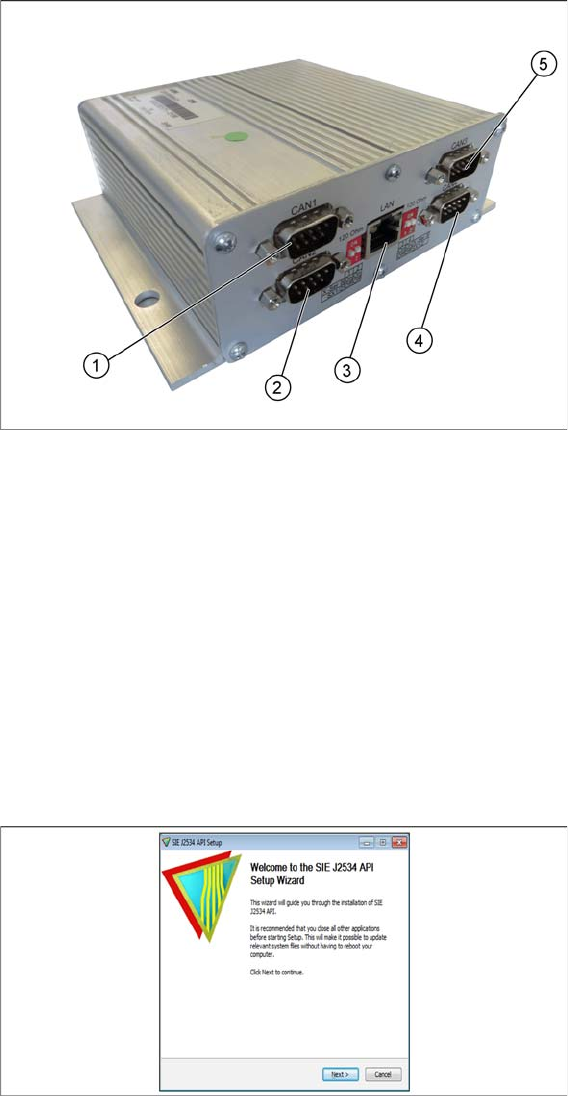
You can use a CIN-Box for the connection of docking stations. You can connect up to 16 docking stations
to one CIN-Box. The CIN-Box can be used alternatively to the Power PC-CAN Card.
1. CAN1
2. CAN2
3. LAN
4. CAN4
5. CAN3
► The drivers for the CIN-Box are contained on the Setup Center software installation CD. These need
to be installed separately.
7.4.2
7.4.2 Installing the CIN-Box driver
Installing the CIN-Box driver
► Open the folder \3rdparty installer\Sontheim\CIN\2.8.4.48 and select the application Setup.exe on
the Setup Center installation CD.
Step 1
► Click Next.