00193687-06_Installation SIPLACE Explorer2.1_DE.pdf - 第33页
Installations- und Konfigurationsanleitung SIPLAC E Explorer 3 Installation des SIPLACE Explorer Ausgabe 11/2006 DE 3.1 Erstinstallation von SIPLACE Explorer 2.1 33 → Wenn die Installation beendet ist, öf fnet sich das D…
3 Installation des SIPLACE Explorer Installations- und Konfigurationsanleitung SIPLACE Explorer
3.1 Erstinstallation von SIPLACE Explorer 2.1 Ausgabe 11/2006 DE
32
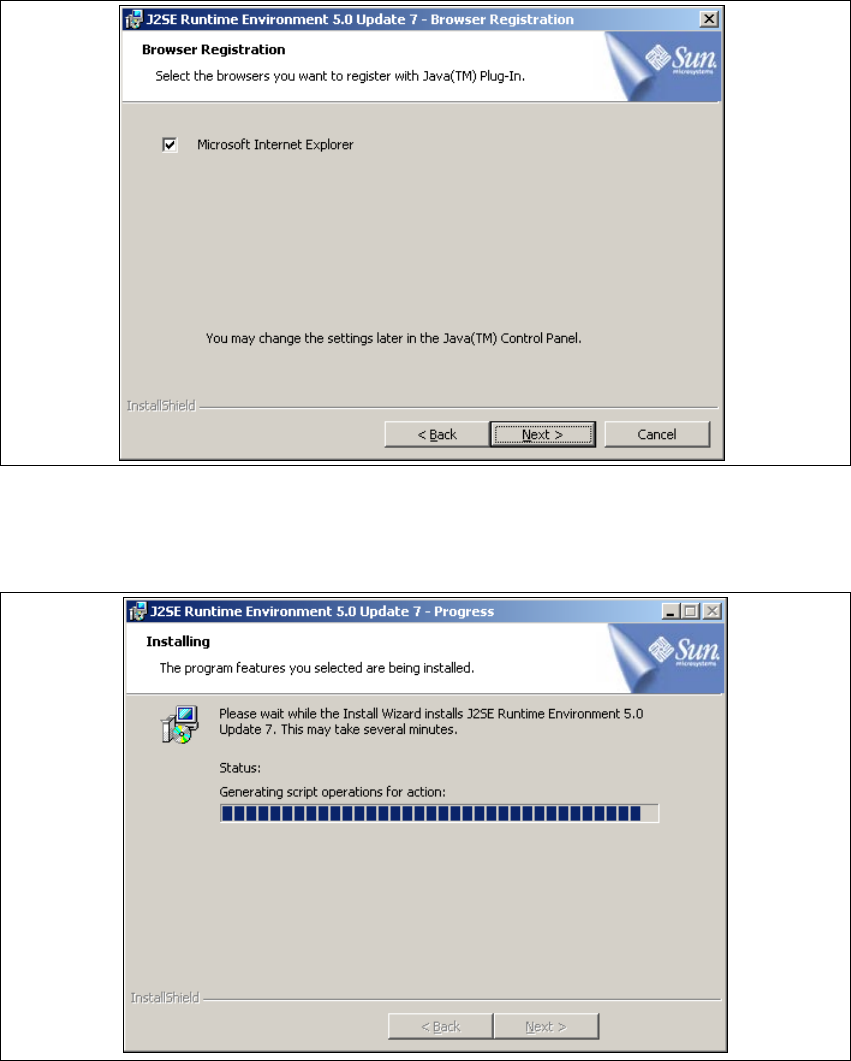
→ Das Dialogfenster Browser Registration (Browser-Anmeldung) wird geöffnet. Wählen Sie
hier den Standard-Browser für die Anwendung aus.
3
Abb. 3 - 7 Java 2SE Setup - Dialogfenster 'Browser Registration' (Browser-Anmeldung)
→ Wählen Sie den Browser aus, indem Sie das entsprechende Ankreuzfeld aktivieren.
→ Klicken Sie Next (Weiter), der eigentliche Installationsvorgang von Java 2SE beginnt.
3
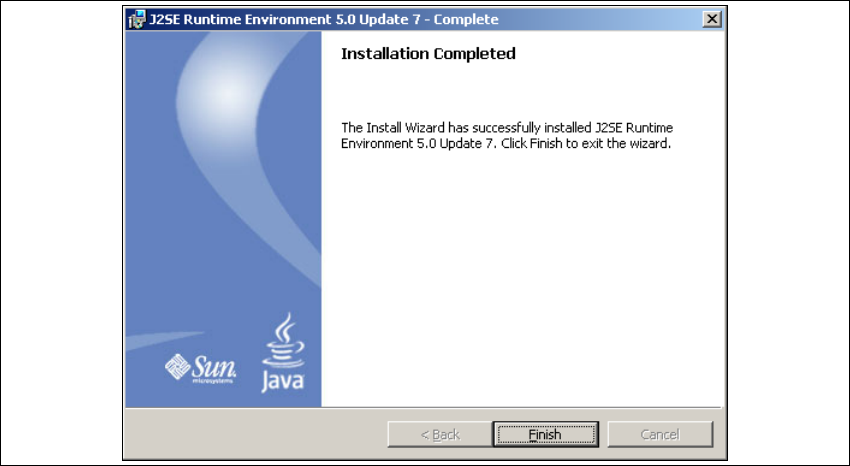
Abb. 3 - 8 Java 2SE Setup - Installation
→ Es werden alle ausgewählten Installationsoptionen nacheinander installiert.
Installations- und Konfigurationsanleitung SIPLACE Explorer 3 Installation des SIPLACE Explorer
Ausgabe 11/2006 DE 3.1 Erstinstallation von SIPLACE Explorer 2.1
33
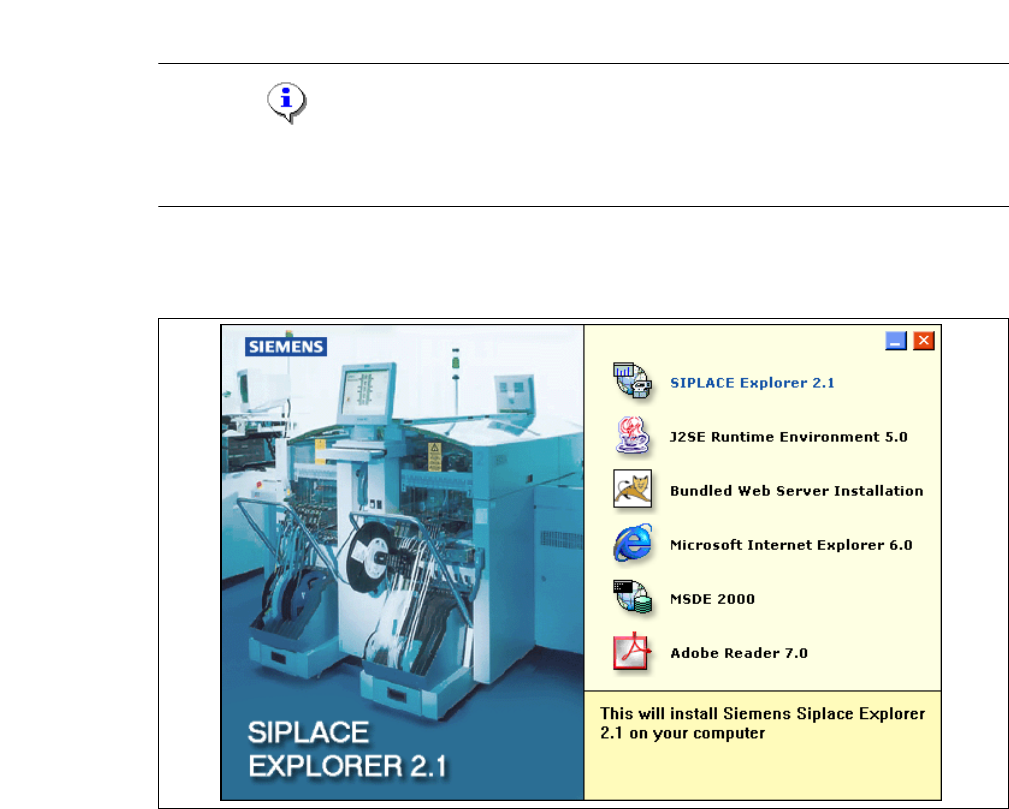
→ Wenn die Installation beendet ist, öffnet sich das Dialogfenster Installation Completed.
3
Abb. 3 - 9 Java 2SE Setup - Installation beendet
→ Klicken Sie auf Finish.
3 Installation des SIPLACE Explorer Installations- und Konfigurationsanleitung SIPLACE Explorer
3.1 Erstinstallation von SIPLACE Explorer 2.1 Ausgabe 11/2006 DE
34
3.1.2 Installationsvorgang SIPLACE Explorer 2.1 - Erstinstallation
HINWEIS
Sie müssen über Windows Administrator-Rechte verfügen, um die Installation ausführen zu
können. 3
→ Legen Sie die SIPLACE Explorer CD in Ihr CD-Rom-Laufwerk ein. Es erscheint der Start
Screen.
3
Abb. 3 - 10 SIPLACE Explorer setup - Start Screen
→ Wählen Sie SIPLACE Explorer 2.1 aus.