00193687-06_Installation SIPLACE Explorer2.1_DE.pdf - 第34页
3 Installation des SIPLACE Explorer Installati ons- und Konfigurationsanleitung SIPLACE Explor er 3.1 Erstinstallation von SIPLACE Explorer 2.1 Ausgabe 11/2006 DE 34 3.1.2 Inst allationsvorgang SIPLACE Explorer 2.1 - Ers…
Installations- und Konfigurationsanleitung SIPLACE Explorer 3 Installation des SIPLACE Explorer
Ausgabe 11/2006 DE 3.1 Erstinstallation von SIPLACE Explorer 2.1
33
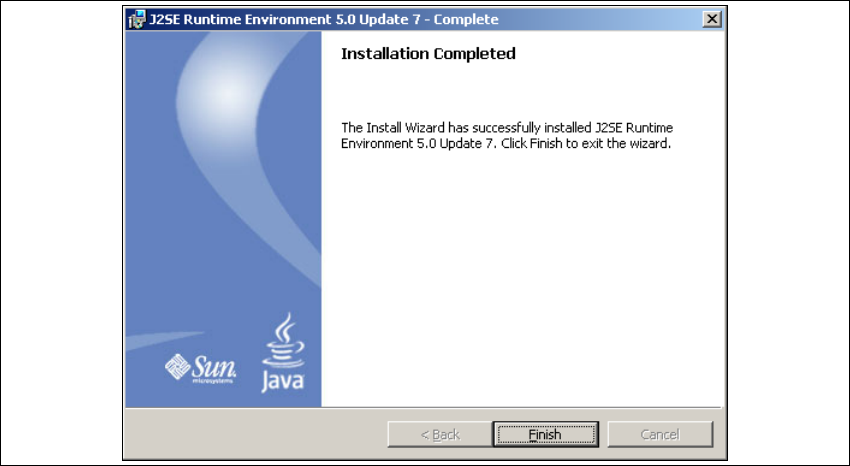
→ Wenn die Installation beendet ist, öffnet sich das Dialogfenster Installation Completed.
3
Abb. 3 - 9 Java 2SE Setup - Installation beendet
→ Klicken Sie auf Finish.
3 Installation des SIPLACE Explorer Installations- und Konfigurationsanleitung SIPLACE Explorer
3.1 Erstinstallation von SIPLACE Explorer 2.1 Ausgabe 11/2006 DE
34
3.1.2 Installationsvorgang SIPLACE Explorer 2.1 - Erstinstallation
HINWEIS
Sie müssen über Windows Administrator-Rechte verfügen, um die Installation ausführen zu
können. 3
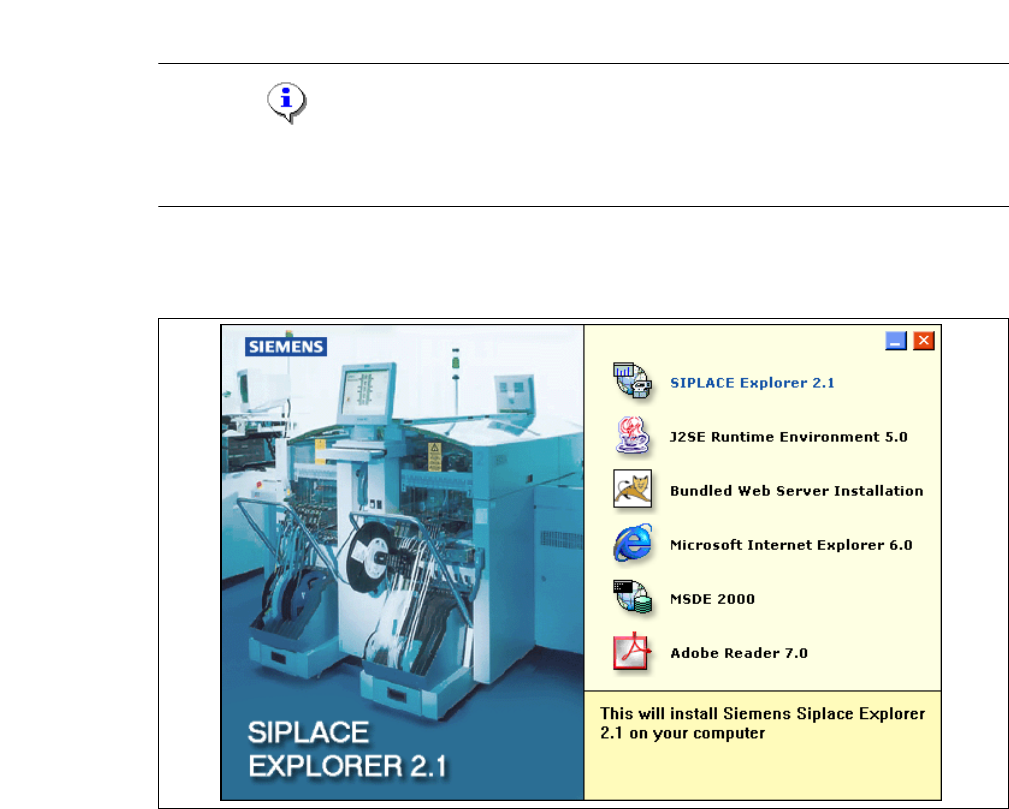
→ Legen Sie die SIPLACE Explorer CD in Ihr CD-Rom-Laufwerk ein. Es erscheint der Start
Screen.
3
Abb. 3 - 10 SIPLACE Explorer setup - Start Screen
→ Wählen Sie SIPLACE Explorer 2.1 aus.
Installations- und Konfigurationsanleitung SIPLACE Explorer 3 Installation des SIPLACE Explorer
Ausgabe 11/2006 DE 3.1 Erstinstallation von SIPLACE Explorer 2.1
35
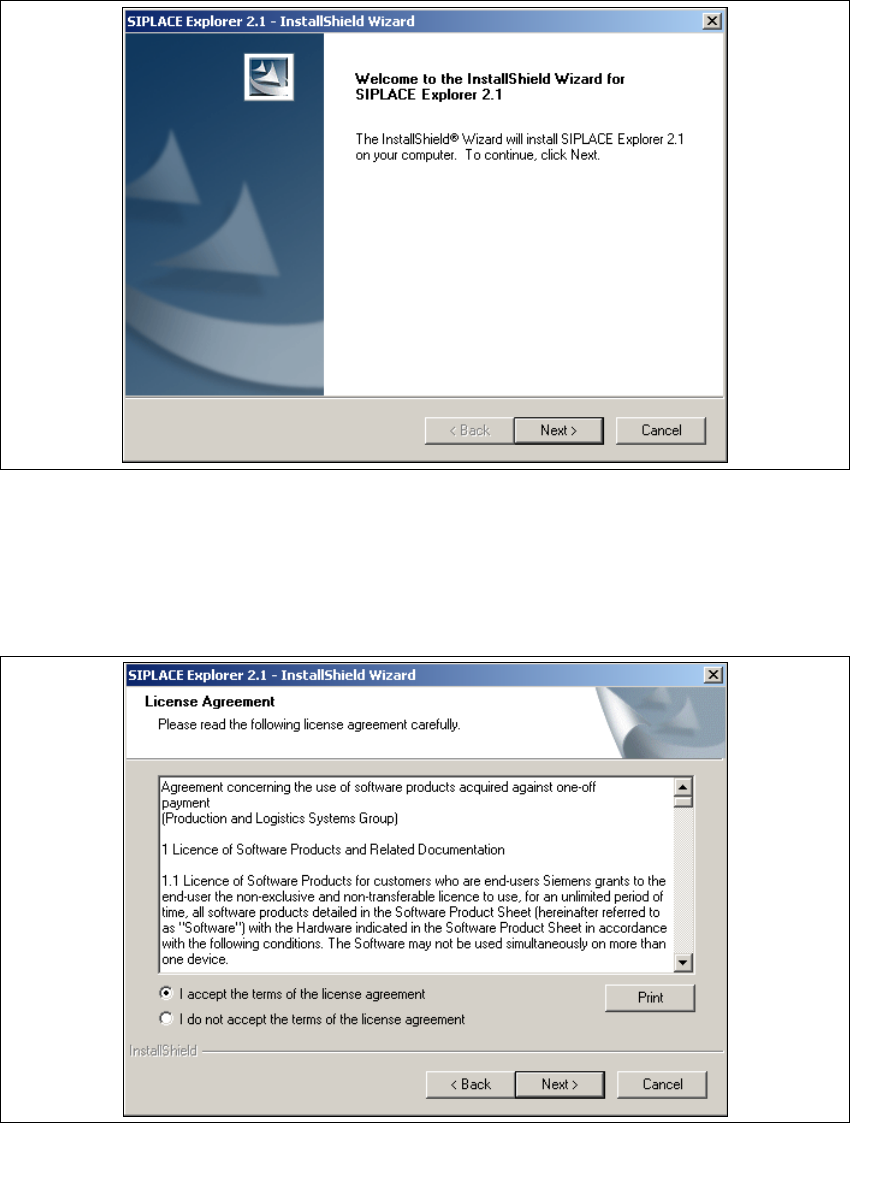
→ Die benutzergeführte Installation von SIPLACE Explorer wird gestartet.
3
Abb. 3 - 11 SIPLACE Explorer setup - Willkommen im SIPLACE Explorer
→ Beenden Sie alle anderen Programme und klicken Sie dann auf Next (Weiter). Das
Dialogfenster License Agreement wird geöffnet.
→ Lesen Sie die Lizenzbestimmungen. Wenn Sie zustimmen, I accept ... anklicken, ansonsten I
do not accept .... Wenn Sie I do not accept ... anklicken, wird die Installation beendet.
3
Abb. 3 - 12 SIPLACE Explorer Setup - Lizenzvereinbarungen
→ Bestätigen Sie Ihre Auswahl mit Next (Weiter).