00193687-06_Installation SIPLACE Explorer2.1_DE.pdf - 第54页
3 Installation des SIPLACE Explorer Installati ons- und Konfigurationsanleitung SIPLACE Explor er 3.1 Erstinstallation von SIPLACE Explorer 2.1 Ausgabe 11/2006 DE 54 3 Abb. 3 - 39 MSDE 2000 - Installation → Wenn die Inst…
Installations- und Konfigurationsanleitung SIPLACE Explorer 3 Installation des SIPLACE Explorer
Ausgabe 11/2006 DE 3.1 Erstinstallation von SIPLACE Explorer 2.1
53
3.1.4 Installationsvorgang MSDE 2000
HINWEIS
Sie müssen über Windows Administrator-Rechte verfügen, um die Installation ausführen zu
können. 3
→ Legen Sie die SIPLACE Explorer CD in Ihr CD-Rom-Laufwerk ein.
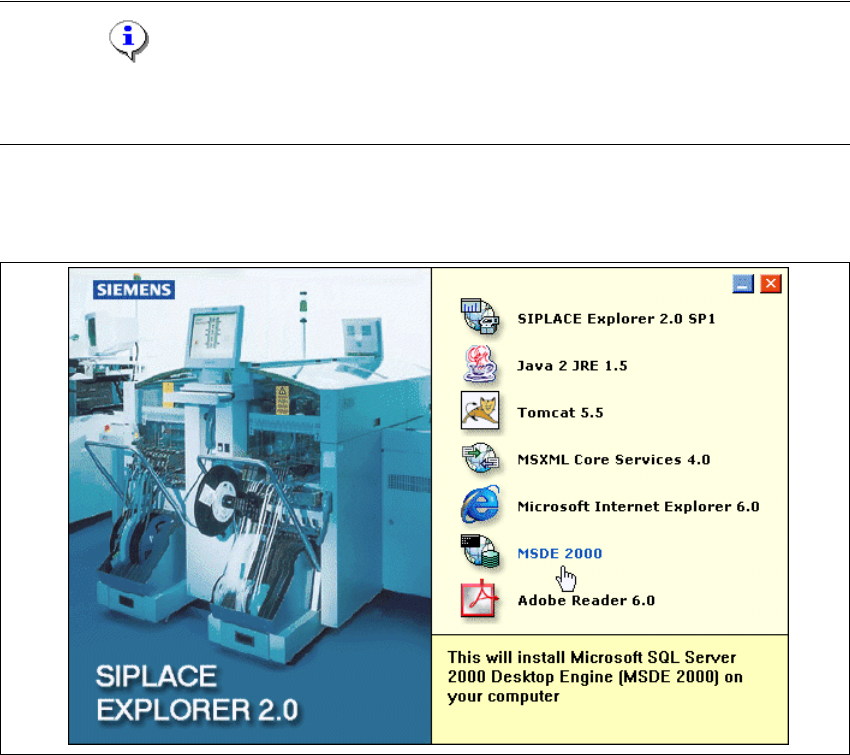
→ Es erscheint der Start Screen.
3
Abb. 3 - 38 SIPLACE Explorer setup - Start Screen
→ Wählen Sie MSDE 2000 aus. Die Installation von MSDE 2000 läuft automatisch ab.
3 Installation des SIPLACE Explorer Installations- und Konfigurationsanleitung SIPLACE Explorer
3.1 Erstinstallation von SIPLACE Explorer 2.1 Ausgabe 11/2006 DE
54
3
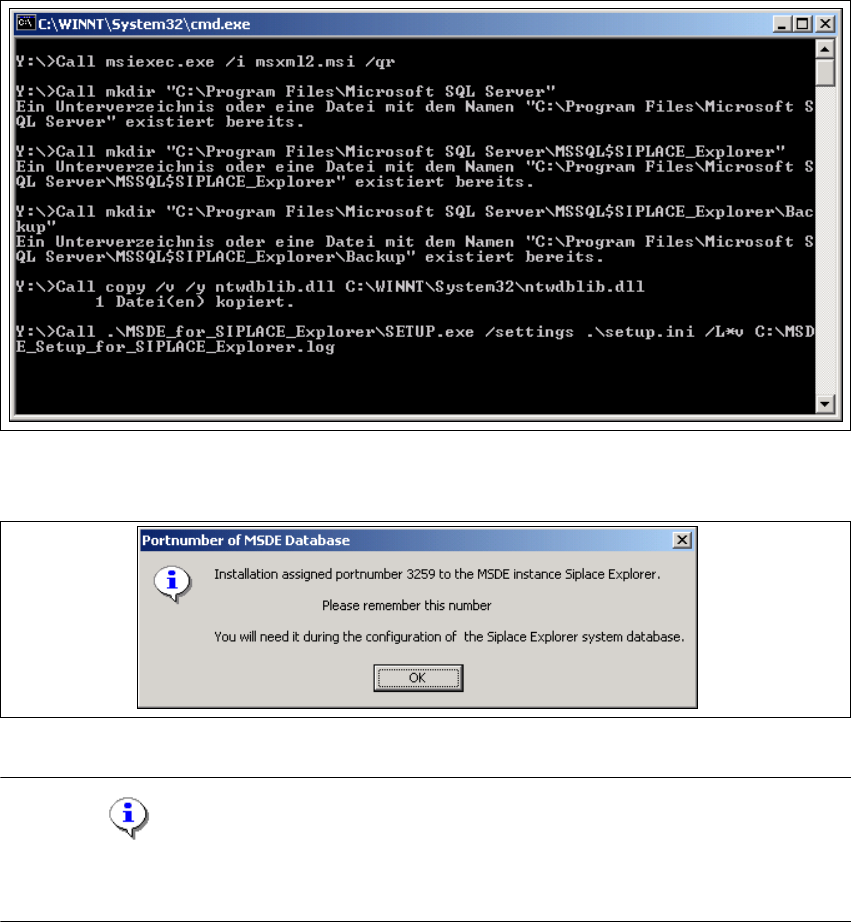
Abb. 3 - 39 MSDE 2000 - Installation
→ Wenn die Installation beendet ist, erscheint nachfolgendes Pop-up.
3
Abb. 3 - 40 MSDE 2000 - Portnummer
HINWEIS
Notieren Sie sich diese Portnummer, Sie benötigen diese beim weiteren Arbeiten mit SIPLACE
Explorer. 3

Installations- und Konfigurationsanleitung SIPLACE Explorer 3 Installation des SIPLACE Explorer
Ausgabe 11/2006 DE 3.1 Erstinstallation von SIPLACE Explorer 2.1
55
3.1.4.1 Passwort für "sa" Zugang manuell ändern
Wollen Sie Ihr Passwort manuell ändern, können Sie das über die Eingabeaufforderung tun. 3
→ Öffnen Sie die Eingabeaufforderung an dem Computer, an welchem MSDE läuft und zu dem
Sie die Verbindung herstellen wollen.
→ Geben Sie das folgende Kommando ein, und betätigen Sie anschließend die Enter-Taste:
osql -U sa 3
Falls Sie den "sa" Zugang verwenden, werden Sie mit diesem Kommando als lokale,
standardmäßige Instanz von MSDE verbunden. 3
→ Geben Sie die folgenden Kommandos in zwei separaten Zeilen ein, und betätigen Sie
anschließend die Enter-Taste:
sp_password null, 'mynewpassword', 'sa' 3
go 3
HINWEIS
Ersetzen Sie 'mynewpassword' mit dem neuen Passwort. 3
→ Sie erhalten eine Mitteilung über die erfolgreiche Änderung Ihres Passwortes.