00192809-01.pdf - 第49页
User Manual V 1.15 - Productivity Lift 5 Configuration Software version V 40. 1 1 Edition 01/2001 5.13 Width adjusting 3 41 : LG WKDG MXVWL QJ This men u has to be used to set the mode for operation of the automa…
5 Configuration User Manual V 1.15 - Productivity Lift
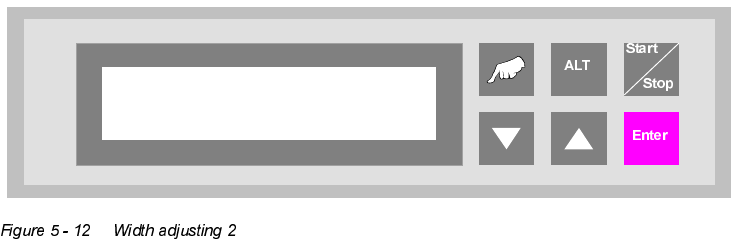
5.12 Width adjusting 2 Software version V 40.11 Edition 01/2001
40
:LGWKDGMXVWLQJ
This menu has to be used to set the mode for operation of the automatic tracking facility for width
adjustment for the shuttle.
The following are possible:
turned off : The device has no electrical width adjustment (standard).
manual : The device has an electrical width adjustment facility but no automatic track-
ing facility. The width must be adjusted in the manual-operating mode using
the corresponding function.
automatic : The device has an automatic tracking facility. This setting is then used to
constantly check the transport width of the device, which prescribes the
width.
only at start : The device has an automatic tracking facility. This setting is then used to
check the transport width of the device, which prescribes the width, but only
at the start of the lift.
Width adjusting 2
manual
User Manual V 1.15 - Productivity Lift 5 Configuration
Software version V 40.11 Edition 01/2001 5.13 Width adjusting 3
41
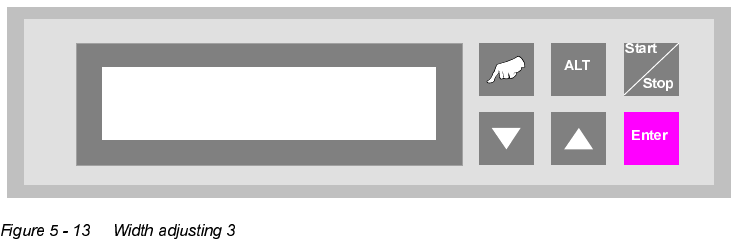
:LGWKDGMXVWLQJ
This menu has to be used to set the mode for operation of the automatic tracking facility for width
adjustment of the Underfloor Conveyor. This menu isn’t active, if the unit is an output modul.
The following are possible:
turned off : The device has no electrical width adjustment (standard).
manual : The device has an electrical width adjustment facility but no automatic track-
ing facility. The width must be adjusted in the manual-operating mode using
the corresponding function.
automatic : The device has an automatic tracking facility. This setting is then used to
constantly check the transport width of the device, which prescribes the
width.
only at start : The device has an automatic tracking facility. This setting is then used to
check the transport width of the device, which prescribes the width, but only
at the start of the lift.
Width adjusting 3
manual
5 Configuration User Manual V 1.15 - Productivity Lift
5.14 Address width 1 / Address width 2 - Option Software version V 40.11 Edition 01/2001
42
$GGUHVVZLGWK$GGUHVVZLGWK2SWLRQ
This function is optional. It allows an automatic width adjustment of the Productivity Lifts within a
line configuration. This menu is not active, if this option is available and "Width adjusting 1" and
"Width adjusting 2" (chapter 5.11 and 5.12) has been set to "manual".
The width setting of the Siplace Placement units is mandatory for the width setting of the Produc-
tivity Lifts. To enable the automatic width setting, there are certain line configuration settings re-
quired. It is required, that there is a CAN-BUS featured module in front of the input module and a
Siplace placement unit behind the output module. The Siplace unit must be followed by a CAN-
BUS featured module.
The module before the input module (n-1) has address 1. This address is used to verify the width.
The module after the last placement machine (n+1) owns address 2. The requested data from this
module are used to set the width. The width of the Productivity Lifts in such a line is changed only
when all Siplace Placement units between input and output module carry no PCB. The module
(n+1) detects the new width setting at the last placement unit, using a sensor. The new width set-
ting is transmitted via CAN-BUS to the Productivity Lifts in the line.
Other settings are also possible e.g. module with address 1 is also addressed as module 2. With
this setting module (n-1) is used to verify and to transmit the width setting to the other Productivity
lifts.
The set up for this option must be performed by a qualified Service engineer.
127(
This setting has to be conducted by a Service engineer of the equipment manufacturer or needs
to be approved by Service engineer of the equipment manufacturer!
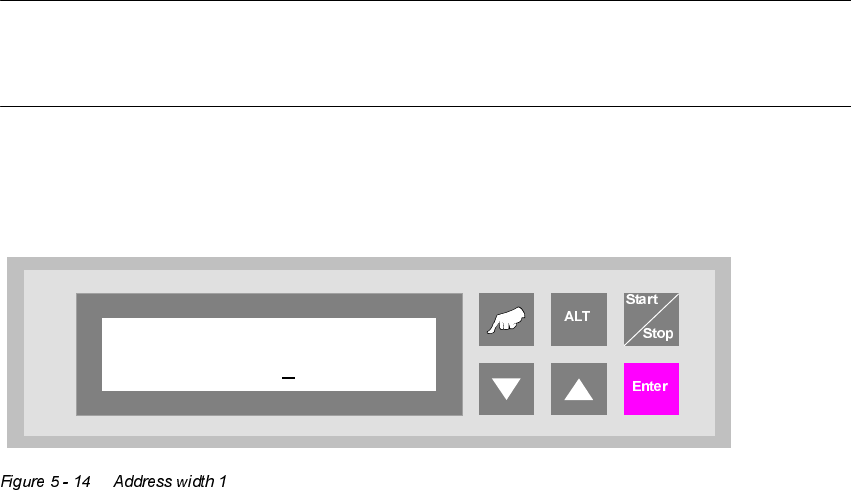
$GGUHVVZLGWK
Address width 1
0000